
How to download files and documents to iPhone or iPad
Downloading and saving files or documents to a computer is something we don’t think about. Click, click, done. It’s saved on the hard drive and ready to be accessed when needed. On iOS, it can get a little more complicated than that.
How do I download a file to my iPhone? Where do I download it to? These are questions I’ve recently been asked, but also problems I have faced myself. In this article, I’ll try to share different options for you to download files to iPhone or iPad.
Where to download files on an iPhone or iPad
Apple has made the lack of an accessible file system a little easier to swallow over the past couple of years, specifically with the expansion of iCloud services but also with the Files app, a front-facing app for most files stored in iCloud and locally on your device.
Apple has also opened things up to third-party applications. Dropbox is probably the most familiar name in the space. Google Drive is also a popular option, and for those users who have limited iCloud storage, these two services might be the best options for downloading files.
In this post, we’ll be working with the Files app, also called iCloud Drive, but the principle is the same regardless of the service you’ll use. All the screenshots will be from an iPhone, but again, the basic principles are identical regardless of the iOS device you’re using, be it an iPhone, iPad, or iPod touch. We are using the Files app because this is a stock application that comes with all iPhones and iPads.
How to download files to iPhone and iPad
The basic principle of downloading files to an iPhone or iPad is fairly simple, regardless of the file you’re trying to download. You can for example download PDFs, Word, Excel, PowerPoint, .zip, .txt, .mp3, .M4a, .wav, .mov, and much more. If it’s a file, it can be downloaded.
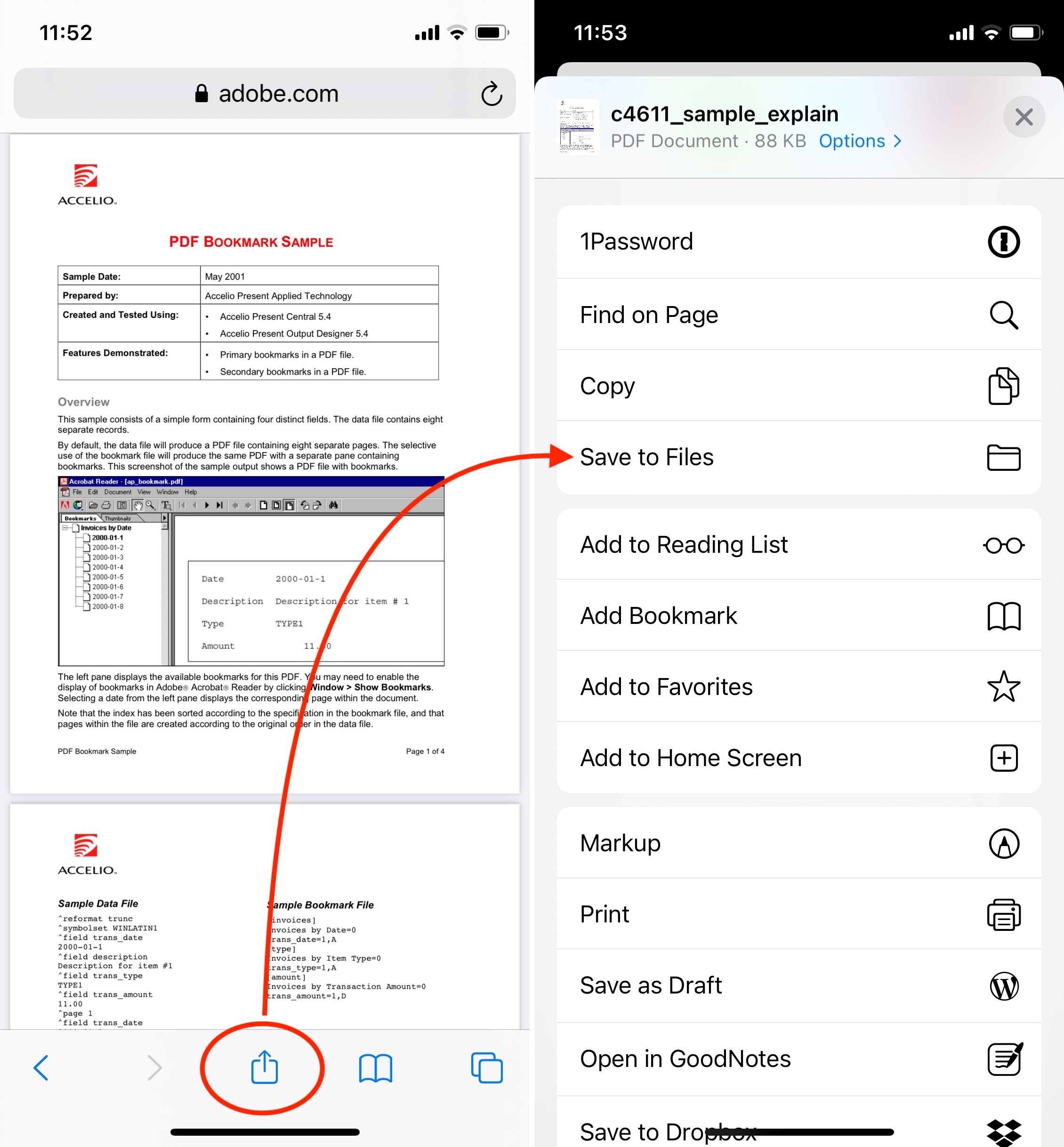
1) On your iPhone or iPad, go to Safari and open the file you are trying to download. In this example, we are trying to download a PDF file.
2) Tap the share button, which will bring up the Share Sheet.
3) Select Save to Files. If you don’t see that option, swipe all the way down and tap on the Edit Actions button. From there, you will be able to enable the Files extension.
4) At this point, you may rename the file and select a specific location before saving it. Personally, I like to save my downloaded files in the Downloads folder, so this is the folder I will select. Now tap the Save button.
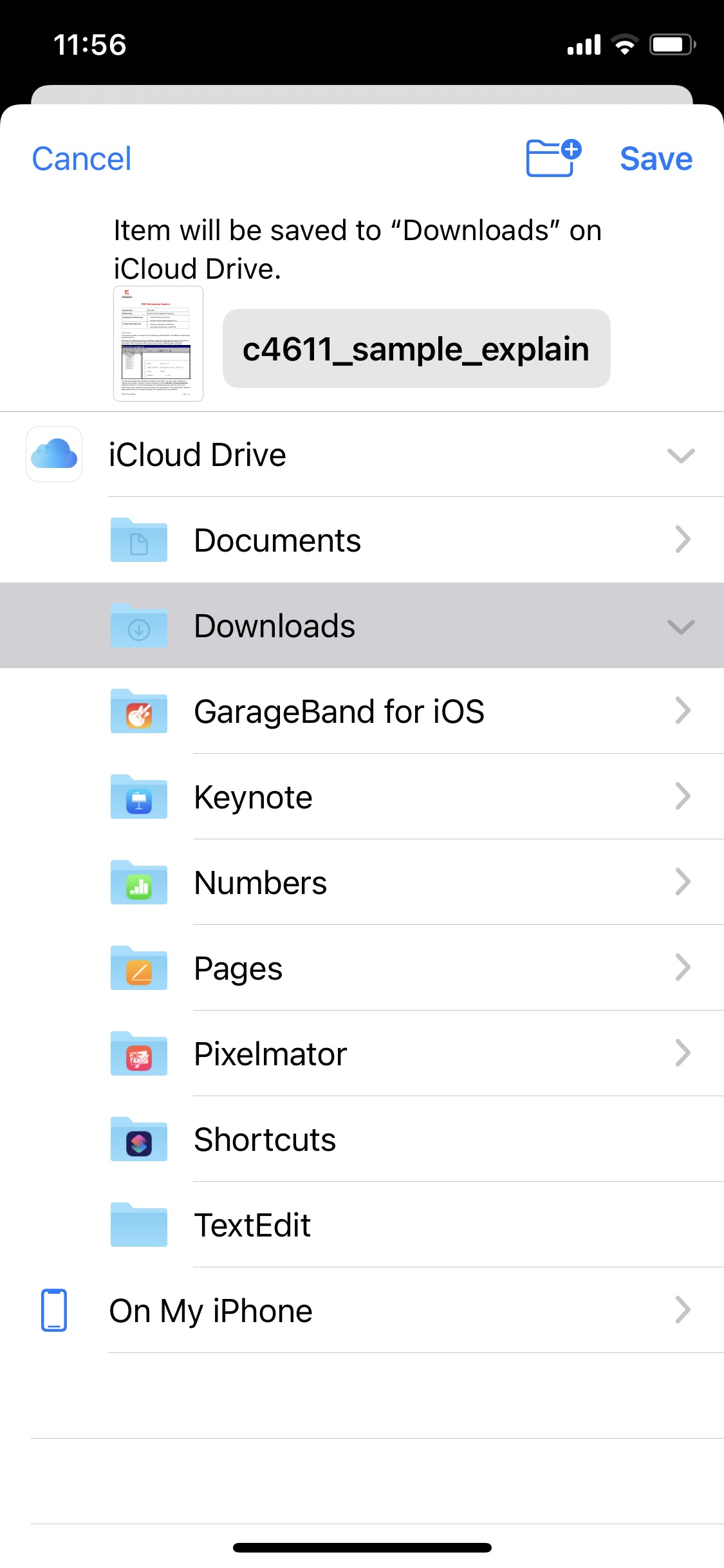
That’s it. The file is now in your iCloud Drive and will be available for easy access across all your devices, such as your computer, your iPhone, iPad, etc.
Once it’s in iCloud Drive (or Dropbox, Google Drive, or whatever other services you may use), you can easily access and share this file from anywhere, assuming you have an Internet connection. If you don’t, you can make specific files available offline.
If your iPhone won’t let you download specific file formats to iCloud Drive, then use Documents 5, as I explain below.
Download files from a password-protected website
The steps mentioned above work great if the file you are trying to download is available publicly from a website. But things can get a little tricky if you are trying to download a file or document that is stored on a password-protected website.
If that’s the case, we’ll need to use another third-party application to do the job. That application is called Documents 5, and it’s free to download from the App Store.
Documents 5 is an amazing application that is primarily a file manager, but it’s more powerful than it sounds. Here is how to use it to download a file from a password-protected site:
1) Launch Documents 5 and open the app’s browser (the button in the lower right corner).
2) Log in to whatever website you need to use to download a file or document.
3) Locate the file you want to download and tap on it to load it.
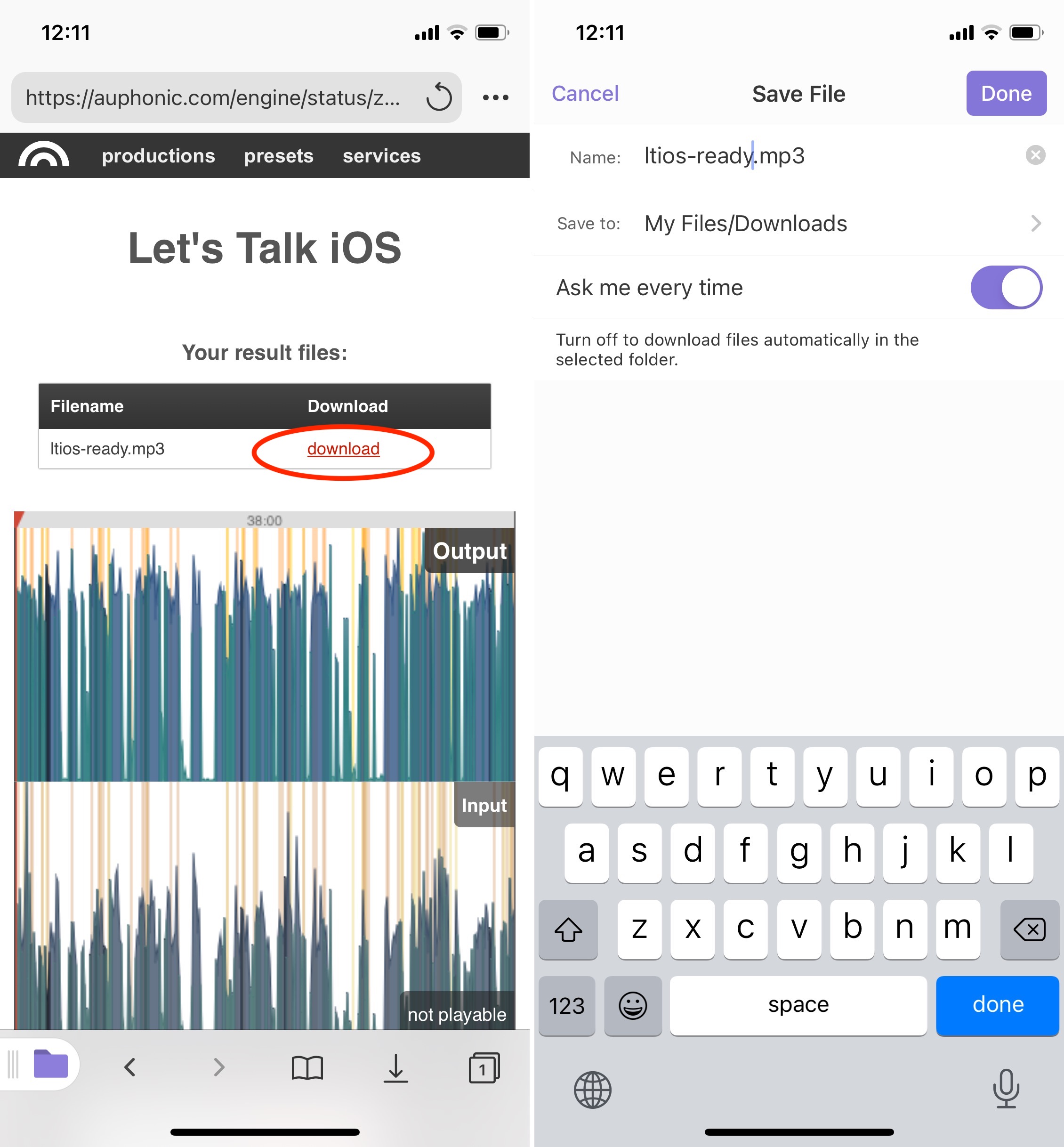
4) The Documents app will automatically prompt you to save that file. From there, you can change the name of the document and select its destination, either locally to the default My Files/Downloads folder of Documents 5 or to iCloud. Tap Done when ready to save the document.
If you choose to download the file to the My Files/Downloads folder, then the file will be stored locally on your device. From Documents 5, you will then be able to move it to iCloud or Dropbox, or Google Drive, for example. You will also be able to share it via email.
Why Documents 5 is a must-have application
Despite the fact that it is completely free, Documents 5 is a great application to have if you’re handling files on your iPhone or iPad. It makes downloading and moving files around a breeze.
Because it can tie into various cloud services and let you access and move files between them, Documents 5 can be the central location for all your file handling needs. Documents 5 can even let you move files around folders and cloud services by using a drag and drop gesture. This makes file handling almost as simple as it would be on a desktop computer. To move a file, simply tap and hold your finger on it, then drag it to your destination of choice. It can be a folder or a cloud service such as iCloud, Dropbox, etc.
Check out next:
- How to access downloaded files on iPhone and iPad
- 6 ways to download Twitter videos on your iPhone
- 3 ways to download music from SoundCloud to iPhone
Documents: Files PDF Browser for iPhone
Documents by Readdle is an iPad app that lets you view and manage files from multiple cloud drive services.
If you use Dropbox, Box, iCloud, and Google Drive, it can be a bit of a pain to keep them all in sync. Documents by Readdle make it easy to manage files from these different services. You can view, download, and upload files to each service.
Documents by Readdle supports a variety of different formats. You can read PDFs, documents, spreadsheets, listen to music, and more. In our testing, PDFs loaded flawlessly and rendered quickly.
Performance is good but not great. Some files take a long time to download but that depends on your connection. There were some stability problems with the app that we noticed during testing. Documents by Readdle would crash if you navigated around the interface without letting everything load completely.
The biggest drawback of Documents by Readdle is its inability to move files between services directly in the app. You still could move a file but it will require you downloading the file and then uploading it to the service you want.
Overall, Documents by Readdle is a great cloud file manager but could use some more features and stability improvements.
- Beautiful interface
- Intuitive controls
- Tons of formats supported
- Good performance
Documents
Documents is about action. Download videos. Read ePUBs. Open ZIP files. Watch movies. Edit PDFs. Documents gives you the superpowers to do what you want with your files.

It’s a superb tool that will help you stay better organized
World’s fastest VPN
Add an extra layer of protection with the world’s fastest VPN. Use it to change your virtual location and enjoy music, video, and the TV shows you love. And yes, once enabled, VPN works perfectly across all your apps.

Compatible with M1 and M2 Macs
Documents is available on M1 and M2, becoming the first super app for desktop. Do what you want with your files, without jumping between dozens of apps. Manage all your files, watch videos, browse the web, edit PDFs, and more.

3 easy ways to add files to Documents


Download files from
the Internet
Use a powerful built-in browser to quickly download mp3, books, videos, and literally anything from the Web. Private browsing is also there to respect your privacy.
FileDrop. Share files with nearby devices
Think of it as an AirDrop on steroids. Now you can instantly send your photos, documents, or entire folders to a nearby iPhone or iPad. And no worries: the file structure in your folder will remain the same.
Wi-Fi Transfer
Transfer music, videos, photos or documents from your iPhone or iPad to a Mac or PC and vice versa with our super-fast Wi-Fi Transfer technology. Just enter a code from the screen and your files are one tap away.
Listen to the music you love
Stream your favorite songs from the cloud or download albums and tracks to listen to them offline. The smart and beautiful media player organizes folders into playlists with the ability to shuffle and loop your favorite tracks.

Watch your favorite movies and TV shows
Keep all your video files at hand for any situation. Planning a trip? Load up your iDevice with favorite movies and TV shows to entertain yourself while on the go.
View and mark up images
Store and view entire photo libraries in your Documents app. Make them more colorful and fun with the new “Mark up” mode, powered by iOS 13 & iPadOS.

Enjoy the ultimate PDF experience
Make beautiful annotations
Jot down notes during the meeting or lecture to make sure no crucial idea slips through the cracks. Make it more colorful and fun with stickers, highlighters, and text.
Advanced PDF editing
Now you can change text, images and links in your PDF documents — as well as reorder, add, and delete pages — right from Documents.
Change images
Fill out PDF forms. Sign contracts.
Fill out PDF forms such as applications or tax forms. Sign contracts with a personal, legally binding electronic signature in a few taps.


Stay in sync with all your files
The Documents app brings all your cloud services together — so you can be organized, stay focused, and get in sync with your team. With all your files organized in one central place, you can safely sync them across all your devices and access them anytime, anyplace.

More than a simple file manager
Indeed, with the Documents app, you can do incredible things on your iPhone and iPad. Unzip archives with family photos, have fun watching videos, listen to music or learn new things with PDF and audiobooks. Everything you need in one place!
Documents: File Manager & Docs 17+
-
Productivity: № 40 в этой категории
-
Оценок: 34,2 тыс.
Rsuvy , 19.03.2023
Documents
Awesome app for all kinds of needs you can think of. Have it for 5 years already, no ads, easy to use, etc. Recommend to everyone.
Only thing I suggest the developers to add is the ability to change covers on the audio files.
Ответ разработчика ,
Hello there, thank you for your suggestion — If you’d like to share more details with us and to get your vote for the feature added to our list, drop us a line at rdsupport@readdle.com.
Thanks, Marina
KaiNomad , 06.02.2020
All files in one place
I hate it when apps put their files in their own folders. I want to know where my files are, to be able to erase them when I want, without using a dedicated cleaner. Documents allows me to do that. Also it doesn’t mind moving audio and video files that don’t have DRM protection
Marakano , 22.08.2020
my child accidentally renewed the subscription
dear developer I ask you to return the product to me because my child accidentally renewed the subscription I ask you