
How to Boot Samsung Devices into Download Mode or Odin Mode
All Android devices have a bootloader, fastboot, and recovery mode. While the bootloader or fastboot mode allows us to flash firmware and recovery files, you can wipe your device and flash OTA ‘update.zip’ via the recovery mode. Every user must know about the methods to boot into them. Today, we’ll see how we can boot into the Samsung Download Mode using hardware keys. Not just that, you can also use the Samsung Download Mode tool called 300K Tool and ADB command to get into the Bootloader or Odin Mode and Recovery Mode without keys.
Quick Links Click to see
What is Download Mode on Samsung?
While most Android devices have a regular bootloader and fastboot mode, OEMs like Samsung, Nokia, and LG phones come with the Download Mode. Having booted your phone in the Fastboot mode, you can flash stock firmware and factory images. However, you can’t execute Fastboot commands in the Download Mode. All devices with the Download Mode support firmware flashing via manufacturer-specific official tools like Samsung Odin, LG Flash Tool, Nokia OST Tool, etc.
The Download Mode on Samsung Galaxy devices is also known as the Odin Mode. When put in this mode, your Samsung phone or Tab can install firmware files BL, AP, CP, and CSC via the Odin Tool. By flashing the firmware files to your device, you can recover your phone from a boot loop, update or downgrade software, and restore it to stock. While Nokia phones often get stuck in the Download Mode after a software update failure, there’s no such issue on Samsung devices. While the Download Mode on Nokia devices supports Fastboot commands, Samsung devices don’t.
Enter Download Mode on Samsung Devices
There are 3 ways to boot Samsung Galaxy smartphones and tablets into the Download or Odin mode.
- Using hardware key combination
- Samsung 300K Tool or Samsung Download Mode tool
- Using ADB command
The last two methods can boot your device into the Download Mode without pressing the keys or buttons. Also, learn how you can turn the Safe Mode on and off on your Samsung device.
1. Samsung Download Mode Key Combinations
This is probably the most popular way to enter Odin Mode on Samsung devices. It was the universal method until all Samsung phones and tablets had the Power, Home, and Volume keys. However, with the departure of the Home button and with the introduction of the Bixby button on some Galaxy devices, the hardware key combination to get into the Download Mode has not only changed but also varies from device to device.
On Samsung Devices with Home, Power, and Volume Keys
Older phones like Samsung Galaxy S2, Galaxy S3, Galaxy S4, Galaxy S5, Galaxy S6, Galaxy S7/S7 Edge, Galaxy Note, Galaxy Note 2, Galaxy Note 3, Galaxy Note 4, Galaxy Note 5, Galaxy Note 7, etc. have Power, Home, and Volume buttons.
- Turn off your phone or tablet.
- Now press and hold the Home + Volume Down + Power keys simultaneously for 2-3 seconds.
- Release the keys and then press the Volume Up key to continue to the Download Mode.
On Samsung Devices with Power and Volume Keys
Smartphones like Samsung Galaxy A8 (2018), etc. have just the Power and Volume (Up & Down) buttons. If you own one such Samsung device, follow the steps below.
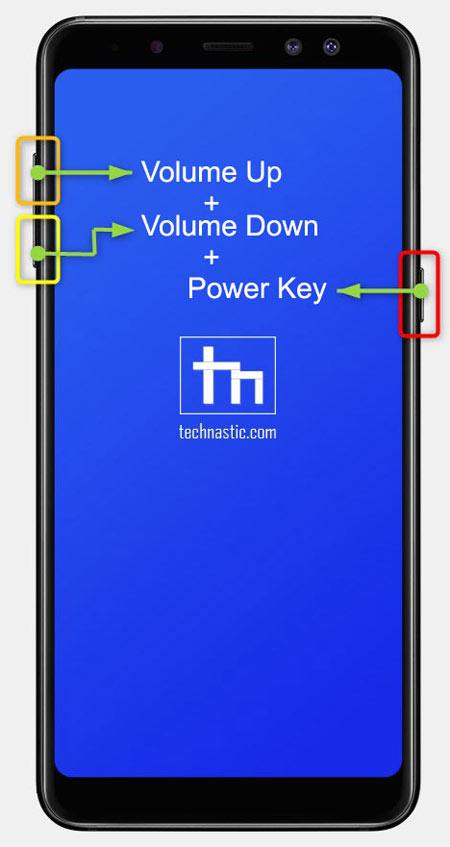
- Power off your Galaxy device.
- Hold the Volume Up + Volume Down + Power buttons at the same time for 2-3 seconds.
On Samsung Devices with Power, Bixby, and Volume Keys
Samsung smartphones like Galaxy S8, Galaxy S9, Galaxy S10, Galaxy Note 9, etc. come with Power, Volume+, Volume-, and Bixby keys. On such devices, you can get into the Download Mode as follows.
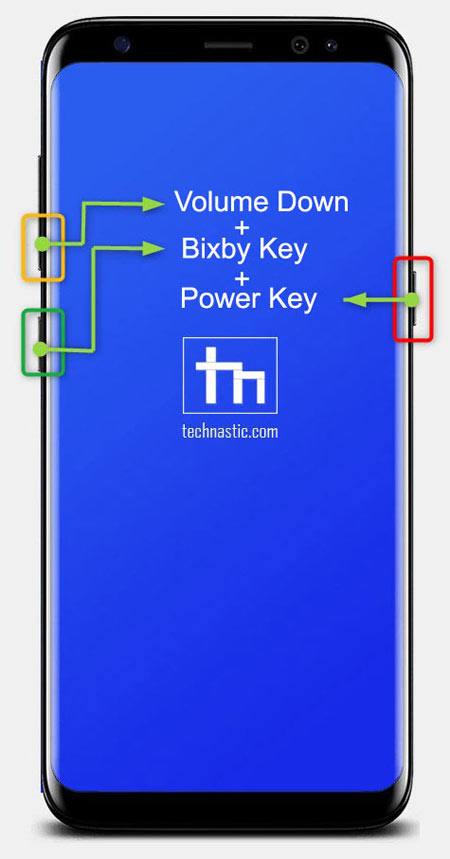
- Turn off your smartphone.
- Press and hold the Volume Down + Bixby + Power keys together for 2-3 seconds.
- On the next screen, you will be prompted to press the Volume Up button. Just do it.
On Samsung Devices with Volume and Power-cum-Bixby Keys
On Galaxy devices like the Galaxy S22, S21, Note 10, Galaxy A90, Galaxy A80, Galaxy A70, Galaxy A50, Galaxy A40, etc., Samsung has merged the Bixby and Power keys. To boot such devices into the Download Mode, follow these steps:
- Power off your device.
- Connect it to a PC using a USB cable.
- When the charging animation stops, press and hold the Volume Up + Power buttons at the same time.
- When you see the Samsung logo, release the buttons.
- Your Samsung device will boot into the Recovery Mode. You can use the Volume up/down key to navigate and the Power button to select options in the Recovery Mode.
- Highlight the Reboot to bootloader option in the recovery menu and press the Power key.
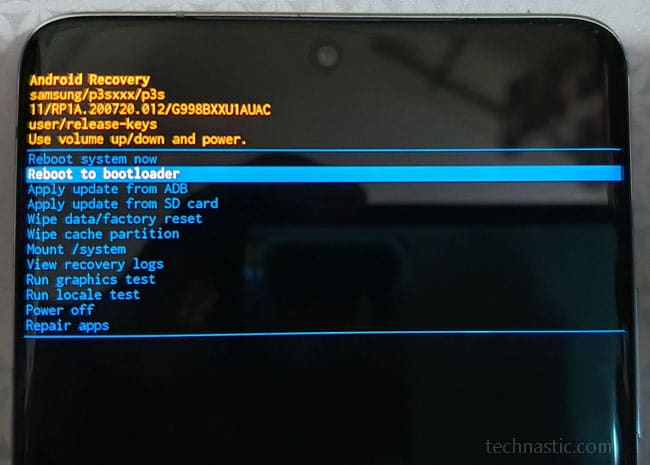
Galaxy S22 Ultra recovery mode
Samsung Galaxy S22/S23 Download Mode
I recently purchased a Samsung Galaxy S23 Ultra but when I tried to boot my phone into the Download Mode, the Volume Up + Power button combination didn’t work for me. Samsung is changing the way we used to enter the download and recovery mode on Samsung devices.
If you own a Samsung Galaxy S23, Galaxy S23+, or Galaxy S23 Ultra, follow the steps below to boot your phone into the Download Mode. The method also works on the Galaxy S22, S21, and Galaxy Note 20.
- Turn off your Galaxy S23.
- Hold the Volume UP + Volume Down keys simultaneously and connect the phone to your computer using a USB cable. Keep the buttons pressed for 5-7 seconds.
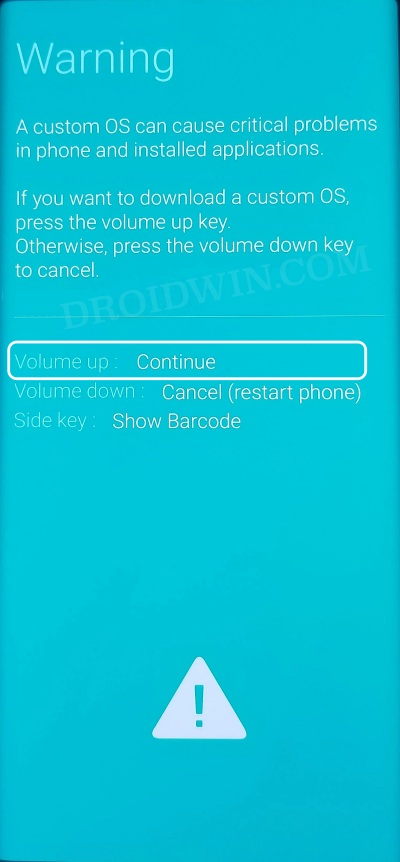
- You’ll see a Warning screen as shown below.

- Press the Volume Up key to enter the Download mode.
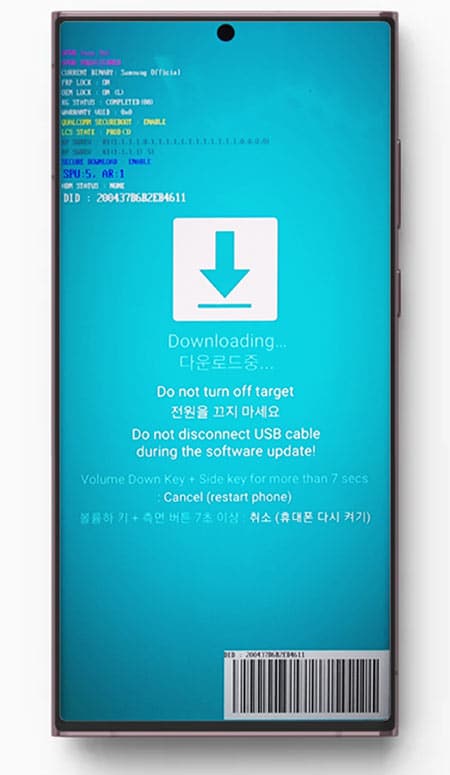
Using the Volume Up + Volume Down keys only
In case the Power button on your Samsung phone or Galaxy Tab is not functioning, you can boot it into the Odin mode using the volume keys only.
- Turn off your Samsung device.
- Press and hold the Volume Up+ Volume Down keys simultaneously.
- Then plug the USB into your device.
- Ensure the USB cable is connected to a power source such as a charger or a PC.
- Keep the buttons pressed until you see the Warning screen and then press the volume up key to get into the Download mode.
2. Boot into Samsung Download Mode without Keys
There are actually 2 methods to get into the Download Mode without pressing the hardware keys on your device. Both these ways require a computer and a USB cable.
Enter Samsung Download Mode via ADB Command
One of the many things that we can do with ADB commands is to make your Samsung Galaxy device boot into the Download mode using your computer. The best part of the game is you can do that without pressing any key. This method works for all Android devices.
- Install the latest Samsung USB driver if you don’t have it installed already.
- Download the latest Platform Tools (ADB and Fastboot tools) for Windows, Mac, or Linux and save it on your desktop.
- Extract the downloaded zip.
- Open the extracted platform-tools folder.
- Launch the command prompt. Place the mouse cursor at an empty spot inside the folder windows. Press the Shift key + right-click on the mouse and select Open PowerShell window here from the context menu. Alternatively, you can type “cmd” in the folder address bar and hit the Enter key to launch the command window.
- Enable USB debugging on your Samsung device.
- Connect your device to the computer via a USB cable and make sure your device screen is unlocked while you execute the commands.
- Now, type the following command in the command window to check your device is properly connected.
adb devices

If you get a string of alphanumeric values (the serial number of your phone) in the command window, it means ADB has recognized your device.
Windows: adb reboot download macOS & Linux: ./adb reboot download
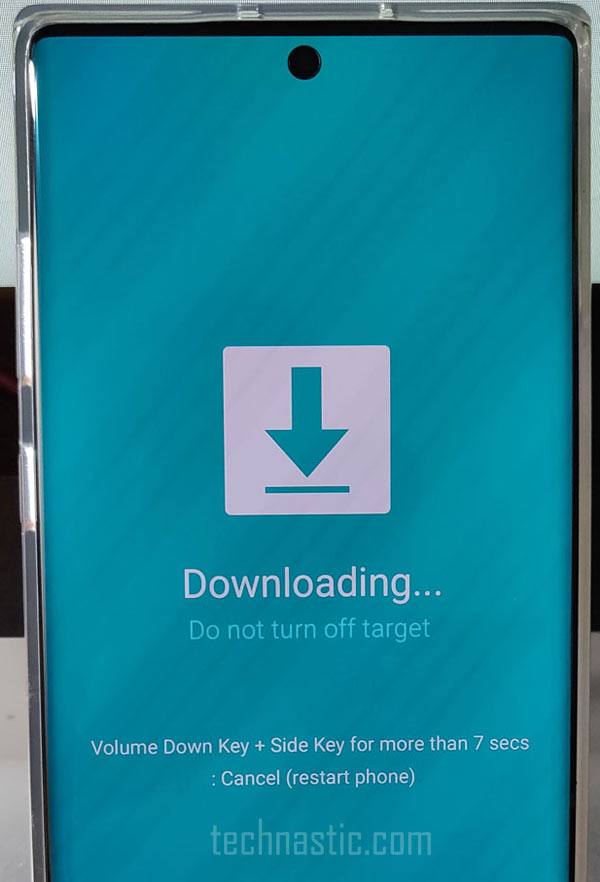
Samsung Download or Odin mode
You are now all set to flash the stock Samsung firmware using Samsung Odin. If you haven’t downloaded the firmware yet, you can use the best Samsung firmware download tool named Frija.
3. Samsung Download Mode Tool
I really don’t have any idea why the developer named it like that but Samsung 300K is a great tool. It is a very small portable utility that makes your Samsung device reboot into the Download Mode with just a single click. Samsung 300K is a tiny executable (EXE) software that can boot your Samsung Galaxy phone into the Download Mode in a single click.
- Download Samsung 300K Tool.zip.
- Turn off the antivirus program on your Windows PC. Your antivirus software might report that the file has a virus but ignore it.
- Now, unzip the file and open the extracted folder.
- Turn on USB debugging on your Samsung device and connect your phone to the computer.
- Double-click the Samsung 300K Tool.exe file to launch the program.
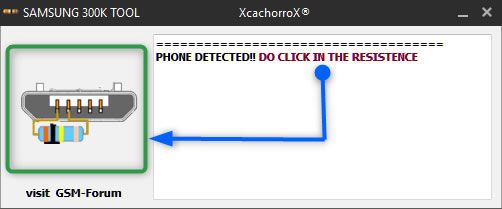
Samsung 300K Tool
Note: If you entered the Download Mode on your Samsung device by mistake, you can exit by holding the Volume Down + Power buttons simultaneously for 7-8 seconds.
How to Boot Galaxy S23/Plus/Ultra to Download Mode [3 Methods]
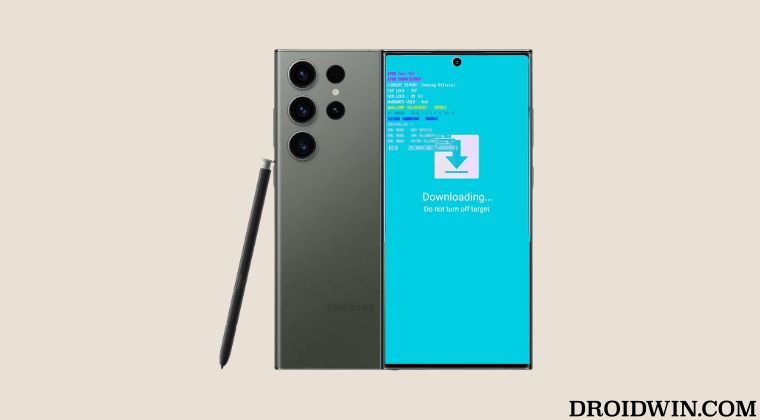
In this guide, we will show you various methods to boot your Galaxy S23/Plus/Ultra to Download Mode. While it is usually an underrated statement, the devices from Samsung are among the most popular players in custom development. And if you won one of its flagships [the S series], then it’s usually one of the active participants and the most developer-friendly devices out there.
From gaining administrative privileges to welcoming abode a plethora of mods, there’s a lot to look forward to. But before you could carry out any of these tweaks, there’s an important prerequisite that you need to checkmark off the list- you have to boot your Galaxy S23/Plus/Ultra to Download Mode. But what exactly is this mode and how could you access it on your device? Let’s check out.
Table of Contents
What is Download Mode in Galaxy S23/Plus/Ultra
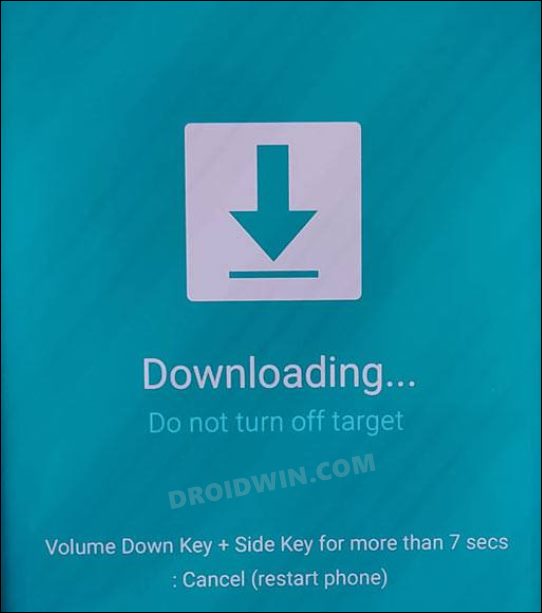
Similar to Fastboot Mode in other Android devices, the Download Mode is a flash mode for Samsung devices that is used to flash different types and formats of files. From rooting your device via patched AP to flashing combination firmware, or flashing individual firmware files [AP, BL, CP, CSC, and Home CSC] to their respective partitions, all these tasks require you to access this mode.
Moreover, when it comes to flashing, you’ll have to use the Odin Tool in most cases, instead of the generic Fastboot Commands that you used to associate with non-Samsung devices. As a result of which, you would come across the term Odin Mode in some cases as well, which has now become a synonym with Download Mode.
How to Boot Galaxy S23/Plus/Ultra to Download Mode
Now that you are aware of the Download Mode, let’s show you three different methods through which you could boot your Galaxy S23/Plus/Ultra to this mode.
Using Volume Keys
This is the generic and easiest method out of the three listed here and is widely used by the masses.
- Plug one end of the USB cable into your PC but keep the other end free.
- Then power off your device. Now press and hold Vol Up + Vol Down together.
- While having both these keys pressed, connect your device to the other end of the USB cable.
- As soon as you see the Warning message on your device, release the pressed keys.
- Then press the Volume Up key once and your device will boot to Download Mode.
From Recovery Mode
If you are currently in the Recovery Mode, then there’s no need to first boot your device to OS, rather you could directly access the Download Mode from the Recovery Mode itself. Here’s how:
- Power off your device and connect it to your PC via a USB cable.
- Then press and hold the Volume Up + Power keys for around 7 seconds. [Press and hold these keys as soon as the device turns off/the Samsung logo disappears but before the appearance of the charging percentage]
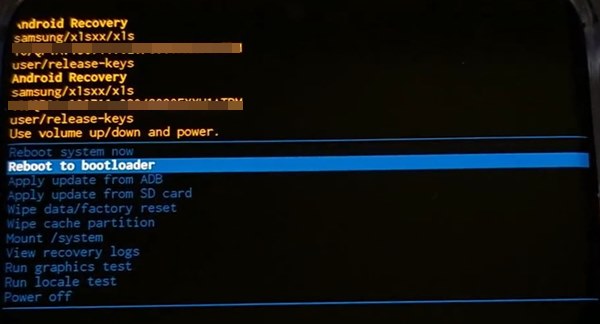
- Your device will now boot to the Recovery Mode.
- So use the Volume keys to highlight Reboot to Bootloader and press the Power key to confirm.
- Your Galaxy S23/Plus/Ultra will now reboot to Download Mode.
Via ADB Commands
While this is the most technical approach out of the three but its always good to have such an approach in our arsenal!
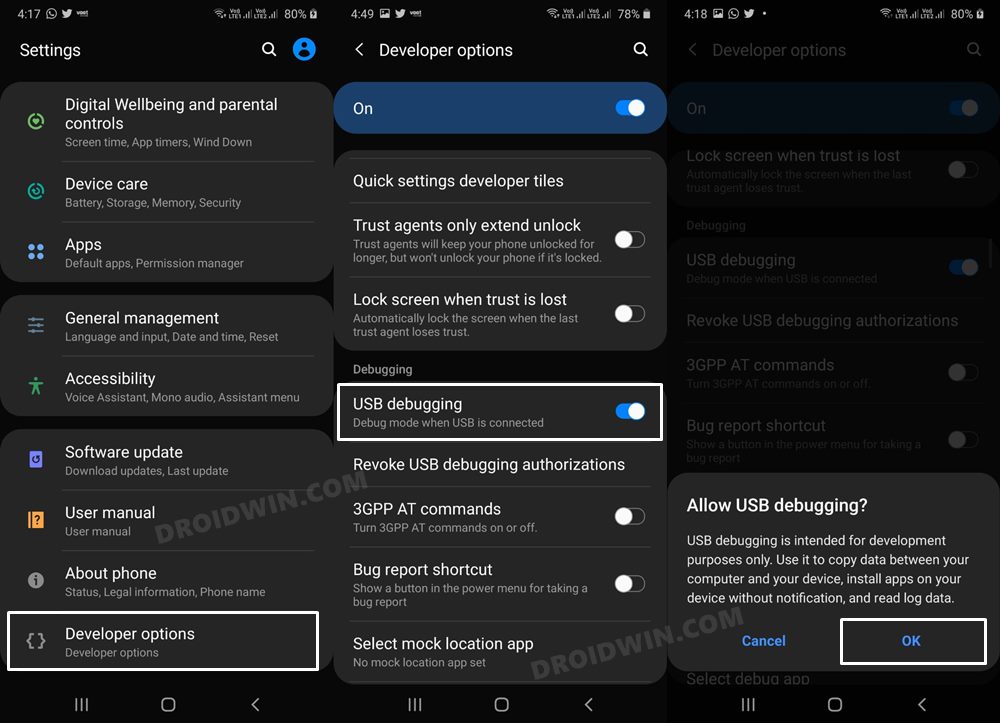
- Head over to Settings > About Phone > Software Information.
- Then tap on Build Number 7 times. This will enable Developer Options.
- Now go to Developer Options and enable the toggle next to USB Debugging.
- Then download and extract Android SDK Platform Tools on your PC.
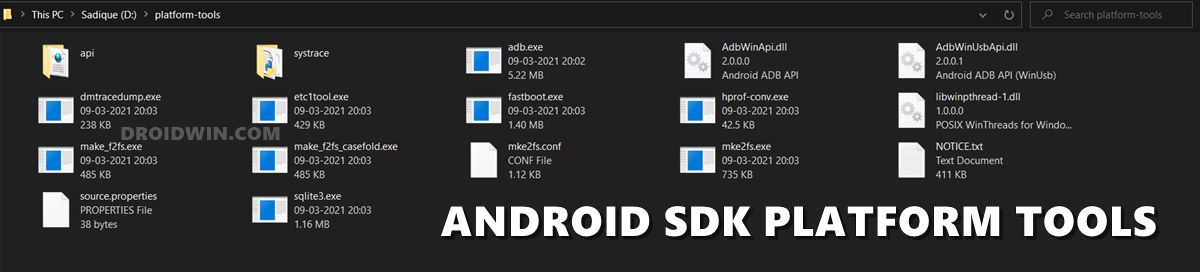
- Now go to its address bar, type in CMD, and hit Enter. This will launch Command Prompt.
- Then execute the below command in the CMD window to boot your device to Download Mode
adb reboot bootloader
adb reboot download
How to Exit Download Mode on Galaxy S23/Plus/Ultra
If you are done using the Download Mode and wish to boot your device back to the OS, then just press and hold the Power and Volume Down keys for around 7 seconds. Your device will now exit Download Mode and boot to the system.
That’s it. These were the three different methods through which you could boot your Samsung Galaxy S23/Plus/Ultra to Download Mode. If you have any queries concerning the aforementioned steps, do let us know in the comments. We will get back to you with a solution at the earliest.
- How to Boot Galaxy S23/Plus/Ultra To Recovery Mode [2 Methods]
- How to Boot Galaxy S23/Plus/Ultra to Download Mode [3 Methods]
- Guide to Unlock Bootloader on Galaxy S23/Plus/Ultra
- How to Root Samsung Galaxy S23 Ultra via Magisk [New Method]
About Chief Editor
Sadique Hassan
A technical geek by birth, he always has a keen interest in the Android platform right since the birth of the HTC Dream. The open-source environment always seems to intrigue him with the plethora of options available at his fingertips. “MBA by profession, blogger by choice!”
How to Boot any Samsung Device to Download Mode
In this guide, we will show you the steps to boot any Samsung Galaxy device to the Download Mode. There are a plethora of tweaks that you could carry out on your Samsung devices. While its underlying OneUI is quite customizable in itself, but that’s just the tip of the iceberg. You could carry out tons of other modifications once you step into the custom development. Once you have unlocked the device’s bootloader, you could then flash a plethora of custom binaries.
These include flashing custom ROMs, custom recoveries, and even gaining access to the system partition via root. However, most of these tweaks (if not all) require your device to be booted to the Fastboot or Recovery Mode. But in the case of Samsung devices, there is no Fastboot or Bootloader Mode as such. Instead of that, you get the Download Mode (similar to the ones that Nokia and LG have to offer). So what exactly is the use of this Download Mode and how you could boot your Samsung device into this mode? Well, let’s check it out.
- Edit any Webpage, Website, or even WhatsApp Chats (Both Sent and Received)!
- How to Send Fake Live Location on WhatsApp
- How to Restore an Old WhatsApp Chats Backup
- Use WhatsApp Entirely (Messages, Audio, Video Calls) in Handsfree Mode
Table of Contents
What is Download Mode in Samsung?
Download Mode is similar to what the Fastboot Mode in other devices (such as Pixel and OnePlus has to offer). Also known as the Odin Mode, it allows you to flash various types of files including BL, AP, CP, and CSC. All these could be installed onto your device using the dedicated Odin Tool. Along the same lines, you could also unlock the device’s bootloader, flash TWRP, or the Magisk patched boot.img file via this mode and the aforementioned tool.
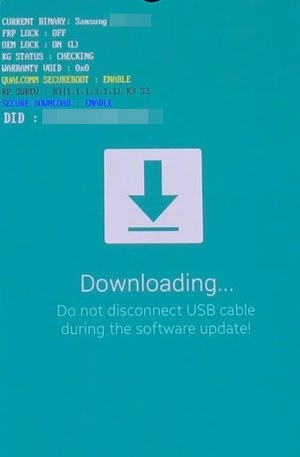
Likewise, Download Mode also makes it possible to flash stock firmware onto your Samsung devices. This in turn will help you to recover your device from a soft-brick or boot-loop state. With such a plentitude of perks involved, no doubt this mode is a boon for the tech enthusiasts. However, it could also lead to some confusion among the users. The reason? Well, there is no universal hardware key combinations to boot your Samsung device to Download Mode.
Just to reiterate this fact, consider this: Home, Power and Volume Keys | Power and Volume Keys | Power, Bixby, and Volume Keys | Volume and Power-cum-Bixby Keys | Volume Up + Volume Down keys only. These are the various key combinations through which you could boot a Samsung device to Download Mode. Isn’t that confusing? This is where this guide shall help you out. Follow along for the detailed instructions set.
- Fix Magisk Module Bootloop without TWRP Recovery
- How to Fix TWRP Error 20 GApps after flashing LineageOS
- How to Fix TWRP Error 70 [With Screenshots]
- Fix TWRP Error 7 (While Flashing Custom ROM via TWRP)
How to Boot any Samsung Device to Download Mode?
Given below we have shared all the possible methods through which you could boot your Samsung device to Download Mode. Without further ado, let’s check them out.
Samsung Devices with Home, Power, and Volume Keys
Older Samsung Note and Galaxy devices that came with all the three Home, Power, and Volume Keys could boot their device to download Mode as follows:
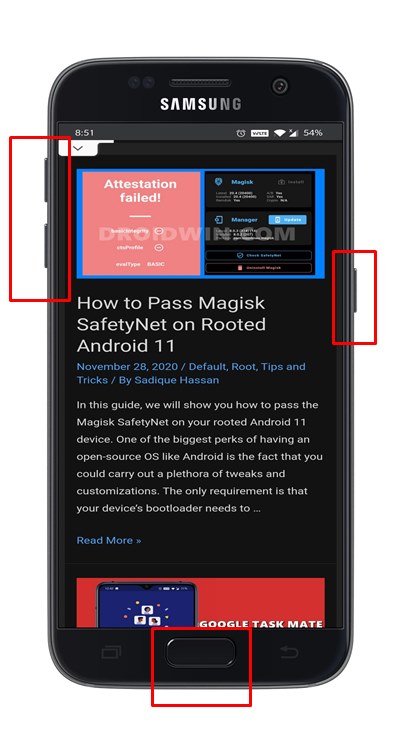
- Power off your device.
- Then press and hold the Home + Volume Down + Power keys for a few seconds.
- Now release all these keys and then press the Volume Up key to continue booting to Download Mode.
Samsung Devices with Power and Volume Keys (no Home Button)
If your device doesn’t have a dedicated Home button, then here’s what’s needs to be done:
- Turn off your device.
- Then press and hold the Volume Up + Volume Down + Power button for a few seconds.
Samsung Devices with Power, Bixby, and Volume Keys
if your device has a dedicated Bixby key, then follow the below steps:
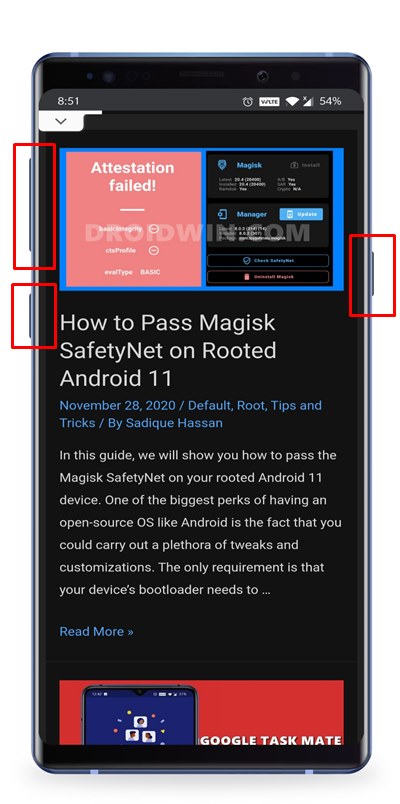
- Power off your phone.
- Then press and hold the Volume Down + Bixby + Power key for a few seconds.
- You will now be instructed to press the Volume Up button, do so and your Samsung device will be booted to Download Mode.
Samsung Devices with Volume and Power-cum-Bixby Keys
If your device has a single key that acts both as a Powe button as well as the Bixby key (newest Galaxy and Note series devices), then proceed with the below steps:
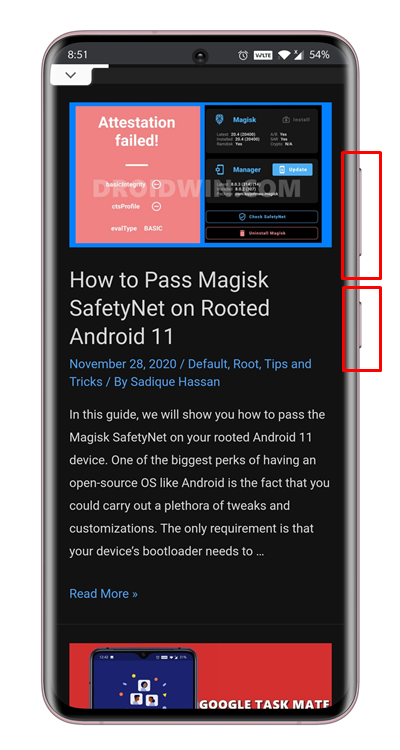
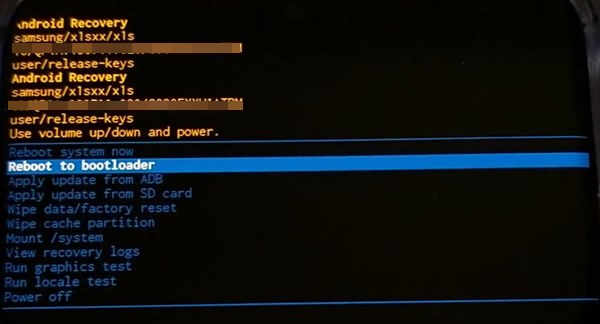
- Power off your device.
- Press and hold the Volume Up and the Power keys for a few seconds.
- The device should now be booted to the Recovery Mode.
- Use the Volume keys to select the Reboot to Bootloader option and hit the Power key to confirm this decision.
- Your device will now be booted to Download Mode.
Boot Samsung Device to Download Mode Using only Volume Up + Volume Down
- Some Samsung devices could be booted to Download Mod using only the Volume keys. here’s how:
- Power off your device. Likewise, connect a USB cable to your PC.
- Now press and hold the Volume Up+ Volume Down keys.
- Keeping both these keys pressed, connect your device to the USB cable (which has already been connected to your PC).
Boot Samsung Device to Download Mode without using any Button
If your device’s Power, Home Bixby, or the Volume Keys aren’t responding, then the above instructions might prove to be quite challenging. Fortunately, there exists another method to boot any Samsung device to Download Mode that doesn’t involve any buttons or hardware keys. This process will be carried out using just a single ADB Command, as mentioned below.
- First off, download and install the Android SDK Platform Tools on your PC. This will provide you the necessary ADB and Fastboot binaries.
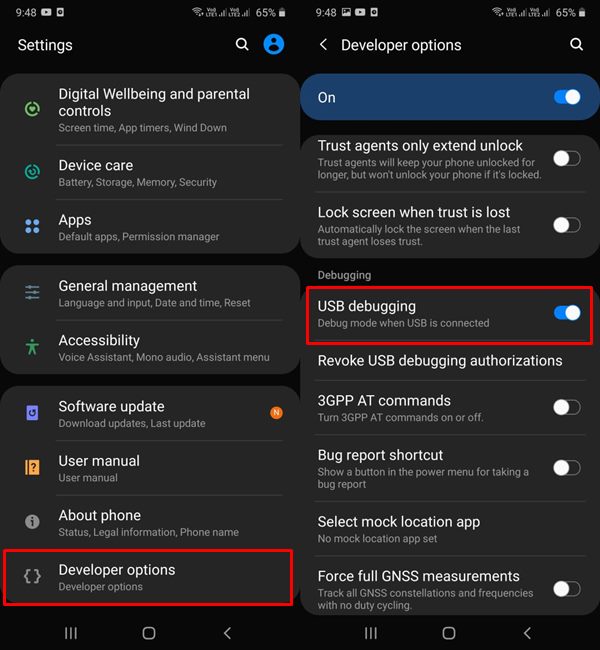
- Likewise, also enable USB debugging on your device. This will help your PC identify your device in ADB mode. So head over to Settings > About Phone > Software Information > Tap on Build Number 7 Times > Go back to Settings > Developer Options > USB Debugging.
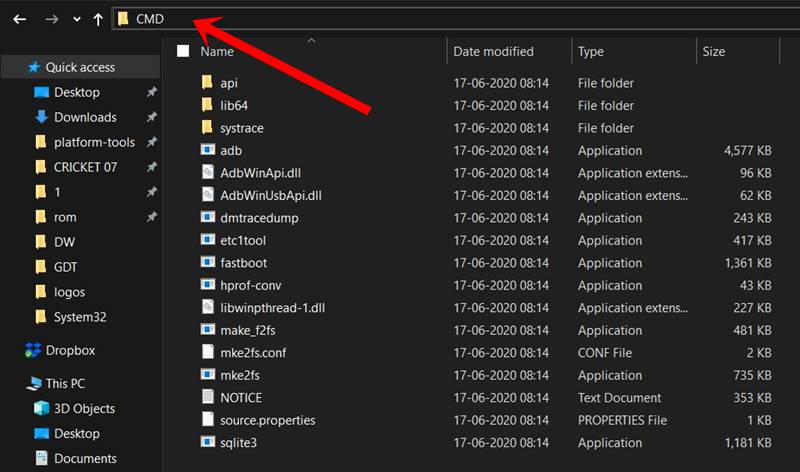
- Once done, head over to the platform-tools folder, type in CMD in the address bar, and hit Enter. This will launch the Command Prompt.
- Finally, type in the following command in the CMD window to boot your Samsung device to Download Mode:
adb reboot bootloader
If you face the USB Unauthorized message, then please refer to this fix: How to Fix Unauthorized Device with ADB Commands [3 methods]. With this, we conclude the guide on how to boot any Samsung Galaxy device to the Download Mode. We have also shared the universal method that doesn’t require any hardware keys. With that said, if you have any queries, do let us know in the comments section below.
- Root Android 11 via Magisk Patched boot.img (without TWRP)
- Fix Magisk patched boot.img issue while Rooting Android 11
- How to Update Magisk ZIP and Magisk Manager (without TWRP)
- [Update: Added Magisk 21] Everything About Magisk- Manager, Modules and More
About Chief Editor
Sadique Hassan
A technical geek by birth, he always has a keen interest in the Android platform right since the birth of the HTC Dream. The open-source environment always seems to intrigue him with the plethora of options available at his fingertips. “MBA by profession, blogger by choice!”
Как перевести Samsung в режим Download: подробная инструкция
Один из самых важных режимов, которые могут понадобиться владельцу Samsung, — это режим Download. Он позволяет загружать модифицированное ПО, прошивки и другие файлы на устройство. В этой статье мы расскажем, как перевести Samsung в режим Download и как использовать его.
Перевод Samsung в режим Download может понадобиться, если вы хотите прошить устройство, установить кастомное рекавери или полностью изменить операционную систему устройства. Этот режим дает доступ к внутренней памяти устройства, что позволяет загружать и устанавливать новое ПО.
Для перевода Samsung в режим Download вам потребуется специальный кабель — USB-кабель, который подключается к компьютеру. После подключения кабеля необходимо включить режим Download на самом устройстве. Чтобы это сделать, следуйте инструкциям:
Шаг 1: Выключите ваше устройство.
Шаг 2: Удерживая одновременно кнопки «Уменьшить громкость», «Home» и «Включить», включите устройство.
Шаг 3: После того, как на экране появится предупреждение, нажмите кнопку повышения громкости, чтобы подтвердить вход в режим Download.
Как только вы этих шагов, ваш Samsung будет переведен в режим Download, и вы сможете загружать и устанавливать новое ПО на устройство. Не забудьте обязательно следовать инструкциям и сохранять все важные данные на компьютере перед прошивкой вашего устройства!

Как перевести Samsung в режим Download
Режим Download на Samsung позволяет пользователю загружать и устанавливать прошивки на устройство с компьютера с помощью программного обеспечения, такого как Odin. В этой инструкции мы расскажем, как включить режим Download на устройствах Samsung.
Шаг 1: Выключите устройство
Нажмите и удерживайте кнопку питания на устройстве, пока не появится меню включения. Затем выберите опцию «Выключить» и подтвердите свой выбор.
Шаг 2: Запустите устройство в режиме Download
Для большинства устройств Samsung в режиме Download используется комбинация кнопок. Обычно это сочетание кнопок «Громкость вниз», «Домашняя» и «Питание». Вот как это сделать:
- Удерживайте кнопку «Громкость вниз» и не отпускайте ее.
- Удерживайте кнопку «Домашняя» и не отпускайте ее.
- Удерживайте кнопку «Питание» и не отпускайте ее.
- Когда появится экран с предупреждением о восстановлении системы Android, отпустите все кнопки.
- Нажмите кнопку «Громкость вверх», чтобы подтвердить вход в режим Download.
На некоторых устройствах может быть другая комбинация кнопок, чтобы войти в режим Download. Если вы не можете войти в режим Download, попробуйте посмотреть в инструкции к вашему конкретному устройству.

Шаг 3: Подключите устройство к компьютеру
Используя USB-кабель, подключите ваше устройство Samsung к компьютеру.
Шаг 4: Используйте программное обеспечение для загрузки прошивки
Теперь вы можете использовать программное обеспечение, такое как Odin, для загрузки и установки прошивки на ваше устройство Samsung.
Важно: Будьте осторожны при изменении прошивки на вашем устройстве, так как неправильная установка прошивки может привести к неработоспособности устройства.
Следуйте этим инструкциям, чтобы перевести ваше устройство Samsung в режим Download и установить новую прошивку с помощью программного обеспечения на компьютере.
Подробная инструкция для смартфонов Samsung
Если вам необходимо перевести свой смартфон Samsung в режим Download, следуйте этой подробной инструкции:
- Перезагрузите смартфон: удерживайте нажатой кнопку включения/выключения до появления меню выключения.
- В меню выключения нажмите и удерживайте «Выключить» или «Перезагрузить» (это может отличаться в зависимости от модели).
- После этого появится окно с предупреждением. Пролистайте вниз и найдите опцию «Download Mode» или «Загрузочный режим».
- Нажмите на эту опцию, и смартфон перейдет в режим загрузки.
- В режиме Download вы можете подключить свой смартфон к компьютеру с помощью USB-кабеля и выполнить различные операции, такие как прошивка устройства или восстановление прошивки.
Убедитесь, что вы следуете указанным выше инструкциям внимательно, чтобы избежать непредвиденных проблем со своим смартфоном Samsung.

Режим Download: что это?
Режим Download – это специальный режим работы, предназначенный для подключения мобильного устройства Samsung к компьютеру с помощью программного обеспечения Odin. В этом режиме можно прошивать или восстанавливать устройство, устанавливать кастомные рекавери или ядра, а также выполнять другие системные операции.
Загрузить устройство в режим Download можно с помощью комбинации клавиш на физических кнопках устройства. В зависимости от модели Samsung эта комбинация может немного отличаться, но в большинстве случаев она включает в себя нажатие и удержание одновременно нескольких кнопок, таких как «Громкость вниз», «Питание» и «Домой».
Когда устройство находится в режиме Download, на его экране появится соответствующая надпись, а в программе Odin появится уведомление о том, что устройство успешно подключено. Это позволяет начать передачу необходимых файлов с компьютера на устройство, которые будут использованы для прошивки или других операций.
Примеры комбинаций кнопок для входа в режим Download
Важно помнить, что режим Download предназначен для опытных пользователей и использование его без необходимых знаний и навыков может привести к непредвиденным последствиям, включая поломку устройства. Поэтому перед выполнением операций в режиме Download рекомендуется ознакомиться с инструкциями и руководствами для конкретной модели устройства или обратиться за помощью к специалисту.
Помощь от pc-help: проблемы и решения
Компания pc-help предоставляет разнообразные услуги по решению проблем, связанных с устройствами и программным обеспечением Samsung. Ниже приведены некоторые распространенные проблемы и способы их решения.
1. Проблема: Устройство Samsung не включается
Если ваше устройство Samsung не включается, попробуйте следующие решения:
- Убедитесь, что устройство полностью заряжено.
- Попробуйте подключить устройство к зарядному устройству и дождитесь, пока на экране появится знак заряда.
- Если вы все еще не можете включить устройство, попробуйте выполнить сброс настроек до заводских.
- Если ничего не помогает, обратитесь в сервисный центр Samsung или свяжитесь с командой pc-help для получения дополнительной помощи.
2. Проблема: Устройство зависает или работает медленно
Если ваше устройство Samsung зависает или работает медленно, воспользуйтесь следующими решениями:
- Проверьте, есть ли достаточно свободной памяти на устройстве, и удалите неиспользуемые приложения или файлы.
- Очистите кэш устройства и перезагрузитесь.
- Обновите операционную систему до последней версии.
- Попробуйте выполнить сброс настроек до заводских.
- Если проблема не устраняется, обратитесь в сервисный центр Samsung или свяжитесь с командой pc-help для получения дополнительной помощи.
3. Проблема: Не работает функция зарядки
Если функция зарядки вашего устройства Samsung не работает, примените следующие решения:
- Проверьте, что зарядное устройство и кабель подключены правильно.
- Попробуйте использовать другое зарядное устройство и кабель.
- Очистите разъем зарядки от пыли и грязи.
- Попробуйте зарядить устройство через компьютер с помощью USB-подключения.
- Если проблема не решена, обратитесь в сервисный центр Samsung или свяжитесь с командой pc-help для получения дополнительной помощи.
4. Проблема: Нет сигнала Wi-Fi или Bluetooth
Если ваше устройство Samsung не может подключиться к Wi-Fi или Bluetooth, выполните следующие действия:
- Убедитесь, что функция Wi-Fi или Bluetooth включена на устройстве.
- Перезагрузите роутер или другое устройство, к которому вы хотите подключиться.
- Проверьте, что пароль для подключения к Wi-Fi или Bluetooth правильный.
- Попробуйте выполнить сброс настроек сети на устройстве.
- Если проблема не устраняется, обратитесь в сервисный центр Samsung или свяжитесь с командой pc-help для получения дополнительной помощи.
5. Проблема: Устройство перегревается
Если ваше устройство Samsung перегревается, попробуйте следующие решения:
- Проверьте, нет ли устройству преград для нормальной циркуляции воздуха (например, чехол или подушка).
- Убедитесь, что устройство не находится на прямом солнечном свете или вблизи источников тепла.
- Попробуйте отключить некоторые приложения или функции, которые могут вызывать перегрев.
- Если проблема не устраняется, обратитесь в сервисный центр Samsung или свяжитесь с командой pc-help для получения дополнительной помощи.
Если у вас возникли другие проблемы с устройством Samsung, не стесняйтесь обращаться к нам. Наша команда pc-help готова помочь вам с любыми техническими вопросами и проблемами.
Задавайте вопросы и получайте ответы, полезные советы и помощь пользователей
Как перевести Samsung в режим Download?
Для перевода Samsung в режим Download следует выполнить следующие шаги:
Какая модель Samsung может быть переведена в режим Download?
В режим Download можно перевести любую модель смартфона Samsung, которая поддерживает эту функцию.
Какие действия можно выполнить в режиме Download?
В режиме Download можно прошить устройство, восстановить заводские настройки, установить обновления ПО и выполнить другие подобные действия.
Какой кабель следует использовать для подключения Samsung в режиме Download?
Для подключения Samsung в режиме Download следует использовать оригинальный USB-кабель, который поставляется в комплекте с устройством.
Какие комбинации клавиш нужно нажать, чтобы перевести Samsung в режим Download?
Обычно для перевода Samsung в режим Download следует одновременно нажать и удерживать определенные комбинации клавиш, например, кнопку «Громкость вниз», кнопку «Home» и кнопку «Включение/выключение».
Что делать, если Samsung не переходит в режим Download?
Если Samsung не переходит в режим Download, можно попробовать выполнить процедуру несколько раз, убедиться, что правильно нажимаются все клавиши, и проверить состояние кабеля и порта USB на компьютере.
Можно ли перевести Samsung в режим Download с помощью программного обеспечения?
Да, существуют специальные программы, которые позволяют перевести Samsung в режим Download без использования кнопок на устройстве. Например, Odin — популярная программа для прошивки Samsung.
Видеоинструкция
поддерживает работу режима загрузки (). В этом посте вы найдете описание того, как его правильно включить.
обновления и прочие файлы в ручную, но для работы с режимом придется установить на ПК
Odin 1.85
,
Odin 3.04
или
Odin 3.07
, в зависимости от вашего девайса.
используется вместо
Fasboot
/
Bootloader
мода, с которым вы могли столкнуться при работе с
HTC
или
Nexus
устройствами. Чтобы его запустить, существует несколько вариантов. Далее коротко о каждом из них.
- выключите девайс и на 5 секунд достаньте его батарею;
- верните батарею обратно;
- зажмите и удерживайте кнопки Volume Down, Home и Power;
- при появлении сообщения с текстом «Warning» их необходимо отпустить;
- чтобы подтвердить загрузку девайса в Download Mode, нажмите Volume Up;
- вы увидите
- теперь можете подключит девайс к ПК, предварительно запустив Odin.
Отметьте, что этот способ работает как для девайсов с root-доступом, так и со всеми заводскими ограничениями.
установлен
кастомный ROM
, то можно загрузить прямиком с хоумскрина. Для этого в соответствующем меню необходимо выбрать перезагрузку и опцию «Download».
Если же такого меню в вашей прошивке нет, тогда можно воспользоваться иным способом. Вам придется скачать и установить несколько файлов. Вот список того, что необходимо сделать:
в необходимо зажать кнопку Power до тех пор, пока не появится экран Device Options. Там необходимо выбрать опцию «reboot», а затем «Download», после чего нажать ОК. Смартфон загрузится в необходимом режиме.
После этого включите смартфон нажав на кнопки уменьшения громкости и Bixby, а затем — кнопку включения.
Odin Mode Samsung: что это такое?
С помощью Odin Mode можно перепрошить смартфон или планшет не только на официальную заводскую прошивку, но и на кастомную, если таковая существует для вашего гаджета. Нужно лишь использовать программу Odin, которая устанавливается на компьютер.
- Полностью выключите свое устройство. Можете даже вынуть батареию на несколько секунд, если есть такая возможность.
- Нажмите на клавишу уменьшения громкости, клавишу HOME и POWER одновременно. Устройство загрузится и спросит вас, стоит ли включить Odin Mode?
- Чтобы продолжить, нажмите на клавишу увеличения громкости.
- Можете начать прошивку устройства.
Вынимаем флешку и сим-карту, выключаем гаджет, на несколько секунд вынимаем батарею и возвращаем обратно, нажимаем и удерживаем кнопку громкости в сторону УВЕЛИЧЕНИЯ, продолжая удерживать, нажимаем кнопку включения. Держим до начала загрузки устройства, после чего, клавишу включения отпускаем, а качельку громкости продолжаем удерживать
Перевод надписи и причины появления
Поскольку обычный пользователь не знает, как поступить в этой ситуации, то аппарат будет пребывать в состоянии Do not turn off target до тех пор, пока у него не сядет аккумулятор. После того, как устройство отключиться, и пользователь его зарядит вновь, аппарат вновь будет работать в нормальном режиме.
Кроме причины «очумелых ручек», случайно запустивших на устройстве «odin mode», существуют ряд других детерминант, способных ввести ваш Samsung смартфон в указанный режим:
Каковы причины перехода мобильного устройства в режим «Downloading»? Обычно они таковы:
Как выйти из режима Odin Mode?
Перед загрузкой Odin Mode система спросит вас, готовы ли прошивать устройство с помощью данного режима или нет. Если нажать клавишу увеличения звука, вы войдете в Odin Mode, если нажать на клавишу уменьшения звука, устройство перезагрузится в обычном режиме.
Если вы уже вошли в режим Odin Mode, для выхода удерживайте клавишу POWER в течении 10-20 секунд, устройство должно выключиться или перезагрузиться в обычном режиме. Разумеется, этого нельзя делать во время прошивки, поскольку такая процедура может вывести из строя ваш смартфон или планшет.
Прежде всего, СКАЧАТЬ ФАЙЛЫ ADB →
И убедитесь, что для вашего устройства установлены подходящие драйверы. Вы можете скачать драйвер с этой страницы →
- Распакуйте файл (Файлы ADB для Download Mode.zip) вы скачали по ссылке выше в отдельную папку на вашем компьютере
- Подготовьте свой телефон
- Включить параметры разработчика: Перейдите в «Настройки» телефона »выберите« О телефоне »» Прокрутите вниз и нажмите «Номер сборки» семь раз, чтобы включить параметры разработчика.
- Включить отладку по USB: Откройте настройки телефона »выберите« Параметры разработчика »» Установите флажок «Отладка по USB» (в разделе «Отладка»).
К вашему сведению,Загрузитесь в Download Mode.bat‘файл сценария, который мы использовали выше для загрузки вашего устройства в режим загрузки, просто использует одну строку команды:
Если у вас уже есть установка ADB на вашем компьютере и вы знаете, как ее использовать, вы можете просто использовать приведенную выше команду для загрузки в режим загрузки.
Чтобы перевести устройство в режим загрузки с помощью приложения Odin, выполните следующие шаги:
Как зайти в download mode Samsung A50?
- Сначала удерживайте кнопку питания в течение нескольких минут и перезапустите SAMSUNG Galaxy A50.
- Когда появится логотип SAMSUNG Galaxy, нажмите «Уменьшение громкости + Увеличение громкости» и подключите SAMSUNG Galaxy A50 к компьютеру или ноутбуку с помощью USB-кабеля типа C.
Перейдите в «Настройки» → «Батарея» и уберите флажок напротив пункта «Быстрая загрузка» (Fastboot). Выключите телефон. Нажмите кнопки питания и уменьшения громкости. Когда появится меню, выберите Recovery Mode с помощью качельки громкости и нажмите кнопку питания, чтобы подтвердить выбор.
Правила прошивки Samsung Odin»ом
Прошивка Samsung:
1. Скачайте официальную прошивку Samsung для своей модели. Найти прошивки можно на:
samfirmware.com
sampro.pl
samsung-updates.com
live.samsung-updates.com
Прошивки делятся на страны и регионы: например SER — Россия и СНГ, SEK — Украина и СНГ.2. Загрузите Samsung в режим bootloader.
Перевод Samsung в режим загрузки (bootloader)
Перед подключением устройства к компьютеру и прошивкой, необходимо загрузить Samsung в режиме bootloader, для этого:
Для старых моделей Samsung:Выключаем смартфон/планшет и нажимаем одновременно кнопки Громкость вниз и Вкл/Выкл . Ждем появления надписи:
Для новых моделей с 2011-12гг.
Выключаем устройство и нажимаем одновременно кнопки Громкость Вниз — Центральная + кнопка Вкл/Выкл .Отпускаем все кнопки и один раз жмем Громкость Вверх , должно появиться:
3. Подключите устройство к компьютеру USB кабелем. Должны установиться драйвера, если они не были установлены ранее.
4. Запустите Odin, если до этого все было сделано верно, тогда в левом верхнем углу будет желтое окошко, устройство опознано.
5. Указываем Odin файл прошивки. Если прошивка одним файлом, то указываем путь к нему в окне PDA:
Если многофайловая, тогда:
Файл PIT (если есть) в поле PIT (нажать на кнопку PIT)
Файл APBOOT_xxxxx.tar.md5 в поле Bootloader (нажать на кнопку Bootloader)
Файл CODE_xxxxx.tar.md5 в поле PDA (нажать на кнопку PDA)
Файл MODEM_xxxxx.tar.md5 в поле PHONE (нажать на кнопку Phone)
Файл CSC_xxxxx.tar.md5 в поле CSC (нажать на кнопку CSC)попробуйте использовать другой порт USB или компьютер, весь процесс повторите сначала.
значит файл прошивки битый, не полностью скачанный. Перекачайте заново, если не помогло — удалите у файла расширение md5 и попробуйте снова.
Если вам нужно прошить Samsung только частично, например вы хотите прошить модем — тогда файл прошивки модема вставляете в поле Phone. Если вы хотите прошить ядро или , тогда файл указываете в поле PDA.
Поскольку обычный пользователь не знает, как поступить в этой ситуации, то аппарат будет пребывать в состоянии Do not turn off target до тех пор, пока у него не сядет аккумулятор. После того, как устройство отключиться, и пользователь его зарядит вновь, аппарат вновь будет работать в нормальном режиме.