
FortiClient Error: Credential or ssl vpn configuration is wrong (-7200)
When trying to start an SSL VPN connection on a Windows 10, Windows Server 2016 or 2019 with the FortiClient, it may be that the error message “Credential or ssl vpn configuration is wrong (-7200)” appears. The reason to drop connection to the endpoint during initializing caused by the encryption, which can be found in the settings of the Internet options.
Another symptom can be determined, the SSL-VPN connection and authentication are successfully established, but remote devices cannot be reached, and ICMP replies are also missing and result in a timeout.
How to solve ssl vpn failure
According to Fortinet support, the settings are taken from the Internet options. The Internet Options of the Control Panel can be opened via Internet Explorer (IE), or by calling inetcpl.cpl directly.
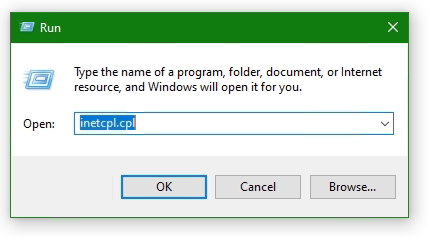
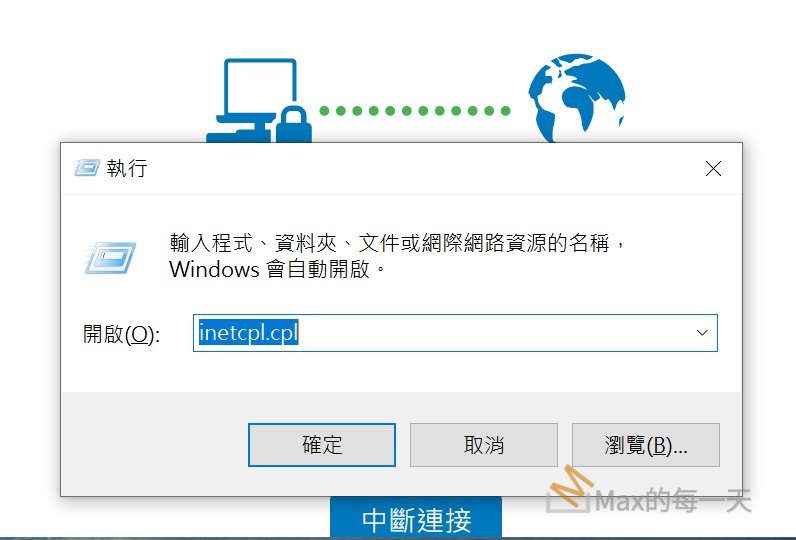
Press the Win + R keys enter inetcpl.cpl and click OK.
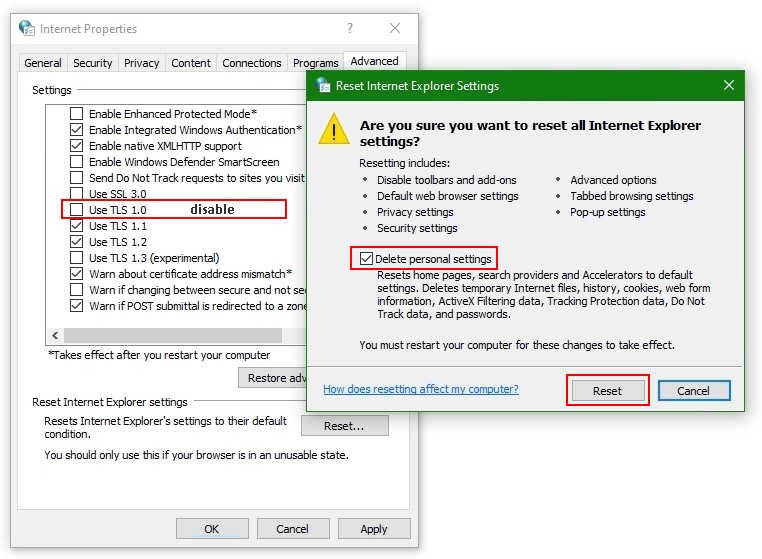
Select the Advanced tab
Click the Reset… button. If the Reset Internet Explorer settings button does not appear, go to the next step.
Click the Delete personal settings option
Click Reset
Open Internet Options again.
Go back to Advanced tab
Disable use TLS 1.0 (no longer supported)
Add website to Trusted sites
Add the SSL-VPN gateway URL to the Trusted sites. Usually, the SSL VPN gateway is the FortiGate on the endpoint side.
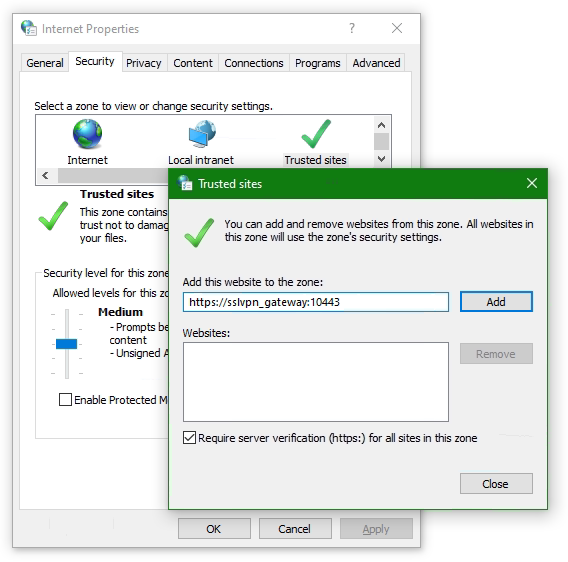
Go to the Security tab in Internet Options and choose Trusted sites then click the button Sites. Insert the SSL-VPN gateway URL into Add this website to the zone and click Add, here like https://sslvpn_gateway:10443 as placeholder.
Note: The default Fortinet certificate for SSL VPN was used here, but using a validated certificate won’t make a difference.
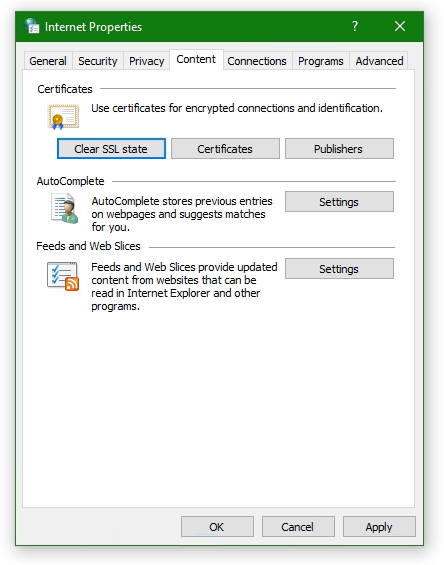
Furthermore, the SSL state must be reset, go to tab Content under Certificates. Click the Clear SSL state button.
The SSL VPN connection should now be possible with the FortiClient version 6 or later, on Windows Server 2016 or later, also on Windows 10.
Don’t get success yet ?
If you haven’t had any success up to this point, don’t despair now, there is more help available, may the following is the case!
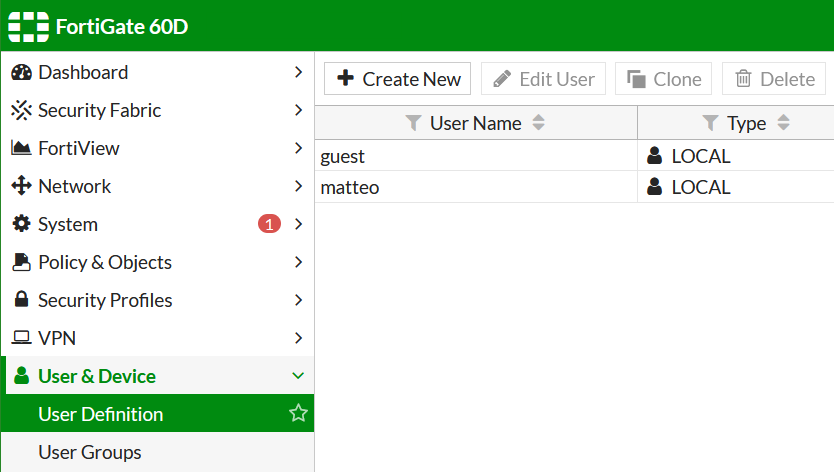
If you may use an FortiClient 7 on Windows 10 or Windows 11, then create a new local user on the FortiGate and add it to the SSL-VPN group.
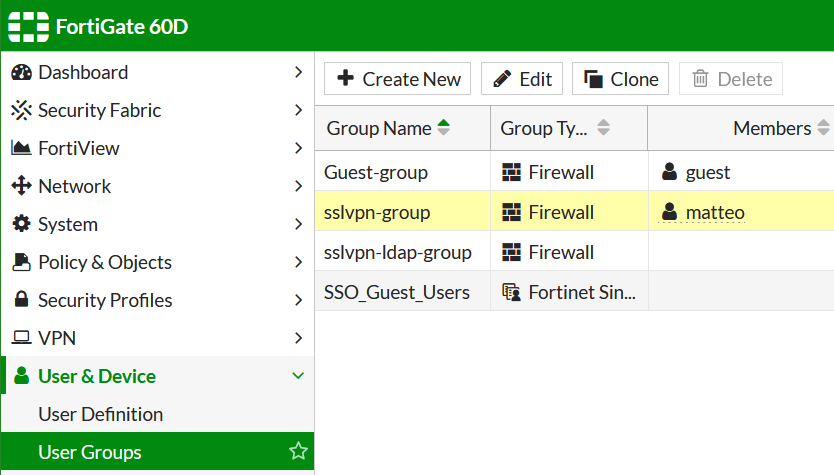
Add the user to the SSLVPN group assigned in the SSL VPN settings.
Try to verify the credentails using the web mode, for this in SSL-VPN Portals the Web Mode must my enabled.

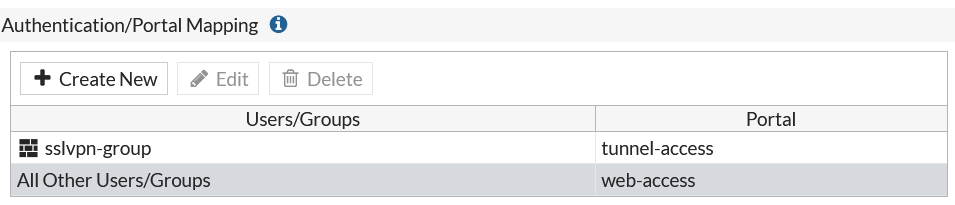
Note that the group with the affected user is assigned under SSL-VPN Settings at Authentication/Portal Mapping.
Try to authenticate the vpn connection with this user.
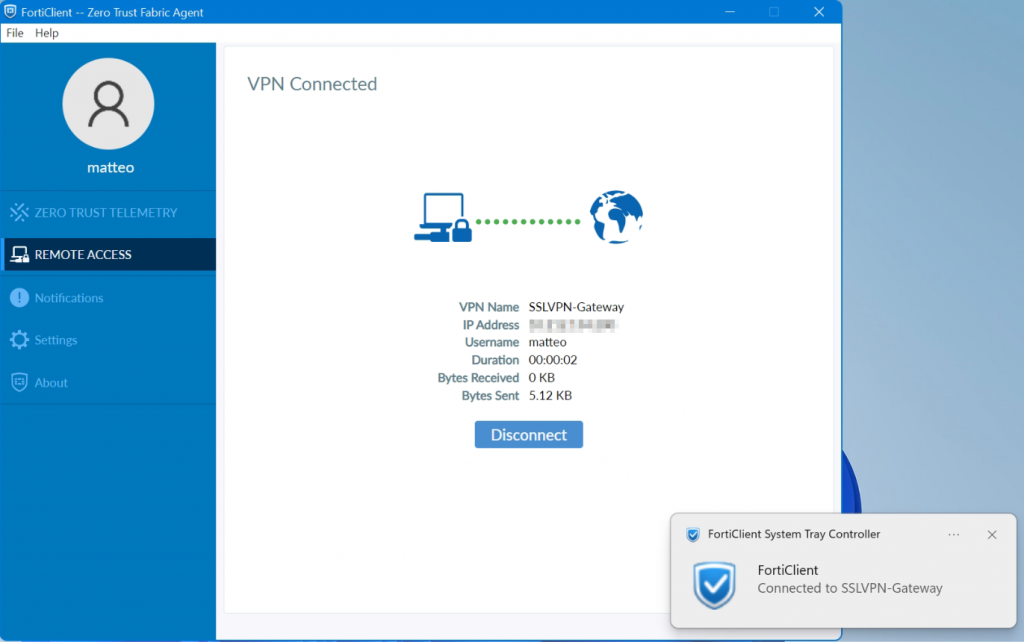
It worked here with this attempt, but I haven’t yet been able to successfully carry out the authentication via LDAP server,
If your attempt was more successful and you know more ? please let us know and post your comment!
Issue using FortiClient on Windows 11
FortiClient SSL-VPN connects successfully on Windows 10 but not on Windows 11. An article by the staff was posted in the fortinet community they describes a potential cause for why SSL-VPN connections may fail on Windows 11 yet work correctly on Windows 10.
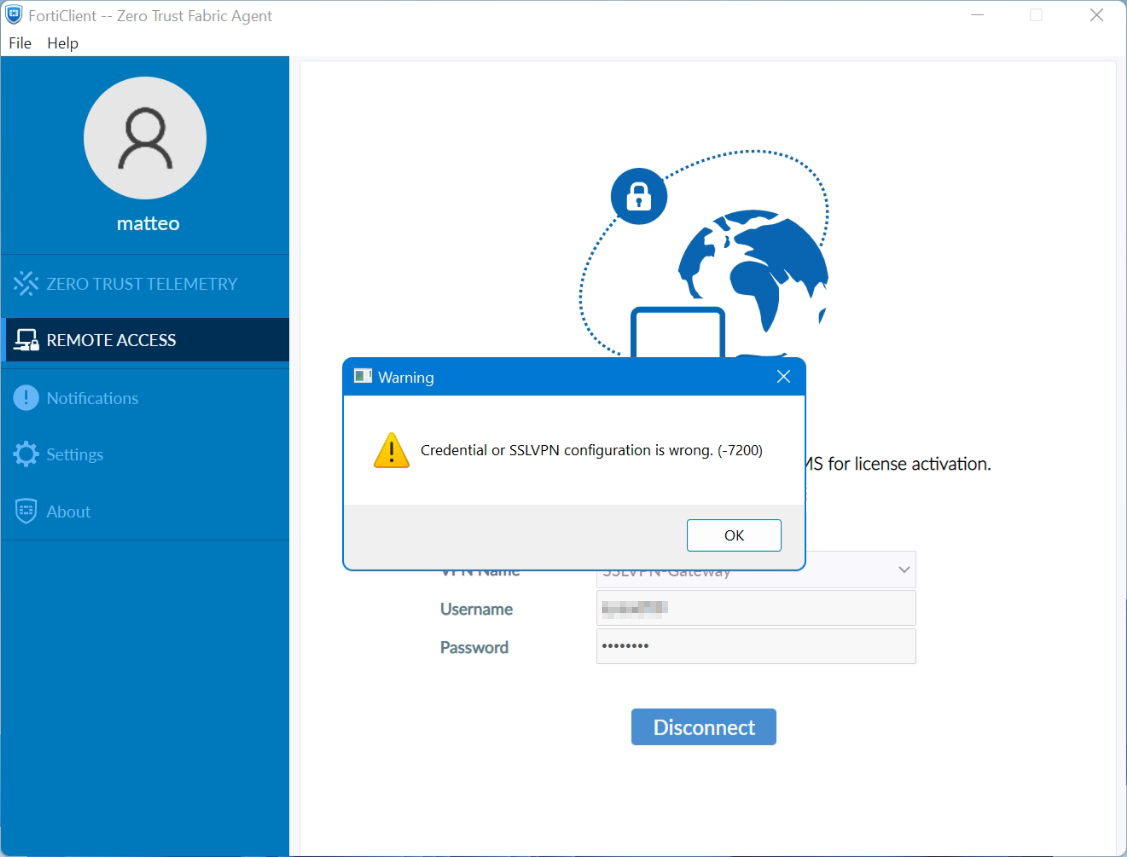
SSL-VPN tunnel-mode connections via FortiClient fail at 48% on Windows 11, it appears: Credential or SSLVPN configuration is wrong (-7200). We remember, tunnel-mode connections was working fine on Windows 10.
Users are unable to authenticate if they are in a User Group that is configured in an SSL-VPN Authentication/Portal Mapping (also known authentication-rule in the CLI), but they can successfully authenticate when using the All Other Users/Groups catch-all authentication rule.
Windows 11 is uses TLS 1.3 by default for outbound TLS connections, whereas Windows 10 appears to use TLS 1.2 by default.
If TLS-AES-256-GCM-SHA384 is removed from the list, Windows 11/FortiClient will still be able to establish a TLS 1.3 connection using one of the alternative TLS Cipher Suites available. This will appear as a successful TLS connection in a packet capture tool such as Wireshark.
Windows 11 may be unable to connect to the SSL-VPN if the ciphersuite setting on the FortiGate has been modified to remove TLS-AES-256-GCM-SHA384, and an SSL-VPN authentication-rule has been created for a given User Group that has the cipher setting set to high (which it is by default).
The solution can be found with the following command using in the FortiGate CLI should solve the issue:
config vpn ssl settings unset ciphersuite endor possibly with the next command:
config vpn ssl settings append ciphersuite TLS-AES-256-GCM-SHA384 endNote see Microsoft learn about TLS Cipher Suites in Windows 11
How useful was this post?
Click on a star to rate it!
Average rating 4.2 / 5. Vote count: 36
No votes so far! Be the first to rate this post.
We are sorry that this post was not useful for you!
Let us improve this post!
Tell us how we can improve this post?
Fortigate vs Azure SAML and the 150 group membership limit (error -7200)

We’ve all experienced it. A problem arises, and you keep finding clues that may lead to a solution.
In this case we have a Fortigate appliance and wanted to use Azure AD as Indentity Povider. So we created a Enterprise Application to use SSL VPN with Azure SAML authentication.
However, after rolling out the forticlient some users reported they could not log in. Hours of troubleshooting past. Testing environment said yes, Production said no.
The dialog «Credential or SSLVPN configuration is wrong. (-7200)» kept popping up.
SAML debugs on the Fortigate where indicating that no group info was received in the SAML response. But the users were all members of the same VPN group, and yet the connection kept «crashing» at 48%
After digging throught some Fortigate and Microsoft documentation, the issue became clear.
We ran into the group membership limit (well documented, but clearly missed)
It turned out that the users who couldn’t log in were indeed members of 150 groups or more. Including nested groups.
When connecting SAML responds not with a group list but rather a MSGraph link, resulting in a «no group info received» situation.
After removing some obsolete groups and bringing the number down below 150, the users could log in succesfully.
Victory! Well, not really. Besides the «why so many groups» discussion for some users we just cannot apply this «concession»
Next step would be to configure the group claims in a way that the proper group name gets passed, no matter what. For example you could move away from all groups to Security Groups or Directory Roles;
forticlient vpn credential or ssl vpn configuration is wrong (-7200)
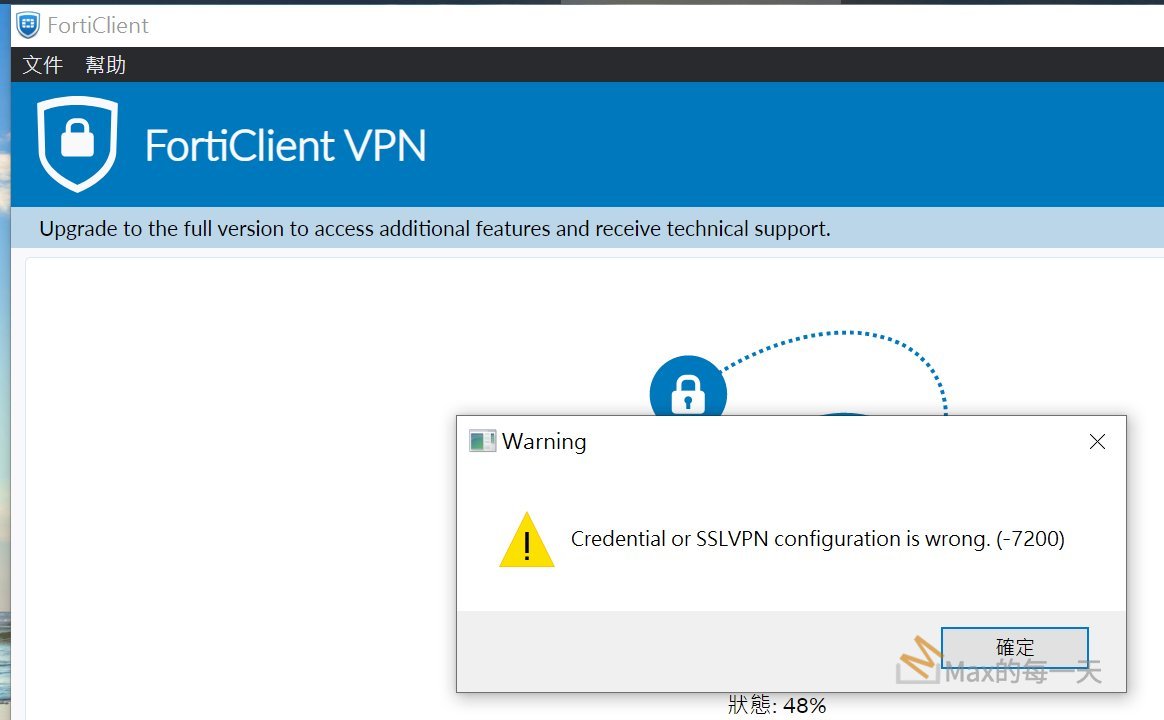
大約一個月左右, 會遇到一次, 重設是沒什麼效果, 每次都是透過刪除即有的設定檔, 重新建立一組新的連線, 就可以了.
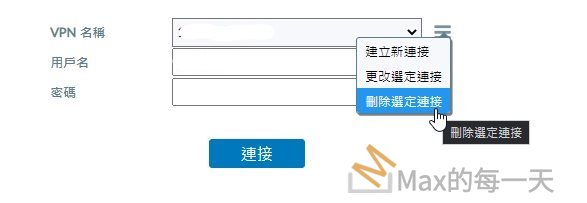
刪除即有的設定檔, 在登入帳號時, 第一個下拉框旁邊有一個三條線的小圖示, 選”刪除選定連接”, 就可以了.
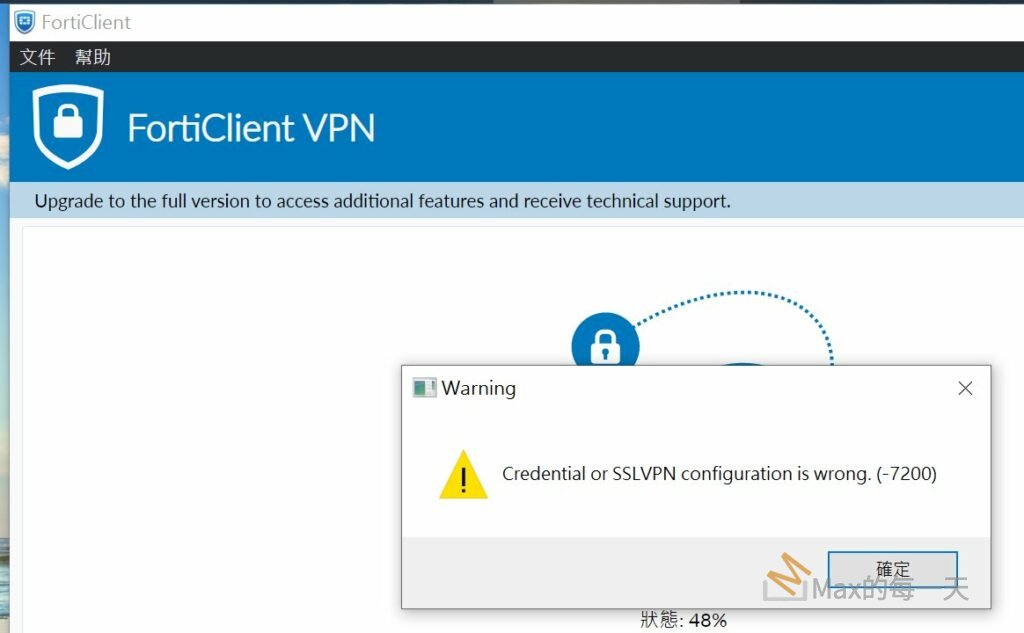
Windows 提示我要重開機, 用以套用新的設定值, 我重開後, FortiClient 就連不上VPN, 顯示錯誤訊:
credential or SSLVPN configuration is wrong (-7200)
In all my instances of this issue, I also found out I could check this issue by opening the SSL VPN URL with Internet Explorer. Every time I could not connect to the SSL VPN in Web Mode from Internet Explorer (it displays “This page can’t be displayed”), FortiClient was also failing just like the OP describes. (The Web Mode was working just fine on Chrome or Firefox.) The opposite was also true: when IE logged into the Web Mode, FCT was working.
(Of course Web Mode must be enabled for the relevant SSL-VPN Portal for this test to make sense.)
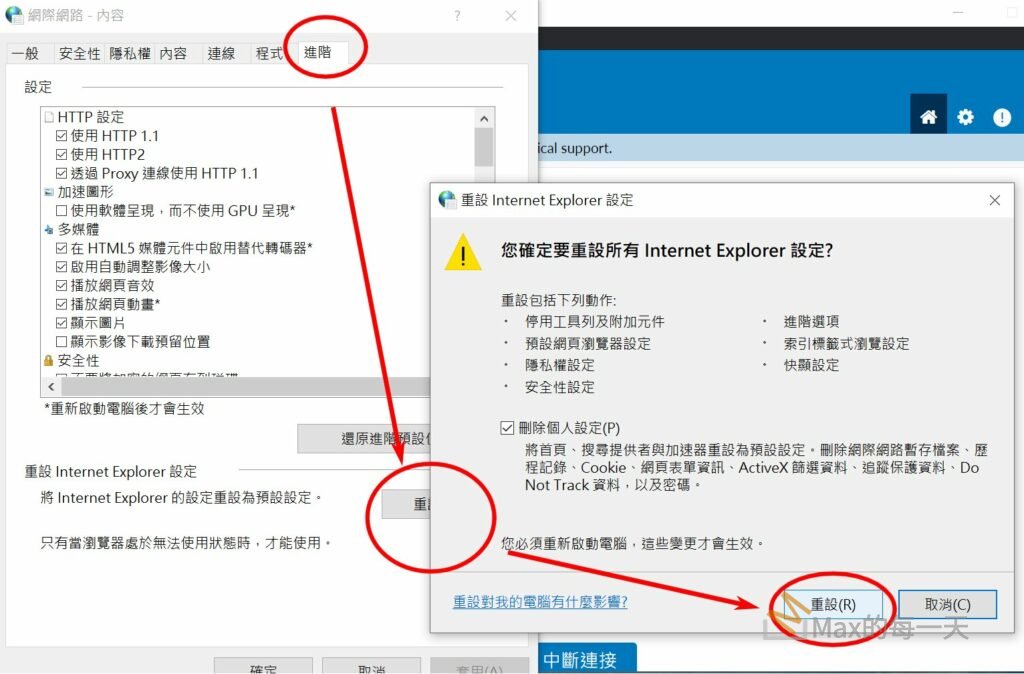
I also found this issue on a server with Trusted Sites locked by Group Policy – so I couldn’t add a new entry. In the end I was able to solve the issue by resetting Internet Options:
(also see attached image)
- run Internet Options (inetcpl.cpl)
- select the “Advanced” tab
- Click on the “Reset…” button
- flag “Delete personal settings” (I did that – don’t know if it is needed)
- Click “Reset”
Summing it up, it is clear that something inside Internet Options is the culprit, but I wasn’t able to pinpoint what exactly.
Fortinet support says that FortiClient is designed to take settings from Internet Options. At this point I’d like to know exactly what parameters are in use (I guess I can’t ask support because I don’t have a valid FortiClient support contract at the moment).
To anyone having this issue, I’d still recommend trying to add the SSL VPN URL to the Trusted Sites before resetting.
Troubleshooting FortiGate SSLVPN problems

Configuring SSLVPN with FortiGate and FortiClient is pretty easy. Nevertheless problems may occur while establishing or using the SSLVPN connection.
If the negotiation of SSLVPN stops at a specific percentage:
- 10% – there is an issue with the network connection to the FortiGate. Verify that the client is connected to the internet and can reach the FortiGate. Double-check that the FortiClient configuration has set the correct IP and port of the Fortigate.
- 31% – this percentage is also shown as Error -5029. If this message is shown, there is a mismatch in the TLS version. Check, if the TLS version that’s in use by the FortiGate is enabled on your client.
- 40% – there is an issue with the certificates or the TLS negotiation. If you are using the default FortiGate certificate, the client is probably not trusting this certificate. In this case the user is shown a popup window to confirm the validity of the certificate. Make sure that this popup window is not hidden behind other windows. If the client is using CRL or OCSP make sure that the FortiGate certificate can be checked against those protocols.
Additionally, it is possible that the TLS versions of Client and FortiGate are not matching. This KB article describes how to check the TLS versions for SSLVPN on the FortiGate. And this KB article explains how to check the TLS versions on a windows client. - 48% – 2FA issue
- 80% – at this stage the username and password is verified. Please check user/usergroup/portal and firewall policy configuration on the FortiGate. If you are using a remote server you can troubleshoot this communication with the following KB articles: Radius and LDAP. Another reason for a failure at 80% is that you are not using the correct Realm. Please doublecheck that you are addressing the correct Realm.
- 98% – hopefully you are not getting stuck at this point… this problem is most likely caused by a corrupted FortiClient installation and/or OS problems. This can probably be solved by reinstalling the FortiClient software on the computer.
Other error messages
“Unable to establish the VPN connection. The VPN server may be unreachable.”
This message appears if:
– The DNS lookup failed
– The Host could not be contacted (no answer to the TCP SYN packet)
General debugging of the SSLVPN negotiation
The CLI real-time debugger allows monitoring of the SSLVPN negotiation:
# diagnose debug enable
# diagnose debug application sslvpn -1
(now try to establish the SSLVPN connection)
(once the negotiation is done or stopped you can disable the debugger)
# diagnose debug application sslvpn 0
# diagnose debug disable
SSLVPN Timeouts
If the SSLVPN connection is established, but the connection stops after some time, you should double-check the following two timeout values on the FortiGate configuration:
# config vpn ssl settings
# set idle-timeout 300
# set auth-timout 28000
The idle-timeout is closing the SSLVPN if the connection is idle for more than 5 minutes (300 seconds). This configuration can be changed in the WebUI (SSL VPN settings) as well.
The auth-timeout is closing the SSLVPN connection based on the the authentication timeout. By default this is set to 8 hours (28800 seconds). So if therefore a SSLVPN connection is stopping after straight 8 hours, even though you are using the tunnel continuously, it’s very likely that you are hitting the authentication timeout.
Error message “SSL_accept failed, 1:unsupported protocol “SSL_accept failed, 5:(null)” at the end.
This message is shown on the “diag deb app sslvpn -1” output, when you try to connect with a FortiClient which license is expired.
Error Message “sslvpn_login_no_matching_policy” combined with “fam_auth_proc_resp:1229 fnbam_auth_update_result return: 3”
This message is shown on the “diag deb app sslvpn -1” output, when an LDAP authentication error causes problems. It may also be the case, that a user can be authenticated against a radius AND an ldap server at the same time (or a local user with a radius/ldap user at the same time). Ensure, that every SSL-VPN enabled user is present in only one group. SSL-VPN has an option that’s called “All Other Users/Groups”. All Other Users/Groups does really contain ALL other users and groups. So as soon as the user is present in the LDAP or RADIUS (even if not on any group and nowhere configured on the FGT), this user can authenticate as SSL-VPN user!
Therefore we recommend you to configure any remote authentication service like SAML, RADIUS and LDAP (and so on) to be configured as restrictive as possible. That means, that only users can authenticate over this service that really need to authenticate on the FGT. Restricting it with group membershits is not enough in this case of SSL VPN.
Additional comments on the FortiClient v6.2
If you are using the free “FortiClient v6.2 VPN(-only)” you have a limited feature set (please refer to FortiClient VPN 6.2) – for example you are not able to perform host-checks. Please make sure that you don’t have any (maybe legacy) host-checks configured in the SSLVPN portal on your FortiGate:
# config vpn ssl web portal
# show full | grep -f host-check
Update on IPv6 problems with FOS 6.2 and 6.4
As you can already read in the comments of this article, you can get in problems when the client is using an IPv6 connection or dual stack IPv4/IPv6. In this case you have to disable IPv6 on your client itself or in the SSLVPN settings of your FortiClient (Fortinet KB article).
Additional documentation
- KB-Article with good additional SSLVPN troubleshooting information
- Another KB-Article with great SSLVPN troubleshooting information
- Comprehensive documentation on VPN configuration
Posted in Fortinet, Troubleshooting Tagged error, FortiGate, SSLVPN, Troubleshooting
9 thoughts on “ Troubleshooting FortiGate SSLVPN problems ”
zerodeplus 24. November 2020 Reply
Hello ! I found something that worked for me ! Since yesterday I was stuck at 98% and I’ve tried everything (even reinstall Win10). And the “problem” found was my Internet connection !! I found myself really dumb after that . I need to log VPN forticlient and for that I was using my mobile phone hotspot…. It worked after I disable IPv6 to use IPv4 only . To disable IPv6 on Android device to use IPv4 only.
Step 1 : Go to your Android device System Settings and tap on “Network & Internet”
Step 2 : Tap on “Mobile network”
Step 3 : Tap on “Advanced”
Step 4 : Tap on “Access Point Names”
Step 5 : Tap on the APN you are currently using
Step 6 : “APN Protocol”
Step 7 : Tap on “IPv4”
Save the changes I hope that helps !
Thanks for sharing your findings zerodeplus.
Good to know that this can also lead to a VPN being stuck at 98% Regards,
Markus
thierry 3. May 2021 Reply
My company use Zscaler.
With zscaler activated, you are stuck at 98% as well
Disabling it, make it work fine.
Adryano 29. July 2022 Reply
Thanks a lot ! I am trying to use FortiClient VPN 7.0.5.0238 with my phone Android Xiomi and was stuck in 98% and the fortclient log contain this error: RasGetEntryPropertiesWin7(fortissl) failed. (r=623) After disabling IPV6 of my APN protocol of my phone´s provider, it solved! Now i can connect remotly routing with my cell phone.
Damien RICHARD 9. August 2022 Reply
Disabling IPv6 on APN protocol is a good solution.
I try to resolve this error with the registry key BlockIPv6 but the result is not correct.
Someone would have a solution with parameters on the register side ?
bobbyB 14. September 2022 Reply
“Unable to establish the VPN connection. The VPN server may be unreachable.” Is also the message you see when you type in an incorrect password, strangely.
Dear Bobby
Thank you for your comment on our blog.
I have tested this and I was not able to comprehend your statement and I was also not able to reproduce it.
The message shown with an incorrect username or password on my setup was “Credential or SSLVPN configuration is wrong. (-7200)”. Therefore I suspect that you have another problem on connection level in your setup.
I hope that helps you to solve your issue.
Kind regards from the Tech Team
For me this usually related with DNS resolution
Two additional hints:
45% – in our installation with RADIUS and 2FA by RADIUS infrastructure, the username/password combination is wrong.
For example wrong username or wrong password for the username.
98% – my gut feeling for a stuck here is an error in adding the (IPv4) routes. I run every time in this issue when I try to connect my IPv4 only SSLVPN firewall (FortiOS 6.4) from an Client (Win10) in a IPv6only-network with NAT64/DNS64.
For me it looks like FortiClient runs through all authorisation and authentication processes but fails to set an IPv4 hostroute to SSLVPN server because there is no IPv4 gateway…
Leave a Reply Cancel reply
Recent Posts
- CheatSheet FortiOS v7.4
- Palo Alto Emergency Update Required – PAN-OS Root and Default Certificate Expiration
- FortiGate throughput troubleshooting
- FortiGate Flow vs. Proxy based inspection
- FortiGuard Servers are not reachable