
What is the difference between Lightroom and Lightroom Classic?
The primary difference to understand is that Lightroom Classic is a desktop based application and Lightroom (old name: Lightroom CC) is an integrated cloud based application suite. Lightroom is available on mobile, desktop and as a web-based version.
Lightroom stores your images in the cloud. You will always have access to your full resolution images from all your connected devices and they are always backed up. If you regularly need to quickly edit and share your images whilst you are on the go, this can be perfect. When you use Lightroom Classic your images are stored on your local drives and devices. You will have access to the full range of features and controls. This is the continuation of the original desktop application that photographers recognise as Lightroom.

The workflow for your images
Image importing and organisation has been greatly simplified in Lightroom. All your images will be sorted into easy to manage albums and folders. Images are first downloaded onto your local device. This may be on your desktop or a mobile phone. You can begin editing immediately and sync to the cloud when you wish.
Lightroom Classic uses a more complex system of Catalogues and Collections. These can be shared to other devices selectively. But, only low resolution Smart Previews will be available. Once you are done editing, Lightroom Classic gives you more options and flexibility for exporting your images. The modules for book, slideshow, print and web output are also only available in Lightroom Classic.

Editing your images
Lightroom has improved its range of editing tools dramatically with a series of updates. There is now not a huge difference in what edits can be accomplished in the two programs.
The organisation has been revamped, but all the standard tools you would expect are in Lightroom. Colour adjustments, tone adjustments, graduated and radial filters, healing and brush tools, split toning, noise reduction, cropping and so on.
Do you still have to think twice which tool to use? Or, not quite sure what each adjustment does? If you are a photographer who is new to editing your images, you may find Lightroom is more intuitive. You will find helpful explanations which pop up when you hover over the tool name. There are also some in-app video tutorials to guide you further.
For consistency and speed, you can use Lightroom presets in both programs. You can also take your images seamlessly into Photoshop with either.
Managing your images
When it is time to sort your images and mark favourites it is straight forward. Rating and flagging can easily be accomplished in both programs. Harnessing artificial intelligence is one advantage of Lightroom. As it is cloud based it can automatically tag your images based on their content.
This means that if you are looking for an image you shot with boats, a quick search is all you need. This will bring up all your images where boats have been identified, even if you never spent any time adding keywords.
That covers a basic breakdown of the two programs.
Whichever option to go with you will need an Adobe Creative Cloud subscription to use the program. For Lightroom, you also need to purchase cloud space to store your images.

Subscribe to my Newsletter . and don’t miss any new articles!

About the Author – Jan Erik Waider
I’m a visual artist and fine art photographer based in Hamburg. My work focuses on atmospheric and abstract landscape photography, capturing the essence of the remote polar regions. – Learn more about me and discover my fine art photo series, prints and books or download my Lightroom Presets or Capture One Styles.
Contact | Photography Coaching | Newsletter
Master Collection: 8 Lightroom Preset Packs for Landscape and Travel Photography

Discover the Master Collection by Northlandscapes with 8 professional preset packs for moody landscape, travel and aerial photography. Get a total of 362 Lightroom presets with a shop value of $282 for only $69! And the best part: All future product releases are also included!


Included in the Master Collection:
- Dark & Dramatic Lightroom Presets $35
- Landscape Essentials: 20 Lightroom Presets ($39)
- Forest Landscapes Lightroom Presets $35
- Aerial & Drone Lightroom Presets $35
- Signature Lightroom Presets $35
- Polar Landscapes Lightroom Presets $35
- Black & White Lightroom Presets $29
- Cinematic Lightroom Presets $15
- . plus all future product releases!
Lightroom Classic CC и новая светлая комната в облаке

Adobe представили новый Lightroom CC для Mac / Win и обновили Lightroom Classic CC, Lightroom на iOS и Android, Lightroom.adobe.com, а также заменили существующий план Creative Cloud Photography на новый план Lightroom CC.
Оригинальную Lightroom переименовали в Lightroom Classic CC.
Новое облачный план называется Lightroom CC. Adobe отказались от бессрочной лицензии на Lightroom. Lightroom 6 будет обновляться только новыми камерами и объективами до конца 2017 года, после чего Adobe прекратит обновления.
Основная разница между оригинальной и новой Lightroom, по словам Adobe, заключается в том, что Lightroom Classic CC ориентирована на настольные компьютеры, а Lightroom CC – на мобильные устройства. Adobe пыталась объединить эти два мира, но теперь решила отступить, чтобы сделать их более отчетливыми.
Оригинальная «классическая» Lightroom будет улучшаться в сторону повышения производительности. Adobe говорит, что работает над ускорением загрузки приложения, ускорением создания превью для предварительного просмотра, ускорением переключения между библиотекой и модулем обработки изображений и повышением производительности при переходе между фотографиями в модуле обработки.
Появились новые инструменты выборочной корректировки цвета и тона. Теперь пользователи смогут использовать корректирующие кисти, радиальные или градиентные фильтры для создания грубой маски, а затем произвести тонкую настройку маски с помощью новых параметров.
В сообщении об обновлениях в Classic Lightroom, Adobe признала, что требуется больше работы для улучшения производительности классической версии. В частности, они работают над оптимизацией производительности на мощных компьютерах и мониторах с высоким разрешением.
Что нового в экосистеме Lightroom CC
Архитектура Lightroom CC представляет собой облачную службу с тремя приложениями на основе устройств: настольным, мобильным и web.
Lightroom CC работает одинаково на всех трех платформах и синхронизирует данные в облаке. В отличие от Lightroom Classic CC, Lightroom CC работает с файлами, загружаемыми в Adobe Cloud. Таким образом, вся коллекция синхронизируется и доступна на любом устройстве, плюс ко всему выполняется резервное копирование.
Так как это облачная среда, Lightroom CC предлагает несколько функций, недоступных для классического приложения – например, возможность поиска изображений на основе содержимого (без использования ключевых слов или меток), автоматического отбора «лучших» и отбраковки «худших» изображений.
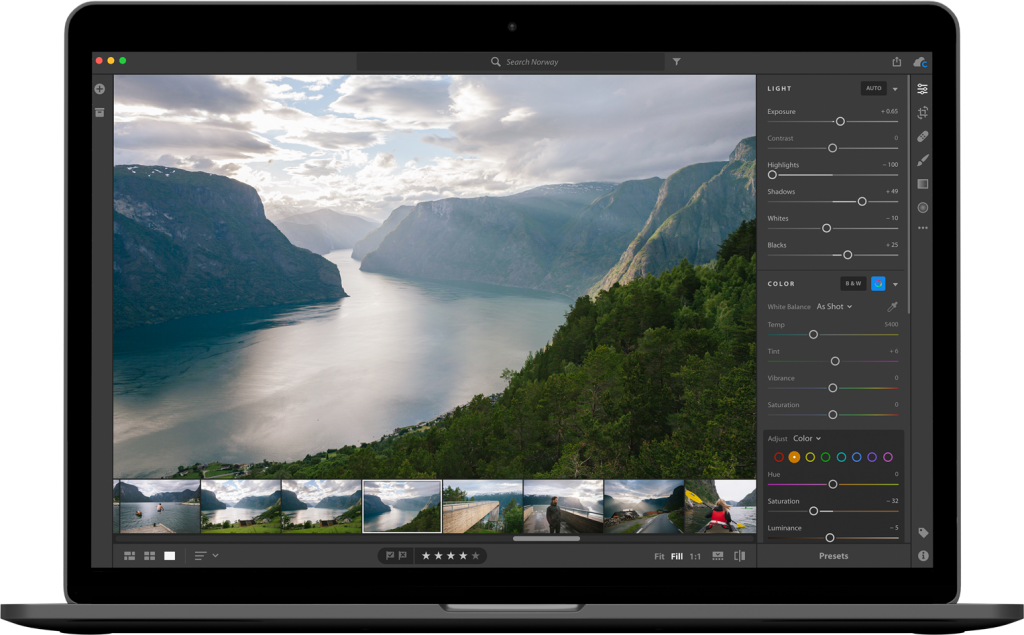
Все существующие отдельные приложения в Lightroom CC (мобильное и веб) обновлены для обеспечения синхронизации, поиска изображений и автоматическокого отбора. Adobe обновила Lightroom CC для мобильных платформ для использования новых функций на iOS 11 и Android Oreo. Теперь есть возможность импортировать и экспортировать в приложение «Файлы iOS 11», что позволяет получить доступ к любой фотографии, находящейся там. На iPads, работающем под управлением iOS 11, теперь можно использовать drag-and-drop для пертаскивания фотографий, в том числе и в формате RAW, из любого приложения непосредственно в Lightroom CC.
Веб-приложение Lightroom CC отличается от других версий тем, что в нем используются наработки Adobe в области машинного обучения и искусственного интеллекта, для автоматической идентификации и группировки похожи фотографий, выбра наилучшей фотографии из этой группы, а затем выбра лучшей фотографии в каждой из групп. Режим находтся в стадии бета-тестирования, но пользователи могут экспериментировать с ним, предоставляя обратную связь Adobe.
Хотя сейчас есть две разные версии Lightroom, можно использовать обе. Пользователи Lightroom Classic CC, автоматически получат доступ к Lightroom CC с подпиской на Creative Cloud Photography. Изображения, над которыми вы работаете в Lightroom Classic CC, видны из Lightroom CC как смарт-превью (для получения полноразмерных версий, их нужно будет загрузить. Абоненты Creative Cloud Photography получат 20 ГБ облачного хранилища для оригиналов. Если этого недостаточно, то можно купить дополнительное пространство для хранения.
Adobe также предлагает подписку только на Lightroom CC за 10 долларов США в месяц. В этот план включен 1 ТБ облачного хранилища.
В чем отличие между Lightroom Classic от Lightroom
Компания Adobe предлагает две отдельные, но похожие программы с названием Lightroom. В двух словах, основные различия заключаются в следующем:
— Lightroom Classic использует каталог , который находится на вашем компьютере и ссылается на фотографии, хранящиеся на вашем компьютере, внешнем диске, сетевом накопителе NAS или в любой комбинации этих вариантов локального хранения. Данная программа модернизируется с 2007 года и покажется знакомой всем, кто пользовался предыдущей версией Lightroom. Позднее мы поговорим именно об этой программе.
— Lightroom хранит все (фотографии, информацию о них и все настройки) в облаке (хранилище, доступное только при подключении к Интернету и оплачиваемое по подписке Adobe Creative Cloud), и благодаря этому вы можете получить доступ ко всей информации с любого устройства (ноутбука, настольного компьютера, планшета или смартфона), на котором установлен редактор Lightroom (доступно для платформ macOS, Windows, iOS и Android). Поскольку все хранится в облаке, вы можете получить доступ к фотографиям в Lightroom с помощью веб-браузера. В Lightroom меньше функций, чем в Lightroom Classic (хотя Adobe постоянно добавляет новые), и он больше адаптирован для использования на мобильных устройствах. Про Lightroom мы тоже поговорим.
Lightroom Classic является наиболее развитой программой, имеет расширенное количество функций и не требует подключения к Интернету для доступа к вашим фотографиям.
Lightroom Classic – это самая мощная версия Lightroom и наиболее подходящая для большинства людей, желающих управлять растущей со временем фотогалереей
Она также предоставляет наибольшее разнообразие возможностей экспорта изображений (печатаные издания, книги, слайд-шоу, веб-галереи и многое другое). Сейчас я использую Lightroom Classic и буду продолжать использовать его в обозримом будущем.
Каждая из программ хороша по своему и может применяться в разных ситуациях. Некоторым людям нужен более простой интерфейс, а также возможность доступа к своей фотогалерее с любого ноутбука, настольного компьютера или мобильного устройства. Lightroom является новой, более простой версией и имеет гораздо меньше функций, чем Lightroom Classic, поэтому вы сможете прекрасно обойтись встроенными учебными пособиями и веб-тренингом на сайте Adobe: https://helpx.adobe.com/lightroom-cc/tutorials.html.
Практически все программное обеспечение Adobe перешло от модели покупки постоянных лицензий к новой модели, основанной на оформлении подписки, которую Adobe называет Creative Cloud (часто сокращенно CC). Сейчас обе версии Lightroom доступны только по подписке.
Похожие записи:
- Что такое Creative Cloud
- 7 модулей Lightroom Classic
- Lightroom Classic — работа в полноэкранном режиме
Lightroom Classic and Lightroom Ecosystem | Feature Comparison

Many thanks to Victoria Bampton, the Lightroom Queen, for her assistance in creating this feature comparison.
Storing photos
Lightroom Classic
Lightroom Ecosystem
Original files (photos and videos) stored locally
Store original files across multiple different hard drives
Yes (in the Local section)
Original files uploaded to cloud
Original files downloadable on-demand
Automatically manage local storage
Work with multiple catalogs
Import
| Feature | Lightroom Classic | Lightroom Ecosystem |
|---|---|---|
| Browse, organize, and edit photos in the file system without needing to import | No | Yes |
| Import raw, JPEG, PSD, PSB, TIF, DNG, HEIF, PNG, and some video formats | Yes | Yes |
| Add to collection/album | Yes | Yes |
| Change sort order/filter photos in Import dialog | Yes | No |
| Add metadata during import | Yes | Copyright only |
| Apply camera defaults during import | Yes | Yes |
| Apply develop presets during import | Yes | Yes (Raw only) |
| Rename photos during import | Yes | No |
| Import from iPhoto/Photos | iPhoto/Aperture only | Photos only |
| Import from Photoshop Elements | Yes | Yes |
| Tethered Shooting & Watched Folders | Yes | No |
Viewing photos
Lightroom Classic
Lightroom Ecosystem
View photos in Grid view
View photos in Loupe/Detail view
Zoom in on photos
View photos in Survey view
View photos in Compare view
Organizing photos
Lightroom Classic
Lightroom Ecosystem
Organize using folders on the hard drive
Organize using Collections/Albums
Quick Collection/Target Collection
Yes (Target Collection only)
Yes (desktop only)
Restore deleted photos
Yes, within 60 days
Viewing and adding metadata
| Feature | Lightroom Classic | Lightroom Ecosystem |
|---|---|---|
| View EXIF/IPTC metadata | Yes | Yes |
| Star ratings | Yes | Yes |
| Flags | Yes | Yes |
| Color labels | Yes | No |
| Title, Caption | Yes | Yes |
| Copyright | Yes | Yes |
| Edit capture time | Yes | Yes |
| Add other IPTC metadata | Yes | No |
| Keywords | Yes | Yes |
| View GPS | Yes | Yes (desktop only) |
| Add GPS | Yes | No |
| Face recognition | Yes | Yes |
| Write metadata to files | Yes | Yes, only when saving a copy |
Finding and filtering photos
Lightroom Classic
Lightroom Ecosystem
Change sort order
Set custom sort order
AI-based text search without tagging
Filter based on metadata (keywords, camera, etc)
Save filter criteria as a Filter Preset
Editing photos
| Feature | Lightroom Classic | Lightroom Ecosystem |
|---|---|---|
| Lens Blur | Yes | Yes |
| HDR Edit and Output | Yes | Yes |
| Point Color | Yes | Yes (desktop & web only) |
| AI-powered Denoise | Yes | Yes |
| Exposure, Contrast, Highlights, Shadows, Whites, Blacks | Yes | Yes |
| Tone Curves | Yes | Yes |
| Clarity, Dehaze, and Texture | Yes | Yes |
| Color Adjustments | Yes | Yes |
| Color Grading | Yes | Yes |
| Sharpening, Noise Reduction, Grain | Yes | Yes |
| Lens Corrections | Yes | Yes |
| Chromatic Aberration/Defringe | Yes | Yes |
| Geometric Corrections | Yes | Yes |
| Camera Calibration Sliders | Yes | Yes |
| Cropping and Straightening | Yes | Yes |
| Spot Removal — Clone and Heal tools | Yes | Yes |
| Red-Eye Correction tools | Yes (manual only) | Yes (automatic and manual) |
| Pet Eye Correction tools | Yes | No |
| Masking — Gradients and Brushes | Yes | Yes |
| Masking — Range Mask | Yes | Yes |
| Masking — Select Subject | Yes | Yes |
| Masking — Select Sky | Yes | Yes |
| Masking — Select Objects | Yes | Yes |
| Masking — Select People | Yes | Yes |
| Masking — Select Background | Yes | Yes |
| Post-crop Vignette | Yes | Yes |
Photo Merge
Lightroom Classic
Lightroom Ecosystem
Stich a panorama
Yes (desktop only)
Create an HDR file
Yes (desktop only)
Editing tools
| Feature | Lightroom Classic | Lightroom Ecosystem |
|---|---|---|
| Copy/paste settings to multiple photos | Yes | Yes |
| Apply Profiles | Yes | Yes |
| Apply Presets | Yes | Yes |
| Create Presets | Yes | Yes |
| Premium Presets | Yes | Yes |
| Adaptive Presets | Yes | Yes |
| Recommended Presets (Powered by AI) | No | Yes |
| Sync Profiles and Presets to the cloud | No | Yes |
| History | Yes | Versions |
| Before/After preview | Yes | Yes |
| Reference view | Yes | Yes |
| Snapshots | Yes | Versions |
| Create copies | Virtual | Duplicate |
| Masking Brush presets | Yes | Yes (pre-installed only) |
Viewing and editing videos
Lightroom Classic
Lightroom Ecosystem
Play video clips
Make color/tonal adjustments
Yes (limited to the Quick Develop panel)
External editors and plug-ins
Lightroom Classic
Lightroom Ecosystem
Send to Photoshop
Send to Photoshop Elements
Send to other external editors
Yes (mobile only)
Export
| Feature | Lightroom Classic | Lightroom Ecosystem |
|---|---|---|
| Export as new file name | Yes | Yes |
| Export file formats | Original/DNG, TIF/PSD, JPEG, PNG | Original/DNG, TIF, JPEG |
| Export color space | ProPhoto, Adobe RGB, sRGB, Display P3 | ProPhoto, Adobe RGB, sRGB, Display P3 |
| Export with resize | Yes | Yes |
| Export with Content Credentials | No | Yes |
| Export photos with a border | No | Yes (mobile only) |
| Specify pixels per inch/cm | Yes | Yes |
| Export with output sharpening | Yes | Yes |
| Export with watermark | Yes | Yes |
| Export with specific metadata | Yes | Yes (mobile only) |
| Publish Services | Yes | Connections |
| Send to Facebook | No | Yes (mobile only) |
| Send to Flickr | Yes | No |
Share an Album
Lightroom Classic
Lightroom Ecosystem
Link access — Anyone can view
Link access — Invitation only
Invite others to contribute photos to the shared album
Invite others to edit photos in the shared album
View comments and likes within the app
Recieve centralized notifications for all activities
Allow others to download full-size JPEGs
Learn
Lightroom Classic
Lightroom Ecosystem
Get hands-on experience with interactive tutorials
Browse interactive tutorials
Search for tutorials and learning content
Get a personalised feed for tutorials
Follow your favorite photographers
Discover
Lightroom Classic
Lightroom Ecosystem
Discover inspirational photos
Discover edits from the community
Edit photos for other photographers and allow them to edit yours
Get a personalised feed
Follow your favorite photographers
Block or unblock photographers
Search for discover content
Download free presets from the community
Contextual Help
Lightroom Classic
Lightroom Ecosystem
Find help for a tool or feature within the app
Access guided tutorials within the app
Search resources using keywords
Books, Slideshows and Prints
Lightroom Classic
Lightroom Ecosystem
Sync photos to Blurb BookWright
Desktop, no. Mobile & Apple TV, simple slideshow
Print to a local printer
Yes (WHCC or Printique)
Multiple Computers/Devices
| Feature | Lightroom Classic* | Lightroom Ecosystem |
|---|---|---|
| Use on secondary desktop | No | Yes |
| Access photos on mobile device | Yes, with synced Collections | Yes |
| Access photos in a web browser | Yes, with synced Collections | Yes |
| Share Lightroom Web galleries | Yes, with Web module or synced Collections with Lightroom Web |