
Способы исправления ошибки JavaScript error occurred in the main process
На компьютере с Windows 7, 8 и 10 при запуске программы Skype, Faceit и Discord может появиться ошибка JavaScript error occurred in the main process, которая свидетельствует о повреждении системных файлов, отключении нужной службы или о необходимости применения прав Администратора. Решение данной ошибки достаточно простое. Однако для каждой программы будут отличаться некоторые рекомендации.
Методы решения ошибки JavaScript error occurred in the main process
Если при запуске программы Skype, Faceit и Discord на вашем ПК возникла ошибка JavaScript error occurred in the main process, то в первую очередь нужно снять задачу в Диспетчере задач. Для этого нужно нажать на Панели задач провой кнопкой мыши и выбрать «Запустить Диспетчер задач».
Далее переходим во вкладку «Процессы» и завершаем процессы, которые связаны с программой, при запуске которой вылетает ошибка.
После того, как задачи к приложениям были сняты, нужно очистить папки программ с кэшем. Для этого нужно нажать «Win+R», чтобы вызвать окно «Выполнить» и ввести %appdata%.
Находим папку программы, при запуске которой возникает ошибка JavaScript error occurred in the main process и удаляем её.
Теперь в окне «Выполнить» необходимо ввести %localappdata% и также найти и удалить директорию, принадлежащую сбойной программе. После этого перезагружаем систему. Программа сама создаст нужные папки.
В случае, если после удаления данных папок ошибка не исчезла, рекомендуем полностью удалить программу и установить её заново, только с применением прав Администратора. Для этого нужно нажать на ярлыке софта правой кнопкой мыши и вызвать «Свойства». Далее переходим во вкладку «Совместимость» и ставим галочку «Выполнить запуск от имени Администратора».
В случае, если такая ошибка возникала в программе Skype, то проблема может крыться в отсутствии браузера Internet Explorer, который нужен для нормальной работы некоторых функций Windows. В данном случае рекомендуем выполнить следующие действия:
- Открываем «Проводник», нажимаем на кнопке «Удалить или изменить программу».
- Появиться окно с установленными программами. В меню слева выбираем «Включение или отключение компонентов Windows».
- Появиться небольшое окно. Нужно найти браузер Internet Explorer. Возле него должна стоять отметка. Смотрим также версию программы. Для нормальной работы Скайпа нужен Internet Explorer 11.
- Если у вас версия браузера ниже, то нужно обновить операционную систему, включив ту версию браузера, которая есть. Если же вы обновили Windows, но версия браузера не изменилась, то можно перейти на официальный сайт Майкрософт и скачать Internet Explorer 11. Обращаем внимание на разрядность программы. Нужно скачать софт в соответствии с разрядностью своей Windows.
- Устанавливаем программу, обязательно обновляем сам Скайп.
Если ошибка и после данных манипуляций не была исправлена, то пробуем перерегистрировать файл dll. Для этого советуем открыть командную строку с правами Администратора и ввести regsvr32 jscript.dll.
Перезагружаем систему, чтобы изменения вступили в силу и проверяем, исправлена ли ошибка.
Также на зарубежных форумах пользователи указывали, что ошибка A JavaScript error occurred in the main process появлялась по причине неверной работы службы Quality Windows Audio Video Experience. Исправить неполадку удалось путем изменения типа запуска службы с ручного на автоматический. Для этого нужно нажать «Win+R» и ввести «services.msc». Находим службу.
Двойным кликом открываем окно службы и меняем тип запуска.
Перезагружаем систему и проверяем, появляется ли ошибка или нет.
Если исправить ошибку A JavaScript error occurred in the main process вышеуказанными способами не удалось, рекомендуем проверить систему на вирусы и выполнить восстановление системы с помощью контрольной точки или установочного диска.
A JavaScript error occurred in the main process message on Windows 11/10
Some users are reporting a generic error message – A JavaScript error occurred in the main process, Uncaught Exception that is triggered when they try to launch some apps on Windows 11/10. In this post, we will show you how to resolve this issue. There aren’t many determined causes for this problem, however, the main reason can be that the app, its database or its settings have most likely gone corrupt.
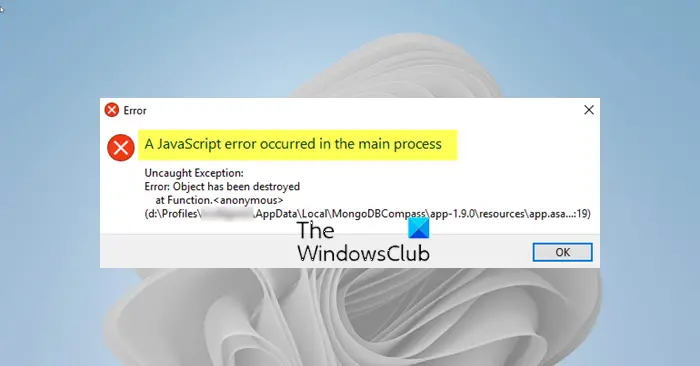
A JavaScript error occurred in the main process
- Delete the app data folders in %AppData% and %LocalAppData%.
- Re-register the JavaScript dll file.
- Reinstall Skype, Discord, etc, app that is having problems.
Now let’s see how you can apply this solution(s) in practice.
1) Delete the app data folders in %AppData% and %LocalAppData%.
Deleting the %AppData% and %LocalAppData% folders should reset the app settings and possibly resolve the JavaScript error which is preventing you from opening the app.
Here’s how you can delete these folders:
Launch Windows Explorer and click on This PC and then navigate to the following location:
The place-holder should be the name of the app throwing up the JavaScript error.
If you are unable to see the AppData folder, you may need to turn on the option that enables you to view hidden files and folders.
Delete the app folder in the AppData folder.
Next, press the Windows Key + R key combination in order to bring up the Run dialog box. Type in the environment variable below and hit Enter.
%localappdata%
Locate the problematic app folder in the folder which opens, right-click on it, and click Delete.
Make sure that the folders are completely deleted and that there are no more remaining files in it. Check to see if the ‘A JavaScript Error Occurred in the Main Process’ still appears after restarting your computer and you launch the app.
2) Re-register the JavaScript dll file
Registering the JavaScript DLL file using the built-in Regsvr.exe could help. To do this, open a Command Prompt as an administrator, type the following and hit Enter:
regsvr32 jscript.dll
3) Reinstall the app in question
Although from one of our case scenarios presented above, the user stated that reinstalling the app didn’t fix the issue. Nevertheless, we still recommend you try to uninstall then reinstall the app.
I hope this helps you resolve this JavaScript error!
How to Fix a Javascript Error in Windows 10
This article was written by Luigi Oppido and by wikiHow staff writer, Nicole Levine, MFA. Luigi Oppido is the Owner and Operator of Pleasure Point Computers in Santa Cruz, California. Luigi has over 25 years of experience in general computer repair, data recovery, virus removal, and upgrades. He is also the host of the Computer Man Show! broadcasted on KSQD covering central California for over two years.
This article has been fact-checked, ensuring the accuracy of any cited facts and confirming the authority of its sources.
This article has been viewed 58,718 times.
If you’re seeing an error that says «a JavaScript error occurred in the main process» or «a fatal JavaScript error occurred» when trying to open or install Discord, there are several potential fixes. While these fixes are designed to resolve this error on Discord, they should work to resolve similar errors in other apps, including Microsoft Teams. We’ll show you how to troubleshoot JavaScript errors for Discord, Microsoft Teams, and other Windows 10 apps.
Method 1 of 4:
Unblocking the Installer in Your Antivirus Suite

- If you’re using Windows Security, which comes for free with Windows, type security into the search bar and then click Windows Security.
- The remaining steps will cover unblocking an installer with Windows Security, but your antivirus suite may have different menu options.

Go to the Virus and threat protection area. This gives you a general overview of your antivirus settings.
Advertisement

Click Manage settings . This opens the settings for your antivirus protection.

Add an exclusion for the Discord installer. If you’re using Windows Security, click Add an exclusion, select File, and then open your download folder and select DiscordSetup.exe (or the name of the installer you’re trying to run).

Run the installer again. Once you’ve allowed the installer to run, you should resolve JavaScript errors that occur during installation.
Advertisement
Method 2 of 4:
Deleting AppData and Reinstalling

- To be sure it’s closed, press Control + Alt + Delete and click Task Manager. If you see a that the app is running, click to select it, and then click End Task. [1] X Research source
- Even if you’ve only tried installing the app and were not successful, you should still use this method before you try to install again.

Press ⊞ Win + S . This activates the Windows search bar.

Type %appdata% and press ↵ Enter . This opens a File Explorer window to your application data.

- Click the folder once to select it. Don’t open the folder—just select it for now.
- Hold down the Shift key as you press Delete.
- Click Yes.

Press ⊞ Win + S . This activates the Windows search bar again.

Type %LocalAppData% and press ↵ Enter . This opens a File Explorer window to your local app data.

- If you don’t see this folder, just skip this step.

- Open the Windows menu and click the Settings gear.
- Go to Apps >Apps & features.
- Select the app and click Uninstall. If you don’t see the app here, just move to the next step.
- Click Uninstall to confirm.

Reinstall the app. If you’re reinstalling Discord, you can download the installer from https://discord.com/download. Once downloaded, double-click the installer and follow the on-screen instructions—this should fix just about all installation errors.
Advertisement
Method 3 of 4:
Repairing Microsoft Visual C ++ (Microsoft Teams)

Open your Windows Settings

- While this method is known to work for Teams, it may also resolve the same issue in other apps.

Click Apps . This opens the Settings panel to the Apps list.

Click Apps & Features . This option is in the left panel. [3] X Trustworthy Source Microsoft Support Technical support and product information from Microsoft. Go to source

Click the latest version of Microsoft Visual C++. You’ll probably see several instances of Visual ++ here—you’ll want to click the one that has the most recent date.

Click Change or Advanced options . You should see one of these two options here.

- If prompted, enter your administrator password to confirm.

Try running the installer again. This should resolve most JavaScript installation errors with Microsoft Teams on Windows 10.
Advertisement
Method 4 of 4:
Running the App as an Administrator

- To be sure it’s closed, press Control + Alt + Delete and click Task Manager. If you see a process for the app running, click to select it, and then click End Task.

Right-click the Discord icon on your desktop or in the Windows menu. A menu will expand.

Click Open file location . If you don’t see this option, you may have to click More first. This takes you to the app’s install location.

- If you’re trying to fix a different app, you’ll usually see that app right here in the folder you’ve opened. If not, look around for a file with the app’s name—it may end with «.exe.»

Right-click the app and select Properties . Properties for the selected app will appear.

Click the Compatibility tab. It’s at the top of the window.

Check the box next to «Run this program as an administrator.» This gives the app permission to everything on your PC, which may clear up issues caused by access rights.

Click OK . This saves your changes.

Start Discord or your preferred app normally. Now that you’ve set the app to run as an administrator, starting it by double-clicking its icon on your desktop or in the Windows menu will run it with elevated privileges.
Advertisement
Expert Q&A
Why am I getting a Javascript error with WordPress?
Luigi Oppido
Computer & Tech Specialist
Luigi Oppido is the Owner and Operator of Pleasure Point Computers in Santa Cruz, California. Luigi has over 25 years of experience in general computer repair, data recovery, virus removal, and upgrades. He is also the host of the Computer Man Show! broadcasted on KSQD covering central California for over two years.
Computer & Tech Specialist
Expert Answer
Check the website on other devices, like another computer or a tablet. If the same error shows up, there’s an issue with the code that needs to be looked at. It also helps to make sure that Java is up-to-date on your computer, since a lot of people don’t even update Java anymore (since it’s updated with the operating system).
Thanks! We’re glad this was helpful.
Thank you for your feedback.
As a small thank you, we’d like to offer you a $30 gift card (valid at GoNift.com). Use it to try out great new products and services nationwide without paying full price—wine, food delivery, clothing and more. Enjoy! Claim Your Gift If wikiHow has helped you, please consider a small contribution to support us in helping more readers like you. We’re committed to providing the world with free how-to resources, and even $1 helps us in our mission. Support wikiHow
Ask a Question
200 characters left
Include your email address to get a message when this question is answered.
Advertisement
Tips
Submit a Tip
All tip submissions are carefully reviewed before being published
Thanks for submitting a tip for review!
You Might Also Like

11 Possible Fixes to Solve the «Mobile Network Not Available» Error on Android

Repair an Electric Fan

How to Fix Blinking Orange Light on Fujifilm Instax Mini 11

How to Completely Uninstall the Riot Games Client & Vanguard

8 Easy Fixes for iPhone Messages that Won’t Finish Indexing

What Causes Green Lines on an iPhone Screen? Plus How to Fix Them

How to Check the Power Supply on a PC Desktop Computer

Reset a Genie Garage Door Opener

How to Fix and Replace a PopSocket Top, Funnel, and Base

Freeze & Crash a Chromebook with Simple URLs

Adjust Bass on a Computer

Set the Time on One‐Buttoned LED Watches

How to Repair a Blown Speaker

How to Repair an Electric Cord