
How to Center an Absolute Positioned Element Vertically and Horizontally with CSS
Dillion Megida

Absolute positioned elements are removed from the flow of a document. And sometimes, knowing how to correctly position such elements in the center of the page can be confusing.
I mean, CSS is confusing already. ��
In this article, I will show you how to center an absolute element either vertically or horizontally – or both – in a container.
Code Example
To center an elemenet horizontally:
element
To center an element vertically:
element
To center an element both vertically and horizontally:
position: absolute; left: 0; right: 0; top: 0; bottom: 0; margin: auto;
But if you would like to understand how I came to these solutions, read further for more explanation.
How does the absolute position work?
By default, elements have a static position unless specified otherwise as absolute , fixed , relative or sticky . You can read this article on CSS position styles to understand the difference.
I will use the following UI to explain how absolute elements work:
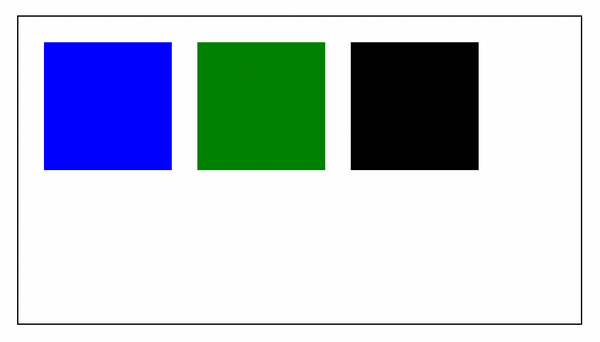
Here is the code for the UI:
.container < margin: 20px; display: flex; border: 1px solid black; padding: 20px; width: 400px; >.blue-block, .green-block, .black-block < width: 100px; height: 100px; >.blue-block < background-color: blue; >.green-block < background-color: green; >.black-block
This container has three blocks: blue, green, and black, respectively. All blocks are currently static , so they are ordered the same way in the DOM, just as they are in the code.
What happens when you give the green block an absolute position:
.green-block

You can see now that the green block has left the document flow. The container only applies the flex display to the blue and black elements, and the green element wanders around without affecting the others.
So, what if we wanted to position this green block at the center of the container?
How to position absolute elements in the center
Positioning static elements to the center usually involve auto margins, so a margin: auto should suffice, right?
.green-block

It definitely does not. As an absolute element, it loses its flow in the container. Maybe a left: auto and right: auto then:
.green-block

Still nothing. At this point, you may be tempted to use hardcoded values:
.blue-block, .black-block < display: none; >.green-block

This result looks perfect (or almost) but is not the best solution because when you change the size of the container, you have to change the hardcoded values.
Now, let’s look at how you can center absolute positioned elements.
The first part is applying a relative position to the container:
.container < // . position: relative; >Applying a relative position to the container gives the absolute element a boundary. Absolute elements are bounded by the closest relative positioned parent. But if none of that exists, they will be bounded by the viewport.
Next, we will center the block horizontally. Apply a left and right property with the value of 0. These properties respectively specify the distance of the left edge (of the block) to the container and the right edge to the container.
.green-block < // . left: 0; right: 0; >
The left takes more precendence because the container displays elements from left to right.
The beauty comes in with the next style:
.green-block < // . margin: 0 auto; >
And you have a horizontally centered absolute element. Think of the left and right properties specifying an inner container for the block. Within this container, the left and right margins can be auto so that they are equal and bring the element to the center.
To center this block vertically, you can already guess that it goes this way:
.green-block < // . top: 0; bottom: 0; margin: auto 0; >
The top and bottom specify the distance between the top and bottom edges of the block, which looks like an inner container. Using auto creates equal margins for margin-top and margin-bottom .
Bringing the two concepts together, you can horizontally and vertically center the block like this:
.green-block

With this approach, the element stays at the center if you resize the container.
Wrapping up
Absolute elements behave differently than static elements – they leave the document flow and, by default, do not respect the container they were declared in.
With a relative positioned parent element, an absolute positioned element has a boundary. And with the left , right , top and bottom properties with a value of 0 (specifying the distance of the edges), and an auto margin, the absolute element is centered in the parent element.
Note that this is not the only way to position absolute elements in the center. I have seen someone online use a transform: translate. to achieve this, too. You can look into that if you like.
Absolute positioning inside absolute position
I have 3 div elements. 1st div is bigger (wrap) and has position:relative; 2nd div is positioned absolute to the 1st div relative positioning (and is included in the 1st div ) 3rd div is contained in the 2nd div and also has absolute positioning.
Why is the 3rd div position absolute to the 2nd div (which is also absolute position to the 1st div ) and not to 1st div that has relative position ? Because the 3rd div is absolute positioning to the absolute positioned 2nd div .
28.3k 48 48 gold badges 66 66 silver badges 103 103 bronze badges
asked May 8, 2011 at 14:36
2,880 9 9 gold badges 34 34 silver badges 38 38 bronze badges
That is really something what i’am looking for and these answers for your questions made my eyes open :\.
Oct 10, 2014 at 13:24
absolute: The element is positioned relative to its first positioned (not static) ancestor element
Mar 8, 2018 at 3:58
6 Answers 6
Because position: absolute resets the relative position for children just as position: relative does.
There is no way around this — if you want the third div to be absolutely positioned relatively to the first one, you will have to make it a child of the first one.
answered May 8, 2011 at 14:38
444k 144 144 gold badges 974 974 silver badges 1090 1090 bronze badges
So basically the absolute position become relative position for it’s absolute positioned child ?
May 8, 2011 at 14:39
@pufos kind of. The 0px / 0px position for children gets reset by the position: absolute
May 8, 2011 at 14:41
@pufos I think you’re confusing this a little. position:relative means that element will be positioned (using top, right, bottom left) relatively from its current position. position: absolute means it will be positioned relative to browsers window or first parent with position: absolute or position: relative .
May 8, 2011 at 14:43
Can you share a reference to this online ? Because i couldn’t find any . And . Thanks a lot
May 8, 2011 at 14:45
@pufos the very basic reference is here: w3.org/TR/CSS2/visuren.html#choose-position
May 8, 2011 at 14:46
Both position:relative and position:absolute establish containing elements as positioning ascestors.
If you need div 3 to be positioned based on div 1 then make it a direct child of div 1.
Note that position: relative means the element is positioned relative to its natural position and position: absolute means the element is positioned relative to its first position:relative or position:absolute ancestor.
answered May 8, 2011 at 14:40
Mike Tunnicliffe Mike Tunnicliffe
10.7k 3 3 gold badges 32 32 silver badges 46 46 bronze badges
I wanted the 3rd div to be absolute positioned to the absolute positioned div but i did’t know if this is standard (crossbrowser) .. and i couldn’t find specifications online . Thanks a lot
May 8, 2011 at 14:44
Absolute positioning in that section: w3.org/TR/CSS21/visuren.html#comp-abspos
May 8, 2011 at 14:48
@MikeTunnicliffe absolute means element is positioned relative to its first position:fixed also
May 1, 2015 at 19:38
Position static: the static position is the default way an element will appear in the normal flow of your HTML file if no position is specified at all.
Important: top , right , bottom and left properties HAVE NO EFFECT ON A STATICALLY POSITIONED ELEMENT.
Position relative: positioning an element with the relative value keeps the element (and the space it occupies) in the normal flow of your HTML file.
You can then move the element by some amount using the properties left , right , top and bottom . However, this may cause the element to overlap other elements that are on the page—which may or may not be the effect that you want.
A relatively positioned element can move from its spot, but the space it occupied remains.
Position absolute: applying the absolute position value to an element removes it from the normal flow. When you move the absolute positioned element, its reference point is the top/left of its nearest containing element that has a position declared other than static—also called its nearest positioning context. So, if no containing element with a position other than static exists, then it will be positioned from the top-left corner of the body element.
In your case 3rd’s nearest containing container is 2nd.
CSS absolute centering
Recently i’ve came across this method used to position an element both horizontally and vertically to the center. However, I wasn’t able to figure out what each of the property is doing. Would someone be able to explain to me what is the effect upon setting top:0, bottom:0, left:0, right:0 ? (Would be great if you’re able to explain it using layman’s term or provide an illustrative image.) Also, what is the use of setting the display to table?
.absolute-center
What is this sorcery?
11.7k 6 6 gold badges 38 38 silver badges 55 55 bronze badges
asked Jul 9, 2015 at 8:09
Xenon Thong Xenon Thong
435 3 3 silver badges 6 6 bronze badges
to go with joel’s answer, display:table is used as it will allow the p tag to have a height of auto and expand to what is inside it. If you used any other display type, it would use the top:0; and bottom:0; which would expand it to the full height of the container
Jul 9, 2015 at 8:22
Jul 9, 2015 at 13:54
I rolled back because I noticed the edit was approved by reviewers who accept far too easily. A snippet as a title isn’t bad and is definitely better than a grammatically incorrect question.
Jul 9, 2015 at 14:37
4 Answers 4
You can reduce the css to this:
.absolute-center
What is this sorcery?
The absolute element with properties like bottom: 0; top: 0; left: 0; right: 0; will fill all the space.
So, whats the secret/sorcery here?
You are defining the width and height of the element. So, even if he wants to fill all the space he will be limited by your width and height.
The secret is the margin: auto , why? Because the element will fill the remain spacing with margin. That way because you have width and height defined it will have that size but the margin will fill the rest of the container/parent in the way auto works, equal sized both sides.
Because of the margin:auto you need width and height defined.
CSS Layout — The position Property
The position property specifies the type of positioning method used for an element (static, relative, fixed, absolute or sticky).
The position Property
The position property specifies the type of positioning method used for an element.
There are five different position values:
Elements are then positioned using the top, bottom, left, and right properties. However, these properties will not work unless the position property is set first. They also work differently depending on the position value.
position: static;
HTML elements are positioned static by default.
Static positioned elements are not affected by the top, bottom, left, and right properties.
An element with position: static; is not positioned in any special way; it is always positioned according to the normal flow of the page:
This
Here is the CSS that is used:
Example
div.static <
position: static;
border: 3px solid #73AD21;
>
position: relative;
An element with position: relative; is positioned relative to its normal position.
Setting the top, right, bottom, and left properties of a relatively-positioned element will cause it to be adjusted away from its normal position. Other content will not be adjusted to fit into any gap left by the element.
This
Here is the CSS that is used:
Example
div.relative <
position: relative;
left: 30px;
border: 3px solid #73AD21;
>
position: fixed;
An element with position: fixed; is positioned relative to the viewport, which means it always stays in the same place even if the page is scrolled. The top, right, bottom, and left properties are used to position the element.
A fixed element does not leave a gap in the page where it would normally have been located.
Notice the fixed element in the lower-right corner of the page. Here is the CSS that is used:
Example
div.fixed <
position: fixed;
bottom: 0;
right: 0;
width: 300px;
border: 3px solid #73AD21;
>
This
position: absolute;
An element with position: absolute; is positioned relative to the nearest positioned ancestor (instead of positioned relative to the viewport, like fixed).
However; if an absolute positioned element has no positioned ancestors, it uses the document body, and moves along with page scrolling.
Note: Absolute positioned elements are removed from the normal flow, and can overlap elements.
Here is a simple example:
This
This
Here is the CSS that is used:
Example
div.relative <
position: relative;
width: 400px;
height: 200px;
border: 3px solid #73AD21;
>
div.absolute position: absolute;
top: 80px;
right: 0;
width: 200px;
height: 100px;
border: 3px solid #73AD21;
>
position: sticky;
An element with position: sticky; is positioned based on the user’s scroll position.
A sticky element toggles between relative and fixed , depending on the scroll position. It is positioned relative until a given offset position is met in the viewport — then it «sticks» in place (like position:fixed).
Note: Internet Explorer does not support sticky positioning. Safari requires a -webkit- prefix (see example below). You must also specify at least one of top , right , bottom or left for sticky positioning to work.
In this example, the sticky element sticks to the top of the page ( top: 0 ), when you reach its scroll position.
Example
div.sticky <
position: -webkit-sticky; /* Safari */
position: sticky;
top: 0;
background-color: green;
border: 2px solid #4CAF50;
>
Positioning Text In an Image
How to position text over an image: