
Панель управления NVIDIA не открывается — как исправить
Среди частых проблем на компьютерах и ноутбуках с видеокартами GeForce — ситуация, когда панель управления NVIDIA не открывается. Происходить это может по-разному: вообще никакой реакции на попытку открыть, открывается и сразу закрывается, пишет «Настройки дисплея NVIDIA недоступны. Используемый дисплей не подключен к ГП NVIDIA».
Простые способы исправить запуск панели управления NVIDIA
Проблемы с открытием панели управления NVIDIA могут быть вызваны разными причинами, но в большинстве случаев исправить ситуацию сравнительно просто. Сначала — быстрые и наиболее часто срабатывающие способы решения проблемы:
- Проверьте, запускается ли панель управления NVIDIA сразу после перезагрузки Windows 11 или Windows 10 (используем именно пункт «Перезагрузка», а не завершение работы с последующим включением). Если в этом случае всё работает исправно, попробуйте отключить быстрый запуск.
- Загляните в диспетчер задач (правый клик по кнопке «Пуск» — «Диспетчер задач»). Если в диспетчере задач на вкладке «Подробности» висит процесс nvcplui.exe, выберите его и нажмите «Снять задачу», потом попробуйте запустить панель управления NVIDIA снова.

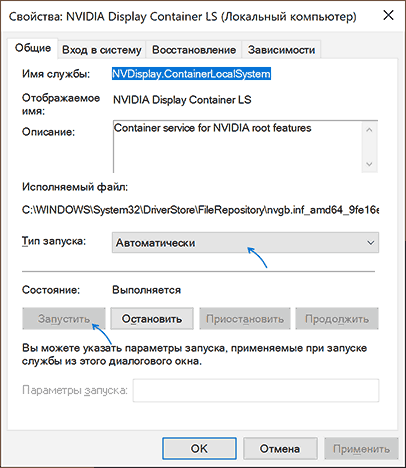
- Нажмите клавиши Win+R на клавиатуре (Win — клавиша с эмблемой Windows), введите services.msc и нажмите Enter. В открывшемся списке служб обратите внимание на службы, имена которых начинаются с «NVIDIA». Убедитесь, что эти службы не отключены. Иначе — двойной клик по службе, устанавливаем «Тип запуска» в «Автоматически», применяем настройки и нажимаем кнопку «Запустить».
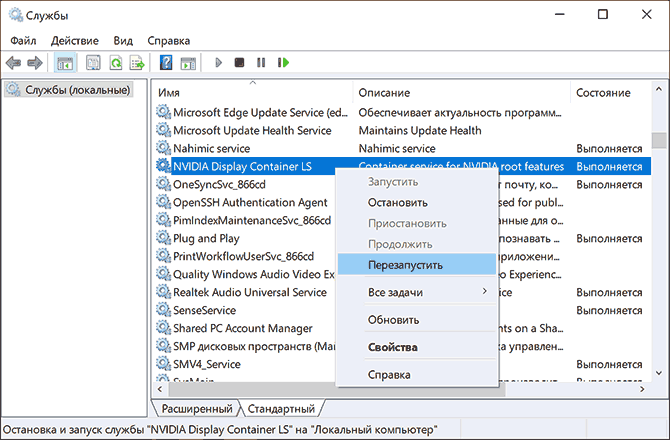
- Если службы уже запущены, попробуйте их перезапустить, особенно — NVIDIA Display Container LS (но лучше — все имеющиеся): правый клик по имени службы — перезапустить. Этот способ (перезапуск службы) часто помогает, если панель управления NVIDIA перестает открываться при входе под другим пользователем.
- Если на вашем ПК, а особенно на ноутбуке также присутствует интегрированное видео, например, Intel HD — скачайте и установите драйверы и на него: в диспетчере устройств не должно быть никаких видеокарт « Базовый видеоадаптер Майкрософт».
Как правило, один из указанных способов срабатывает, но не во всех случаях: бывает, что все службы NVIDIA исправно работают, Панель управления NVIDIA всё также сразу закрывается или не открывается вовсе.
Исправление или переустановка NVIDIA Control Panel
Причиной того, что запуск панели управления NVIDIA не выполняются могут быть ошибки соответствующего приложения. Их можно попробовать исправить, для этого:
- Зайдите в Параметры — Приложения — Установленные приложения (в Windows 11) или Параметры — Приложения — Приложения и возможности (в Windows 10). Найдите NVIDIA Control Panel в списке.
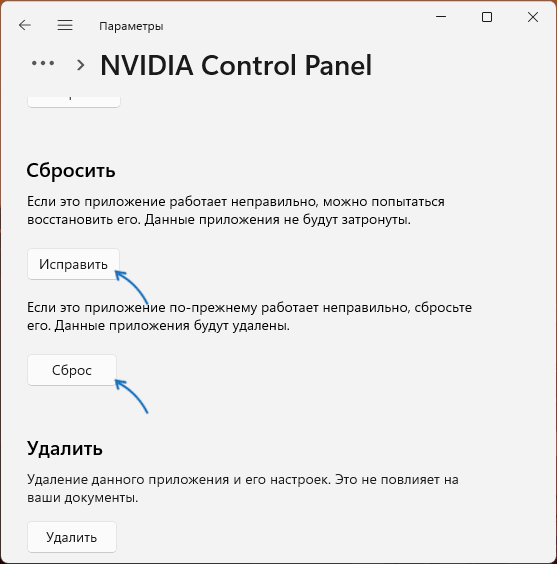
- Нажмите по трем точкам справа от имени приложения (в Windows 11) или по имени приложения (в Windows 10) и выберите пункт «Дополнительные параметры».

- Используйте кнопку «Исправить», а если она не поможет — «Сброс» для сброса приложения.
- Проверьте, запускается ли панель управления NVIDIA теперь.
Если описанные шаги не помогли, попробуйте вручную переустановить приложение, причем установку следует выполнять на системный раздел диска:
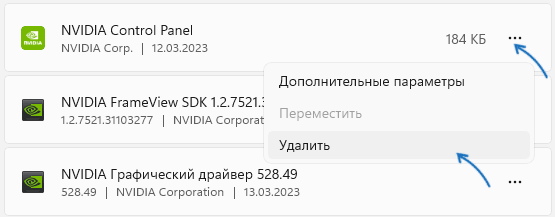
- Зайдите в список установленных приложений в Параметрах Windows (как было описано выше) и удалите NVIDIA Control Panel.
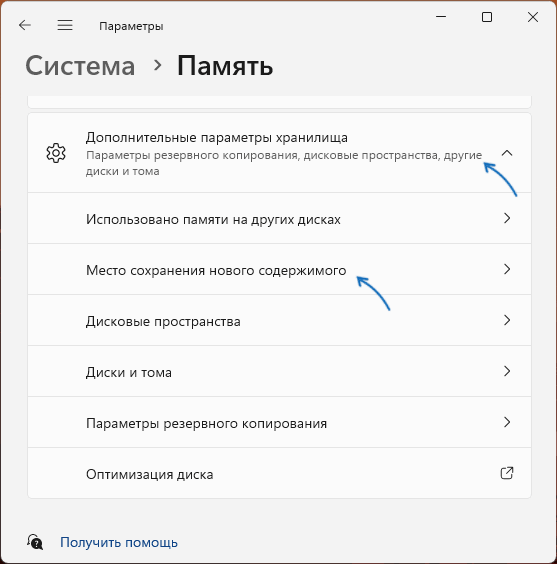
- Перейдите в Параметры — Система — Память и перейдите в пункт «Место сохранения нового содержимого» в дополнительных параметрах хранилища.
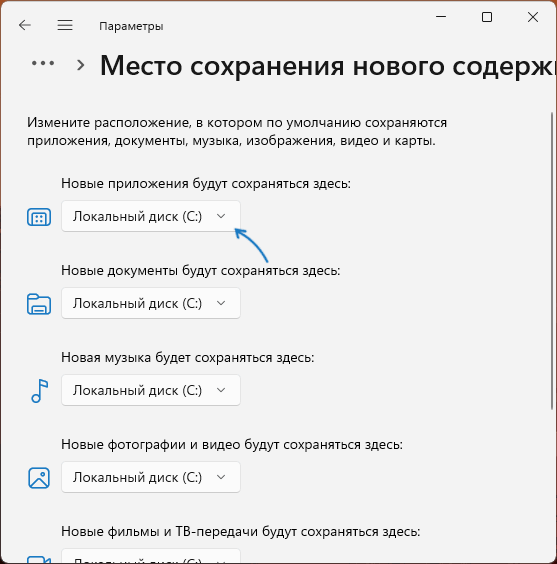
- Убедитесь, что новые приложения сохраняются на диск C:, если это не так — измените место сохранения (есть сообщения, что установка на другие разделы может приводить к рассматриваемой проблеме при запуске).
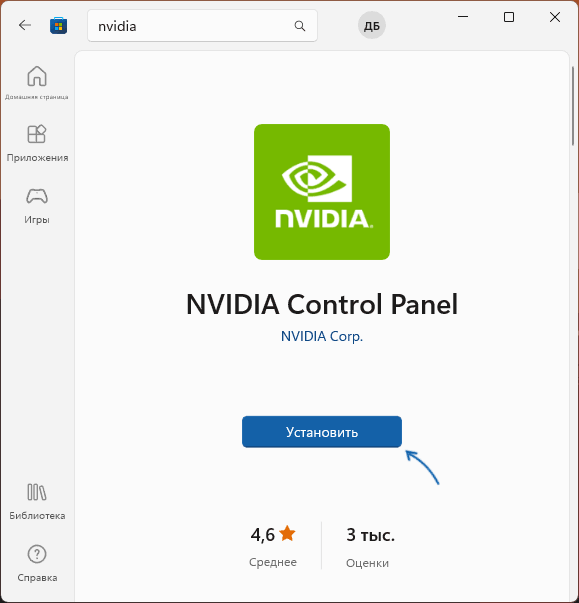
- Зайдите в Microsoft Store, выполните поиск по слову «NVIDIA» и установите NVIDIA Control Panel. Если у вас отсутствует Microsoft Store, вы можете установить его.
Проверьте, была ли решена проблема: с большой вероятностью теперь всё будет работать исправно.
Чистая установка драйвера NVIDIA
Следующий вариант — попробовать полностью переустановить драйверы NVIDIA с официального сайта, выполнив их чистую установку. Шаги будут следующими:
- Зайдите на официальную страницу загрузки драйверов NVIDIA и выберите драйвер для вашей видеокарты в версии Windows, скачайте его к себе на компьютер.
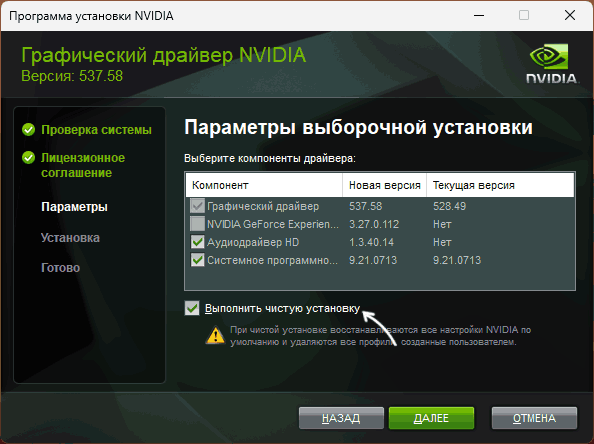
- Запустите скачанный файл установщика и, после выбора: установить только драйвер NVIDIA или графический драйвер и GeForce Experience, отметьте пункт «Выборочная установка».

- Отметьте пункт «Выполнить чистую установку» и нажмите «Далее».
- Дождитесь завершения установки.
После установки драйвера и перезагрузки компьютера проверьте, выполняется ли запуск панели управления NVIDIA.
Дополнительные методы
В случае, если проблемы с запуском сохраняются, следует учесть следующие нюансы, а также попробовать некоторые модификации ранее описанных способов:
- Панель управления NVIDIA может не запускаться при использовании нескольких мониторов, особенно если для организации их работы используется стороннее ПО. Если у вас также несколько мониторов, проверьте, будет ли выполняться запуск, если выключить компьютер, отключить все мониторы кроме одного, снова включить компьютер.
- Драйверы USB-мониторов (например, для работы планшета в качестве второго монитора), инструменты наподобие DisplayLink (при наличии можно найти в «Программы и компоненты») также могут приводить к проблеме.
- Если до недавнего времени всё работало исправно, попробуйте использовать точки восстановления системы на дату, когда проблемы не наблюдались.
- Некоторые отзывы сообщают о том, что при рассматриваемой проблеме помогло удаление сторонних антивирусов, отмечая, что причиной были AVG и Avast.
- В случае, если проблема возникла на ноутбуке можно попробовать такой вариант: скачать с сайта производителя ноутбука драйверы для интегрированной и дискретной видеокарты (даже если они далеко не новые и предназначены для предыдущей версии системы), скачать DDU (Display Driver Uninstaller), отключиться от Интернета (чтобы Windows не успела установить драйверы сама), удалить имеющиеся драйверы с помощью DDU, установить драйверы, ранее скачанные с официального сайта. После проверки работоспособности панели управления NVIDIA можно обновить драйверы NVIDIA.
Надеюсь, один из предложенных методов исправить проблему сработает в вашем случае. Если же остаются вопросы или у вас есть собственные способы — оставляйте их в комментариях ниже.
А вдруг и это будет интересно:
- Лучшие бесплатные программы для Windows
- В манифесте указана неизвестная структура в Microsoft Store — варианты решения
- Как добавить комментарии, теги и рейтинги к папке Windows
- Не удается войти в учетную запись Windows — как исправить?
- Некоторые параметры задает системный администратор в параметрах электропитания — как исправить?
- Как удалить Галерею в Windows 11
- Windows 11
- Windows 10
- Android
- Загрузочная флешка
- Лечение вирусов
- Восстановление данных
- Установка с флешки
- Настройка роутера
- Всё про Windows
- В контакте
- Одноклассники
-
Алексей 28.09.2021 в 18:53
4 Ways to NVIDIA Display Settings Are Not Available
What is the error that NVIDIA display settings are not available? How to solve the error that NVIDIA Control Panel display settings are not available? This post from MiniTool will walk you through how to fix this NVIDIA problem.
It is common for you to encounter the error that NVIDIA display settings are not available when you are not using a display attached to an NVIDIA GPU. Therefore, when coming across the error that NVIDIA display settings are not available, it means that you are not able to access the NVIDIA display settings.
Hence, in the following part, we will show you how to fix the error that NVIDIA display settings are not available.
Note: Before proceeding on the following solutions, you can go to the Device Manager and disable GPU first. Then enable it again. After that, check whether the error that NVIDIA display settings are not available is solved. If not, try the following solutions.
Solution 1. Check Display Connection
In order to solve the error that NVIDIA display settings are not available Windows 10, you can try checking display connection. You need to check whether the port the display connects is correct. You can choose to connect the display to the Intel Integrated graphics or to your NVIDIA graphics hardware.
In addition, make sure that your monitor is connected with the graphics port. After that, reboot your computer and check whether the error that NVIDIA display settings are not available you are not using a display attached to an NVIDIA GPU is solved.
If this solution is not effective, try another one.
Solution 2. Change Adapter Output
If you come across the error that NVIDIA Control Panel display settings are not available, it is recommended to try to change the adapter output.
You can try using a VGA to HDMI Converter and use the HDMI port on your graphics card. After that, reboot your computer and check whether the error that NVIDIA display settings are not available Windows 10 is solved.
Solution 3. Change NVIDIA Display Driver Service Status
In order to fix the error that NVIDIA display settings are not available, you can choose to check the status of NVIDIA display driver service.
Now, here is the tutorial.
- Press Windows key and R key together to open Run dialog.
- Then type services.msc in the box and click OK to continue.
- In the pop-up window, scroll down to find NVIDIA Display Driver service and right-click it to choose Properties to continue.
- Then change its Startup type to Automatic and change its Service status to Started.
- Click Apply and OK to save the changes.

When all steps are finished, reboot your computer and check whether the error that NVIDIA display settings are not available is solved.
Solution 4. Update NVIDIA Drivers
To fix the error that NVIDIA display settings are not available, you can choose to update graphics drivers.
Now, here is the tutorial.
- Click here to go to the GeForce driver download center.
- You can find your driver by manually searching. Or you can also use the Auto-detect your GPU feature.
- Then download the latest NVIDIA driver. When downloading, please take your Windows OS version into consideration.
- After that, reinstall the NVIDIA driver.

When it is finished, reboot your computer and check whether the error that NVIDIA display settings are not available is solved.
Final Words
To sum up, this post shows 4 ways to fix the error NVIDIA display settings are not available. If you come across the same issue, try these ways. If you have any better solution to fix the error NVIDIA display settings not showing up, you can share it in the comment zone.
About The Author
Tina is a technology enthusiast and joined MiniTool in 2018. As an editor of MiniTool, she is keeping on sharing computer tips and providing reliable solutions, especially specializing in Windows and files backup and restore. Besides, she is expanding her knowledge and skills in data recovery, disk space optimizations, etc. On her spare time, Tina likes to watch movies, go shopping or chat with friends and enjoy her life.
Fix NVIDIA Display Settings Are Not Available on Windows 10

Here’s how to Fix NVIDIA Display Settings Are Not Available on Windows 10 PC. To fully remove current NVIDIA Graphics Card Drivers, you may use this uninstall tool PRO@ ttps://macpaw.audw.net/c/376211/154407/1733. Learn more? * https://www.youtube.com/watch?v=fYHy0vK8do0 Fix NVIDIA Experience Error Code 0x0003 & 0x0001 on Windows 10 * https://www.youtube.com/watch?v=V8HGa1AZi8o Download NVIDIA GeForce 940MX Drivers on Windows 10 * https://www.youtube.com/watch?v=sfxdS0FQ7u4 Fix NVIDIA Control Panel keeps crashing
Показать больше
Войдите , чтобы оставлять комментарии.
Fix: NVIDIA Display Settings are Not Available
The error message “NVIDIA display settings are not available” usually occurs when the computer prompts you that you are not currently using a display attached to an NVIDIA GPU. If you are not using the display of the GPU, you will not be able to access the NVIDIA display settings.
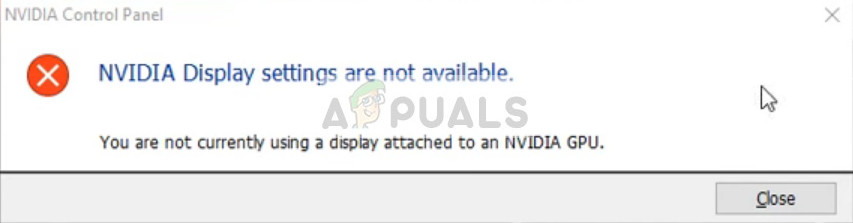
This error is very widespread and happens due to several different reasons. Either you may have the display connected to a wrong port or this might be a driver problem. We will go through the workarounds one by one starting with the easiest and work our way down.
Note: Before you start with any of the solutions down below, navigate to the device manager (Windows + R and “devmgmt.msc”) and disable your GPU. After disabling it, enable it again. The problem was solved for the majority of the cases using this workaround.
Solution 1: Checking display connection
The first and foremost thing which you should check is the port where your display is connected. There are usually two ports where you can attach your display cable. Either you can connect the display to your Intel integrated graphics or to your NVIDIA graphics hardware. This is where most of the people get confused.
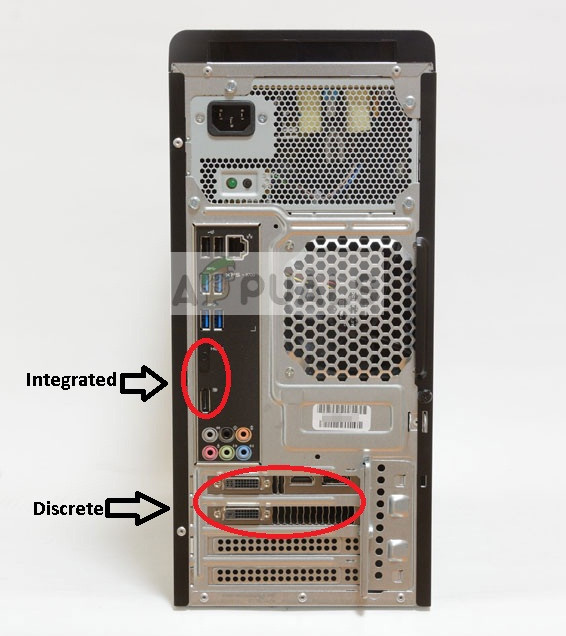
The port which is integrated with the motherboard is the display which is outputted by Intel HD graphics. The display which you see downwards is the display that is connected with your graphics hardware.
Make sure that the connection to your monitor is plugged into the graphics port (also known as a discrete port as shown above) present in your system. Restart your computer after making the change and see if this fixes the error message under discussion.
Solution 2: Changing the adapter output
If you have correctly connected the display cable to your graphics card and the error message still persists, it is worth a shot trying either a converter or changing the form of output from the graphics hardware.
You can either try using a VGA to HDMI Converter and use the HDMI port on your graphics card. Either this or you can change the form of output directly, for example, using a Display port instead of HDMI or VGA. Do some combinations on your own and see if this does the trick.
Solution 3: Checking NVIDIA Display Driver Service
NVIDIA has a service running on your computer which manages the display driver. It provides support to your operating system and is basically a middleware between your NVIDIA hardware and your operating system. There are cases where this service is stopped and because of this, the computer fails to detect your NVIDIA hardware.
- Press Windows + R, type “services.msc” in the dialogue box and press Enter.
- Navigate through all the services until you find NVIDIA Display Driver Service. Right-click it and select Properties.
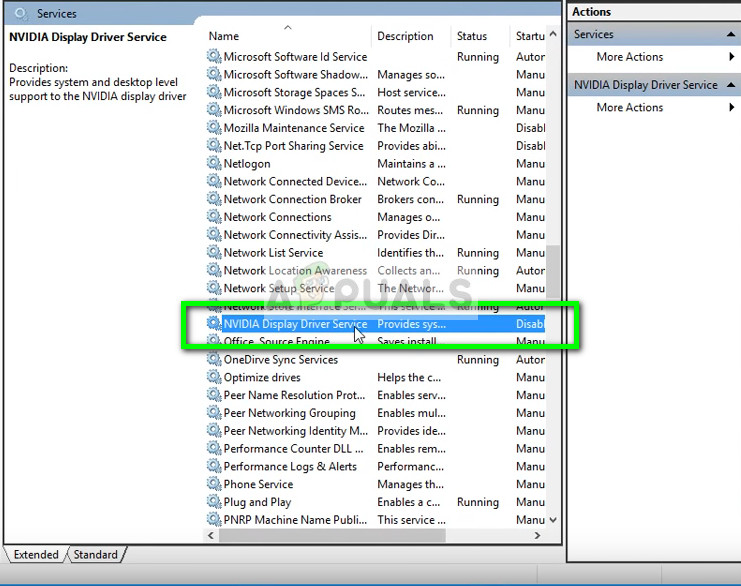
- Set the Startup type as If the Start button doesn’t highlight for clicking, press Apply and it will.
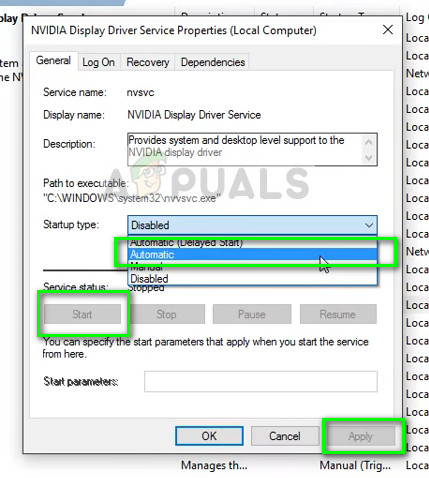
- Once you have made sure the service is up and running, check if the error message still persists.
Solution 4: Updating/rolling back Graphics drivers
We will try updating your NVIDIA hardware either manually or automatically. Furthermore, we will also use an application named as Display Driver Uninstaller (DDU). This will ensure that all remnants of the old display driver are removed so they don’t make problems for us in the future.
Furthermore, if updating the drivers don’t work for you, you should consider rolling back the drivers to a previous build. There are many cases where the newer driver isn’t stable with your device and causes problems.
- Install the utility Display Driver Uninstaller. You can continue without this step but this ensures that there are no remnants of the drivers.
- After installing Display Driver Uninstaller (DDU), launch your computer in safe mode. You can learn how to boot your computer into safe mode by reading our article on it.
- After booting your computer into safe mode, launch the display driver uninstaller.
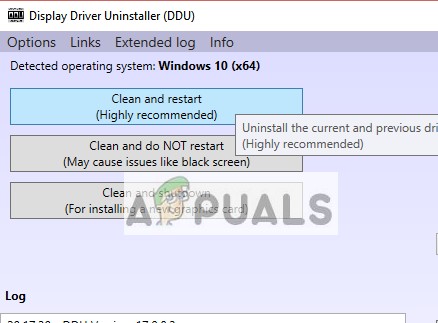
- After launching the application, select the first option “Clean and restart”. The application will then automatically uninstall the installed drivers and restart your computer accordingly.
- Boot your computer back into safe mode, press Windows + R, type “devmgmt.msc” in the dialogue box and press Enter. In most cases, the default drivers will be installed against the hardware. If not, right-click on any empty space and select “Scan for hardware changes”.
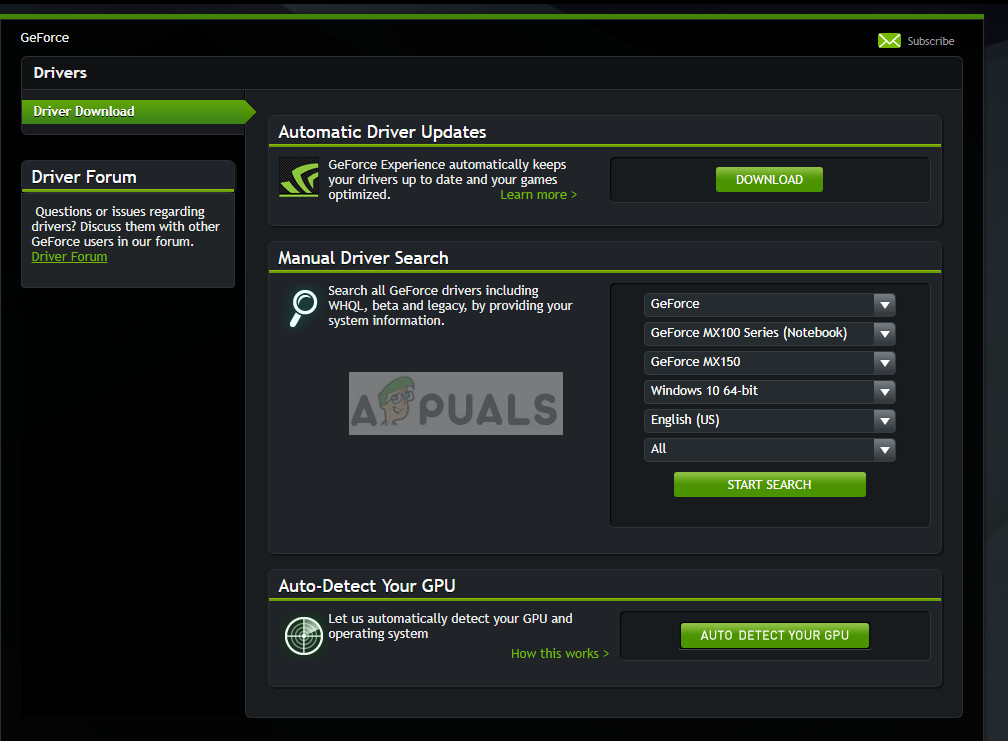
- Now there are two options. Either you can search online for the latest driver available for your hardware from the NVIDIA’s official website. (and install manually) or you can let Windows install the latest version itself (search for updates automatically).
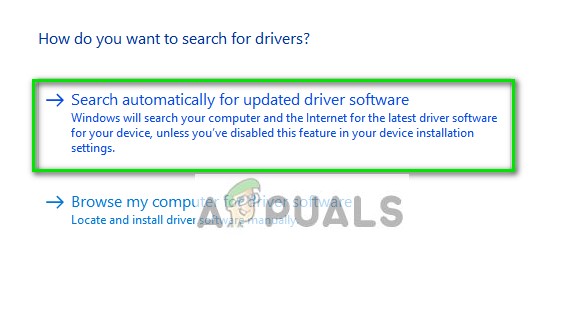
First, you should try updating the hardware automatically. Right-click on your hardware and select “Update driver”. Select the first option “Search automatically for updated driver software”. Choose the second option if you are updating manually and select “Browse for driver” and navigate to the location where you downloaded.
- Restart your computer after installing the drivers and see if the error message “NVIDIA Display settings are not available” still persists.