
Как изменить поисковую систему по умолчанию в Microsoft Edge
Microsoft Edge заменил Internet Explorer в качестве браузера по умолчанию в Windows 10 спустя почти два десятилетия. Новый браузер принес новые интересные функции, но в тестовых версиях Microsoft Edge вы не смогли изменить поисковую систему по умолчанию, так как вы были вынуждены использовать Bing.
Это имело место в ранних версиях Microsoft Edge, в более ранних сборках Windows 10 Technical Preview. Конечно, для Microsoft вполне логично продвигать свою собственную поисковую систему в своем новейшем браузере, который мог стать лучше и популярнее, чем IE, даже на ранних стадиях.
Но теперь доступна полная версия Windows 10, которая принесла много изменений в систему, а также новые функции с момента появления программы Windows Insider. Одна из вещей, которая развивалась больше всего, — Microsoft Edge (известный как Project Spartan, когда Microsoft впервые представила его). Он перешел от нестабильного, глючного браузера к надежному браузеру, который, по некоторым тестам, работает быстрее, чем Chrome.
Действия по переходу на другую поисковую систему в Microsoft Edge
Одним из улучшений браузера Edge является возможность изменять поисковую систему по умолчанию, поэтому вам больше не нужно использовать Bing для поиска в Интернете. Итак, чтобы изменить поисковую систему по умолчанию в Edge, выполните следующие действия:
- В браузере Edge перейдите на google.com (при условии, что вы хотите установить Google в качестве поисковой системы по умолчанию, однако, если вы хотите установить другую поисковую систему, просто перейдите на другой сайт)
- Нажмите кнопку с тремя точками в правом верхнем углу, чтобы открыть меню
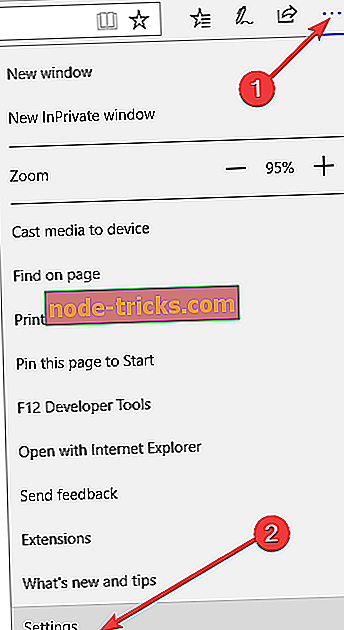
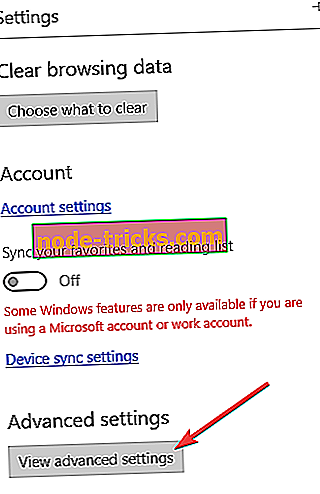
- Спуститесь вниз и нажмите View Advanced Settings.
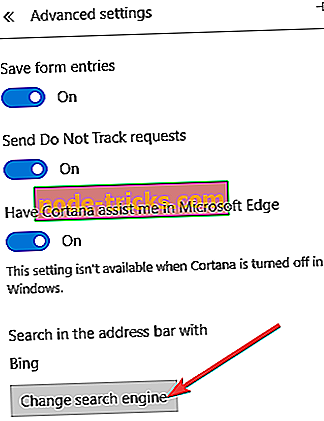
- Выделите Поиск в адресной строке с помощью, нажмите на нее и выберите Добавить новый. В зависимости от вашей ОС и версии браузера, вам может потребоваться щелкнуть непосредственно на опции «Изменить поисковую систему», как показано на скриншоте ниже.
- Нажмите на Google и выберите Добавить по умолчанию
И вот, вы изменили поисковую систему по умолчанию с Bing на (вероятно) Google.
Если вы хотите узнать больше о Windows 10 и ее функциях, посетите наш центр Windows 10.
Используйте частную поисковую систему
Теперь, если конфиденциальность является одной из ваших главных проблем, когда вы находитесь в сети, вы также можете переключиться на удобный для пользователя поисковик. Вот несколько примеров таких инструментов: DuckDuckGo, вероятно, самая популярная частная поисковая система, Lukol, WolframAlpha и другие. Шаги, которые необходимо выполнить для добавления этих поисковых систем в Edge, одинаковы.
Если вы хотите узнать больше о том, как защитить вашу конфиденциальность в Интернете, вы можете ознакомиться с инструкциями ниже:
- Ваш интернет-провайдер может продать вашу историю просмотров: как защитить вашу конфиденциальность
- Основатель DuckDuckGo отвечает на вопросы пользователей о конфиденциальности в Интернете
- Лучшее программное обеспечение для защиты конфиденциальности для Windows 10
Примечание редактора: этот пост был первоначально опубликован в июле 2015 года и с тех пор обновлен для свежести и точности.
Как заменить Bing на Google в Windows 10?
Потому в Windows 10, как уже известно, к поисковику Bing, который там используется по умолчанию, «привязано» много чего. По примеру своих основных конкурентов — Apple и Google — новую операционку Microsoft фактически подарила (куда ж деваться?) тем своим юзерам, которые раньше пользовались версиями Windows 7 и Windows 8.1.
А поскольку «конь дареный», то комплектовал его разработчик, руководствуясь прежде всего собственными бизнес-интересами и «раскручивая» собственные сервисы.
Потому в Windows 10 Bing везде: через Bing работает новый поиск, которая появился в Панели задач, через Bing обрабатываются команды для Cortana и пр.
В общем, убрать Bing из Windows 10 полностью никак не получится (у обычного юзера, так точно), однако в Microsoft Edge — штатном браузере Windows 10 — поисковую систему заменить все же можно, при необходимости, конечно.
Итак, чтобы в Windows 10 заменить Bing на Google (или другой поисковик), делаем следующее:
- жмем кнопку Windows на клавиатуре (или кнопку Windows на панели задач, или кнопку Windows на экране) и запускаем приложение Microsoft Edge (это если оно не «висит» отдельной плиткой на Стартовом экране), либо кликаем «Все приложения» и находим Edge в списке установленных программ;
- запустив Microsoft Edge, жмем иконку с тремя точками, расположенную в правом верхнем углу экрана и заходим в «Настройки«;
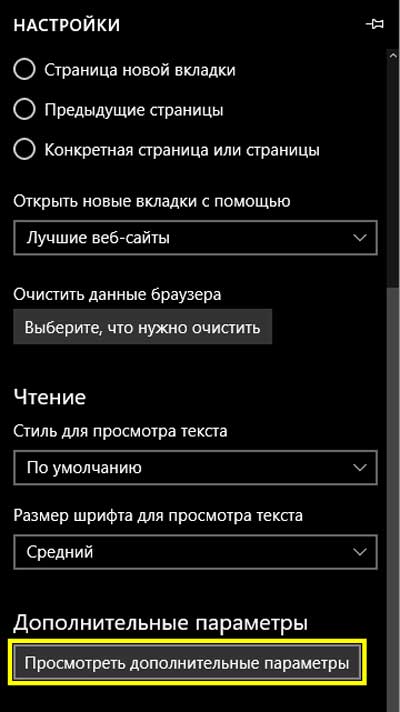
- прокручиваем меню настроек вниз и заходим в «Дополнительные параметры» (кнопка «Посмотреть дополнительные параметры»);
- в «Доп. параметрах» снова крутим меню вниз до вкладки «Поиск в адресной строке с помощью«, кликаем по надписи «Bing («www.bing.com»)«, выбираем нужный вариант Googleв списке (или набираем в строке « «) и подтверждаем выбор нажатием на кнопку «Использовать по умолчанию«.
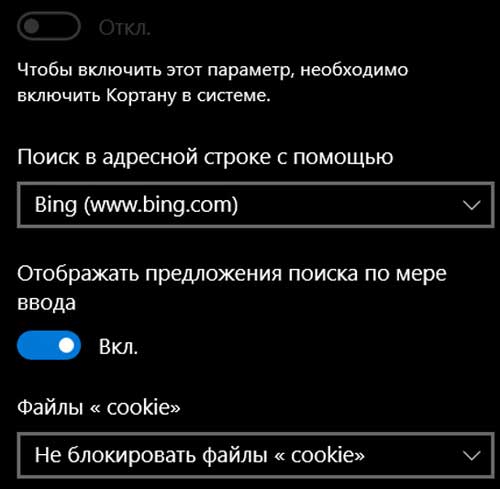
Теперь Edge в вашей Windows 10 искать все будет через Google, а не через Bing, как раньше. Таким же образом, в Edge можно прописать и другой поисковик, но только из тех, которые Edge поддерживают.
Однако этим допускаемая Microsoft самодеятельность юзеров в плане замены поисковиков и заканчивается. Cortana и поиск в Windows 10 (а не в Edge), к примеру, в любом случае работают только через Bing, и тут, что называется, без вариантов.
Правда, если Bing в самой Windows 10 вам вдруг нравиться перестанет, можно вообще убрать поисковую строку (кликаем по ней ПКМ или тапаем и удерживаем нажатие до появления меню, в которой надо нажать «Скрыть»). Но способов отключить Cortana от Bing еще не придумали… Пока.
Сделайте Google основной поисковой системой

Вводите запросы прямо в адресной строке, находясь на любом сайте.
Отправляйте поисковые запросы прямо из окна поиска, находясь на любом сайте.


How to switch to the desktop
no text here please
Your shiny new Windows 8 operating system has tiles and apps on a Start Screen, and it has the original desktop that looks like the Windows you’re used to.
To make Google your default search engine, you just need to switch from apps to the desktop.
Here two options to help you switch to the desktop:
-
The quick way: If you see a black bar at the bottom of the screen saying “The site www.google.com uses add-ons that require Internet Explorer on the desktop”, click the blue Open button to switch to desktop mode.
Сделайте Google основной поисковой системой
Вводите запросы прямо в адресной строке, находясь на любом сайте.
Выберите первый вариант


Нажмите «Добавить»
Difference Between Bing and Google
Key Difference – Bing vs Google
The key difference between Google and Bing is that Bing is better when performing video searches while Google comes fully featured. Google has been the dominant force in the search engine world. Bing, on the other hand, lost its ground due to the competition provided by Google. But if we have a closer look at both the search engines, there is not much of a difference as many believe. Although Bing has many strengths, many people ignore many features of Bing which enable it to perform as like Google. Let’s take a closer look at both the powerful search engines to see what they offer.
What is Bing?
Bing is the last name that was used by Microsoft’s search engine. Previously, it was known as Windows Live search and MSN search. The Bing brand came with the aim of presenting real world results than just finding text on a page and called itself a “decision engine.”

Figure 02: Screenshot of Bing on Google Chrome
What is Google?
Google is easily the most used search engine in the world. Google search has been around since 1997 and has been seen improving with advanced features, smarter results, and integration with other Google products.

Figure 01: Google interface on a smartphone
What is the difference between Bing and Google?
Basic Layout and Features
Both Google and Bing feel and look similar when it comes to basic search results. Other than the logo and the font on the top, the search results for both the search engines are similar.
Video Search
Bing: The video search that comes with Bing is significantly better than Google. This is a big difference between the two in comparison. Bing will give you a grid of large thumbnails where you can click and play without leaving Bing. For some videos, you can watch a preview as you hover over the video.
Google: Google, on the other hand, will give you a vertical list of videos with small thumbnails.
Autocomplete
Bing: In most cases, Bing gives more autocomplete answers when compared with Google. Bing usually gives eight while Google gives four. This feature is especially usefully when using the autocomplete feature to find alternative products and in finding wildcard suggestions.
Google: Less autocomplete suggestions which usually is only four.
Shopping Suggestions
Bing: Bing is not ideal for shopping suggestions as Google performs this task in a better way.
Google: Google shows shopping suggestions more often than Bing does. Google’s suggestions are generally much better too. So, if you are looking for a product which is available in certain stores, or to find the best price online, Google search is better than Bing.
Search Results
Both Google and Bing will display search results that will generally be what you want. Both produce results that according to the keywords that were used in the search.
Google: You will note that Google will perform better when specific questions, like a technical question, are directed. If the question is more specific, Google will find and organize the results in a better way.
Bing: This is good at search results for general queries.
Smart Searches
Bing: Bing has adopted many of the smart search features that come with Google like unit conversions, movie show times, local weather, famous people, and related stuff. Many of these features yield the same results. Bing comes with a feature that predicts flight ticket prices when you are searching for flights.
Google: Google has a few things that Bing does not provide like health info, movie and video game release dates.
Image Search
Google: Google has an image search which is smooth to use.
Bing: Image search of Bing is powered by some advanced options. One of these features is Layout, which lets you search for images in portrait and landscape modes. Bing also lets you remove search terms with just a click which is a great feature to have.
Related Search Results
Bing: Bing puts its related search results to the right of the page.
Google: Google puts is related search results to the bottom of the page.
Advanced Operators
Both Bing and Google come with advanced operators that are comparable. Although the syntax may be different, both show a lot of overlap.
Bing: Bing can perform two searches that are not available with Google. “Contains” will allow you to search for pages that contain certain files types. “Link information” that show shows the best-ranked pages linked from a site and “feed” which enables you to search for RSS feeds on a particular subject.
Google: Google has more features and is better in doing advanced searches.
Additional Features
Bing: Bing lets you earn a point for each search you perform. You can redeem these points for gift cards at Starbucks, Amazon, and Gamestop and even use the collected point to donate to charity.
Google: Google has a few extra features that have been built into its search. These include reverse search, instant search, voice search, and search being integrated with other Google services like Gmail, Google Now, and Google contacts. This is very useful when you are using a lot of products that are offered by Google.
Bing vs Google
Summary – Bing vs Google
Google is the better search engine when we compare both. It has been around for a long time, and is popular and innovating all the time. Both Bing and Google are very similar in features. Bing is better in some aspects like videos. Bing may be preferred for general results over Google occasionally. Google is able to dig deep into the internet to find what you are looking for. Although you may think Google search is the best out there, Bing is not far behind.