
Android Easter Egg
The Easter egg is a hidden feature in the Android operating system, which can be accessed by performing some specific steps in the settings menu. Every Android device comes with this hidden feature. The process of unlocking this feature is mostly similar to the recent version of Android. The Easter egg has been included since Android version 2.3 (Gingerbread).
You can access this feature under the Android version number in your device settings (may vary from device to device). However, it is mostly found under Settings > System > About phone. You can also search «Android Version» in the Settings screen. Once you find the Android version number, tap it continuously, and the Easter egg feature will be invoked.
In this article, you will learn the quick list of every Easter egg and how you will access each of them.
Android 13 Easter egg
Following are the steps to enable or find the Easter egg game in Android 13; the steps are the same as seen in Android’s lower version devices:
- Navigate the device Settings app > About phone> Android version.
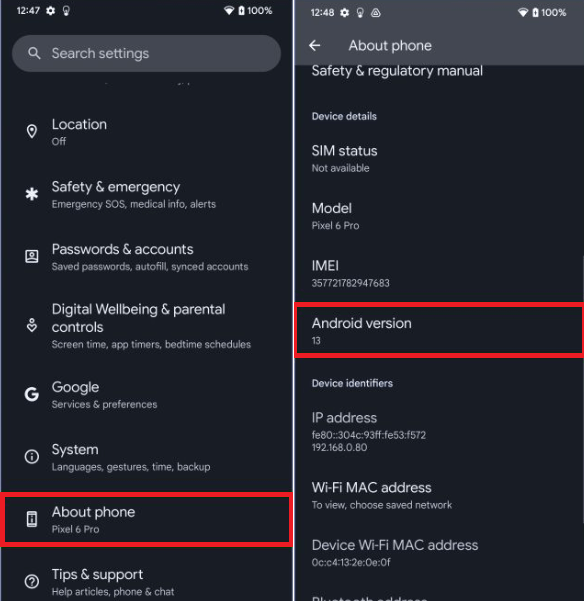
- Tap on the Android version number continuously until you see a clock.
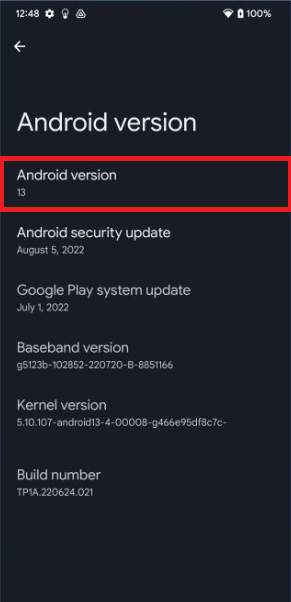
- With your finger, turn the dial to a circular motion until the clock reaches 1:00 pm (13:00).

- When you make 1:00 pm on screen, a big 13 appears with several bubbles.
Tap and hold the number 13 on the screen to change bubbles into emojis. Repeat this to see different emojis.
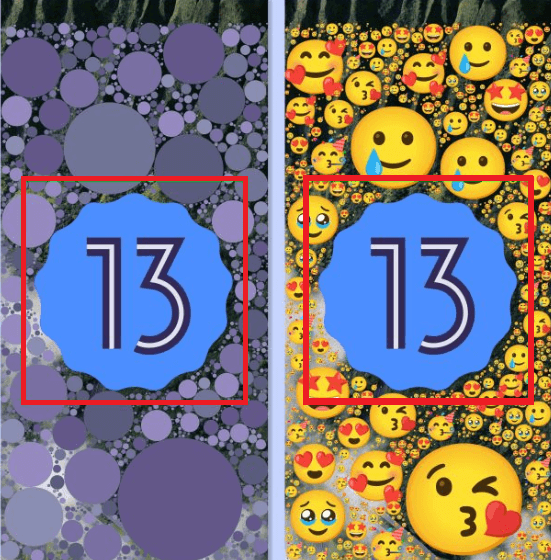
When a favorite image appears, you can take its screenshot to use as wallpaper on your device. If you take a screenshot in normal ways, you will notice that the old wallpaper appears behind the emoji. To take a screenshot on a black background, swipe up the screen from the bottom and tap «Screenshot».
Android 12 Easter egg
Finally, in the stable version of Android 12, we find the Easter egg, which is missing in several beta releases of Android 12. If you are using the Android 12 stable release, you can easily navigate it.
The Easter egg in Android 12 displays a screen with several different-sized bubbles that change color based on the device’s wallpaper colors. The followings are the steps to find and enable Easter egg in Android 12:
- Navigate to device Settings app > About phone> Android version.
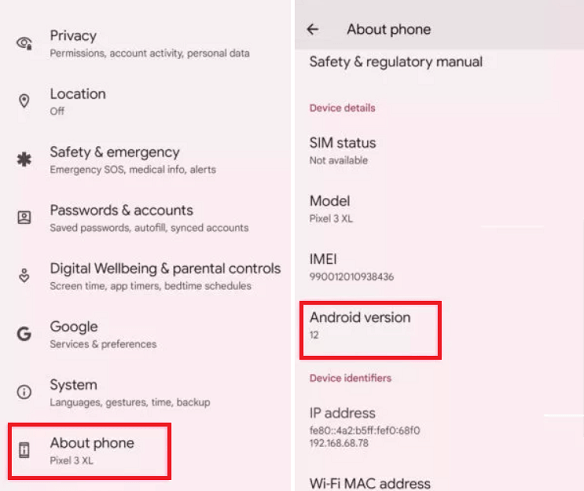
- Tap on the Android version number continuously until you see the clock.
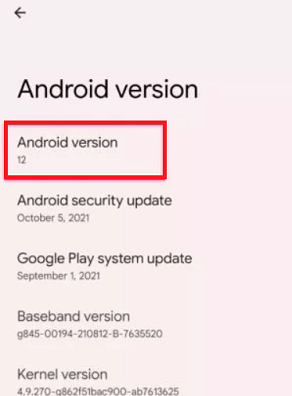
- Move both the clock hands to 12:00 clock (for Android 12).

- When you make the 12:00 clock, the Easter egg appears on the screen displaying the number 12 with different balls.

If you have followed all the steps above correctly, you will see a design known as Material You. In this theme, you will see different size balls appear on the wallpaper, and the wallpaper’s color depends on the device’s background color. One of the interesting things is that you see different size balls or dots when you close and re-open the Android 12 Easter egg.
Android 11 Easter egg
Following are the steps to enable or find the Easter egg game in Android 11; the steps are the same as we follow in the above version:
- Navigate the device Settings app > About phone> Android version.
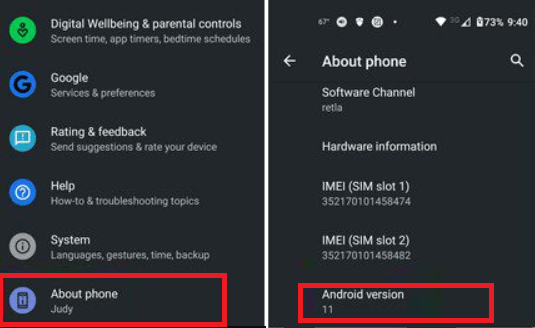
- Tap on the Android version number continuously until you see a volume dial.
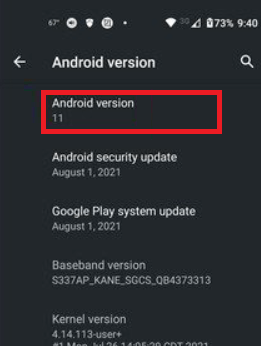
- When you are at the volume dial screen, tap on the white circle and rotate the dial three times. In the third round, you will see the number 11.
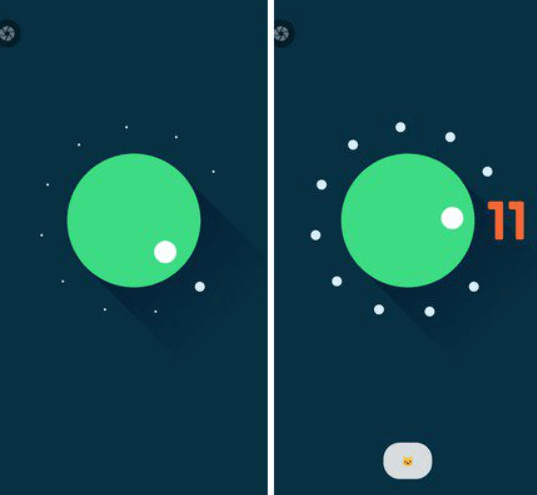
When you complete all the above steps, i.e., turn the volume dial three times, a cat emoji appears at the bottom of the volume dial. It means you have turned on the Easter egg game.
Android 10 Easter egg (formally termed as Android Q)
The step to enable Easter egg in Android 10 (which was formally termed as Android Q) is the same as other Android versions. The Easter egg is available in a black and gray screen says «Android 10» in white latter.
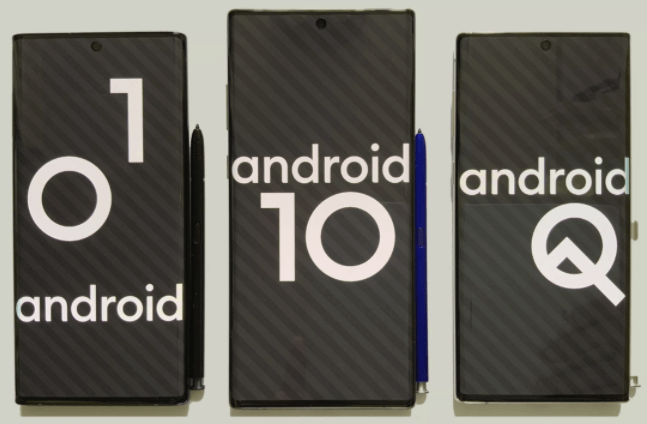
- Go to device Settings > About phone> Android version.
- Click on the Android version, and it will open another screen, now, continuously tap on Android Build Number until the Android 10 logo page appears.
- If you tap on the logo, it rotates, presses and holds, and starts it to spin.
- Rotate the logo and drag «1» into the «0» to make a «Q» logo. When the 1 and 0 are placed at the right place to form Q, tap on the Q logo.
- Tapping on the Q logo for few times, you will be taken to the nanogram game.
Android Pie (9.0) Easter egg
The Android Pie (P) Easter egg is accessed in the same way as other Android versions.
- Go to device Settings > About phone> Android version.
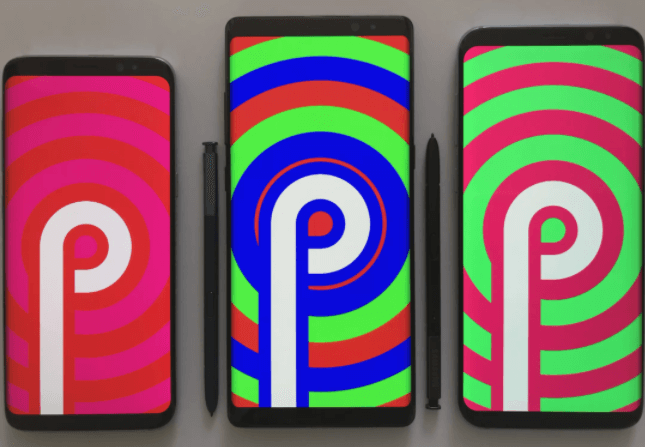
- Click on the Android version to open that screen; now, repeatedly tap on Android Build Number until the brightly colored P logo appears.
- Now, tap and long-press the P logo several times continuously until a drawing app appears.
In this drawing screen, you can change the brush size and color and get a dropper tool to draw some stuff and enjoy a bit of fun.
Android Oreo (8.0) Easter egg
The first two steps to enable Easter egg on Android Oreo are the same as on another Android version.
- Go to device Settings > About phone> Android version.
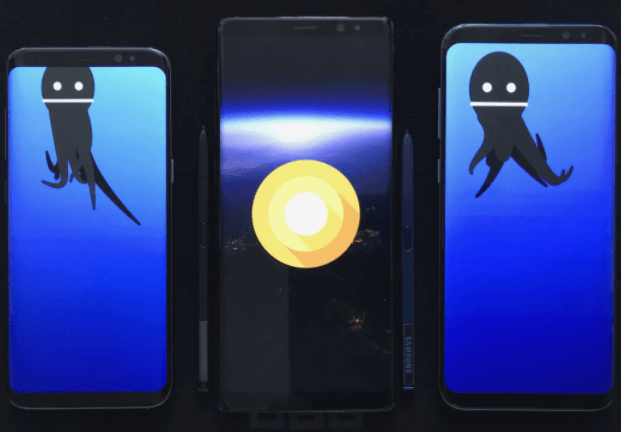
- Click on the Android version to open that screen; now, repeatedly tap on Android Build Number until the Android O logo appears.
- Continuously tap on O for few times after that press and hold, the screen switches to an ocean setting with a black octopus onscreen. You can now drag this octopus around the screen and watch it floating.
Android Nougat (7.0) Easter egg
You can get Easter egg on Nougat in the same way as Oreo. However, its Easter egg is more entertaining. Activate this feature by following ways:
- Go to device Settings > About phone> Android version.
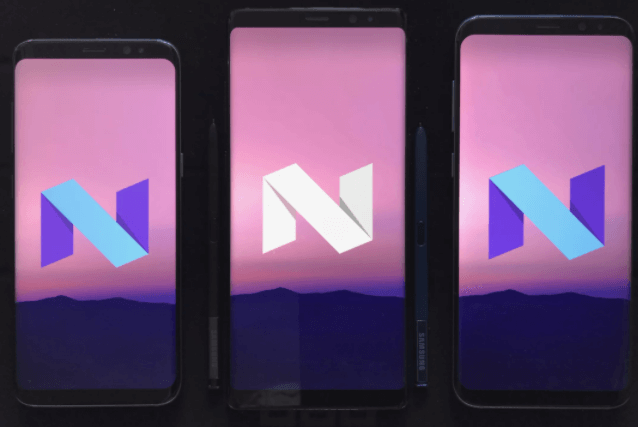
- Now, repeatedly tap on the Android version tab until the N logo appears on the screen.
Drop down from the top of the screen to visit your quick settings panel and click on EDIT. Here, you will see a cat face icon with the title «Android Easter egg«. Drag and drop this icon to the main quick setting panel. Tap on the Easter egg icon to start your fun activity. This Easter egg feature enables a game called Android Neko, which is based on a kitten. Tap it, and you will see four different types of food: bits, fish, chicken, and treat; select anyone to feed a cat.
Android Marshmallow (6.0) Easter egg
To access the Easter egg on Android 6.0, follow the below steps:
- Navigate to device Settings > Android phone> Android version.
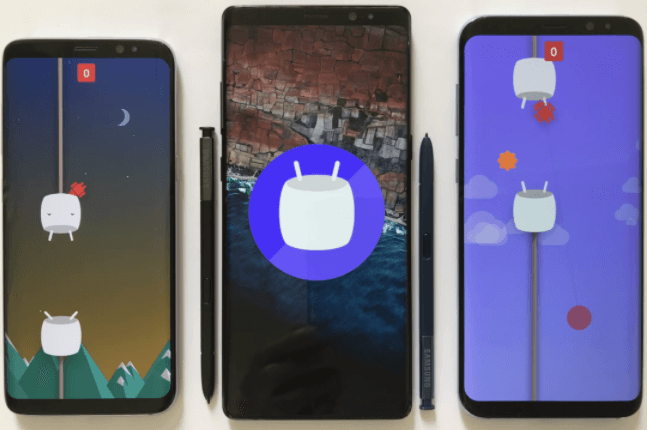
- Now, repeatedly tap on the Android version until the Marshmallow logo M appears on the screen.
- Press and hold the logo one more time to start the Flappy Bird
In the Flappy Bird game, you can fly through sticks with marshmallows. It also allows joining multiple people to play at the same time. Clicking on the small «+» button allows up to six people to play simultaneously.
Android Lollipop (5.0) Easter egg
Android Lollipop’s Easter egg was mostly the same as the Android Marshmallow Easter egg in terms of concept, graphics and mini-game. To access the Easter egg on Android Lollipop, follow the below steps:
- Navigate to device Settings > Android phone> Android version.
- Now, repeatedly tap on the Android version until the Lollipop logo appears on the screen.
You will get the first Easter egg with the word «lollipop» printed on it. Now, tap on the lollipop to change the color of the candy. Finally, long-press the Lollipop logo to start the game.

Android KitKat (4.4) Easter egg
Android KitKat was the first version which has the Android’s first three-stage Easter egg fun activity. In the first stage, you will see a nondescript K logo that you can spin. In the second stage, a red color Android logo appears on the screen. Finally, tap and long-press the red Android logo multiple times until the tiles bunch appears on the screen. Tap on these tiles and watch them moving randomly around the board. To enable Easter egg on KitKat, follow the steps below:

- Navigate to device Settings > Android phone> Android version.
- Now, repeatedly tap on the Android version until the Easter egg appears on the screen.
Android Jelly Bean (4.1-4.3) Easter egg
Android Jelly Bean has another version that also has a two-stage Easter egg. In the first stage, you will see a colorful jelly bean graphic that appears on the screen. When you tap on the jelly bean, a cute little smiley face is added in the second stage. Long-pressing the jelly bean brings you to a screen to start a mini-game. To enable Easter egg on Jelly Bean, follow the steps below:

- Navigate to device Settings > Android phone> Android version.
- Now, repeatedly tap on the Android version until the Easter egg appears on the screen.
Android Ice Cream Sandwich (4.0) Easter egg
Android Ice Cream Sandwich was a first multi-stage (two-stage) Easter egg that can be enabled in the same way as other Android versions. To enable Easter egg on Ice Cream Sandwich, follow the below steps:
- Navigate to device Settings > Android phone> Android version.
- Now, repeatedly tap on the Android version until the Easter egg appears on the screen.
The initial stage of Easter egg in this version appears in the form of bugdroid with a tasty ice cream sandwich for a body. Continuously tapping on the bugdroid makes it bigger and fills the screen. You will see your phone goes filled with ice cream sandwich bugdroids flying across the screen as a popular Nyan Cat meme.

Android Honeycomb (3.0) Easter egg
Android Honeycomb is the only such a version which was exclusively developed for tablet, and it also looks good over the large screen devices. The Easter egg of this version was inspired by a movie whose name was Tron Legacy. To enable Easter egg on Honeycomb, follow the below steps:
- Navigate to device Settings > Android phone> Android version.
- Now, repeatedly tap on the Android version until the Easter egg appears on the screen.
When the Easter egg activated, it shortly toast a «REZZZZZZZ…» message.

Android Gingerbread (2.3) Easter egg
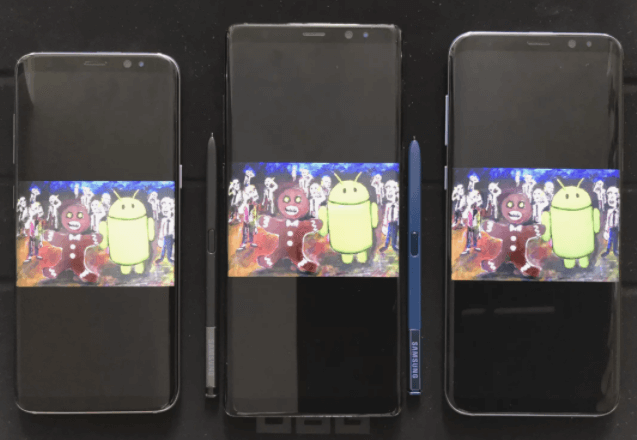
Easter egg in Android has started from version Gingerbread. This Easter egg looks like a bugdroid feature next to the zombie gingerbread man. To enable Easter egg on Gingerbread, follow the below steps:
- Navigate to device Settings > Android phone> Android version.
- Now, repeatedly tap on the Android version until the Easter egg appears on the screen.
When your Easter egg gets activated, it displays a toast message.
Next Topic Drudge report Android apps

For Videos Join Our Youtube Channel: Join Now
Feedback
- Send your Feedback to [email protected]
Help Others, Please Share


Learn Latest Tutorials


Python Design Patterns


Preparation


Trending Technologies


B.Tech / MCA


Javatpoint Services
JavaTpoint offers too many high quality services. Mail us on h[email protected], to get more information about given services.
- Website Designing
- Website Development
- Java Development
- PHP Development
- WordPress
- Graphic Designing
- Logo
- Digital Marketing
- On Page and Off Page SEO
- PPC
- Content Development
- Corporate Training
- Classroom and Online Training
- Data Entry
Training For College Campus
JavaTpoint offers college campus training on Core Java, Advance Java, .Net, Android, Hadoop, PHP, Web Technology and Python. Please mail your requirement at [email protected].
Duration: 1 week to 2 week
Like/Subscribe us for latest updates or newsletter 


Android Q has a hidden ‘surprise’ for users, here’s what it is
Google has been including an ‘Easter egg’ in its Android OS since past few years. The same has been discovered by Essential Phone users for Android Q. The easter egg is a nonogram puzzle that is yet to be solved by users. Before the puzzle, uses see animated diagonal lines in the background and Android 10 mentioned at the front.

Looks like Google has given away the ‘Easter Egg’ of Android Q in the recently announced beta version 6. Although it’s not visible for most smartphone users, those running the final beta version on the Essential Phone and some Pixel 2XL are claiming to have found the ‘surprise’. This was mentioned by users on Reddit along with images showing the Android Q ‘Easter Egg’.
This ‘Easter Egg’ can be accessed on Essential Phones in a similar way any other ‘Easter Eggs’ are found.
You would have to navigate through Settings > About Phone > Android Version. Tapping on the version number repeatedly will show you the hidden ‘surprise’.
In the case of Android Q, users are seeing a two-tone screen with a background showing diagonal lines and a stylized Android logo at the front with number 10, which is the version number of Android Q.

It has been mentioned that double-tapping the number animates them to form the letter Q. The lines in the background also animate. If you tap on the screen a few more times, you are supposed to see a nonogram puzzle. Users would have to solve the numbers mentioned on the side of the puzzle and tap on the given grid one to by one to see a hidden picture. The user who posted this on Reddit was not able to solve it though.
We are still waiting to see the Android Q ‘Easter Egg’ and will update once the puzzle is solved.
Google has been including ‘Easter Egg’ games in its Android OS versions since past few years. In Android P, it was the hallucinating spiral animation and a drawing screen while in Android Lollipop it was a Flappy Bird kind-of game.
The search giant will be rolling out the final, consumer version of Android Q within the next few weeks. The update is supposed to reach Pixel smartphone users first followed by other OEMs like Essential Phone, OnePlus, HMD Nokia and more.