
Как сбросить sync 1
мы и наши партнеры используем файлы cookie для отображения персонализированной рекламы, а также для профилирования и измерения. Вы согласны?
OK NO Cookie policy
Сделай сам
- вопросы и ответы :
- (Различные бренды) :
- различный : Что делать, если не работает система Sync на Ford?
Что делать, если не работает система Sync на Ford?
ответ
В случае неисправности мультимедийной системы автомобиля мы можем приступить к сбросу настроек, следуя этим инструкциям: выберите настройки, затем общие, прокрутите и коснитесь сброса, а затем общий сброс, нас попросят подтвердить, а затем точка запустит процедуру сброса и необходимо будет подождать несколько минут для ее завершения.
Опубликовано: 11 Май 2022 by Scegli Auto
Видео на похожие темы (Бортовой компьютер)
Как сбросить систему SYNC на Ford?
(Различные бренды) различный В нашей Ford может случиться так, что мультимедийная система SYNC внезапно перестанет работать, заблокируется или возникнут проблемы любого рода. В э

Как обнулить мультимедийную систему Sync 3 в пикапе Ford Maverick?
(Различные бренды) различный В случае, если мультимедийная система Sync 3 нашего пикапа Ford Maverick показывает признаки неисправности или мы активировали нежелательные настройк

Как сбросить мультимедийную систему SYNC 3 в автомобиле Ford?
(Различные бренды) различный В нашем Форде может случиться так, что мультимедийная система SYNC 3 заблокируется или покажет признаки неправильной работы. В таких случаях мы можем

Как сбросить мультимедийную систему SYNC на Ford Bronco?
Ford Bronco (2021-2023 / U725 ) В Ford Bronco может возникнуть ситуация, когда мультимедийная система SYNC блокируется или показывает признаки неполадок. В таких случаях мы можем по
Как сбросить программное обеспечение Sync на Ford Ecosport
Ford Ecosport (2012-2023 / BK, MK 1 ) Давайте в этом коротком видео-уроке посмотрим, как выполнить принудительную перезагрузку программного обеспечения Sync на первом поколении Ford Ecosp
Как обновить навигатор Форд Фокус
Ford Focus (2011-2018 / MK 3 ) Обновление системного программного обеспечения SYNC-3 можно выполнять напрямую через Wi-Fi, если включена опция «Автоматическое обновление системы»,

Как сбросить систему Sync 2 на Ford C-Max?
Ford C Max (2010-2019 / MK 2 ) В этом руководстве мы можем увидеть, как сбросить мультимедийную систему Sync 2 в Ford C-Max, очень простую и быструю операцию, которую необходимо вы

Как восстановить заводские настройки системы Ford Sync
(Различные бренды) различный С помощью заводского сброса системы Ford Sync ошибки программного обеспечения можно устранить быстро и легко. К сожалению, эта процедура включает в с
Отвалился Bluetooth на Куге с SYNC 1
Ни с того ни с сего сегодня утром машина наотрез отказалась соединятся с телефоном. Говорит ошибка инициализации Bluetooth. Танцы с бубном пока грелся мотор ни к чему не привели: ни сброс настроек SYNC ни перезагрузка телефона не помогли. Ладно… думаю … приеду, займусь… К тому моменту уже было понимание, что источник зла именно в машине, ибо ни яблочные ни андроидные гаджеты не видели SYNC.
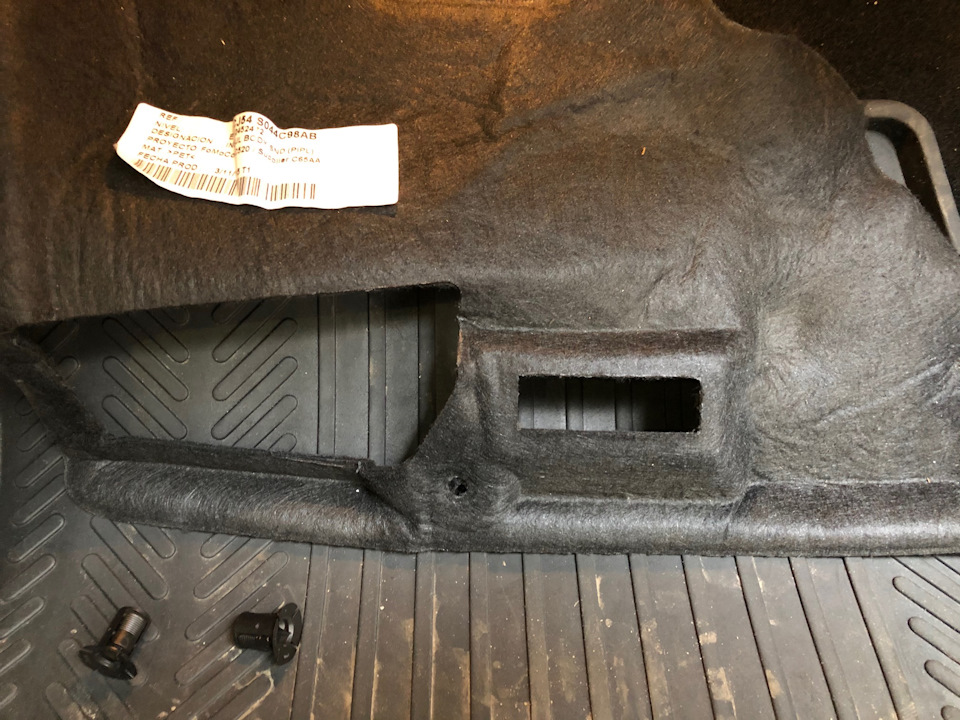
Как освободился, первым делом сформулировал вопрос Гуглу. Тот по-шурику нарыл несколько вариантов решения бага. Помог с траблом только описанный на fkclub.ru. Для приведения синка в чувство достаточно было выдернуть предохранитель номер 67 (на 7.5А) в ногах пассажира. На нем висит модуль SYNC, модуль интерфейса дисплея передних органов управления и модуль глобальной системы определения местонахождения. Вытащил на секунд 20. Вставил обратно… чуть потупило, но вскоре все подключилось. На все 5 минут. Самое сложное ))) — выдернуть пред. Неудобно, пришлось использовать спецынструмент))).

Цена вопроса: 0 грн Пробег: 56 000 км
14 февраля 2020 Метки: электроника
Как сбросить sync 1
Голосовые команды Sync (словарный запас тётеньки живущей в машине):
Эту часть не перевожу, т.к. без знания языка она бесполезна:)
When using the USB port, you may say any of the following commands:
• Play all • Play
• Pause • What’s playing?
• Connections • Play next track
• Play previous track • Play next folder2
• Similar music • Play previous folder2
• Autoplay on • Autoplay off
• Repeat off • Repeat on
• Shuffle on • Shuffle off
• Play genre 1 • Play playlist 1
• Play album • Play artist 1
• Play track 1 • Search artist 1
• Search genre 1 • Search track 1
• Search album 1 • Refine album 1
• Refine artist 1 • Refine track 1
Voice commands while using Line in
While using the Line in feature (Auxiliary input jack), you may speak the following commands:
• SYNC • Line in
• Bluetooth Audio • Cancel
• Phone • Voice settings
Voice commands when in Bluetooth audio mode
When in Bluetooth audio mode, you may use the following commands:
• Play • Connections
• Pause • Play next track
• Play previous track
At any time, you may say these commands:
• SYNC • USB
• Help • Bluetooth Audio
• Line in • Phone
• Voice settings • Read Message
• Cancel
буду выкладывать тут всё по Sync, часть возможно переведу.
в понедельник про телефон и его подключение.
To be continue.
Apr 5 2012, 17:04 Ответить Цитировать Сообщение №1
Aquilon Ford Escape Hybrid Limited MY09
Телефон понимает следующие голосовые команды:
• Dial • Call
• Call at home • Call on mobile OR cell
Call at work OR Call
in office • Call on other
• Phone book at home1 • Phone book 1
• Phone book on mobile OR cell1
• Phone book at work OR
Phone book at office1
• Call history outgoing1 • Call history incoming1
• Phone book on Other1 • Connections1
• Call history missed1 • Go to privacy
• Menu1 • Hold
• Join
While in phone mode, you may also say “Menu” and then any of the following commands:
• [Phone] settings [message] notification on
• [Phone] settings [message] notification off
• [Phone] connections • Phone name
• Signal • Battery
[Phone] settings [set] phone
ringer • [Phone] settings [set] ringer 1
• [Phone] settings [set] ringer 2 • [Phone] settings [set] ringer 3
• Text message inbox • [Phone] settings [set] ringer off
Note: With the above commands, words in ( ) are optional and do not have to be spoken for the system to understand the command.
You may also say “Dial” to access any of the following commands:
• 0–9 • Dial
• Delete (deletes one digit) • Clear (deletes all entered digits)
• Plus • Star
• Asterisk (*) • 800 (eight hundred)
• 700 (seven hundred) • 900 (nine hundred)
411 (four-one-one), 911
(nine-one-one), etc. • # / (pound, slash)
Note: To exit Dial mode, press and hold or press MENU to go to the PHONE MENU.
Voice commands when connecting devices
When attempting to connect a phone to SYNC®, you may say any of the following commands:
• Connect • Bluetooth ON
• Bluetooth OFF • Delete
Note: You can only connect a device to SYNC® after it has successfully gone through the pairing process.
Note: In the above possible commands, “” is a dynamic listing in that it could be the name of any previously paired device.
At any time, you may say these commands:
• SYNC • USB
• Line in • Bluetooth Audio
• Phone • Voice settings
Cancel • Vehicle health report (if equipped, U.S. only)
• Help
Apr 5 2012, 18:49 Ответить Цитировать Сообщение №2
Aquilon Ford Escape Hybrid Limited MY09
Спариваем мобильный телефон с SYNC
Внимание: не пытайтесь спарить телефон с SYNC во время двжения.
1 Для спаривания телефона используются следующие клавиши:
Power button turns radio on and off
ARROW buttons move through menu choices
PHONE button accesses the Phone menu
OK button confirms selections

Заведите машину, включите радиприёмник включите Bluetooth на мобильном.
Нажмите кнопку PHONE на радиоприёмнике.
Note: по умолчанию, Bluetooth SYNC включен, если Bluetooth не включен, на экране появится надпись BluetoothOFF с предложением изменить состояние Bluetooth ON/OFF.
Нажать OK.
на дисплее будет: Set Bluetooth On?
Нажать OK.
На дисплее отобразится Bluetooth Set On подтверждая что Bluetooth включен.
SYNC автоматически ищет предварительно спаренные телефоны. на дисплее отображается Connecting.
Если SYNC не обнаружит предварительно спаренный телефон, на экране отобразиться No Phone Found и Add Bluetooth Device.
Нажимайте ARROWS (стрелки) до появления надписи Add Bluetooth Device.
Нажмите OK.
Тётка скажет:«Press OK to begin pairing device.»
Нажать OK.
Apr 5 2012, 21:46 Ответить Цитировать Сообщение №3
Aquilon Ford Escape Hybrid Limited MY09
Тётка скажет: «Search for SYNC on your device and enter the PIN provided by SYNC.»
Note: убедитесь что Bluetooth включен на телефоне и доступен для обнаружения.
SYNC отобразит PIN на три минуты. Введите предложенные 6 цифр на мобильном телефоне.

После успешного спаривания, на экране появится Device Connected.

Note: телефон может запросить разрешение на входяще соединение с Bluetooth SYNC.
SYNC спросит оставить этот телефон первичным (Primary.)
Note: Primary — телефон к которому SYNC будет автоматически подключатся.
Нажать OK.
выбрать Yes или No

Apr 6 2012, 08:25 Ответить Цитировать Сообщение №4
Aquilon Ford Escape Hybrid Limited MY09
Если телефон поддерживает выгрузку адресной книги по Bluetooth, то вы можете загрузить её в SYNC.
На экране: Download Phonebook?.
Нажать OK.
выбрать Yes или No
Если выбрали Yes начнётся загрузка контатков.
По завершению появится надпись: Download Complete.
Note: Это может занять несколько минут, зависит от количества контактов.
Для выхода из меню нажимать на стрелки (ARROWS) до EXIT PHONE MENU и нажать OK.
Apr 6 2012, 08:25 Ответить Цитировать Сообщение №5
Aquilon Ford Escape Hybrid Limited MY09

уже убедились что SYNC не понимает русские буквы в контактах и выводит кракозябры. :rofl: Обидно да?, но это поправимо. Мы же в курсе о транслите:)
Править контакты вручную на телефоне? ну можно конечно, только это долго, муторно и потом на телефоне как пользоваться?
Мы пойдём другим путём. Итак:
Выкачиваем контакты с телефона на комп в формате vcf или csv. Открываем блокнотом, делаем транслитерацию (сайтов много, гугл в помощь) (префикс номеров +7 надо ставить) и снова сохраняем. Теперь скачиваем програмку:
http://tinyurl.com/yhfyff8
Не бойтесь вирусов, подумаеш ваш комп станет моим ботом :rofl: (шутка), ставим и запускаем. Скармливаем наш файлик с контактами, если надо правим и создаём файлик для SYNC. 
как полученное закинуть в машину расскажу в след серии. может быть. если попросите.
Apr 6 2012, 08:26 Ответить Цитировать Сообщение №6
Aquilon Ford Escape Hybrid Limited MY09
Для обновления SYNC будьте готовы VIN предоставить или же сами на сайте качайте апдейты http://www.ford.com/syncmyride/
Часть первая. Получаем Update
1. Prepare your USB storage drive
2. Download files
3. Install files
Prepare
Log on to Your SYNC Account and select applications and updates to download.
If your browser is not supported by this site, the download may not be successful. Please view: Which browsers are supported by syncmyride.com?
Locate a portable USB storage drive that you can take to your vehicle. Note that password or biometrically protected, or locked files are not accessible by SYNC. Because U3 USB drives may be password-protected and the files may not be accessible by SYNC, we recommend that you do not use U3 USB drives with SYNC.
For owners of multiple SYNC-equipped vehicles
We strongly recommend that you use a separate USB drive for each of your SYNC-equipped vehicles.
Dedicating a USB drive to each vehicle’s SYNC system helps us keep each vehicle’s download and installation history current-and accurate. In addition, as new SYNC features and functionalities become available, you may decide to install different features on different vehicles. Dedicated USB drives will help maintain the unique applications for each vehicle.
Plug the USB drive into your computer’s USB port.
Can’t find your USB port?
On a desktop PC or Mac you’ll often find USB ports in the front and in the back of your computer. Laptop PCs might have USB ports located on either side or in the back. You can plug your USB drive into any of the available ports. The drive should slide in easily without being forced.
You may have more than one USB port on your computer. This option allows you to choose the USB drive you want to use to download SYNC files.
If you have more than one USB device connected to your computer, choose the USB drive you wish to use from those listed on your computer screen.
If you plugged in a different USB device, the new drive will appear in the list.
If you’ve used your USB storage drive previously, it will appear under SYNC Storage Drives.
If no USB drive is detected, safely remove the drive by clicking (on a Windows PC) the Safely Remove Hardware icon at the bottom right of your screen, next to the clock.
Confirm your choice of USB storage drive. Then click Next.
If you wish to change your choice, click the Change this USB drive link and select another.
Download
After clicking Next, the files will automatically begin downloading.
Please DO NOT remove your USB drive until the download is complete. The screen will confirm that the download is complete.
Safely remove the USB storage drive from your computer’s USB port by clicking (on a Windows PC) the Safely Remove Hardware icon at the bottom right of your screen, next to the clock.
You are now ready to take your USB storage drive to your vehicle and install on SYNC.
Часть вторая. Прошиваем тётку
Turn on both your vehicle and radio. Your vehicle must be running and not in Accessory mode.
Press the radio AUX button to select one of the following sources: Line In, USB or Bluetooth Stereo.
Press the MENU button.
Media Menu will display and change to Play Menu.
Press the ARROWS to Select Source.
Press OK.
SYNC USB displays.
Press OK.
USB Selected displays.
Press OK.
Press the ARROWS to choose System Settings.
Press OK.
Press the ARROWS to choose Advanced.
Press OK.
PROMPTS will display.
Press the ARROWS to choose Install Applications.
Press OK.
SYNC will automatically detect the files and the SYNC screen will display: Install Application?
Press OK to confirm the installation.
Installing Application will display during the process.
Note: Do not remove the USB drive while the installation is in progress.
Upon completion of downloading of files, Installation Complete will display on the SYNC screen.
The SYNC voice will say, «Installation complete.» SYNC may also say, «The system will now reboot. Please wait a few moments before using the system.»
NOTE: The system will reboot, which will take several minutes. Do not use the system during this time.
Installation Complete will remain on the SYNC display until you exit the installation mode.
Press MENU to exit installation mode.
Please remove the USB storage drive at this time.
Please note that after you have installed the update, you will need to pair your mobile phone again with SYNC and re-download your contacts from your mobile phonebook. We also recommend deleting the previous Bluetooth-SYNC connection that was on your mobile phone before re-pairing your mobile phone to SYNC.
Часть третья. Подтверждение обновления
Last main step—and it’s an important one—report the successful installation!
Bring your USB storage drive back to your computer.
Log in to your SYNC account.
Select Update & Customize on the menu bar.
Click: REPORT SUCCESSFUL INSTALLS.
Insert your USB drive in the same USB port in which you downloaded the update file.
Click: NEXT.
The SYNC files will be listed on the screen.
If you receive a message: No files found, please:
Remove the USB drive and be sure to insert it in same USB port that you used to download the file. Click NEXT.
If you receive the message again, it could be that you removed the USB drive before the installation was completed. In this case, please re-install the file on SYNC. Please remember that you need to receive two Installation Complete messages, before the installation is completed.
Click: UPLOAD SYNC CONFIRMATION FILES.
After the upload finishes you will receive a confirmation message.
If you installed the SYNC Services update, you must activate the service in your account before connecting to it.
To activate services, click the MANAGE SYNC tab on the menu bar. The services available for your SYNC will be listed.
Click: Start Activation Now.
Once you have activated a service in your SYNC account, you’ll be able to connect to the service in your vehicle.
Direct Config модуля Sync 3 (APIM)
Отображение и управление климат-контролем на экране ГУ
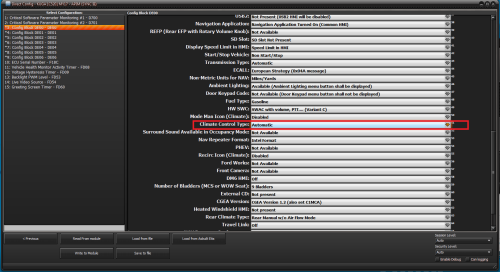
В разделе Direct Config соответствующего автомобиля выбираем APIM (SYNC III)
3: Config Block DE00 — DE00
Climate Control Type — Automatic
после изменения параметра сделать сброс APIM
Черная тема 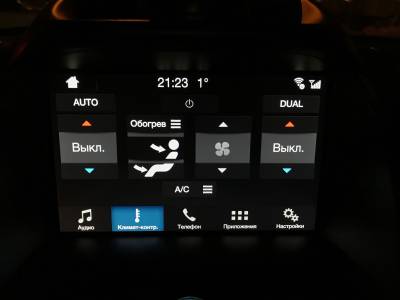
Белая тема 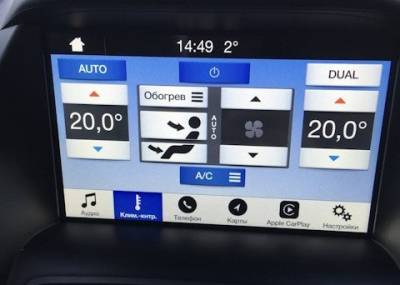
Этот параметр продублирует установленные значения температуры в верхней статусной строке
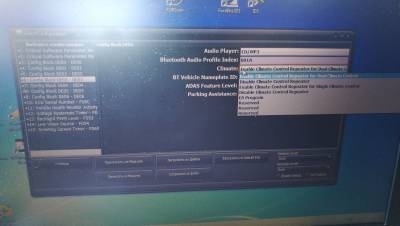
3: Config Block DE03 — DE03
Climate — Enable Climate Control Repeater for Dual Climate Control 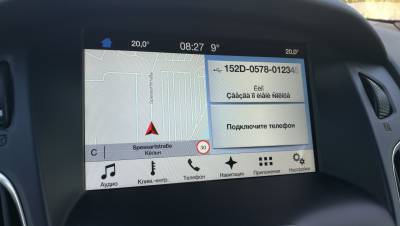
Активация камеры заднего вида
3: Config Block DE00 — DE00
Rear Camera — RVC Present
Для работы авто режима день/ночь
устанавливаем
3: Config Block DE00 — DE00
Illumination — FoE Strategy
Активация отображения препятствий, при наличии парктроника «кубики»
Direct config — BCM
57: BCM Configuration Data — DE00
правим:
park assist — with park assist
Отображение заставки с часами после выключения зажигания
3: Config Block DE00 — DE00
10 Minute Clock — Enabled
Смена всплывающей анимации экрана
4: Config Block DE01 — DE01
Splash Screen
Можно выбрать одну картинку из 13 вариантов: