
Windows movie maker
Windows Movie Maker — программа для создания/редактирования видео. Включается в состав клиентских версий Microsoft Windows, начиная с Windows ME, обновлённая версия программы включена в Windows XP, Windows XP Media Center Edition 2005 и Windows Vista. После выпуска Vista, работа над программой была прекращена. В качестве замены для неё предлагается Windows Live Movie Maker.
Возможности
- Получение видео с цифровой видеокамеры
- Создание слайд-шоу из изображений
- Обрезание или склеивание видео
- Наложение звуковой дорожки
- Добавление заголовков и титров
- Создание переходов между фрагментами видео
- Вывод проекта в формат WMV с настраиваемым качеством
Версии
- Windows Movie Maker 1.0 в Windows Me
- Windows Movie Maker 1.1 в Windows XP
- Windows Movie Maker 2.0 для Windows XP
- Windows Movie Maker 2.1 в Windows XP SP2
- Windows Movie Maker 2.5 в Windows XP Media Center Edition 2005
- Windows Movie Maker 2.6 для Windows Vista
Ссылки
Aero • Desktop Window Manager • Проводник (Explorer) • Панель задач • Меню «Пуск» • Shell (namespace • Special Folders • File associations) • Search (Saved search • iFilters) • Graphics Device Interface • WIM • Next Generation TCP/IP stack () • .NET Framework • Audio • Printing (XML Paper Specification) • Active Scripting (WSH • VBScript • COM (OLE • OLE Automation • DCOM • ActiveX • ActiveX Document • Structured storage • Transaction Server) • Previous Versions • WDDM • UAA • Win32 console
Калькулятор • Calendar • Таблица символов • Contacts • DVD Maker • Fax and Scan • Internet Explorer • Journal • Outlook Express • Почта Windows • Magnifier • Media Center • Meeting Space • Mobile Device Center • Mobility Center • Movie Maker • Narrator • Notepad • Paint • Фотоальбом • Private Character Editor • Remote Assistance • Sidebar • Snipping Tool • Звукозапись • Windows Media Player • Windows Speech Recognition • Игры
Chess Titans • Hold ‘Em • InkBall • Mahjong Titans • Purble Place • Пасьянс «Косынка» • Пасьянс «Паук» • Сапёр • Пасьянс «Свободная ячейка» • Пинбол • Червы
Autorun • BITS • Task Scheduler • Wireless Zero Configuration • Shadow Copy • Windows Error Reporting • Multimedia Class Scheduler • CLFS
Hard link • Junction point • Mount Point • Reparse point • Symbolic link • TxF • FAT • CDFS • UDF • DFS • IFS
Domains • Active Directory • DNS • Групповая политика • Roaming user profiles • Folder redirection • Координатор распределённых транзакций • MSMQ • Windows SharePoint Services • Windows Media Services • Rights Management Services • IIS • Terminal Services • WSUS • Network Access Protection • DFS Replication • Remote Differential Compression • Print Services for UNIX • Remote Installation Services • Windows Deployment Services • Windows System Resource Manager • Hyper-V
NT series architecture • Object Manager • Startup process (Vista) • I/O request packets • Kernel Transaction Manager • Logical Disk Manager • Security Accounts Manager • Windows Resource Protection • LSASS • CSRSS • SMSS
Unix subsystem (Interix) • Virtual DOS Machine • Windows on Windows • WOW64
Wikimedia Foundation . 2010 .
Полезное
Смотреть что такое «Windows movie maker» в других словарях:
- Windows Movie Maker — Développeur Microsoft Dernière version … Wikipédia en Français
- Windows Movie Maker — Компонент Microsoft Windows Windows Movie Maker в … Википедия
- Windows Movie Maker — For the component of Windows Live Essentials, see Windows Live Movie Maker. Movie maker redirects here. For the magazine, see MovieMaker. For information about movie makers in general, see film director. Windows Movie Maker A component of… … Wikipedia
- Windows Movie Maker — Para el componente de Windows Live Essentials, véase Windows Live Movie Maker. Windows Movie Maker Desarrollador Microsoft Información general Última versión estable … Wikipedia Español
- Windows Movie Maker — Dieser Artikel oder Abschnitt bedarf einer Überarbeitung. Näheres ist auf der Diskussionsseite angegeben. Hilf mit, ihn zu verbessern, und entferne anschließend diese Markierung. Der Windows Movie Maker ist eine Video Software von Microsoft. Die… … Deutsch Wikipedia
- Windows DVD Maker — A component of Microsoft Windows Windows DVD Maker in Windows 7 … Wikipedia
- Windows Live Movie Maker — Entwickler Microsoft Aktuelle Version 15.4.3538.0513 (6. Juli 2011) Betriebssystem Windows Kategorie Videoschnittprogramm … Deutsch Wikipedia
- Movie Maker — Windows Movie Maker Windows Movie Maker Développeur Microsoft … Wikipédia en Français
- Windows Live Movie Maker — Para el software de edición de vídeo que viene integrado con Windows XP y Vista, véase Windows Movie Maker. Windows Live Movie Maker Desarrollador Microsoft Corporation http://explore.live.com/windows live movie maker … Wikipedia Español
- Windows Live Movie Maker — Infobox Software name = Windows Live Movie Maker caption = collapsible = author = developer = Microsoft Corporation released = latest release version = latest release date = latest preview version = Build 14.0.5026.905 latest preview date =… … Wikipedia
- Обратная связь: Техподдержка, Реклама на сайте
- �� Путешествия
Экспорт словарей на сайты, сделанные на PHP,
WordPress, MODx.
- Пометить текст и поделитьсяИскать в этом же словареИскать синонимы
- Искать во всех словарях
- Искать в переводах
- Искать в ИнтернетеИскать в этой же категории
Tech Ease
NOTE: As of January 10, 2017, Microsoft ceased to support Windows Movie Maker. The Windows Movie Maker application will continue to function, however, and can still be used by those who prefer it. We are maintaining the Movie Maker posts within TechEase because we find that many people are still using the application and come to the TechEase site looking for the specific help we offer.
CAUTION: While installation files that were downloaded directly from Microsoft are safe, there are now many reports of non-Microsoft scam websites offering malware versions of Movie Maker for download. While this malware may function at first, it eventually will demand payment for functions such as saving a file. Never download software from an untrusted source.
Windows Movie Maker is the video editing program that is included with Windows XP. Windows Movie Maker allows you to quickly build a personalized movie that incorporates video, still images, background music, and narration. This movie can be customized further by adding titles, transitions, and video effects.
Windows Movie Maker was designed to be easy to use even if you don’t have any experience with video editing. The program includes a task pane that guides you step-by-step through the three steps involved in creating a movie:
- capturing video from your camera or importing it from a hard drive or other storage device.
- assembling the video clips and other resources into a movie using the Timeline or Storyboard.
- exporting the finished movie into a format that can be shared with other people.
To get started with Windows Movie Maker, open the program by going to Start > All Programs > Windows Movie Maker (or Start > Programs if you have your Start menu set to Classic).
The Windows Movie Maker interface is divided into four main areas:
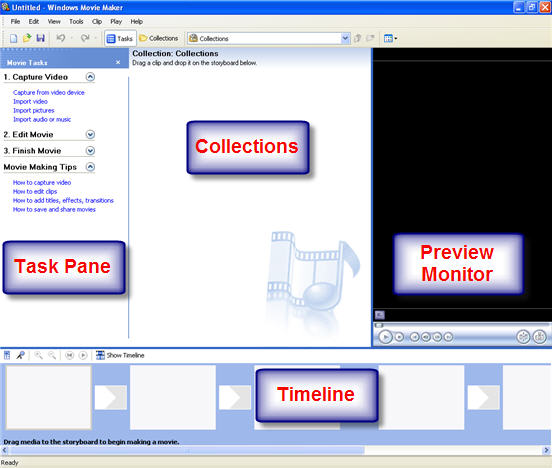
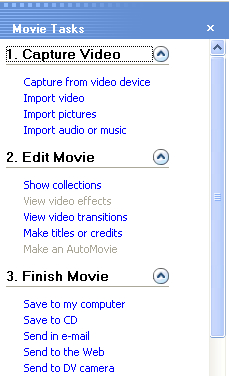
- The Movie Tasks Pane provides an outline of the video editing process in Windows Movie Maker. Each of the three steps listed in the Movie Tasks Pane (Capture Video, Edit Movie, and Finish Movie) includes links for the tasks you would perform for that step. When you click on any of these links, Windows Movie Maker will start a wizard that will guide you through the task.
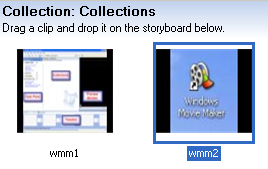
- The Collections area shows you thumbnails of the video clips, still images, and sound files you have captured or imported into Windows Movie Maker. Windows Movie Maker includes special collections with transitions and video effects you can use to make your movie more interesting. You assemble a movie by dragging these assets from the Collections area into the Timeline or Storyboard.
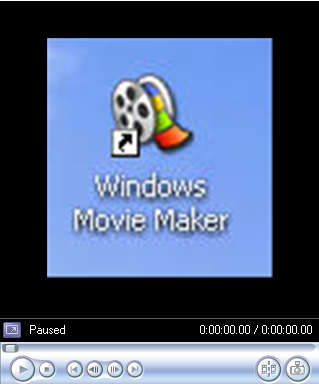
- The Preview Monitor includes controls you can use to preview the movie you’re working on in the Timeline or Storyboard, or individual clips in the Collections Area.
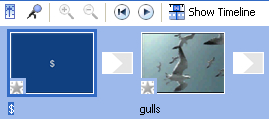
- The Timeline and the Storyboard are the two windows you will use to arrange video clips, still images, and transitions into a movie. The Timeline and the Storyboard occupy the same space at the bottom of the Windows Movie Maker window. You can click the Show Storyboard or Show Timeline button to switch between the two views.

 The Storyboard view shows you a series of boxes you can use to arrange the video clips, still images, and transitions you plan to use in your movie into a sequence.
  The Timeline view shows you the individual tracks that make up your movie in a linear layout.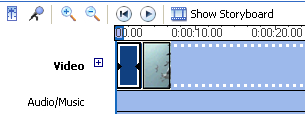
Pages
- Home
- Credits
- Grant Funding Information
- Chat & Conferencing
- How do I add people to my Buddy List in iChat?
- How do I block users I don’t want to chat with me on iChat?
- How do I change my buddy icon in iChat?
- How do I change my online status in iChat?
- How do I chat with more than one buddy at a time with iChat?
- How do I send a file using iChat?
- How do I set up iChat?
- How do I start a a chat in iChat?
- I have an iSight camera, but my friend doesn’t, can I still do a video chat?
- What are emoticons, and how do I use them in iChat?
- What do all those abbreviations used in chat mean?
- What do I need to install in order to get started with chat?
- How do I encourage my students to stay on task while using the computer?
- How do I ensure that my students take good care of the computers we have in our classroom?
- How do I minimize disruptions due to technical problems?
- How do I promote collaborative learning using the computers in my classroom?
- I only have one computer, how do I implement technology in my classroom?
- How do I add a link to a webpage in my message?
- How do I check my mailbox for new messages?
- How do I control “spam”?
- How do I create a signature to appear at the end of my emails?
- How do I create an email list?
- How do I hide the names of my mailing list recipients?
- How do I know who is really sending me an email?
- How do I reply to or forward an email?
- How do I save a file sent to me?
- How do I send an email?
- How do I set up my email account in Mail?
- What are rules, and how do I use them to manage my email?
- What is “phishing” and how do I protect myself from it?
- What is an attachment, and how do I send one?
- What is good email Netiquette?
- Can I open files created with a PC on my Mac?
- How do I assign labels to my folders?
- How do I change the program that opens a type of file on my computer?
- How do I compress files to make them smaller?
- How do I connect two Macs to share files using a Firewire cable?
- How do I create a copy of a file?
- How do I delete files or folders?
- How do I find out how much disk space I have free to store files on my computer?
- How do I install programs on my computer?
- How do I rename a file or folder?
- How do I save my work on a Mac?
- How do I share files between Macs and PCs over a network?
- How do I share files between Macs over the network?
- How do I switch between open applications using my keyboard?
- How do I use the Finder to manage my files and folders?
- How do I view the properties of a file or folder?
- What is an alias, and how do I create one?
- What is Exposé?
- What is Spotlight, and how do I use it to search for files on my computer?
- What is the Dock, and how do I use it?
- How can I clean my computer?
- How do I burn a CD on my Mac?
- How do I change the default printer?
- How do I connect a digital camera to my computer to download pictures of my students?
- How do I connect my computer to my school’s network?
- How do I connect my laptop to a projector?
- How do I create a computer-to-computer wireless network?
- How do I install a printer on my Mac?
- How do I manage print jobs on my Mac?
- How do I print in landscape?
- How do I print in on the Mac?
- How do I safely remove a USB device from my computer?
- How do I share a printer?
- I can’t connect to my network, what should I do?
- I can’t print, what should I do?
- What is 802.11?
- What is a flash drive?
- What is Firewire?
- What is USB?
- How do I get images on my computer?
- How do I reduce the file size of an image?
- How do I use Flickr to create online presentations?
- How many megapixels do I need my camera to have?
- What are some tips for taking better pictures?
- What are the differences between the file formats used to save images?
- What is bit depth?
- What is Flickr?
- What is resolution?
- What is the difference between bitmap and vector images?
- What is the difference between optical and digital zoom?
- What resolution should I use when I scan my images?
- What is the World Wide Web?
- What is web 2.0?
- What is the Internet?
- What is a web browser?
- How do I use my web browser to navigate the Web?
- What is a URL?
- What is a 404 error and what should I do if I get one?
- What is a plugin? How do I install it?
- What is a cookie?
- How do I empty my browser’s cache?
- What is social bookmarking?
- What is tabbed browsing, and how do I use it?
- How should my students cite a web page?
- What is HTML?
- How do I create a webpage?
- How is writing for the web different?
- How do I make my web pages accessible?
- What is a “WebQuest”?
- What is blogging and how can I use it as a classroom activity?
- What is a wiki?
- What is RSS?
- How do I use online map services?
- What is Google Earth?
- What is a podcast and how do I create one?
- What is Netiquette?
- What is an Acceptable Use Policy (AUP)?
- How do I connect to the Web?
- How do I control all those pop-up windows?
- How do I bookmark a site I like so I can view it later?
- How can I share bookmarks with my students?
- How can I use a search engine to find the sites I want instead of ten thousand sites I don’t want?
- How can my students know if a web source is reliable?
- How can I check to see what sites my students have been visiting?
- How can I save a local copy of a website to show to my students in a room with no Internet connection?
- Getting Started
- Introduction to Universal Access in Mac OS X
- Introduction to Ease of Access in Windows 7
- Setting Up Multiple User Accounts in OS X
- Creating Screen Recordings with QuickTime Player
- Introduction to VoiceOver
- The VoiceOver Quick Start Tutorial
- The VoiceOver Help Menu
- VoiceOver Keyboard Help
- Changing the Accessibility Settings for Mac OS X with the Keyboard and VoiceOver
- Changing the VoiceOver Preferences
- Changing the VoiceOver Preferences with VoiceOver
- Changing the Voice Used by VoiceOver
- Changing the VoiceOver Pronunciation Settings
- Changing the VoiceOver Verbosity Settings
- The VoiceOver Caption Panel
- The Tile Visuals Feature of VoiceOver
- Using VoiceOver to Interact with the Menu Bar
- Using VoiceOver to Interact with the Dock
- Using VoiceOver to Search with Spotlight
- Navigating a Web Page with VoiceOver
- Using the Web Rotor to Navigate a Web Page with VoiceOver
- VoiceOver’s Quick Nav Feature
- Switching Applications with VoiceOver
- Reading Email with VoiceOver and Apple Mail
- Sending an Email Message with VoiceOver and Apple Mail
- Using WebAnywhere
- Text to Speech in Mac OS X
- The Zoom Tool in Mac OS X
- Changing the Display Contrast in Mac OS X
- Changing the Cursor Size in Mac OS X
- Using Mouse Locator to Make the Cursor Easier to Find
- Making the Dock Easier to See
- Making the Icons on Your Computer Easier to See
- Setting Up Your Computer to Announce Alerts with Text to Speech
- How to Use Narrator in Windows 7
- Changing Ease of Access Preferences with Narrator
- The Windows 7 Magnifier
- Changing the Size of the Icons in Windows 7
- Adjusting the Display Contrast in Windows 7
- Making the Cursor Easier to See in Windows 7
- Installing NVDA on Windows 7
- Using the NVDA Screen Reader on Windows 7
- Changing the NVDA Synthesizer Settings
- Changing the Voice Settings for NVDA
- Enabling Audio Cues for NVDA
- Navigating Web Pages with NVDA
- Accessing the Text Only Version of the USF Website with NVDA
- Accessibility Options in Text-Only Version of USF Website
- Resizing Text In Your Browser (Mac)
- Resizing Text in Your Browser (Windows)
- Using Chromevis for Google Chrome
- Mac OS X Universal Access Settings for Hearing Disabilities
- Visual Notifications in Windows 7
- Searching for Closed Captioned Content in iTunes U
- Enabling Closed Captioning in iTunes
- Enabling Closed Captioning in QuickTime Player
- Using the reference tools built into Mac OS X
- The word completion feature in Mac OS X
- Spell check in iWork and TextEdit
- Creating an outline with Pages
- The full screen view in Pages
- Using Preview’s speech feature to listen to a PDF
- Using the Speech Service in Mac OS X to record text into an audio file
- The speech feature of the Mac OS X Calculator
- Using the Simple Finder to help students stay on task
- Browser Based Text to Speech
- The Readability Extension for Firefox and Chrome
- Sticky Keys in Mac OS X
- Sticky Keys in Windows 7
- Slow Keys in Mac OS X
- Filter Keys in Windows 7
- Mouse Keys in Mac OS X
- Mouse Keys in Windows 7
- Text substitution feature of Mac OS X
- Creating keyboard shortcuts in Mac OS X
- Using the onscreen keyboard in Mac OS X
- Using speech recognition in Mac OS X
- Automator Basics
- Setting up the speech recognition feature in Windows 7
- Using the Windows 7 speech recognition feature
- Dictating a document with Windows 7 speech recognition
- Simulating mouse functions with speech recognition in Windows 7
- Reordering Content with the Keyboard in Blackboard 9
- Safari Accessibility Preferences and Keyboard Shortcuts
- Firefox Keyboard Shortcuts
- Google Chrome Keyboard Shortcuts
- Internet Explorer Keyboard Shortcuts
- Introduction to IOS Accessibility Features
- Introduction to VoiceOver for IOS
- Using VoiceOver with iBooks
- Using the Web Rotor to Navigate Web Pages with Mobile Safari
- Changing VoiceOver Settings with the Rotor
- Restrictions in IOS 4.2
- iBooks and Print/Learning Disabilities
- Introduction to Web Accessibility
- Benefits of Web Accessibility
- Web Accessibility Myths
- The Web Content Accessibility Guidelines (WCAG)
- Introduction to Alternative Text for Images
- Dreamweaver Accessibility Preferences for Images
- Adding Alternative Text to Images in Dreamweaver
- Using the Web Developer Toolbar to Check Images for Alt Text
- Making Text Easier to Read On Screen
- Making Text Easier to Read with Dreamweaver
- Color and Web Accessibility
- Color Blindness Simulations
- Checking the Color Contrast of Web Pages
- Setting the Language in Dreamweaver
- Adding Page Titles in Dreamweaver
- Adding Page Structure with Headings in Dreamweaver
- Guidelines for Link Titles
- Adding Link Titles in Dreamweaver
- Creating a Skip Navigation Link in Dreamweaver
- Using Lists to Enhance Usability for Screen Reader Users
- Layout and Data Tables
- Creating an Accessible Data Table with Dreamweaver
- Creating Accessible Forms with Dreamweaver
- Grouping Form Elements with Fieldsets
- Improving Form Usability with CSS
- Aligning Form Elements with CSS
- Writing for the Web, Usability and Accessibility
- Writing for the Web and People with Low Literacy
- Checking the Reading Level of Your Website
- Checking the Section 508 Compliance of Your Site with Cynthia Says
- Checking for Section 508 and WCAG Compliance with Web Accessibility Checker
- Checking the Accessibility of Your Site with WAVE
- Checking the Accessibility of your Site with Accessibility Toolbars for Firefox
- Using the Fangs Screen Reader Emulator
- The Lynx Text Web Browser
- 5 Tips for More Accessible PDF Documents
- Adding Structure to a PDF Document Created with Microsoft Word
- Adding Alternative Text to Images in Microsoft Word 2007
- Adding Alternate Text to Images in Microsoft Word 2010
- Accessibility Options for Exporting Microsoft Word Documents to PDF Format
- Adding White Space in Microsoft Word to Improve PDF Conversion
- Adding Alternative Text to Images with Adobe Acrobat
- Marking Up Decorative Images in Adobe Acrobat
- Adding Tags to PDF Documents in Adobe Acrobat
- Changing the Reading Order of a PDF Document with Adobe Acrobat
- Using Adobe Acrobat’s Accessibility Checks
- Creating ePub Documents with Pages
- Making Image in ePub Documents for the iPad Accessible
- Captioning Guidelines
- Setting up MovieCaptioner on the Mac
- Captioning QuickTime Movies with MovieCaptioner
- Fine Tuning Captions with MovieCaptioner
- Adding Closed Captions to YouTube Videos
- Classroom Practice
- How do I encourage my students to stay on task while using the computer?
- How do I ensure that my students take good care of the computers we have in our classroom?
- How do I minimize disruptions due to technical problems?
- How do I promote collaborative learning using the computers in my classroom?
- I only have one computer, how do I implement technology in my classroom?
- How do I back up my photos using Picasa?
- How do I build a web gallery using Picasa?
- How do I capture video from my video camera using Windows Movie Maker?
- How do I create a movie in Windows Movie Maker?
- How do I create a slideshow using Picasa?
- How do I create a web album in Picasa?
- How do I crop images using Picasa?
- How do I edit audio with Windows Movie Maker?
- How do I edit video clips with Windows Movie Maker?
- How do I email pictures using Picasa?
- How do I fix the colors in my images using Picasa?
- How do I get images on my computer?
- How do I import content into Windows Movie Maker?
- How do I import photos from my digital camera using Picasa?
- How do I narrate a movie with Windows Movie Maker?
- How do I order prints using Picasa?
- How do I print my pictures using Picasa?
- How do I reduce the file size of an image?
- How do I remove red eye from my images using Picasa?
- How do I search in Picasa?
- How do I straighten an image using Picasa?
- How do I turn a color image into a black and white image with Picasa?
- How do I use Flickr to create online presentations?
- How do I use Picasa to manage my photo collection?
- How many megapixels do I need my camera to have?
- What are some tips for taking better pictures?
- What are the differences between the file formats used to save images?
- What are the main parts of the Picasa interface?
- What is bit depth?
- What is Flickr?
- What is Picasa and how do I install it on my computer?
- What is resolution?
- What is the difference between bitmap and vector images?
- What is the difference between optical and digital zoom?
- What is Windows Movie Maker?
- What resolution should I use when I scan my images?
- How do I add people to my contact list in Windows Messenger?
- How do I block users I don’t want to chat with me with Windows Messenger?
- How do I change my online status with Windows Messenger?
- How do I chat with more than one buddy at a time with Windows Messenger?
- How do I send a file using Windows Messenger?
- How do I set up Windows Messenger?
- How do I start a text chat in Windows Messenger?
- How do I start a Video Chat in Windows Messenger?
- How do I start a voice chat in Windows Messenger?
- How do I use the whiteboard feature in Windows Messenger?
- What are emoticons, and how do I use them in Windows Messenger?
- What do all those abbreviations used in chat mean?
- What do I need to install in order to get started with chat?
- Can I open files created with a Mac on my Windows computer?
- How can I backup my files?
- How do I change the program that opens a type of file on my computer?
- How do I compress files to make them smaller?
- How do I connect to a shared folder on the network?
- How do I create a copy of a file?
- How do I create a shared folder that I can use to share files with my students?
- How do I delete files in Windows?
- How do I find out how much space I have free to store files on my computer?
- How do I install and uninstall programs on my computer?
- How do I protect my data from viruses?
- How do I rename a file in Windows?
- How do I save my work in Windows?
- How do I search for a file on my computer?
- How do I share files between Windows and Mac computers?
- How do I use Windows Explorer to manage my files and folders?
- How do I view the properties of a file or folder?
- What is a shortcut, and how do I create one?
- What is the proper way to name a file in Windows?
- How do I check my mailbox for new messages?
- How do I control “spam”?
- How do I create a signature to appear at the end of my emails?
- How do I create an email list?
- How do I hide the names of my mailing list recipients?
- How do I know who is really sending me an email?
- How do I protect my computer while using email?
- How do I reply to or forward an email?
- How do I save a file sent to me?
- How do I send an email?
- What are rules, and how do I use them to manage my email?
- What do I need to install to use email?
- What is “phishing” and how do I protect myself from it?
- What is an attachment, and how do I send one?
- What is good email Netiquette?
- How can I clean my computer?
- How can I clean up my hard drive to create more space?
- How do I burn a CD in Windows XP ?
- How do I change the default printer?
- How do I connect a digital camera to my computer to download pictures of my students?
- How do I connect my computer to my school’s network?
- How do I connect my laptop to a projector?
- How do I connect to a printer on my school’s network?
- How do I install a printer in Windows XP?
- How do I manage print jobs in Windows XP?
- How do I print in landscape?
- How do I print in Windows XP?
- How do I safely remove a USB device from my computer?
- How do I scan my hard drive for errors?
- How do I share a printer?
- I can’t connect to my network, what should I do?
- I can’t print, what should I do?
- What is 802.11?
- What is a flash drive?
- What is defragmenting and how do I do it?
- What is Firewire?
- What is system restore and how do I use it?
- What is USB?
- How can I check to see what sites my students have been visiting?
- How can I save a local copy of a website to show to my students in a room with no Internet connection?
- How can I share bookmarks with my students?
- How can I use a search engine to find the sites I want instead of ten thousand sites I don’t want?
- How can my students know if a web source is reliable?
- How do I bookmark a site I like so I can view it later?
- How do I connect to the Web?
- How do I control all those pop-up windows?
- How do I create a webpage?
- How do I empty my browser’s cache?
- How do I keep my computer secure while surfing the Web?
- How do I make my web pages accessible?
- How do I use my web browser to navigate the Web?
- How do I use online map services?
- How is writing for the web different?
- How should my students cite a web page?
- What is a “WebQuest”?
- What is a 404 error and what should I do if I get one?
- What is a cookie?
- What is a plugin? How do I install it?
- What is a podcast and how do I create one?
- What is a URL?
- What is a web browser?
- What is a wiki?
- What is an Acceptable Use Policy (AUP)?
- What is blogging and how can I use it as a classroom activity?
- What is Google Earth?
- What is HTML?
- What is Netiquette?
- What is RSS?
- What is social bookmarking?
- What is spyware and how do I get rid of it?
- What is the Internet?
- What is the World Wide Web?
- What is web 2.0?
Categories
Tags
Meta
Tech-Ease is your source for just-in-time answers for classroom technology questions. Funding for Tech-Ease content development has been provided by by various grants from the University of South Florida and the Florida Department of Education.