
Lenovo Tab 2 A10-30
Для сброса на заводские установки планшета Lenovo Tab 2 A10-30 выполните следующее:
- Выключите планшет
- Зажмите кнопки «Громкость +» и «Включение»
- После появления логотипа Lenovo отпустите кнопку «Включение»
- После того как попадете в рекавери меню отпустите кнопку «Громкость +»
- Кнопками громкости выберите пункт «wipe data/factory reset» и подтвердите выбор кнопкой «Включение»
- В следующем меню пункт «Yes — delete all user data»
- Телефон выполнит сброс настроек телефона, после чего отобразится первое меню.
- Теперь выберите пункт reboot system now для перезагрузки.
Добавил: Borodach 03.12.2018 Рейтинг: 5 Голосов: 1
Комментарии
Комментариев нет
Если вам помог какой-то совет или наоборот не помог, то не поленитесь — зарегистрируйтесь и проголосуйте. Тем самым вы поможете другим пользователям и нам. Ну или просто кликните на рекламе, это нас тоже порадует и таким образом вы можете нас отблагодарить. Так же, только зарегистрированные пользователи могут оставлять комментарии и вносить изменения в базу. Зарегистрировавшись вы сможете добавлять новые устройства или добавлять заметки к уже существующим.
Зарегистрироваться или войти вы можете на этой странице
Lenovo
- Lenovo A1000
- Lenovo A1900
- Lenovo A2010
- Lenovo A2016 Vibe B
- Lenovo A2020 Vibe C
- Lenovo A288t
- Lenovo A316i
- Lenovo A319
- Lenovo A328
- Lenovo A3600D
- Lenovo A369i
- Lenovo A376
- Lenovo A388t
- Lenovo A390
- Lenovo A5000
- Lenovo A516
- Lenovo A520
- Lenovo A536
- Lenovo A5800D
- Lenovo A6000
- Lenovo A6010
- Lenovo A6010 Plus
- Lenovo A606
- Lenovo A656
- Lenovo A660
- Lenovo A670t
- Lenovo A680
- Lenovo A706
- Lenovo A760
- Lenovo A806 A8
- Lenovo A820
- Lenovo A830
- Lenovo A850
- Lenovo A859
- Lenovo g560
- Lenovo Ideatab A1000
- Lenovo IdeaTab A2107 A-H
- Lenovo IdeaTab A3500-H A7-50
- Lenovo IdeaTab A5500 A8-50
- Lenovo IdeaTab S2110 A-H
- Lenovo IdeaTab S6000
- Lenovo K3 Note K50-T3S
- Lenovo K900
- Lenovo K910L Vibe Z
- Lenovo K920 VIBE Z2 Pro
- Lenovo P1c72
- Lenovo P70
- Lenovo P770
- Lenovo P780
- Lenovo s580
- Lenovo S60
- Lenovo S650
- Lenovo S658T
- Lenovo S660
- Lenovo S668T
- Lenovo S750
- Lenovo S820
- Lenovo S850
- Lenovo S858T
- Lenovo s860
- Lenovo S890
- Lenovo S898t
- Lenovo S90
- Lenovo Tab 2 A10-30
- Lenovo Tab 2 A7-10
- Lenovo Tab 2 A7-20F
- Lenovo Tab 2 A8-50LС
- Lenovo Tab 3 Essential 710F
- Lenovo TAB A7-30 A3300
- Lenovo Vibe C2
- Lenovo Vibe P1m
- Lenovo Vibe X2
- Lenovo Yoga Tab 3
- Lenovo Yoga Tablet 2
- Lenovo Yoga Tablet B8000
Lenovo Tab 2 A10-70
For devices that support external memory, a factory data reset will not delete data saved to an SD card. As such, when selling or transferring ownership of your device, make sure to disconnect your account and remove your SD card.
- Running slowly,
- Freezing or not responsive,
- Virus infection,
- Stuck in boot screen,
- Random reboots or restart problem after firmware update,
- Frequent failures, errors from system and apps,
- You cant remember device password or pattern lock,
It is pretty easy to solve these issues with Lenovo Tab 2 A10-70 factory reset and Lenovo Tab 2 A10-70 hard reset process.
Soft reset, also known as soft reboot, is the restarting or rebooting of a device like a computer, smartphone or tablet. It closes all applications and clears any data in random access memory. Soft resetting is usually performed to repair malfunctioning applications.
Factory Reset Your Lenovo Tab 2 A10-70 From The Settings Menu
If you access your Lenovo Tab 2 A10-70 factory data reset menu, you can completely erase all the data, settings and content on your device. This process will turn it to factory default settings like the first day of your tablet.
Factory Reset Protection (FRP) is a security feature on Android devices with Lollipop 5.1 and higher. If you want to reset your device to factory defaults, make sure you know your Google Account and Password, because you will need to login at the end of the reset.
- Be sure that your device has at least %50 charge life.
- Logout from your Google Account to remove the FRP Lock.
- Use Backup and Restore option to backup your data.
- Open the Settings menu.
- Scroll down to the bottom of the page and tap General Managament.
- Tap the Reset menu and select the Factory Data Reset.
- Read the informations on the screen and tap Reset Device.
- Enter your device pin, screen lock or password.
- Tap Delete All.
Hard Reset Your Lenovo Tab 2 A10-70 With Recovery Mode
If you are not able to reach the settings menu, you can do Lenovo Tab 2 A10-70 hard reset process via recovery mode. Usually, recovery mode is usable when you forget pattern lock or screen lock, the phone stuck in boot logo or restarts itself constantly.
Factory Reset Protection (FRP) is a security feature on Android devices with Lollipop 5.1 and higher. If you want to reset your device to factory defaults, make sure you know your Google Account and Password, because you will need to login at the end of the reset.
- Be sure that your device has at least %50 charge life.
- Power off your device and wait a few seconds.
- Press and hold Volume Up + Home + Power buttons together until recovery mode screen appears. (These button combinations can change on different modals.)
- When you see the Lenovo logo release the Power button, but keep holding Volume Up and Home until the recovery mode screen comes.
- Leave all the buttons when Recovery Mode screen appears.
- Go to Wipe Data / Factory Reset option using Volume Down and press Power button to confirm it.
- Go to Yes –Delete All User Data using Volume Down and press Power button to continue.
- After the process finishes, go to Reboot System Now and press Power button.
How To Hard Reset Lenovo Tab 2 A7-10

Is your Lenovo Tab 2 A7-10 stuck at the login screen and you want to bypass the password screen by using recovery mode? Or do you want to know how to factory reset (Erase All Data) on your Lenovo Tab 2 A7-10? You are in the right article.

Name : Lenovo Tab 2 A7-10
In this tutorial, we will learn how to do a Master Reset of Lenovo Tab 2 A7-10 using hardware buttons when you are stuck in the lock screen and don’t know the password (passcode) to enter the device.
Note: This will erase all data on your Lenovo smartphone or tablet device. Make sure you have a backup before doing the hard reset.
How To Do A Hard Reset On Lenovo Tab 2 A7-10
- Charge your mobile to at least 10% to 25% before doing hard rest on your Lenovo Tab 2 A7-10.
- Now when you are ready, press and hold the Volume Up buttonandPower button simultaneously for a few seconds. If your phone has a home button then press Home Button + Volume Up button if the above is not working.
- Leave them both when you see the Lenovo boot logo or android bot fast boot screen.
- Now press the power button to enter the Recovery Mode Option if you see the Android bot logo.
- Now the device will enter Android Recovery Mode. Now use Volume buttons to select Wipe Data / Factory Reset option and use the Power key to confirm.
- Your Lenovo phone’s data and the cache will be wiped. Note that this operation cannot be restored.
- You will see Wipe all User data message. Now to Confirm again use the Volume down button to navigate to the “Yes” option and confirm with the Power button.
- Your Lenovo phone will now show the “Wiping Data / Formatting Data” Message. After a few minutes, the hard reset or master reset process will be completed.
- That’s it, your Tab 2 A7-10 will then restart and the Lenovo Android Setup Screen will appear.
How To Do Factory Reset on Lenovo Tab 2 A7-10 with Settings App
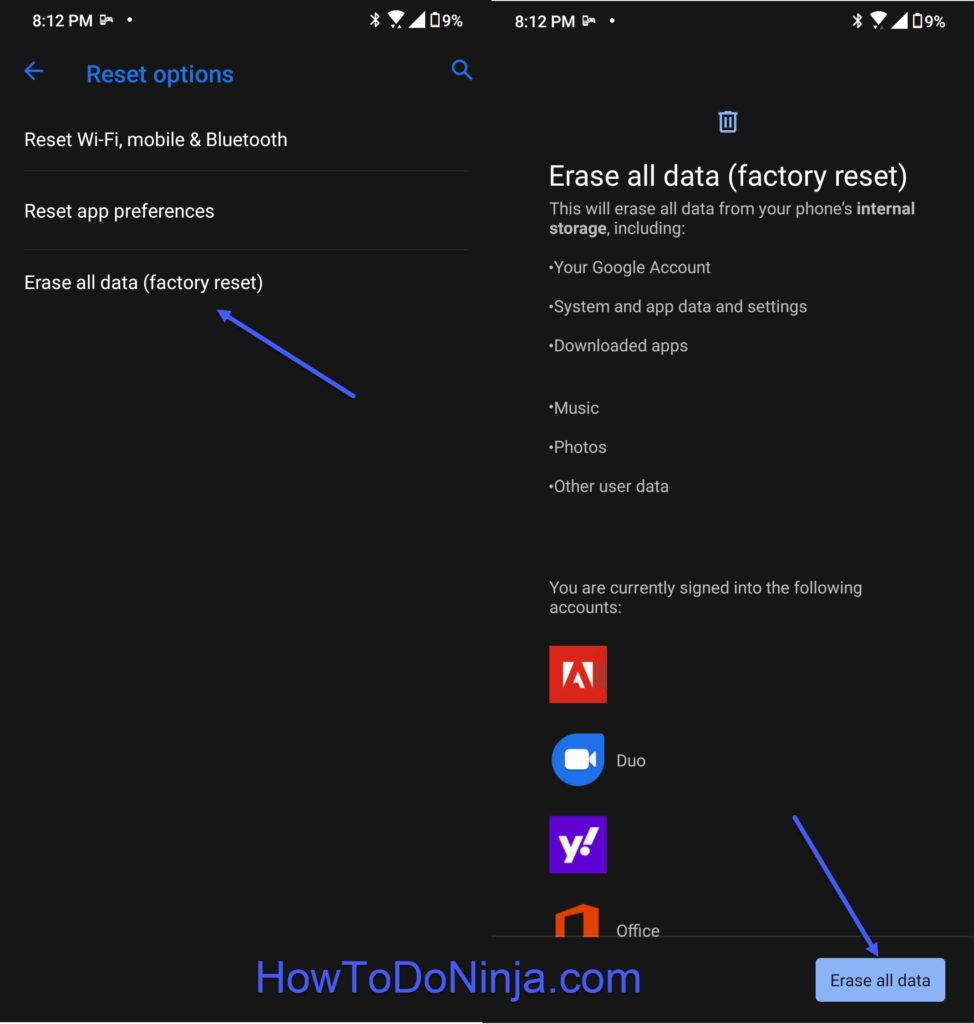
- If your Lenovo Tab 2 A7-10 is running On Android N, Android Oreo, and above go to the Settings, then choose the “System” option and choose “Wipe Data Or Factory Reset Data Option”.
- Or use the search option to find the Data Reset pr Factory Reset option.
- Then select the Factory Reset / Data Reset Option. This will erase all your data on your phone message will show up including your Google account.
- Confirm by tapping the Reset Phone button and confirm again by tapping on the “Erase Everything” button.
- That’s it, the factory reset on your Lenovo Tab 2 A7-10 is completed.
Also, don’t forget to share your valuable comments below, and share this Lenovo Tab 2 A7-10 tutorial on social media.

He is the founder of howtodoninja.com and is an experienced tech writer and a cybersecurity enthusiast with a passion for exploring the latest technological advancements. He has 10 years of experience in writing comprehensive how-to guides, tutorials, and reviews on software, hardware, and internet services. With an interest in computer security, he strives to educate users by writing content on how to use technology, and how to also protect their smart devices and personal data from cyber threats. He currently uses a Windows computer, and a Macbook Pro, and tests hundreds of Android phones for writing his reviews and guides.