
Почему списываются деньги за iTunes и что делать
Несмотря на то что Apple довольно тщательно следит за наполнением App Store, предъявляя очень строгие требования к разработчикам, время от времени туда проникают приложения-нарушители, которые обманывают пользователей. Да, при должной внимательности этого можно было избежать, но поскольку многие обычно не смотрят, на что они соглашаются, и сами оформляют платные подписки, проблема несанкционированных списаний с банковских карт сегодня стоит особенно остро. Странно, что Apple никак с ними не борется.
Apple перестала следить за App Store? Многие считают, что да
Apple сделала покупки в App Store и Mac App Store общими
Эксперты в области кибербезопасности из компании Sophos Labs обнаружили в App Store 32 приложения с примитивным набором функций, которые предлагали пользователям бесплатный пробный период сроком в одну неделю, по истечении которого начинала действовать платная подписка. В общей сложности эти приложения были загружены более 3,5 миллионов раз, а значит, в потенциальной опасности находится довольно большая аудитория пользователей. Ведь далеко не все сразу могут сообразить, что пробный период, на который они соглашаются, затем перетечёт в платный абонемент.
Почему iTunes снимает деньги
Почти все эти приложения представляли собой либо калькуляторы, либо сканеры QR-кодов, либо фоторедакторы, которые гарантированно будут пользоваться популярностью. Несмотря на то что они действительно обладали заявленными возможностями, стоимость подписки на них была явно завышена. Как правило, разработчики требовали с пользователей по 30-100 долларов в месяц, на что те, не чувствуя подвоха, соглашались. В результате многие могли месяцами не замечать, что с их карт списываются деньги за подписку, которая им, по сути, не нужна.
Да, в iOS существует масса защитных механизмов, которые направлены на обеспечение безопасности пользователя. Мало того, что ни одно приложение из App Store не может оформить подписку без ведома пользователя, так из-за того, что все платежи проходят через iTunes, они всегда требуют биометрической верификации. То есть все случаи несанкционированного оформления подписок, как утверждают жертвы, на самом деле были вполне санкционированы. Другое дело, что большинство из них просто не посмотрели, на что соглашаются, а просто приложили палец к сканеру или подтвердили проведение платежа лицом.
Как отменить подписку в App Store
- Если вы столкнулись с чем-то подобным, не переживайте. А для начала отмените левую подписку:
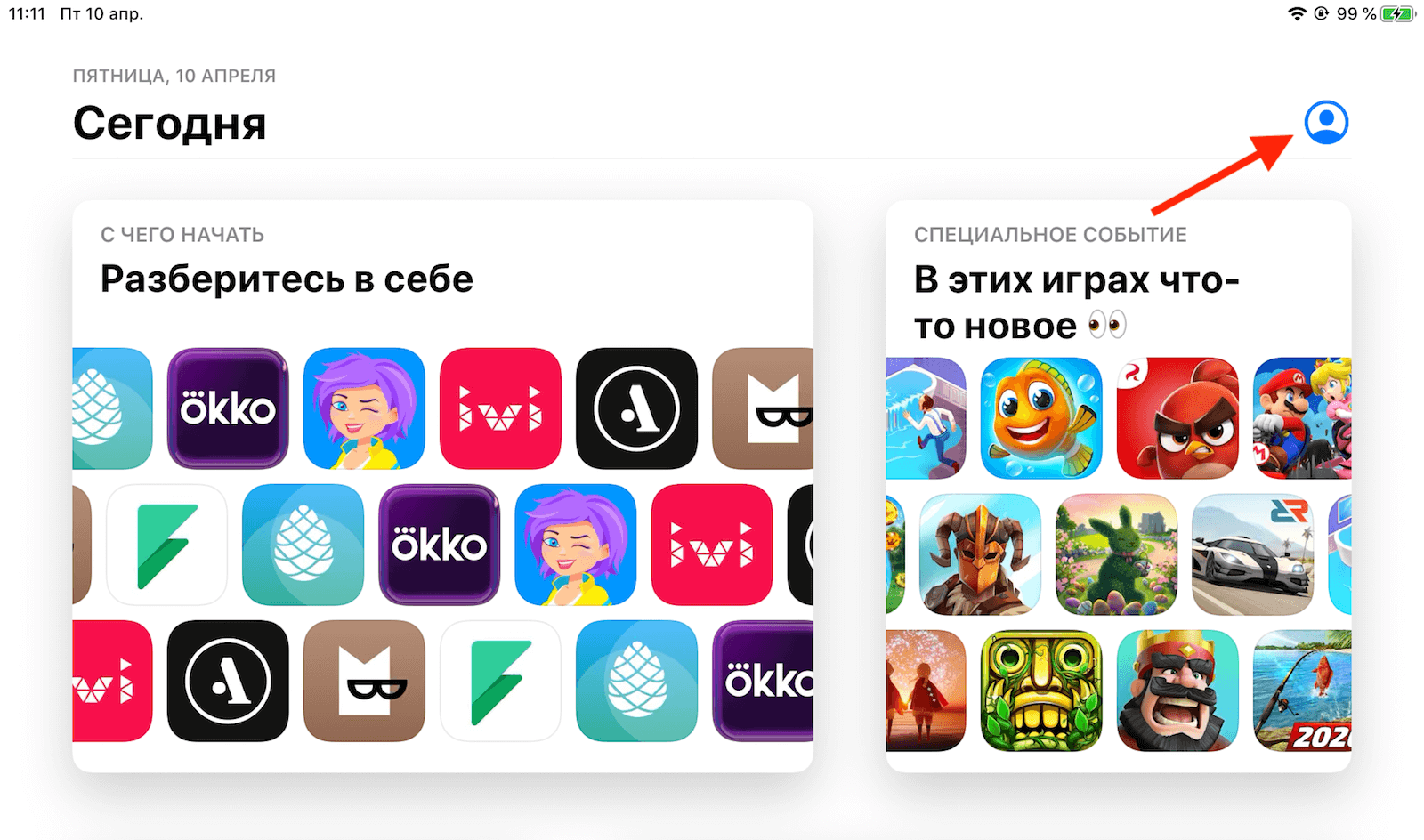
Отменить подписку можно, даже если приложение удалено
- Перейдите в App Store и откройте раздел с настройками профиля в правом верхнем углу;
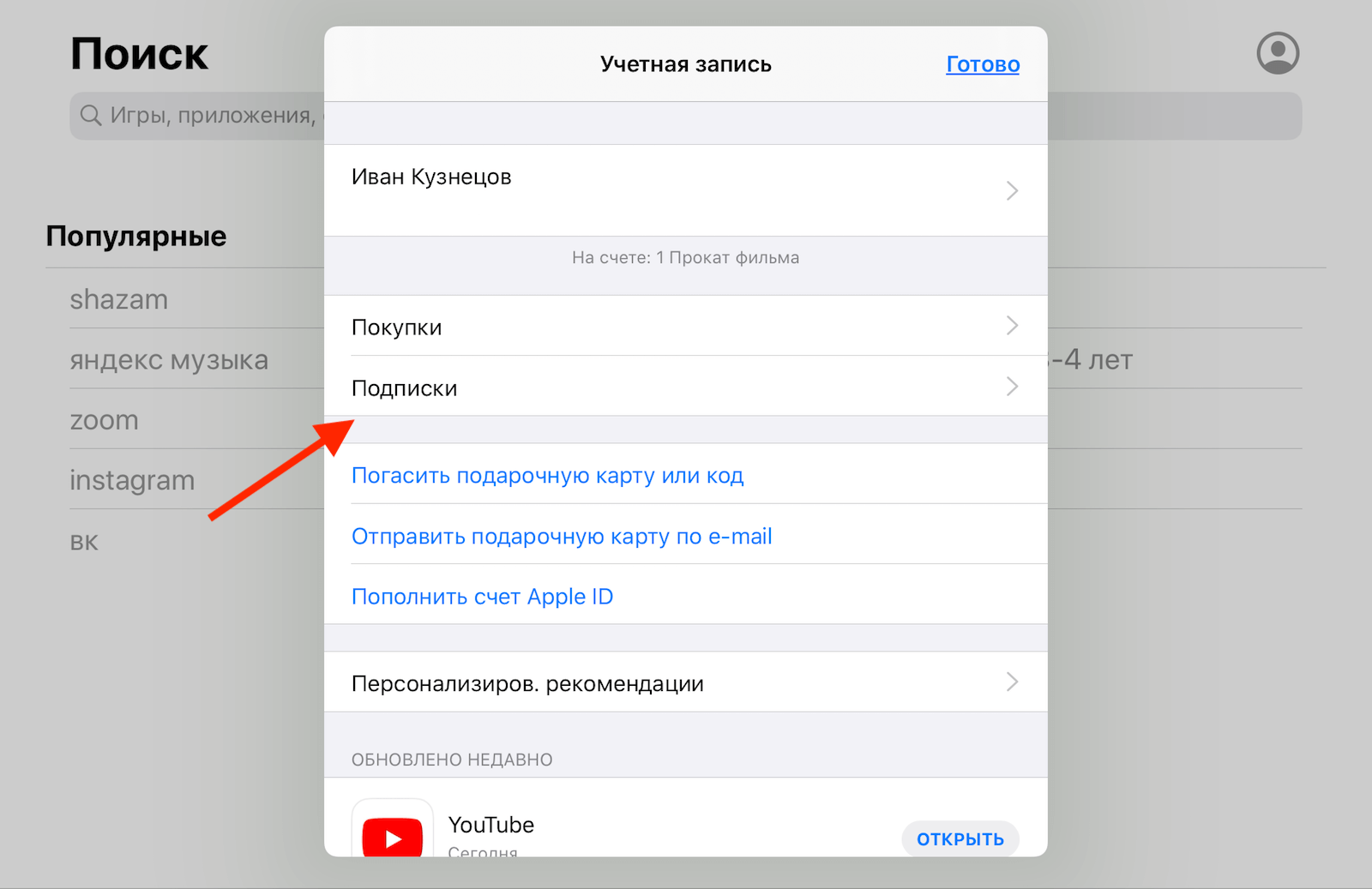
Отмените подписку, если вам надоело платить ни за что
- Перейдите во вкладку «Подписки» и пролистайте список активных абонементов до нужного;
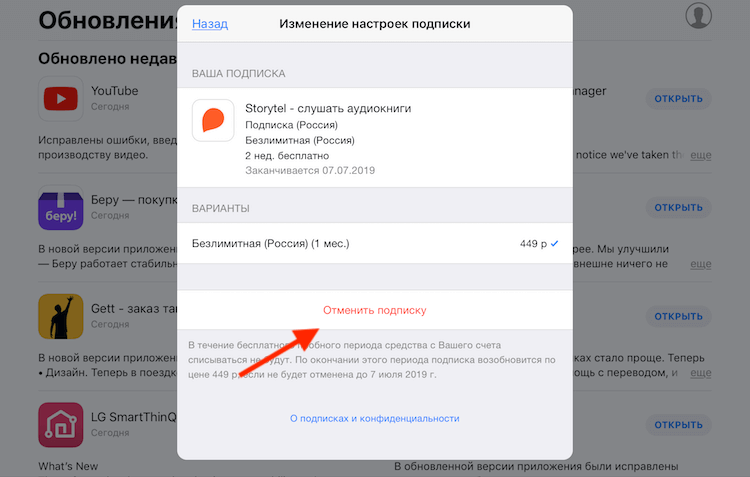
Отмена подписки не возвращает вам средства, а просто предотвращает дальнейшие списания
- Откройте вкладку приложения, подписку на которое хотите отменить, и нажмите на красную кнопку «Отменить подписку».
Возможна ли пакетная подписка на все сервисы Apple?
Если вы потеряли большую сумму и хотите её вернуть, можно попробовать обратиться в Apple. Правда, нужно понимать, что по правилам компания не обязана возвращать вам деньги за уже истёкшие подписки, даже если вы по какой-то причине ими не пользовались. Более того, Apple может отказать вам в возмещении средств за неистёкшую подписку, поскольку всегда и достаточно доходчиво доносит до пользователей и стоимость абонемента, который они приобретают, и срок его истечения. Но попробовать можно.
Как вернуть деньги за покупку и подписку в App Store
- Перейдите по этой ссылке на страницу для запроса возмещения;
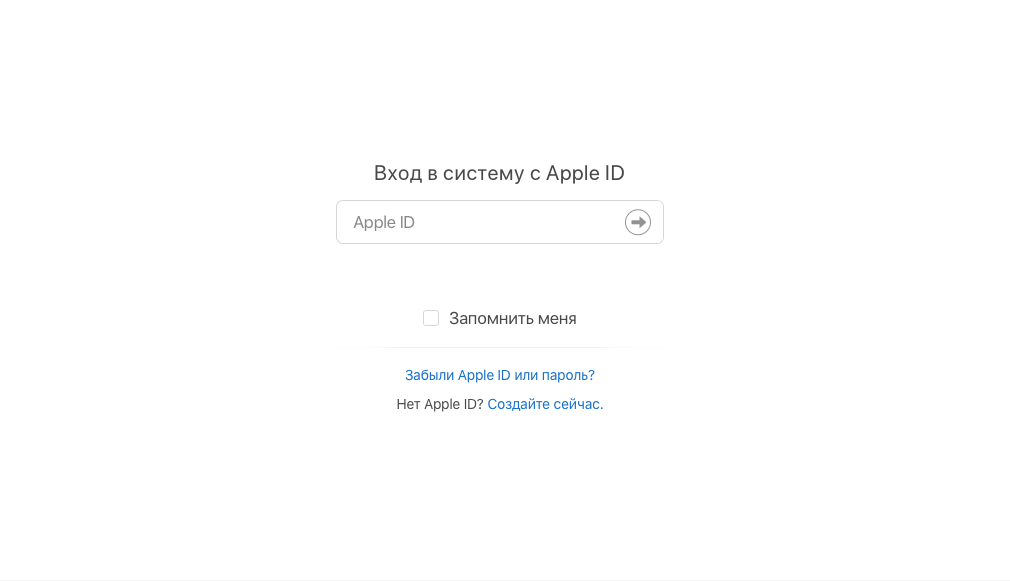
Войдите в свою учётную запись, к которой привязана карта
- Авторизуйтесь со своей учётной записью Apple ID;
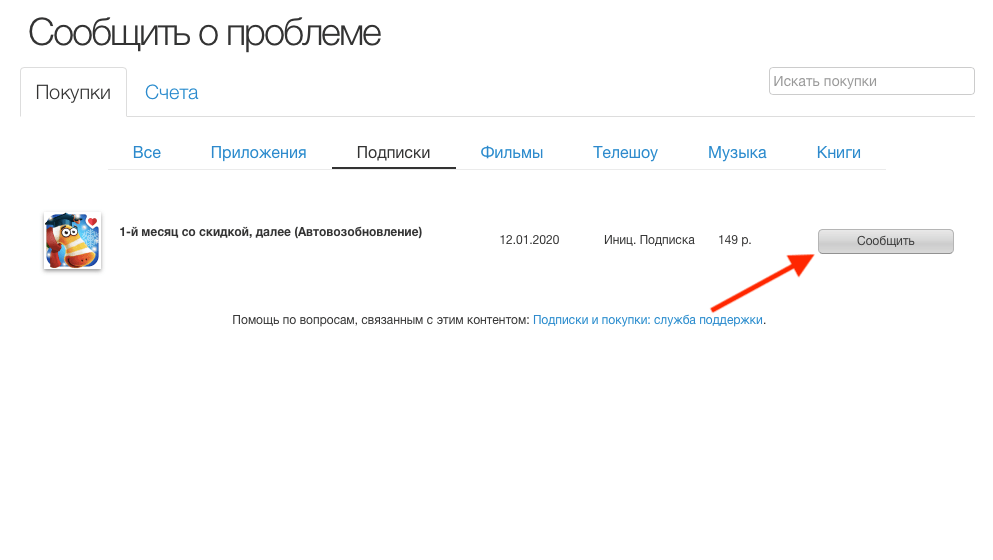
Вам не гарантирован возврат денег, но попробовать можно
- Откройте вкладку «Подписки», а затем нажмите на «Сообщить;
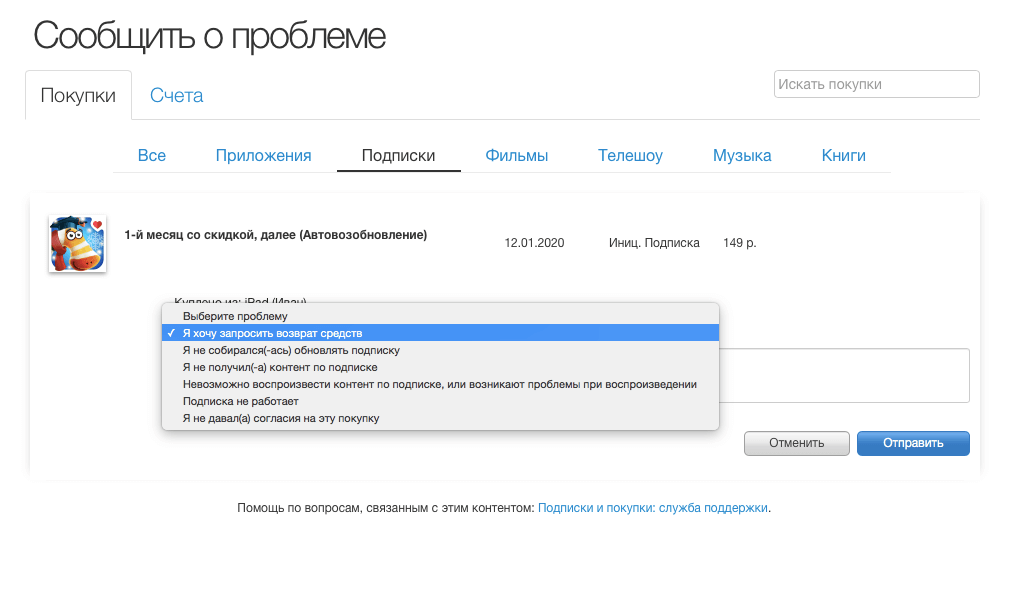
Необязательно описывать свою ситуацию, вам перезвонит русскоговорящий сотрудник и задаст все вопросы
- В выпадающем окне выберите «Я хочу запросить возврат средств» и нажмите «Отправить».
А вы уже вступили в наш чат в Telegram? Там ты найдёшь ценнейшие советы, которых нет больше нигде.
Через какое-то время с вами свяжется представитель службы поддержки и спросит, по какой причине вы хотите запросить возврат средств. Вы должны сказать, что подписку случайно оформил ваш ребёнок (никто не будет проверять, есть у вас дети или нет), которому вы дали поиграть свой iPhone или iPad. Объясните, что не замечали списаний какое-то время, а потом, когда обнаружили, то было уже поздно. Скорее всего, потраченные средства вам возместят, предупредив, что в следующий раз вы получите отказ, если направите аналогичный запрос. Во всяком случае, в моём случае всё было именно так. Главное – не злоупотреблять лояльностью Apple и не направлять запросы слишком часто.
Интересно, почему сама Apple никак не препятствует появлению в App Store приложений с примитивной функциональностью, которые требуют оформить подписку по очевидно завышенной цене? Ну, во-первых, Apple не может влиять на ценовую политику разработчиков, потому что в этом случае компания нарушила бы законодательство о конкуренции многих стран. Поэтому в Купертино разрешают создателям ПО назначать на свою продукцию любые цены. А, во-вторых, сама Apple получает с каждой транзакции комиссию в размере 30%, а потому ей самой банально выгодно, чтобы в App Store были приложения с неимоверно высокими ценами.
Наши соцсети
Новости, статьи и анонсы публикаций
iTunes for Windows
iTunes for Windows has a big job cut out for it. In the age of SaaS, the idea of downloading a music app is somewhat quaint, as well as the fact that, as one of Apple’s most famous pieces of software, iTunes isn’t an immediate slam-dunk for many Windows users.
A full-featured and remarkably versatile media player
Apple’s geriatric media player is looking pretty sprightly
That said, it’s actually a pretty impressive app. For starters, it offers you a multitude of media options. Of course, you’ll get old favorites like music and video, but iTunes also offers you access to podcasts, TV programs, radio, items from the App store, and audio books, all from within the same interface.
iTunes is designed to work best when you’re signed into an Apple account. Once you’re in, you can access your local iTunes libraries, wherever they may be — on another computer, an iPhone, etc. This is a gateway into the Apple ecosystem and the way many Windows users set things up so as to have at least a toe in the Appleverse. If you’re a Windows user who also uses an iPhone (!), iTunes is the primary way you will manage syncing.
Windows/Apple debate aside, iTunes is a great app for those who like significant customization and input into the way their media plays. For many, all the options offered by iTunes are simply unnecessary but there will be a small number who do, in fact, want to control everything from a central hub or exercise huge control over playlists or streaming options.
Visually, the app is sleek and easy to navigate and has a nice mini-player that lets you close the main window when playing your music. You’ll find it easy and intuitive to move from music to movies and podcasts to the iTunes Store, and when you do, you’ll find another pro — the massive selection you’ll find there. In fact, this selection can be overwhelming and some people consider it a con, but if you want variety, there is almost nothing better.
When it comes to user support, you shouldn’t have a problem. Apple support is famously strong and your position as a user is strengthened if you actually buy media from the iTunes Store. If you’re hoping to troubleshoot alone, you’ll find 18 year’s worth of help just waiting for you online
Where can you run this program?
This version of iTunes is designed to be downloaded on Windows. You can also get a version of iTunes from the Windows Store. From the iTunes homepage, you’ll find versions for Mac, tablet, and mobile.
Is there a better alternative?
There are lots of alternatives for iTunes, but whether or not they appeal to you depends very much on how you like to listen to your media. VLC provides another classic media player for Windows but lacks the ready-made curated audio books, podcasts, store and more of iTunes.
Spotify is much closer in terms of media variety but, of course, doesn’t support video and offers much less customization.
In short, you’ll be guided by the amount of control you want, the variety of media you want waiting at your fingertips, and whether or not you want a quick path into the Appleverse. If you want all three, then iTunes is in a class all of its own.
Our take
iTunes is much improved but still only of serious interest to people with non-standard use cases.
Should you download it?
Yes, it’s a pretty good app, but only if you like to buy your media, if you have a lot of media on your computer, or you really, really like iTunes. For everyone else, it’s not really necessary.
- Looks great
- Less bloated than previous versions
- Central media control
- iTunes Store offers huge variety
- Good customization and playback options
- Still a pretty big app
- Many will feel it offers too much choice
- Has a bad reputation
Tutorial of Installing Latest or Older Version of iTunes on Windows
iTunes is built-in Mac OS X/11; however, you have to install iTunes on Windows 11/10/8.1/8/7 and earlier manually. As a versatile utility for iOS devices, you may need iTunes to back up and restore your iPhone, do troubleshooting, or purchase content.
According to our research, some iPhone users complained that iTunes won’t install on PCs. That may be due to iTunes install extra software during installation. In this article, we will show you a concrete tutorial of installing iTunes on your Windows 11/10/8.1/8/7 properly.

Install iTunes
- Part 1: How to Install iTunes
- Part 2: Best iTunes Alternative: MobieTrans
Part 1 : How to Install iTunes
Since April 2018, Apple made iTunes available to Microsoft Store. However, it is only available to Windows 10/11. People who use Windows 7 cannot install iTunes from Microsoft Store.
How to Install iTunes on Windows 10/11
Apparently, Microsoft Store offers more benefits to make the switch of iTunes installation and update worth it. That could minimize the possibility that iTunes won’t install. Plus, it simplifies the process of iTunes installation.
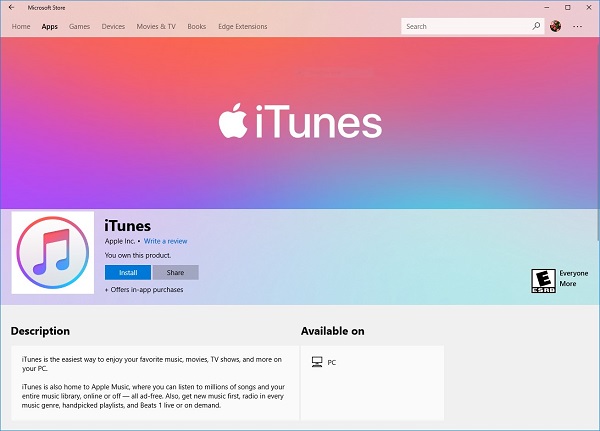
Step 1: Launch the Start menu at bottom left corner, scroll down and click Microsoft Store to open it.
Step 2: Click the Search icon, enter iTunes and press the Enter button on your keyboard. Then select the first result to open the iTunes installation page.
Step 3: Scroll down and go to the System Requirements tab. Make sure that your Windows is available and click the Get Button
Step 4: When prompted, click Yes to confirm it to continue the download iTunes. Wait until you get the notification to Launch or Pin iTunes.
Now, you can find iTunes in your Start menu
Note: The Microsoft Store version of iTunes follows a different directory compared to the stand-alone version.
Stand-alone iTunes: C:\Users\ \AppData\Roaming\Apple Computer\MobileSync\Backup
Microsoft Store version: C:\Users\ \Apple\MobileSync\Backup
How to Install iTunes on Windows 7
The latest version of iTunes installation from Microsoft Store is only available to Windows 10/11. So, you have to get iTunes from Apple’s website if you are using Windows 8.1/8/7. Fortunately, iTunes is free to download and use.
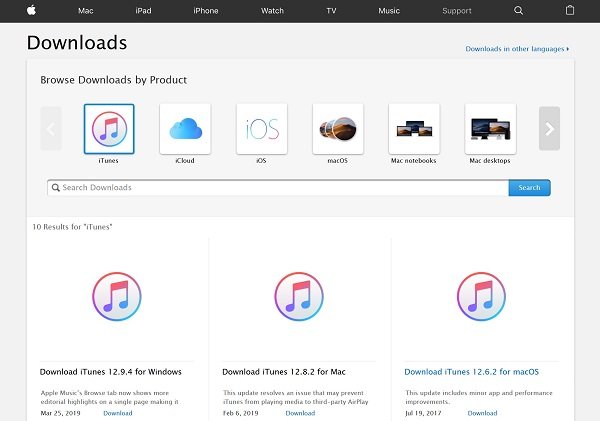
Step 1: Run your web browser, such as Chrome, IE, Firefox and more. Copy and paste https://support.apple.com/downloads into the address bar, and press Enter button to open Apple’s download page.
Step 2: Select iTunes on the top list to open the iTunes download page. Read the system requirements under each iTunes download title and press the Download link under the right one. Get the latest iTunes installer or old version to your desktop.
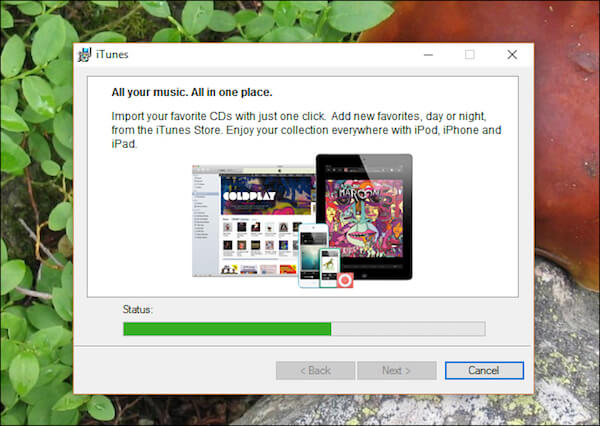
Step 3: Next, double-click the installer and click the Run button to start installing the latest or old version of iTunes.
Step 4: On the Installation Options screen, check Add iTunes shortcut to my desktop or not based on your need. Pick up your favorite language from the dropdown list and keep the default Destination Folder .
Step 5: Click the Install button to confirm and start iTunes installation on Windows 7. When it is done, hit the Finish button to complete it.
What to Do If iTunes Won’t Install on PC
Sometimes, you cannot install iTunes on your PC, especially the stand-alone version. The tips below are used to fix the issues.
Make sure you are logging into the Administrator account on your PC.
iTunes for Windows requires Windows 7 or later with the latest Service Pack installed. If you are using other versions of Windows, you have to download the old iTunes.
For Windows 10/11 users, go to Microsoft Store to get iTunes if the stand-alone version does not work.
Right-click on the iTunes installer and select Run as administrator when start iTunes installing.
If you have installed iTunes previously, uninstall it and Apple components. Then try iTunes installation again.
Antivirus software may block iTunes, so you’d better disable it during the process.
Part 2: Best iTunes Alternative: MobieTrans
iTunes is plump as Apple continues introducing features into it. Apeaksoft MobieTrans is the best alternative to iTunes with a lot of benefits.

Recommendation
- Sync data between iPhone and PC, Android or another iPhone.
- Support all data types on iOS including contacts, photos, SMS, etc.
- Let you preview iOS data on PC for backup, transfer or managing.
- Work for iPhone and iPad running iOS 17/16/15/14/13/12/11 or earlier.
In a word, it is the best option to manage iPhone data and files if iTunes won’t install on your PC.
How to Manage iPhone Data without Installing iTunes on PC
Step 1: Install the best iTunes alternative
MobieTrans is a desktop application, so you need to download and install it to your PC. It is compatible with Windows 11/10/8.1/8/7.
Then connect your iPhone to your computer with the Lightning cable came with your device. Launch the best iTunes alternative to let it detect your iPhone.
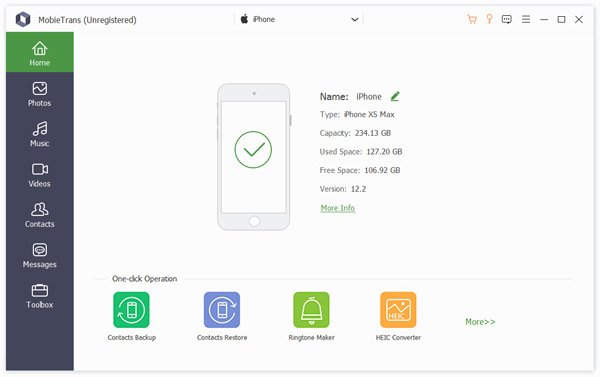
Step 2: Add files to iPhone
We use photos as the example to tell you how to add files to iPhone. Go to the data type from the left sidebar, such as Photos . Click the Plus icon to open the Explorer window, navigate to the photos and add them to iPhone.
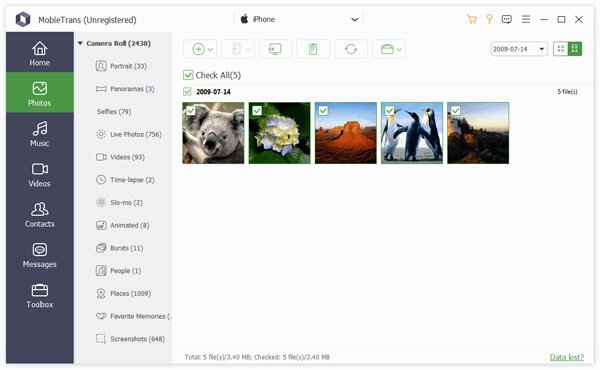
Step 3: Back up data from iPhone to PC
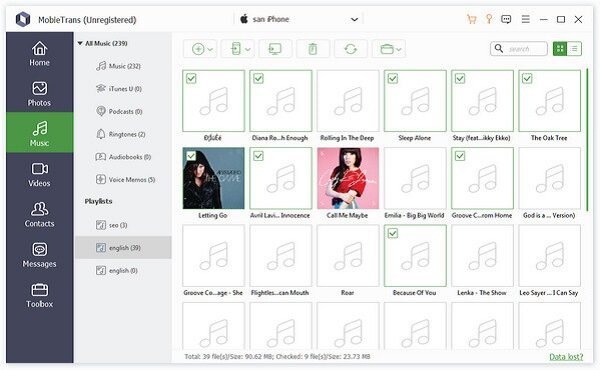
To transfer files, like music, from iPhone to your hard drive, go to the Music tab and preview all songs stored on your iPhone. Check all songs you want to backup, click the PC icon on the top ribbon and select your PC . A few seconds later, you can find the music on your hard drive.
This tutorial has shared the methods to install iTunes on Windows 11 and earlier. As you can see, it is a bit different to achieve it on various operating systems. For Windows 10/11, Microsoft Store is the best place to get iTunes. Of course, the stand-alone iTunes is available to Windows 10/11 as well. Moreover, Apple’s iTunes download page offers the old versions for various systems. If you do not like iTunes, you can try third-party software, such as Apeaksoft MobieTrans. It is not only easy to use, but available to a wide range of systems. More questions? Leave your messages below.
- iTunes Tips and Solutions
- 4 Real Fixes — iTunes Won’t Let Me Add Music to iPhone
- 7 Ways to Fix iTunes Keeps Asking for Apple ID Password on PC/iPhone
- 10 Free Ways to Speed Up Slow iTunes on Windows 11/10/8/7 & Mac
- 4 Methods to Transfer iBooks from iPad to Computer
- Top 4 Methods to Sync Facebook Contacts to iPhone (iOS 17 Supported)
- How to View/Check iCloud Backups
- Top 4 Verified Ways to Export iTunes Playlists Quickly
- [5 Efficient Fixes] iTunes Store Temporarily Unavaiable/Not Working
- 7 Ways to Fix iCloud Backup Not be Completed/Failed (iOS 17 Inlcuded)
- 3 Easy Ways to Delete Movies or TV Shows from iTunes
- If I Uninstall iTunes Will All My Music Also Be Deleted
- Guide to Restore/Redownload iTunes Purchases (Hidden/Deleted/Missing)
- Best Ways to Transfer iTunes Library from to Another Computer
- How to Move Documents from iCloud Back to Mac
- Step-by-step Tutorial to Delete iTunes Library and Start again

- 10 Free Tips to Make Slow iTunes Faster (12.9/12.10/12.11/12.12)
- Tutorial to Backup iTunes to iCloud or Computer with Multiple Ways
- How to Restore iPhone/iPad from iTunes
- Download Center
- Apeaksoft Store
- Company
- About Us
- Contact Us
- Terms & Conditions
- Privacy Policy
- License Agreement
- Product
- iPhone Data Recovery
- Android Data Recovery
- iPhone Transfer
- iPhone Eraser
- Data Recovery
- Support
- Support Center
- Solution
- Site Map
- FAQ
What’s The Latest Version Of iTunes For Windows 10/11?
Apple’s iTunes software can not only back up data from your iOS devices to computers, but it can also do much more than that. iTunes can help you stream songs from Apple Music, upload music to iCloud, convert audio from one format to another, rip music CDs/DVDs, share music over the home network, burn digital music to CDs/DVDs, and of course, update your iOS device to the latest version.

While there are alternatives around for iTunes, most Apple device users prefer using iTunes over third-party software.
Apple regularly updates iTunes. If you have installed it on your PC, you might want to know what’s the latest version of iTunes out there for Windows 10 and how to update iTunes to the latest version on your Windows 10/11 PC.
What is the latest version of iTunes for Windows 10/11 in October 2023?
As of October 2023, the latest version of iTunes (installed from Apple or outside the Windows Store) is 12.10.11.2 (both 32-bit and 64-bit), whereas the latest version of iTunes available on Windows Store is 12129.10001.1009.0.
How to check the version of iTunes installed on your PC?
Depending on where you got the iTunes from, there are three ways out there to check the version number of iTunes in Windows 10/11.
If iTunes installed from the Store
Step 1: Navigate to Settings > Apps > Apps & features page. On Windows 11, go to Settings > Apps > Installed apps page.
Step 2: Scroll down the list to see the iTunes entry. Select the iTunes entry and then click the Advanced options link. On Windows 11, click on the three dots next to iTunes and then click Advanced options.

Step 3: In the Specifications section, you will get the version number of iTunes currently installed on your PC.

Note that you can also repair and reset iTunes from this page.
If iTunes installed outside the Store
If you manually downloaded iTunes setup from outside the Store (from Apple or another website) and installed it on your PC, you can use this method to figure out the version number of iTunes.
Step 1: Navigate to Settings app > Apps > Apps & features. On Windows 11, go to Settings > Apps > Installed apps.
Step 2: Scroll down the list and then click on the iTunes entry to reveal the version number of iTunes.

Or
Step 1: Type Appwiz.cpl in the Strat/taskbar search field and then hit the Enter key to open the Programs and Features window.
Step 2: Here, look for the iTunes entry in the list. The version column displays the version number of iTunes installed on your Windows 10 computer.

How to update iTunes to the latest version?
If iTunes installed from the Store
If you have installed iTunes from Windows 10/11 Store, you don’t need to manually check for updates as the Store app will automatically update iTunes to the latest available version when an update is available. However, if you have turned off automatic app updates, you need to manually check for app updates by doing this:
Step 1: Open the Store app. Click on the three vertical dots icon (…) and then click the Downloads and updates option.

Step 2: On the Downloads and updates page, click the Get updates button to check for updates and install available updates.

If iTunes installed from outside the Store
If you have installed iTunes from outside the Store, you can manually update iTunes to the latest version. Note that the Apple Software Update utility, which is silently installed along with iTunes, automatically checks and prompts you to update iTunes. But you can manually check if you have disabled Apple Software Update or if it’s not updating automatically. Here is how to do that.
Step 1: Run iTunes.
Step 2: Click the Help menu and then click the Check for updates option to check if there is an update for iTunes. If available, you will get the following dialog with the Download iTunes button. Click the Download iTunes button to open the Apple Software Update dialog.


Step 3: Here, make sure that iTunes is selected, and then click the Install items button to download and install the latest version of iTunes.

Filed Under: Windows 10 Tagged: Apps
Comments
- Dee Goto says May 28, 2023 at 7:47 am
Can ITunes be run in Dark Mode in Windows 11? I have seen some posts mentioning it is possible.
If you don’t want to (like me) or can’t download from the MS Store, look here: support.apple.com/en-us/HT210384 and you can find a download for Win 10.
woow! i lke this
This info is a couple months old and out of date. On Nov 13, 2020 I’m running Windows 10 and it says the current version is Version 12.10.10.2 “What is the latest version of iTunes for Windows 10?
The latest version of iTunes (installed from Apple or outside Windows Store) is 12.9.3 (both 32-bit and 64-bit) whereas the latest version of iTunes available on Windows Store is 12093.3.37141.0.”
I’ve tried every suggestion and followed each step of the tips, but all clicks seem to lead to the Microsoft app store window opening up. I just will not create a Microsoft account! Any other way to download iTunes onto my windows 10 pc? Many thanks.