
Настройка работы WiFi в linux (сборка 4.13.16-hiveos).
Сразу скажу, я начал разбираться с Линуксом совсем недавно, знаний очень мало и практики почти нет (ну виндусятник с 90-х, что поделаешь). Поэтому заранее прошу прощения если сильно простяцки описываю свою проблему.
Понадобилось использовать сборку HiveOS для майнинга. Она просто ставится на автомате, без проблем. Все работает хорошо, за исключением usb-свистка WiFi, вернее он тоже работает но не так как надо. Дело в том что под него не было драйверов в этой сборке. Я нашел драйвера конкретно для этого ядра, скомпилил их и все работает нормально. Но по какой то причине если комп перегружать командой reboot, то этот интерфейс WiFi почти никогда не поднимается сам (крайне редко), если комп выключить командой shutdown а потом включить то WiFi подымается всегда (тоже самое если кнопкой выкл и вкл). Сетвая LAN отключена вообще в биосе (ее необходимо отключать т.к. если ее включить то материнка вообще не стартует и необходимо одну из видюх убирать (ограничения по PCI линиям)). А так да, с проводом у народа нет проблем.
Вопрос, что и где прописать чтоб WiFi подымался всегда при любой загрузке? Я так понимаю нужно что то прописать в wpa_supplicant.conf? По инструкции одного какого-то сайта (примерно мес. назад) я так и сделал, только WiFi перестал подниматься вообще 🙂 Прошу дать ответ как можно проще и понятнее.
Alagar81
22.08.18 09:03:41 MSK
Проверь драйвера, может в них проблема? Ещё советую посмотреть автозагрузку менеджера соединения.
BLIN4IK97 ★
( 22.08.18 13:28:04 MSK )
Ответ на: комментарий от BLIN4IK97 22.08.18 13:28:04 MSK
Ну если соединение поднимается и круглосуточно работает то по идее с драйверами нет проблем. Ну а с менеджером соединения мне ещё нужно разбираться. Нашел пару инструкций по настройке и работе WiFi в Linux, попробую разобраться.
Wi-Fi
Wi-fi, adapters and Linux have tough relations. Though some of them are supported and you can try to use it.
In general, it’s simple. On your first run, you’ll be asked for a rig password, but since you have no internet connection open a new terminal tab and run wifi command there. You will be prompted for SSID and password. If everything is ok then it just works.
Later if you really know that your adapter is working you could use /hive-config/network/wifi.txt which is also visible under Windows to set your SSID and password.
There are some useful commands
iwconfig — to show you wireless adapters
ifconfig — to check assigned IP address
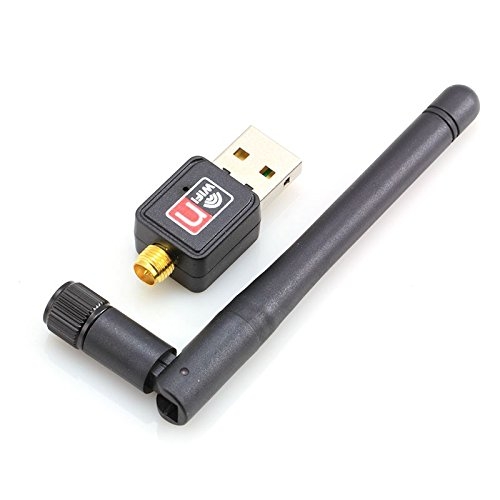
You really never know will it work until you plug it in. We’ve seen some expensive adapters that did not work out of the box or required additional or patched drivers. At the same time, the cheapest Chinese $5 one just works.
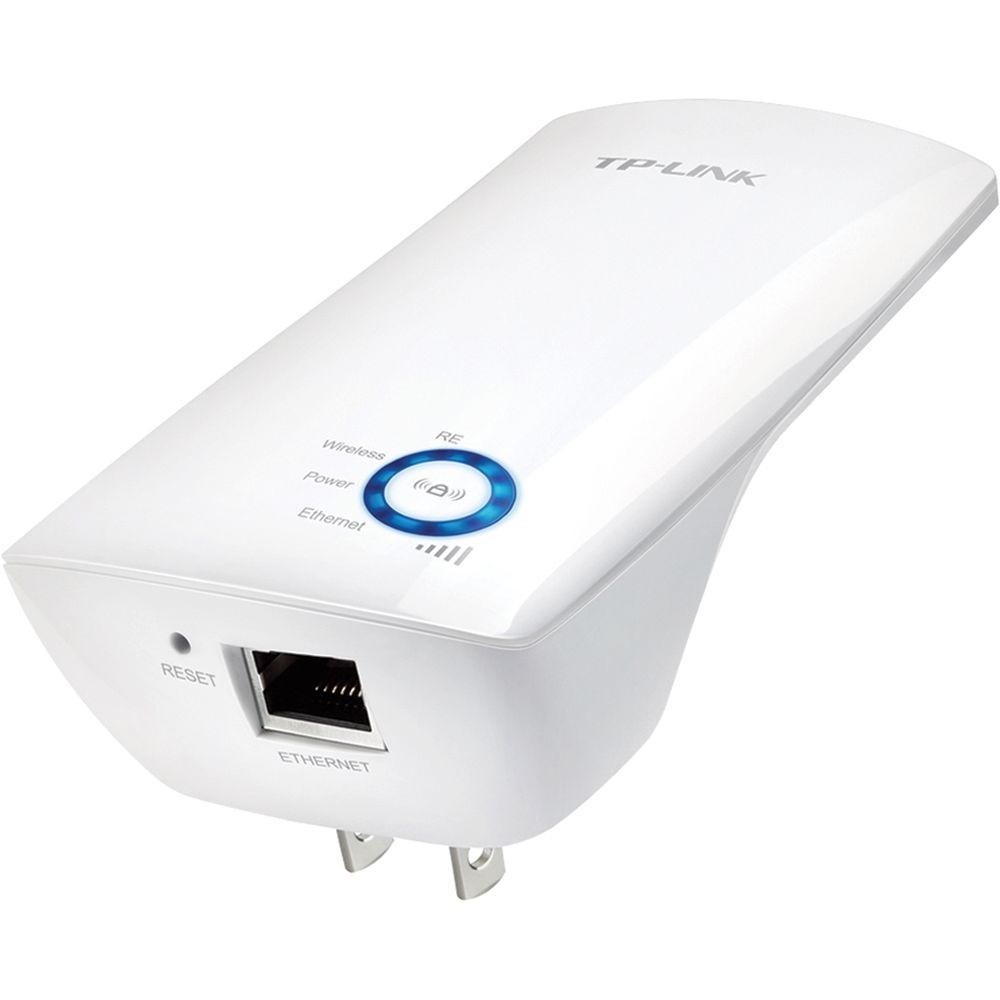
What to do if your adapter does not work but you bloody need it? Use Wifi repeater with LAN port like this, so it will be your wifi client and you plug rig to it’s LAN.
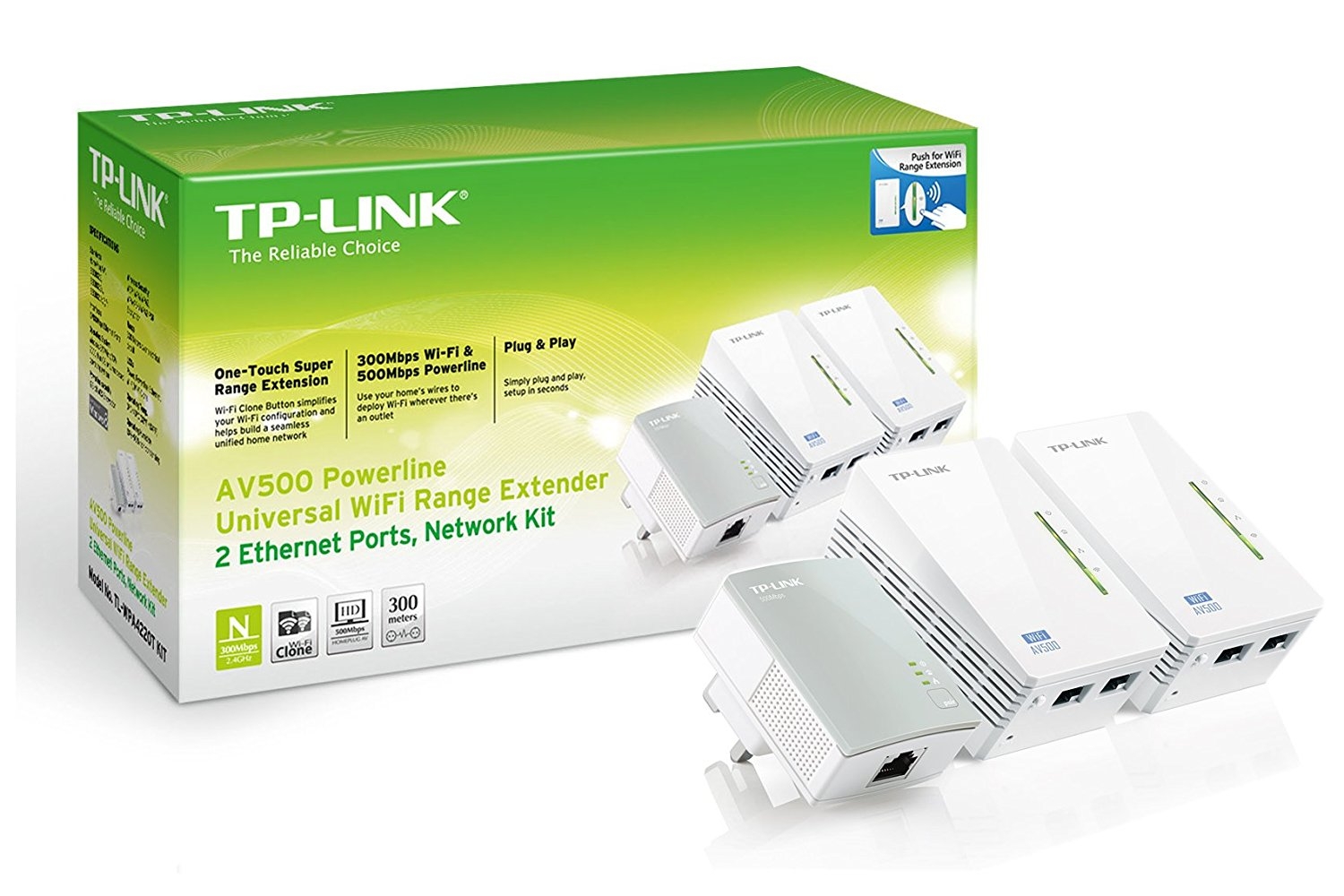
Another option and our strong advise is to use Powerline, that’s a really cool technology. It gives your LAN access over a 220V wire in your apartment or building. Though it’s a bit more expensive (you can find some cheaper ones on the aftermarket).
Wifi Setup
Connect your HiveOS USB stick to any computer and open up /network folder.
Open see wifi.txt file in notepad Open up that file and write your WiFi broadcast name at line WIFI_SSID and the wifi password in next line WIFI_PASSWORD
Save the file and close.
Turn off the rig first then plug your WiFi USB adapter to your Rig and start the rig. Check the WiFi connection established. If it is not working try the following:
In terminal screen write the following command and then press enter.
wifi
- SSID: your WiFi name
- Password: your WiFi password
2) On-Screen during initial setup
Plug your rig into a Monitor / TV via HDMI or Displayport. During the startup phase you will be asked to setup wifi? Choose Y and follow the on screen prompts.
«No wlan0 interface found» PROBLEM:
I am trying to get HiveOS set up. I have a linux compliant WIFI adapter (see below).
When I go through the boot up on HiveOS things look good, until I get to the point where I use the `wifi` command to try to set up my wifi. It just doesn’t see the card/networks.
The wifi USB adapter is the RealTek
Is there a diagnostic or something I can run to determine what the problem is.? Of course, it works perfect in Windows 10. Trying to get things switched over to Hive.
Yes, I went through and got my .conf file set up and on the boot drive. that seems to be fine and it does boot to HiveOS, just no network so I am stuck.
here is my configuration
- Motherboard: ASRock 1100Pro BTC+
- Component Specs — CPU: Intel Core i5-6600k, Memory: Patriot Viper Elite 16GB (1 x 16GB) DDR4 2400MHz, SSD: Western Digital 1TB WD Blue 3D, M.2 2280 — WDS100T2B0B, Power Supply: HP1200 PSUs (x2) / both running on reg 120v circuits, Fans: 8x Deep Cool RF120M
Amazon.com: Wireless USB WiFi Adapter for PC: 1300Mbps WiFi USB, 802.11AC WiFi Adapter for Desktop PC, Dual Band WiFi Dongle Wireless Adapter for WIN7 8 10 XP Vista MAC Linux, USB Computer Network Adapters : Electronics
UPDATE SOLUTION FOUND:
The wireless USB adapter required me to install its specific driver. Even though it is compatible with linux, it is not automatically recognized and operable by default in HiveOS (a derivative of ubuntu). As you can see in the post comments, the recommendation to try installing the WIFI Adapter driver was given. However, following the commands in the driver install required a couple of alterations to get it to work.
Temporarily Connect to Network with Cat5 Cable
First, before I could use this solution, I had to drag a long cat5 ethernet cable across my house so I had a network connection. Once I had that connection, I booted my HiveOS on my computer and went into the command line terminal without booting (or stopping the miner) to the HiveOS mining that normally automatically runs. In any case, I opened a new terminal and ran the following commands to install the WIFI adapter driver.
Install the WIFI Adapter Driver
The steps I used were originally taken from this recommended site (linked from the Adapter manufacturer) NinePlusWIFI website Driver update . I had to change them slightly to get them to work on HiveOS when I installed. As follows:
apt -y install git apt -y install dkms mkdir /apps cd /apps/ git clone «https://github.com/RinCat/RTL88x2BU-Linux-Driver.git» /usr/src/rtl88x2bu-git sed -i ‘s/PACKAGE_VERSION=»@PKGVER@»/PACKAGE_VERSION=»git»/g’ /usr/src/rtl88x2bu-git/dkms.conf dkms add -m rtl88x2bu -v git dkms install -m rtl88x2bu -v git
Reboot and Setup WIFI on the HiveOS
Once you have installed the driver:
- shutdown your HiveOS computer.
- Disconnect your Cat5 ethernet cable.
- Boot up your HiveOS computer
- Now HiveOS will see the wifi driver and device.
- You may have to run the wifi command to help configure your wifi network and password, if you haven’t already updated the appropriate configuration file.
- Once you have configured the wifi network and password correctly, I recommend rebooting the HiveOS computer one last time and it should boot up completely and be connected with no manual intervention from you.
This solution worked for me as above.