
How to Download & Use Windows Movie Maker in Windows 10
Wednesday, March 03, 2021
- Where is Windows Movie Maker in Windows 10?
- Download Windows Movie Maker for Windows 10
- Icecream Video Editor: Better Windows Movie Maker Alternative for Windows 10
- Microsoft Photos: Replacement of Windows Movie Maker in Windows 10
Windows Movie Maker is a simple video editing software available in Windows XP, Windows Vista, Windows 7/8. It enables you to edit photos or video clips and apply effects to make a photos slider or a basic video. However, the movie maker can’t be found in Windows 10. How to download Windows Movie Maker for Windows 10? Follow the instruction in this post.
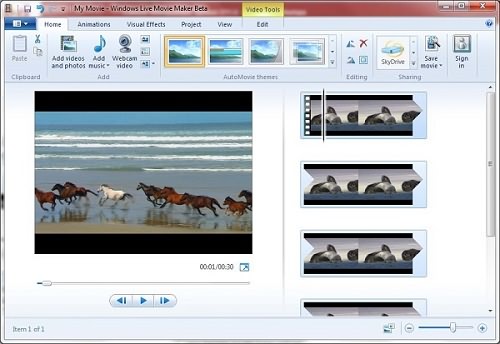
Where is Windows Movie Maker in Windows 10?
First introduced in Windows ME, Windows Movie Maker is a default video editing program in Windows XP and is a part of Windows Live Essentials in Windows Vista and 7/8. Therefore, prior to Windows 10, you can open the Windows Start menu and easily find Windows Movie Maker in the application list.
However, Windows Movie Maker is not included in Windows 10, and that’s why you can’t find the video editing tool after upgrading to Windows 10. Windows Movie Maker needs to be downloaded separately to Windows 10 computer.
Download Windows Movie Maker for Windows 10
Although the program doesn’t come with Windows 10, people used to be able to get Windows Movie Maker in Win 10 by downloading the Windows Essentials 2012 suite as the program is part of the suite. However, this method no longer worked since Microsoft stopped offering the download for Windows Essentials 2012 on January 10, 2017, which means that we can’t download Windows Movie Maker from Microsoft anymore.
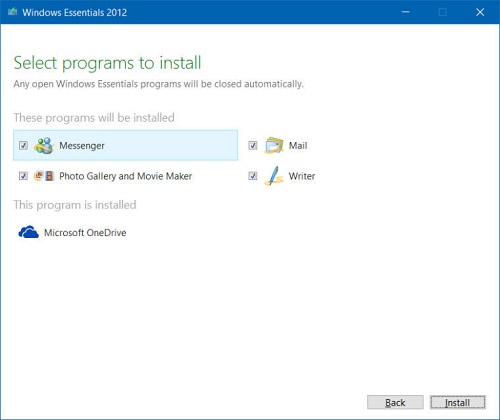
Currently, you may still find the download links of Windows Movie Maker for Window 10 on some third-party websites claiming that there are the latest versions of Windows Movie Maker free to download. You should be very cautious about these downloads because they are not real and could contain malware or virus.
What if you really need Windows Movie Maker on your Windows 10 for video editing? Don’t worry, there are many video editing alternatives to Windows Movie Maker that you can use. The followings are two Windows Movie Maker alternatives, both of which are beginner-friendly video editors that let you create awesome videos in simple steps.
Icecream Video Editor: Better Windows Movie Maker Alternative for Windows 10
Similar to Windows Movie Maker, Icecream Video Editor is designed to help ordinary users to create videos or photo sliders with video clips, photos, and music files. The editor has a similar interface as Windows Movie Maker, which enables you to edit videos in a timeline and preview the edited video in a playback window during the editing.
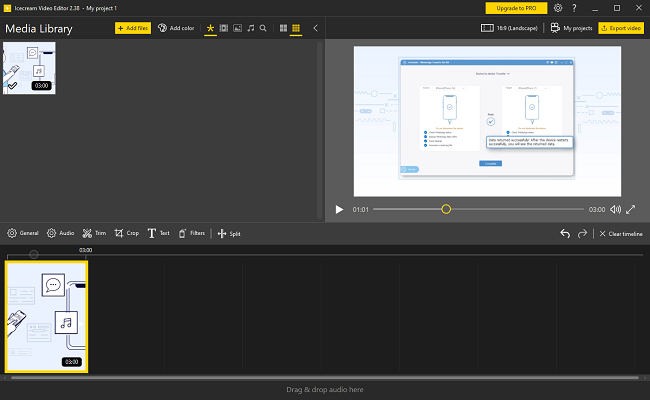
Main features
- Trim video clips (opens new window) to delete unwanted part;
- Combine video clips or add music or photo to video;
- Edit video and audio separately;
- Add titles and captions in various styles, size, and position;
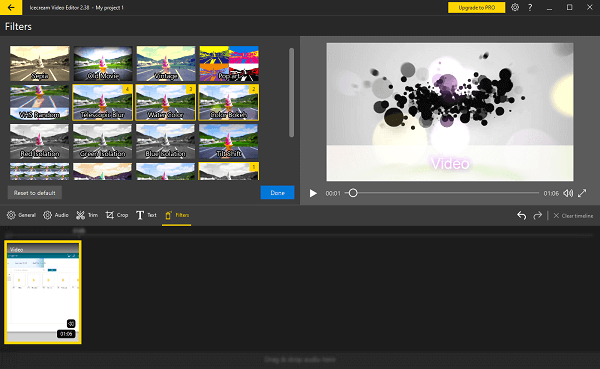
- Provide more than 20 colorful video transitions, filters to level up your work;
- Rotate (opens new window) , flip videos;
- Change video resolution (opens new window) , format, speed, and other elements;
- Export videos to MP4, WebM, and MP3.
Pros
- Easy-to-use;
- Better filters and colorful transitions;
- Contain video editing features that Windows Movie Maker lacks, like customizable color filters.
Cons
- Third-party application.
Microsoft Photos: Replacement of Windows Movie Maker in Windows 10
Since Windows Movie Maker is discontinued, Microsoft encouraged users to use the built-in Photos app as a Windows Movie Maker alternative in Windows 10. Since the Fall Creators Update, the Photos app is added with movie editing features. Like Windows Movie Maker, it offers a basic video editing feature, such as trimming, filters, 3D effects and comes in handy if you would like to make a photo slide of your holiday photos. However, the Photos app is rudimentary in features as a video editing tool to replace Windows Moviemaker.
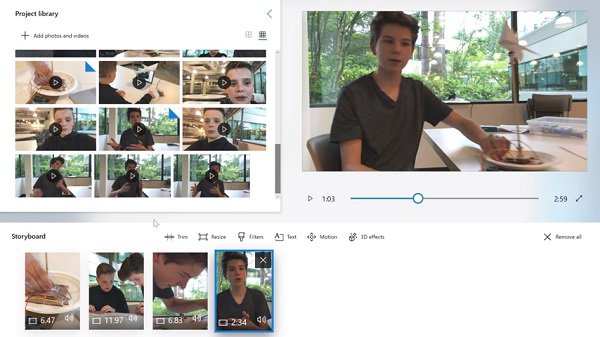
Main Features
- Cut video clip;
- Apply 3D effects to videos;
- Add text to video;
- Add music or annotation to videos;
- Built-in filters to improve videos.
Pros
- Built-in application in Windows 10;
- No need to download extra application;
- Totally free.
Cons
- Not really a video editor, lacking basic video editing feature such as editing video & audio clips in timeline tracks, trim out unwanted parts from the middle of a video, rotate or crop video, etc.
Windows Movie Maker is no longer available to download for Windows 10. If you only need to make some simple editing with photos and video clips, you can directly use the Photos app in Windows 10, but you need a real video editor on your Windows 10, download Icecream Video Editor, which is as easy-to-use as Movie Maker.
Hot Articles
- Top 10 Free Screen Recorder without Watermark [Latest Updates]
- How to Download and Rip Amazon Prime Video on PC and Mac
- How to Recover Permanently Deleted Files in Windows 10
- Android Recycle Bin: Where Are Deleted Files Stored on Android Phone
- How to Search iMessages/Text Messages on iPhone
MiniTool MovieMaker – Best Free Windows Movie Maker [Full Review]
MiniTool MovieMaker, developed by MiniTool Software Ltd., is an excellent video editing tool that helps users to edit videos with ease. With this free Windows movie maker, even beginners can make attractive videos quickly. In this article, we will give you a full review of this free movie maker software.
MiniTool MovieMaker is an easy-to-use video editing software designed for Windows. High-quality and attractive videos can easily be created in minutes. This free movie maker is the best video editing software for beginners and content creators.
This program is packed with many basic and advanced video editing tools. Now, let’s move on to the next part to have an overview of this free Windows movie maker.
Overview of MiniTool MovieMaker
MiniTool MovieMaker is one of the best free video editing software without bundle, ad, virus, and watermark. With a well-organized and intuitive user interface, it is perfect for beginners to create high-quality videos easily.
On this platform, you can transform your video into a piece of art and gives the video a stunning look. The resources are updated in line with trends to make your video creation shine.
After knowing the basics about this free movie maker software, you may be wondering how to get this amazing tool. Follow the guide below.
How to Use Movie Maker | Step-by-step Guide for Beginners
How to use Movie Maker? Read the step-by-step guide, you can easily create your own outstanding videos within minutes.
Way to Get MiniTool MovieMaker
MiniTool MovieMaker is specially designed for Windows operating system. You can install this free Windows movie maker on Windows 7/8/8.1/10/11.
The installation method is simple and easy, you can follow the below-mentioned steps:
1. Go to MiniTool MovieMaker’s official website and click the Free Download You can also click the button below to get this video editing software free download.
2. After downloading MiniTool MovieMaker, follow the installation guide to install MiniTool MovieMaker.
3. After installation finished, launch this program.
Video Editing Features
Starting a video editing project is easy if you have software like MiniTool MovieMaker. You can import different media files by dropping and dragging them to the timeline.
Let’s take a look at the video editing features of this Windows video editor:
- Quickly make an attractive video with templates
- Import video, image, and audio in different formats
- Merge, split, and trim the target video
- Apply stylish transitions, effects, titles, captions, credits, motions, or animated elements into a video
- Speed up, slow down, reverse, rotate, flip the video
- Adjust contrast, saturation, brightness, or add 3D LUT effects to videos
- Fade in/fade out audio or change its volume
- Transform video to GIF
- Support up to 9 tracks to add text and animated elements
- Change video quality, video bitrate, and video resolution
Wide Media Format Support
MiniTool MovieMaker supports different formats of video, image, and audio. After you accomplish editing, you can export the final work in a commonly used video format that is compatible with most media players.
Here is a table of the supported input media formats:
| Media File | Formats |
| Video | MP4, AVI, MOV, WMV, FLV, MKV, TS, 3GP, MPEG, VOB, WEBM, RMVB |
| Image | BMP, ICO, JPEG, JPG, PNG, GIF |
| Audio | MP3, FLAC, M4R, WAV, M4A, AAC, APE, AMR |
As we can see, MiniTool MovieMaker has a wide media format support. No matter which option you choose, you can save video into different video formats, or directly export it to your PCs, or other devices like iPhone, Apple TV, iPad, Smartphone, Nexus, Xboxone, Galaxy note 9, PS4, and Sony TV.
When you are ready to export your result video, you can customize the export settings like renaming the video, selecting the video format, changing the location where the video will be saved, and customizing the video resolution, video quality, and bitrate.
Top 10 Photo Video Maker Apps to Make a Video with Photos
With a photo video maker app, you can turn many pictures into a video. What’s the best photo video maker app? This post will give you 8 photo video makers.
Full Review of MiniTool MovieMaker
MiniTool MovieMaker is the to-go video editor for many users for quite some time now. Therefore, we are going to look at MiniTool MovieMaker in detail in this section.
Media Library
The Media library is a big part of organizing your assets. At this point, all the imported media, including videos, photos, and music files are stored in My Album. You can also find the media files in Videos, Music, and Pictures.
To make your work much easier, this best free video editing software comes with updated built-in soundtracks. You can choose to set the inbuilt music or your local audio files as the video background music.
Interface
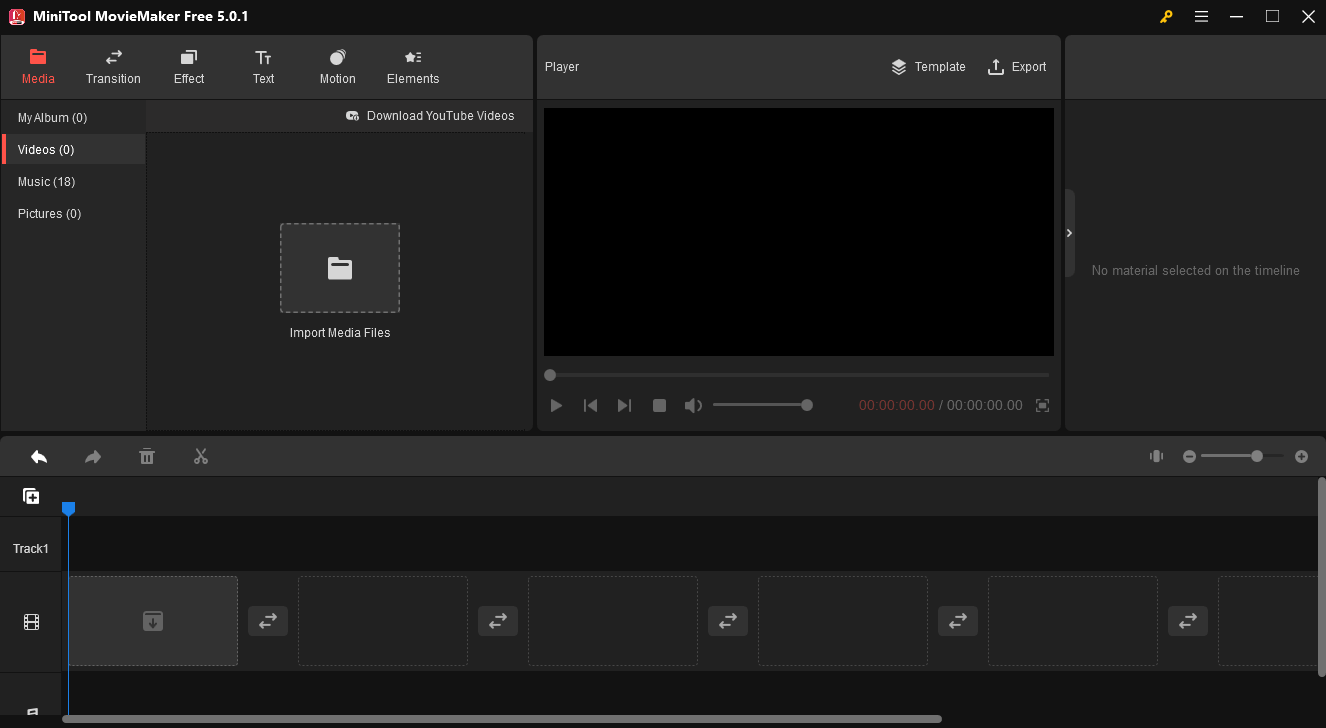
When it comes to interface, MiniTool MobieMaker is a very user-friendly video editor. It has a clean interface that can easily be understood even the very first time. A neat interface touch enables you to scrub through any clip in the Media view simply by hovering the cursor on it.
The standard three-pane video-editing interface shows up on MiniTool MovieMaker, with source content at the top left, a preview window top right, and the timeline spanning the bottom of the screen. All tools are distinguished to make the interface straightforward.

Top 9 Best Cartoon Makers (Desktop/Online/Mobile)
Which one is the best cartoon maker? Here list the top 10 best cartoon makers of 2020. Try any one of them to make your own cartoons.
Transitions
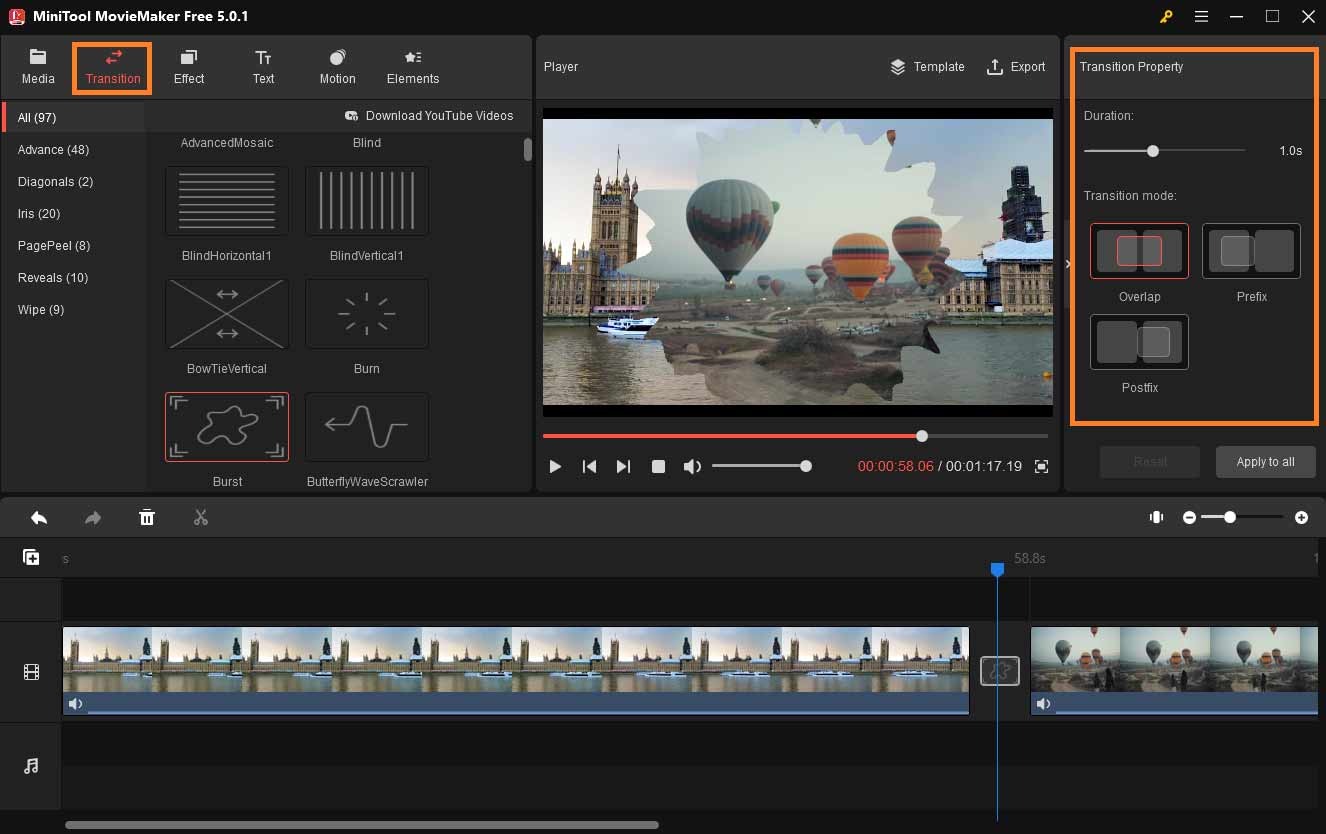
To make the video clips go seamless, you add transitions simply by dragging one of the 90+ good-looking options between two clips. It handles any required overlapping automatically. All you need to do is click the Transition tab to find the desired option and drag and drop it between two clips. You can change the duration and Transition mode.
Effects
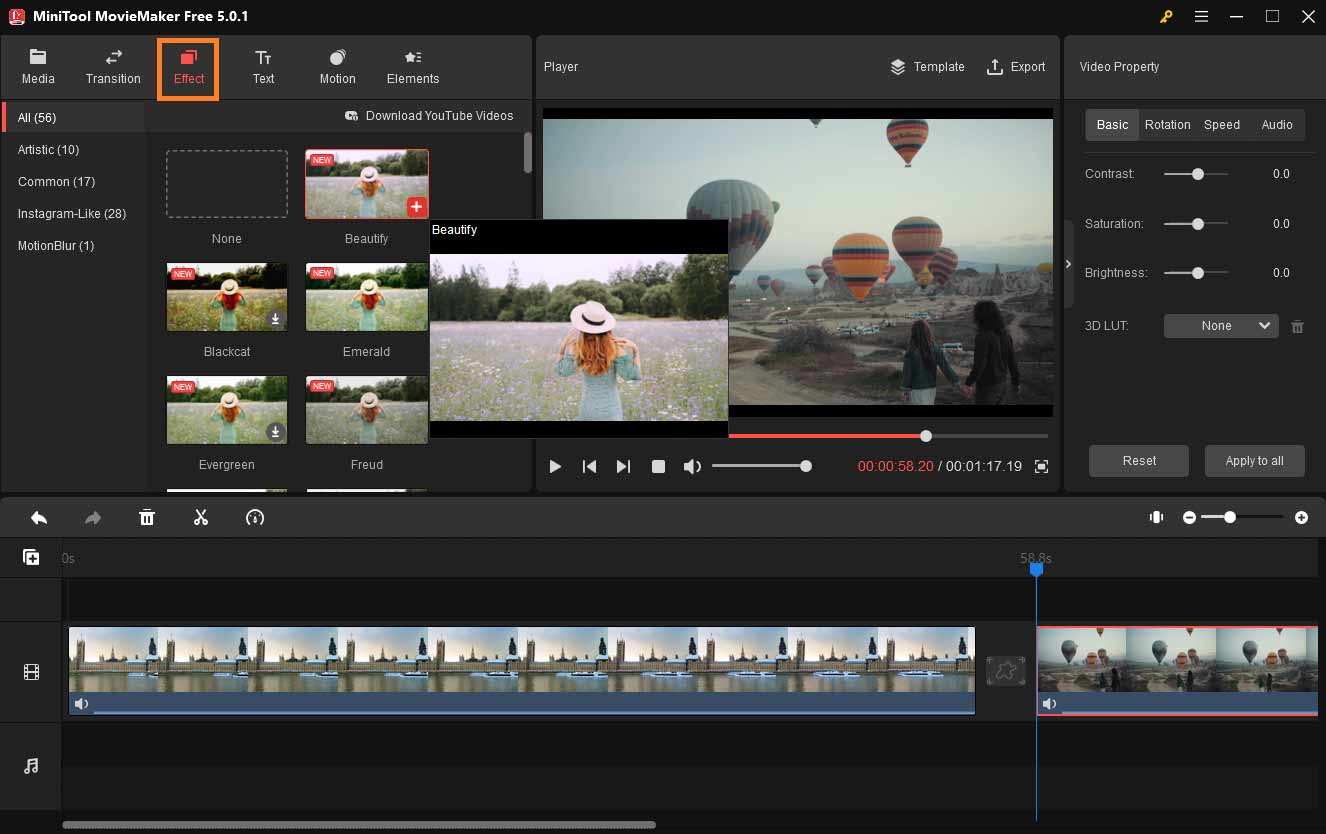
50+ updated filters deliver a range of looks, from Artistic to Instagram-Like. You can hover over them to see them applied to the clip in the preview window. Among these effects, there are color correction tools such as contrast, saturation, and brightness adjustment. You can also apply 3D LUT effects to your videos.
Applying an eye-catchy effect to your video with MiniTool MovieMaker is a simple job. Just go to the Effect tab and find the one you like, then drag and drop it to the target video clip.
10 Best Photo Slideshow Makers of 2023 (Windows and Mac Edition)
Top 10 photo slideshow makers are listed here. You can choose a suitable one to make a slideshow.
Text
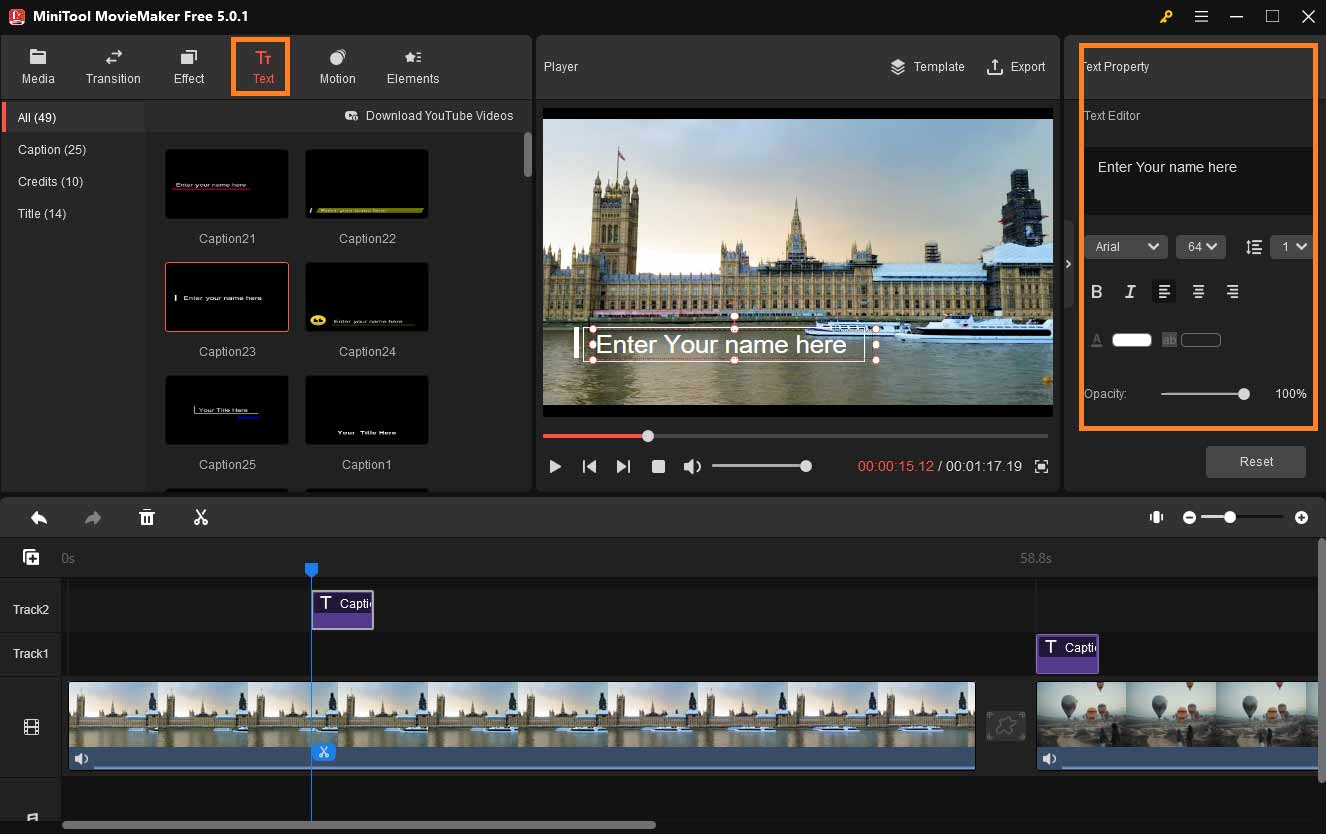
Titling and adding text in MiniTool MovieMaker are nicely done. You can add captions, credits, and titles to the video easily. Many of the title options animate, and there is no problem with changing font, size, color, opacity, and alignment.
To add text to your videos, just head to the Text tab. After choosing from a selection of well-designed text styles you can enter text and edit it right in the preview window.
Motion
Motion, aka Pan & Zoom or Ken Burns effect, is a type of panning and zooming effect used in video post-production to make the video look more dynamic. MiniTool MovieMaker provides more than 30 motion options for you to choose from, such as Pan down, Pan up, Zoom in left, Zoom in right, Zoom out center, etc.
To apply the motion effect to the video, just click Motion to the motion library. Tap on the + icon or drag and drop the wanted one to the target clip on the timeline.
Elements
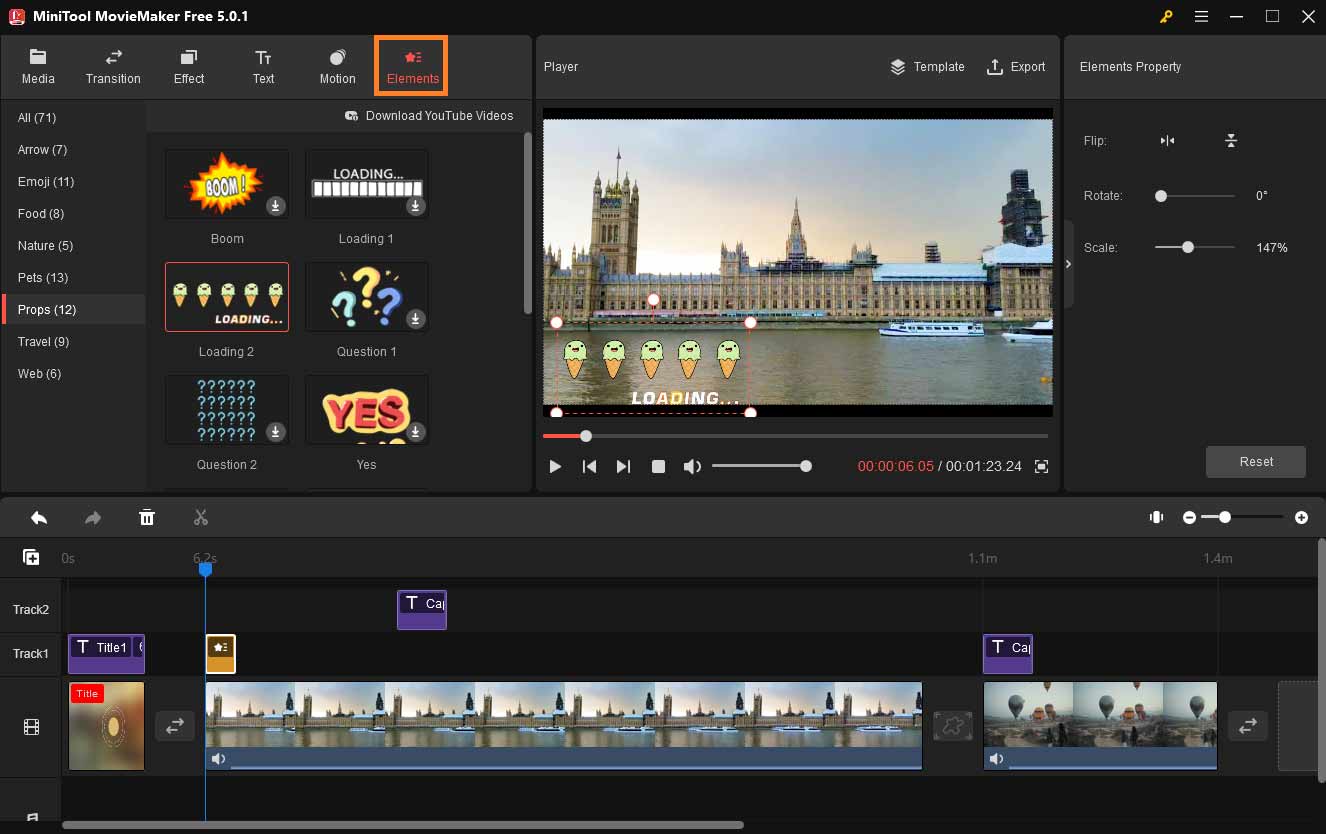
Cartoon animated elements are fun animated graphics to enhance your videos. MiniTool MovieMaker offers 70 + different types of cartoon animated elements such as the arrow, emoji, nature, pets, travel, and the web to decorate your videos.
To add an animated element to the video, just navigate to Element to access the element library and download the updated element source. After choosing the desired element for the video, you can make changes to this element by flipping, rotating, change the position and size in the video.
System Requirements
MiniTool MovieMaker’s recommended systems requirements are mentioned below for users who want to know more about this handy tool:
| OS | Windows 7, Windows 8, Windows 8.1, Windows 10, Windows 11 |
| CPU | Intel i5 or better, 2GHz+ (Intel 6th Gen or newer recommended) |
| RAM | 8 GB RAM |
| Disk | 10 GB free hard-disk space (SSD recommended) |
| GPU | Intel HD Graphics 5000 or later; NVIDIA GeForce GTX 700 or later; AMD Radeon R5 or later |
How To Import Videos, Images, Music to MiniTool MovieMaker?
After knowing about this creative free Windows movie maker and downloading it, it is high time to use it to make an attractive video. To apply magic to your video footage, the first thing you need to do is to upload the media files to MiniTool MovieMaker.
To make a stunning video, you can import video clips, images, and audio files to MiniTool MovieMaker to get things done. Here we will show you how to import the three types of media files to this platform.

Top 10 Lyric Video Makers You Must Know
Here are top 10 lyric video makers which can help you create a lyric video effortlessly. Read this post and have a try!
How to Import Videos and Images to MiniTool MovieMaker?
In this part, we will show you how to import video and image files to MiniTool MovieMaker.
Step 1. Launch the MiniTool editing software.
Download MiniTool MovieMaker by clicking the button above and installing it on your computer. Launch the program and enter the main interface.
Step 2. Import the video footage into the program.
When you enter the main user interface, click Import Media Files, and find the video clips and images you want to edit. Choose them and tap on Open to import the media files. And then drag and drop them onto the timeline.
Then, you can make changes to the footage on this platform as you like.
How to Import Music to MiniTool MovieMaker?
MiniTool MovieMaker offers updated inbuilt soundtracks for users to set as the video background. If you want to add your own music to this program, the process is very simple. Follow the steps below to import local audio files to MiniTool MovieMaker:
Step 1. Launch MiniTool MovieMaker.
When you launch this program, then enter the main interface as we mentioned above.
Step 2. Upload music files to MiniTool MovieMaker.
On the main interface, find the Media tab and tap on Import Media Files. Locate the music files you want to add, choose them, and click Open to upload to MiniTool MovieMaker.
After that, your music can be found on My Album or the Music part. Then you can set the music as your video background. MiniTool MovieMaker also allows you to make an adjustment on the music like fade in/out or change the volume of the music.
Final Verdict of MiniTool MovieMaker
MiniTool MovieMaker is an easy-to-use yet powerful tool. It is the best video editing software for beginners, which means it comes with all the standard tools that users need to merge a video, add music, apply effects, and edit the finished work before exporting it to the local device or sharing it on social media.
It is a kind of video editor that is never going to disappoint you, regardless of your editing skills. It suits the needs of both beginners and novice users and has proven to be very efficient in creating high-quality videos and slideshows.
Top 5 Free Picture Stencil Makers for Different Platforms
With the picture stencil maker, you can convert any picture into a stencil drawing with ease. You will get the top 5 free picture stencil makers in this post.
Conclusion
After reading this full review of the free Windows movie maker – MiniTool MovieMaker, you can try this handy tool to make attractive videos and explore more creative features.
If you have any questions or encounter any problems while using MiniTool MovieMaker, do not forget to leave a comment below or directly send us emails via [email protected] . We will solve it as soon as possible.
About The Author
I am a fan of music, travel, and innovation. Editing is also my strong interest. Learning new things is a never-ending process, and I would like to study more about photographing and writing. In my spare time, I enjoy going out with friends and trying new cuisines. I also enjoy watching movies and documentaries, listening to podcast, reading, working out, and going on road trips.
Как обновить Windows Movie Maker
Windows Movie Maker — это популярное программное обеспечение, предназначенное для редактирования и создания видео. Оно включено в операционные системы Windows и обеспечивает простой и удобный способ создания качественных видеороликов. Однако, как и любая другая программа, Windows Movie Maker время от времени нуждается в обновлениях для исправления ошибок и добавления новых функций.
Обновление Windows Movie Maker может быть особенно важным, так как новые версии программы могут содержать улучшенные инструменты и функциональные возможности. Кроме того, обновление может исправить возможные проблемы с производительностью или безопасностью программы.
Чтобы обновить Windows Movie Maker, вам нужно выполнить несколько простых шагов. В этой статье мы подробно рассмотрим процесс обновления и дадим вам полезные советы, которые помогут вам успешно обновить свою программу до последней версии.
Как обновить Windows Movie Maker?
- Шаг 1: Проверьте наличие обновлений
Перед тем, как начать процесс обновления, убедитесь, что у вас нет последней версии Windows Movie Maker. Для этого откройте программу и выберите опцию «Помощь» или «Справка» в верхнем меню. Затем выберите «О программе» или «О Movie Maker» и проверьте, есть ли доступные обновления. Если обновления имеются, вы увидите опцию «Обновить» или «Проверить наличие обновлений».
Если вам будет предложено обновить программу, нажмите на соответствующую кнопку и дождитесь завершения загрузки. Если обновлений нет, вы можете вручную скачать последнюю версию Windows Movie Maker с официального сайта Microsoft или других доверенных источников.
Когда файл обновления будет полностью загружен, откройте его и следуйте инструкциям установщика. Обычно вам будет предложено выбрать папку назначения для сохранения программы и подтвердить свое согласие с лицензионным соглашением. Нажмите на кнопку «Далее» и дождитесь завершения процесса установки.
После установки обновления рекомендуется перезагрузить компьютер, чтобы изменения вступили в силу. Сохраните все необходимые документы и приложения, а затем нажмите на кнопку «Пуск», выберите опцию «Выключение» или «Перезагрузка» и дождитесь, пока компьютер перезагрузится.
Когда компьютер будет снова загружен, откройте Windows Movie Maker и проверьте, обновилась ли программа успешно. Если у вас все еще остались проблемы или если вы не видите новых функций, попробуйте повторить процесс обновления или обратитесь в службу поддержки Microsoft для получения дополнительной помощи.
Надеюсь, что эта инструкция помогла вам обновить Windows Movie Maker и получить доступ ко всем новым функциям и улучшениям. Теперь вы можете наслаждаться редактированием видео с помощью обновленной версии программы.
Почему нужно обновлять Windows Movie Maker?
- Устранение ошибок: Обновления Windows Movie Maker часто содержат исправления ошибок и улучшения стабильности программы. Обновления позволяют исправить известные проблемы, которые могут приводить к сбоям или некорректной работе программы. После обновления программы, вы сможете работать с ней без проблем и получить более плавный пользовательский опыт.
- Доступ к новым функциям: Обновления Windows Movie Maker также могут добавлять новые функции и инструменты в программу. Это может включать в себя расширенные возможности редактирования видео, новые эффекты и фильтры, улучшенные возможности экспорта и многое другое. Обновляя программу, вы получаете доступ к этим новым функциям и можете создавать еще более профессиональные и качественные видеомонтажи.
- Безопасность: Обновления Windows Movie Maker также включают в себя улучшения в области безопасности. Программные обновления часто предназначены для закрытия уязвимостей безопасности и предотвращения возможных атак или вирусов. При обновлении программы вы защищаете свою систему от вредоносных программ и обеспечиваете безопасность ваших данных.
- Совместимость: Некоторые старые версии Windows Movie Maker могут быть несовместимы с новыми операционными системами или аппаратными компонентами. Обновление программы позволяет обеспечить совместимость с последними версиями ОС и аппаратным обеспечением, что обеспечивает более стабильную и эффективную работу программы.
В целом, регулярные обновления Windows Movie Maker являются неотъемлемой частью его исправной работы. Обновляя программу, вы можете получить новые функции, улучшенную стабильность и безопасность, а также обеспечить совместимость со своими устройствами.
Как обновить Киностудию Windows Live для Windows 7
Как обновить Киностудию Windows Live для Windows 7? Скачать обновленную версию вместе с базовыми компонентами Windows можно через сайт Media Player. Данная версия не содержит вирусов и вредоносного ПО, в отличие от аналогичных установочных файлов в интернете.
Основные функции Movie Maker
Программа Movie Maker рассчитана под базовое редактирование видео и создание любительских роликов. Благодаря простому интерфейсу работать в программе может любой новичок, не владеющий азами видеомонтажа.
Помимо видеороликов, в Киностудии можно использовать изображения и аудио. Редактор поддерживает следующие форматы:
- Видео: AVI, WMV, MP4, MP2, M1V, WM, DSV-MS, MPG, MPV2;
- Аудио: MP3, WAV, WMA, Aiff, AIF, MP2, AU, MPA, SND, ASF;
- Фото и картинки: JPEG, PNG, GIF, WMF, TIFF, DIB, BMP.

Как видно из перечня, Киностудия позволяет работать практически с любым базовым форматом. С помощью основных функций видеоредактора пользователь может:
- Обрезать видео;
- Сделать склейку разных кадров;
- Добавить фоновую музыку;
- Создать фотоальбом;
- Отрегулировать громкость звука и скорость видео;
- Наложить визуальный эффект;
- Применить анимацию.
Готовый ролик можно сохранить в разном разрешении, подходящем под конкретное цифровое устройство. Качество ролика будет зависеть от выбранного разрешения. Чаще всего пользователи выбирают полноценный Full HD формат, чтобы иметь возможность делиться видео в социальных сетях.
Фильм по умолчанию сохраняется в формате MPEG-4.
Как обновить Киностудию до последней версии?
C 2018 года Microsoft официально прекратил поддержку программы Movie Maker. На последнюю ОС Windows 10 предлагается к установке новое приложение «Киностудия», которое можно скачать через Microsoft Store. Однако у данного приложения есть существенные минусы:
- Нестабильная работа на ПК;
- Отсутствие многих базовых функций, которые были в старой версии редактора;
- Нет возможности выбрать подходящее разрешение для сохранения видео.

Cтарая версия Киностудии гораздо более удобна и практична по сравнению с приложением. В связи с этим у многих пользователей, имеющих операционную систему Windows 7, до сих пор стоит не обновленная программа Movie Maker.
Если на ПК установлена операционная система Windows 8 и выше, обновление может не потребоваться, так как последняя версия программы была выпущена в 2012 году. Однако тем, у кого стоит ОС Windows 7, рекомендуется проверить наличие обновлений для видеоредактора.
На сайте Media Player находится последняя версия Movie Maker. Чтобы бесплатно загрузить ее на Windows 7, достаточно открыть главную страницу сайта и найти нужную программу в таблице.
Movie Maker автоматически загрузится в папку, привязанную к браузеру. Далее следует открыть установочный файл и выбрать подходящий вариант установки — с базовыми компонентами Windows или без них.
Примечание: Для загрузки только одного Movie Maker следует указать пункт «Выбрать программы для установки» и поставить галочку напротив видеоредактора.
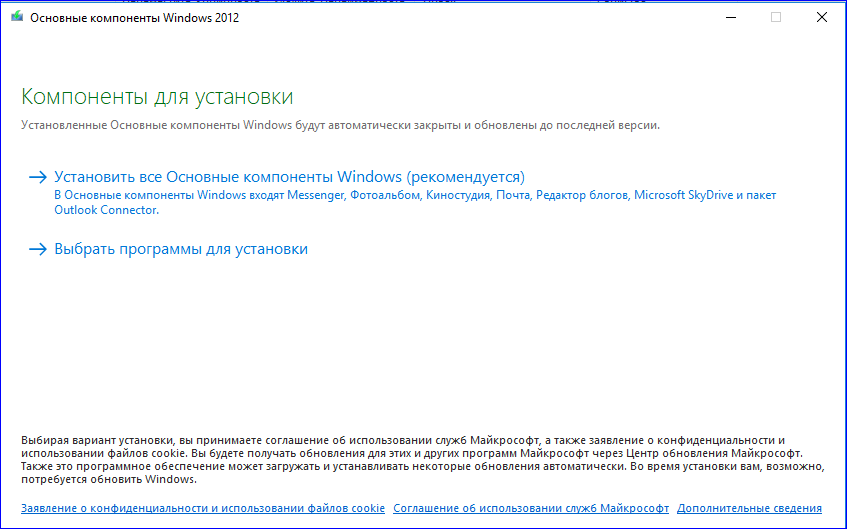
Если на ПК была установлена очень старая версия Киностудии, она автоматически обновится до версии 2012 года.
По завершению процесса установки на рабочем столе появится значок Windows Live. Теперь самое время приступить к созданию первого собственного фильма.
Как удалить Киностудию?
Для удаления программы Movie Maker и всех дополнительных компонентов Windows нужно выполнить следующие действия:
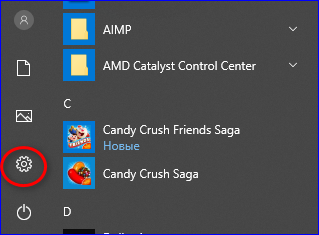
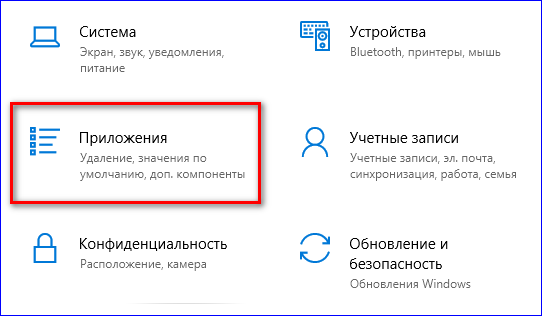
- Далее открыть пункт «Приложения«, где находятся все установленные программы;
- В перечне всех приложений, установленных на ПК, найти приложение под названием «Основные компоненты Windows 2012» и нажать кнопку «Удалить«.
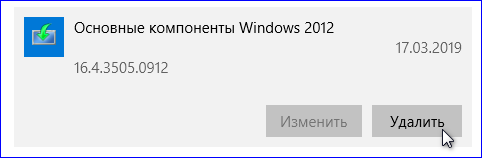
Киностудия вместе с базовыми компонентами будет полностью удалена с компьютера.
Для обновления Киностудии на операционной системе Windows 7 достаточно скачать проверенный файл через сайт Media Player и установить его на ПК. Вместе с видеоредактором также можно установить базовые компоненты Windows: Почту Microsoft Outlook, Фотоальбом, облачное хранилище SkyDrive, Редактор блогов и Messenger.