
Arduino и Hex-файлы
Как загрузить Hex-файл в Arduino IDE, что это такое и как с ним работать — говорим сегодня в новой информационной статье. Тема выбрана не случайно, многие пользователи интересуются программным обеспечением на более «продвинутом2 уровне. При этом конечно же не всем хочется бегать за помощью к специалистам, листать многочисленные форумы и т.д. но выход есть – наша инструкция.
Прежде чем начать обсуждение по сути, небольшое отступление с пояснениями, что такое Hex-прошивка. Рассказываем: речь идет о скомпилированном файле, который загружается в плату Ардуино, но не является исходным кодом, как скетч. Иными словами, это простой способ распространения программ для изучаемой нами среды. Такие файлы часто имеют расширение *.hex – отсюда и название. Они просты в использовании, не требуют скачивания дополнительных библиотек, легко переносятся на другие девайсы.
Важный момент! В этой прошивке отсутствует возможность получения читаемого исходного кода для внесения пользователями коррекций.
Как же получить hex-файл для создания собственного проекта либо скетча?
- Для начала откройте нужный вам скетч в среде разработки IDE.
- Выберите в меню «Скетч» команду «Экспорт бинарного файла».
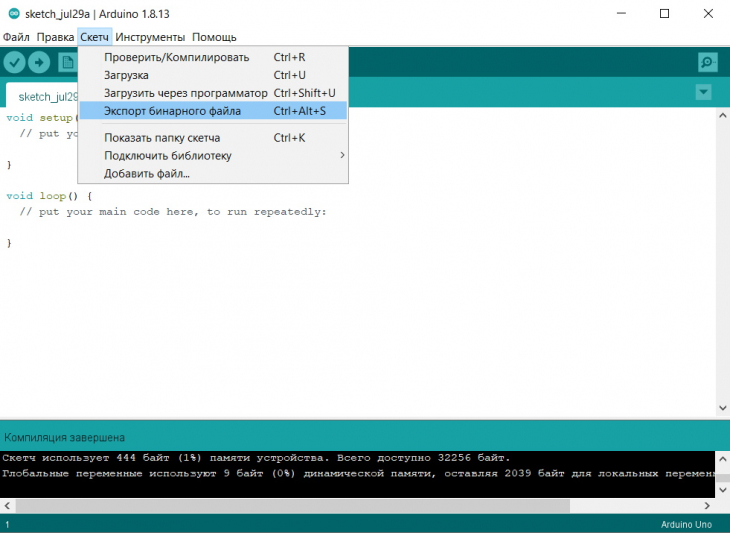
- Дождитесь окончания компиляции — в папке со скетчами появятся 2 или больше hex-файла:
 Поговорим о том, как прошить Hex-файлы в Arduino IDE. Процедура не сложная — подключаем плату (Uno, Nano, Pro Mini) к USB-порту ПК. Нам необходимо узнать номер порта. Запускаем IDE, открываем меню Инструменты – узнаем COM. В дальнейшем мы его применим.
- Создаем папку под названием avrdude.
- Копируем в нее следующие файлы: avrdude.exe и libusb0.dll из C:\Program Files (x86)\Arduino\hardware\tools\avr\bin и avrdude.conf из C:\Program Files (x86)\Arduino\hardware\tools\avr\etc
- Запускаем консоль cmd, переходим в папку с файлами, вводим:
avrdude -v -patmega328p -c arduino -P com10 -b 57600 -D -U flash:w:"girlanda.hex":iСкорость выбираете согласно типу плат (Уно, Нано – можно 115200, для других, особенно китайских моделей – 57600, тут нужно экспериментировать).
Среди других приложений, которые советуют использовать, можем назвать: GC-Uploader (автоматическая заливка ПО), SinaProg (более профессиональный софт) и XLoader. Выбирайте оптимальный для себя вариант!
HOW TO GET HEX FILE FROM ARDUINO ?


By sachin0987 LinkedIn Follow
More by the author:


About: Working in Bharti Airtel Ltd. as Executive Trainee. My core skillset includes Networking, Python Scripting , Automation telecommunication, optical networks. More About sachin0987 »
Hello friends, hope you all are fine.Firstly I am wishing you a Happy New Year. In today’s post, I am going to share How to get Hex File from Arduino.If you have worked on PIC Microcontrollers or Atmel etc then you have seen that you always get hex file from their compilers and then you burn that hex file in the respective microcontroller using their programmer or burner. But that’s not the case with Arduino. In Arduino boards, you simply plug it into your computer and you hit Upload button and the code automatically gets upload in Arduino boards. It doesn’t create any hex file.There are many cases when hex file is required. For example, instead of using Arduino board you just want to use the ATmega microcontroller then the easiest way is to write the code in Arduino and then get its hex file and upload it in your microcontroller, which makes the task quite easy. Another example is Proteus simulation, when you want to simulate your Arduino board in Proteus software then you need to get the hex file so that you can upload it to your Arduino board.
Let’s Start, Follow the Steps:
Add Tip Ask Question Comment Download
Step 1: Step 1
- First of all, open your Arduino software and write your code and test it.
- Once you are confirmed that your code is ready and you want to generate the hex file, then click on File option in the above menu and then Preferences as shown in figure.
In the above figure, I have used the a example of LED Blink and I am gonna generate its hex file.
Add Tip Ask Question Comment Download
Step 2: Step 2
- Now when you click on the Preferences, a new window will pop up.
- In this new window, tick the compilation option as shown in a figure.
- After ticking it, now click on the OK button and this dialog box will close.
By ticking this option you are allowing the Arduino software to show verbose outputs in the output panel present at the end of Arduino software, which has a black background.So, you can also tick the upload option but you need to upload the code to get these output commands.
Add Tip Ask Question Comment Download
Step 3: Step 3
- Now hit the compile button as we tick the compilation option, so it will compile the code and will give you all the commands as shown in fig.
- Now you can see clearly in the above figure that there are many commands in the black portion, these are the verbose outputs which Arduino is giving us.
- The last line of these outputs, which I have also indicated the link to your hex file, which in my case is:
Now, remove the name of the hex file from this link and it will become:
- Paste this link in the computer address bar and this folder will open up.In that folder search for your respective file and you easily get the hex file of your code.
- Note: Actually, while uploading the code to Arduino boards, Arduino software creates the hex file of the code in the temporary folder and once the code is uploaded then it deletes that hex file, that’s the reason we don’t get the hex file, but by clicking the option you can easily get the hex file and then can use it for any purpose.
Add Tip Ask Question Comment Download

Be the First to Share
Did you make this project? Share it with us!
Recommendations

Fear Booth — Raspberry Pi Powered Photo Booth With a Spooky Twist by Görkem in Raspberry Pi

Penny’s Computer Book (from Inspector Gadget) by bekathwia in Arduino

Animatronic Skull With Arduino by patymaker in Arduino

The Ultimate Camera RIG With Portable Display by Arnov Sharma in Cameras
CNC Student Design Challenge

Project-Based Learning Contest

Jewelry Contest

4 Comments

10 months ago on Step 1
Reply Upvote
I don’t have a pc . So. Where i found on mobile..( Arduino droid )

Reply Upvote
/tmp/arduino_build_900722/sketch_may04a.ino.elf /tmp/arduino_build_900722/sketch_may04a.ino.hex
i am facing difficulty in not getting the correct hex path, please show me the solution. it is not generating the output after pasting hex file in proteus program file. please give me the solution.

Question 3 years ago
Answer Upvote
I have hex files from microbit, can i change it to arduino code?