
Discord update failed, что делать
Привет! В этой статье расскажем про очередную распространённую ошибку приложения Discord, а именно update failed. Discord update failed, что делать?
Как выглядит ошибка
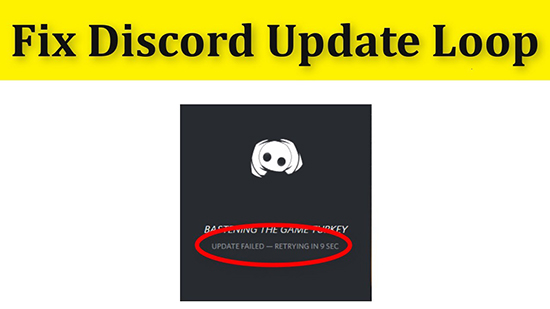
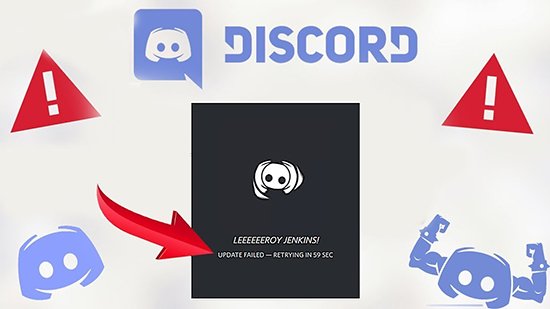
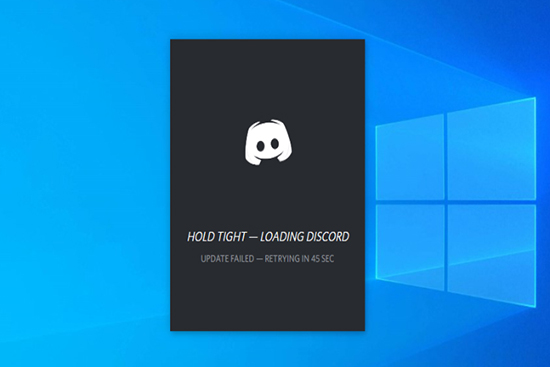
При запуске приложения появляется квадратное серое окно со стандартным логотипом Дискорда. Логотип вращается, идёт загрузка. Вот только больше ничего не происходит, а под значком Дискорд написано update failed и рядом retrying in. Загрузка зацикливается, проходит 20 секунд, и приложение не запускается.
Существует много возможных причин ошибки. Начиная от повреждённых компонентов обновлений и заканчивая антивирусными программами, которые конфликтуют с обновлением Дискорда. А может, у вас новая Windows 11, и мессенджер пока конфликтует с ней? В этой статье мы дадим несколько самых простых путей решения проблемы.
Как исправить
Update failed в Дискорд, как исправить? Как и при работе со многими другими ошибками, есть несколько вариантов устранения. Пробуйте их по очереди, какой-то должен сработать.
Первый способ
Первое, что нужно сделать – это проверить свойства браузера в Windows 10.
- На панели задач найдите значок лупы, нажмите на него;
- в появившейся строке поиска наберите Свойства браузера , нажмите на поисковую выдачу;

- вы открывшемся окне перейдите во вкладку Подключения ;
- внизу кликните на Настройки сети ;

- в блоке Прокси-сервер уберите галочку (если стоит) с пункта Использовать прокси-сервер для локальных подключений ;
- нажмите Ок , выйдите из меню.

Теперь проверьте: если Дискорд всё ещё не обновляется, пробуем второй способ устранения.
Второй способ
Теперь проверим подключение к Интернету на Виндовс 10.
- Перейдите в Панель управления . Сделать это можно, нажав правой клавишей на Пуск или с помощью строки поиска, которую мы использовали выше.

- Кликните по разделу Сеть и Интернет .

- Далее – Центр управления сетями и общим доступом .
- Что делать дальше? Перейдите во вкладку Изменение параметров адаптера . Она находится в меню слева.

- Здесь проверьте своё подключение. Если их там несколько, выберите то, которое у вас основное.
- Кликните по нему право кнопкой мыши – Включить .
- Дождитесь окончания подключения.
Смотрите на реакцию приложения Дискорд. Если по истечении 20 секунд в окне загрузки появилась надпись checking for updates, а затем downloading update, то через несколько секунд вы попадёте в приложение. Получилось! Всё то же самое можно проверить и на Mac OS.
Дискорд не запускается и пишет update failed
Пользователи Дискорда, как и любого другого приложения, могут однажды при запуске программы получить уведомление об ошибке “Update Failed Discord”, то есть проблеме с обновлением. Избавиться от такой неприятности возможно самому, для чего придется только потратить немного свободного времени. Но для этого сначала нужно понять, из-за чего именно не запускается Дискорд.
Как переводится ошибка и почему возникает
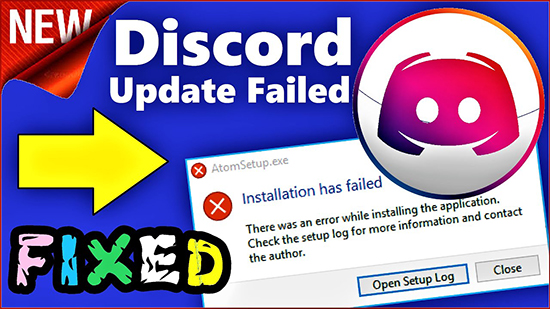
Update Failed Discord, что в переводе означает “не удалось обновить Дискорд”, — это ошибка, которая появляется при попытке загрузки либо обновления программы. В зависимости от операционной системы может изменяться ее формулировка, например, в Windows 7 при таких проблемах с приложением появится “Update failed – retrying in (обратный отсчет)”, но по факту это точно та же ситуация.
Среди основных причин, которые способны вызвать такую ошибку в работе Discord, наиболее популярными являются следующие:
- Пользователем предварительно были запущены процессы, блокирующие обновление утилиты и ее корректную работу в целом.
- Антивирусная программа в целях безопасности ограничивает функционал приложения.
- Если Дискорд уже раньше устанавливался на компьютер, возможно с того времени в системе остались не удаленные файлы данной утилиты.
- Программа не совместима с установленной на устройстве операционной системой.
Как устранить ошибку Discord update failed
Избавиться от данной ошибки возможно несколькими способами, но самых эффективных 2:
- удалить имеющиеся в системе временные файлы;
- переустановить приложение.
Важно! Это универсальные варианты, которые сработают не только с системой Windows 10 и ниже, но и в mac os.
Удаление временных файлов
Если неполадка возникает во время обновления приложения либо же Дискорд вовсе не загружается, тогда стоит попробовать удалить с ПК временные файлы:
- Нажать правой клавишей мыши на значок программы в системном трее и выбрать “Quit”, выключая Discord. Затем нужно завершить все действующие еще процессы приложения, воспользовавшись функционалом диспетчера задач. Требуется отыскать и закрыть все, что носят название Discord. Для этого нужно нажать правой клавишей мышки на соответствующем процессе, вызвать контентное меню опций и активировать завершение процесса.
- Одновременно зажать кнопки “Windows+R”, вызывая утилиту “Выполнить”, и в появившемся окне ввести в специальной форме следующую команду: %Appdata%/Discord.
- Полностью удалить все имеющиеся в директории системные файлы.
После этого нужно попытаться снова запустить Discord, но уже с правами администратора. Сделать это получится, нажав по значку программы правой клавишей мыши и в появившемся меню выбрав требуемую строку. Обновление, как и удаленные ранее файлы, автоматически загрузятся и проблема с ошибкой “discord update failed” больше не появится.
Удаление и переустановка
Если вышеописанный способ не принес ожидаемого результата, исправить ошибку поможет полная переустановка программы. Для этого потребуется сделать следующее:
- Найти ярлык приложения (находится в меню Пуск либо среди файлов на рабочем столе) и нажать на него правой клавишей мыши. В результате откроется окно, через которое нужно перейти в директорию “Local” и произвести полное удаление папки “Discord”.
- Открыть системную панель управления и там перейти в раздел “Программы и компоненты” либо “Установка и удаление”, в зависимости от установленной на устройстве ОС. Далее нужно найти в списке приложений Дискорд и запустить его удаление.
- По окончанию процедуры стоит перезагрузить компьютер.
- После этого нужно перейти на официальный вебсайт discordapp и скачать последнюю версию приложения для Виндовс. Запустить полученный файл и начать установку.
Теперь программа должна заработать нормально без ошибок. Если система потребует снова авторизоваться, укажите в соответствующих полях необходимые данные.
Ошибки о проблемах с обновлением – популярная проблема, независимо от операционной системы устройства. И Discord в этом плане не исключение. Однако теперь вы знаете, что в подобном случае нужно сделать для решения данной неприятности.
Update failed в Discord: как исправить?
В этой статье мы собрали все рабочие в 2023 году решения проблемы update failed Discord — одной из самых часто встречающихся ошибок в мессенджере. Она означает то, что Discord не может обновиться. Ошибка возникает при попытке запуска декстопного приложения Discord — оповещение появляется в окне запуска под логотипом мессенджера. Выясняем, как устранить её!
Проверка соединения с интернетом
Приложение Discord работает только при наличии соединения с интернетом. Если его нет или оно плохое, мессенджер не сможет обновиться и начать работу.
- Посмотрите на значок сетевого подключения в правом нижнем углу рабочего стола. Если он неактивен, значит, интернет не подключен. Включите его!
- Перезагрузите интернет.
- Проверьте, оплачен ли интернет. Может, нужно пополнить баланс?
- Позвоните в техподдержку своего провайдера и сообщите о проблемах с интернетом.
- Интернет подключен? Проверьте скорость соединения с помощью онлайн-сервиса — например, Speedtest. Нажмите на сайте на кнопку «Go» и смотрите показатели.

Проверить интернет-соединение — это самое первое, что нужно сделать. Если всё в порядке, но Discord всё равно не запускается, переходите к следующим способам.
Скорее читайте подробную инструкцию о том, как сделать голосование в Дискорде.
Удаление каталога Discord
Каталог — это то место, куда установилась программа. Нужно полностью удалить его, а затем установить Discord заново. По сути, мы переустановим мессенджер. Подробно рассказываем, как это сделать, чтобы исправить ошибку discord update failed.
- Чтобы сразу получилось удалить, сначала остановим все процессы Дискорда. Нажмите сочетание клавиш Ctrl+Alt+Delete. Во вкладке «Процессы» найдите строку с названием мессенджера, кликните правой кнопкой мыши и нажмите «Снять задачу» . Повторите это действие с каждым процессом Дискорда.

- Теперь нужно найти папку — каталог приложения. У нас получился такой путь: C:UsersИмя пользователяAppDataLocalDiscord.
- Сотрите полностью папку Discord — кликните по ней правой кнопкой мыши и выберите «Удалить» .
- При необходимости подтвердите действие.
Теперь осталось только заново установить мессенджер! Если забыли, как это делать, инструкция ниже. Написали на примере Windows 11.
- Перейдите на официальный сайт Дискорда: https://discord.com/download. Также вы найдёте его первым в поисковой выдаче по запросу «discord скачать на пк».
- Жмите на синюю кнопку «Загрузить для Windows» . Если у вас Mac или Linux, ищите кнопки ниже.

- Выберите место на компьютере и нажмите «Сохранить» .
- Дождитесь окончания загрузки установочного файла и откройте его.
Готово! Можете входит в свой аккаунт и продолжать пользоваться мессенджером. Если этот способ не помог, читайте ниже, что ещё можно делать в случае ошибки update failed в Дискорде.
Запуск от имени администратора
Функция запуска от имени администратора даёт программе возможность использовать особые права на взаимодействие с ОС, вносить изменения в системные файлы, если потребуется.
Иногда запуск от имени администратора необходим и решает некоторые проблемы в работе программы. Если разработчик программы хорошо известен, а установочный файл получен с официального сайта, можно не переживать за безопасность системы и запускать софт от имени администратора. Смотрим, как это сделать, если Дискорд не запускается и выдаёт ошибку update failed.
- Найдите ярлык мессенджера и кликните по нему правой кнопкой мыши.
- Выберите «Запуск от имени администратора» .

- Разрешите приложению вносить изменения на устройстве, нажав подтверждающую кнопку в появившемся окне.
Не забудьте предварительно так же остановить все процессы Дискорда через Диспетчер задач.
А бывает так, что Дискорд не обновляется и выдаёт ошибку update failed именно в вашей версии операционной системы. Рассказываем, что делать в этом случае.
Запуск в режиме совместимости
Появляется ошибка Discord update failed в Windows 11, и мессенджер никак не запускается? Возможно, он ещё конфликтует с новой версией ОС — попробуйте запуск в режиме совместимости с одной из предыдущих версий — Windows 7 или 8. Вот как это сделать!
- Найдите ярлык мессенджера и кликните по нему правой кнопкой мыши.
- Жмите на пункт «Свойства» .

- Перейдите во вкладку «Совместимость» .
- Ставьте галочку рядом с пунктом «Запускать программу в режиме совместимости с» .

- В выпадающем списке под стрелочкой выберите Windows 7 или 8.
- Нажмите «Применить» внизу окна.

Что делать, если ошибка update failed в Discord всё ещё остаётся и процесс «retrying in» зациклился? Осталось ещё несколько вариантов решения проблемы!
Отключение антивируса
Иногда случается ложноположительное срабатывание антивирусной программы и она блокирует безобидные приложения. Именно поэтому ещё один способ устранить ошибку updating failed в Discord — отключить антивирус на время запуска мессенджера или добавить Discord в исключения антивирусной программы.
Поищите нужные кнопки в интерфейсе своего антивируса и попробуйте снова запустить мессенджер!
Добавление в исключения брандмауэра
Брандмауэр — этот система защиты операционной системы устройства от «внешнего мира». Одной из функций брандмауэра является контроль доступа в сеть для приложений. Возможно, именно он мешает обновлению Дискорда. Давайте добавим мессенджер в исключения брандмауэра.
- Чтобы быстро зайти в настройки брандмауэра, воспользуетесь системным поиском. На панели задач нажмите на значок лупы и введите в строку поиска ключевое слово. Кликните по нужному разделу из поисковой выдачи.

- В правой части открывшегося окна нажмите «Разрешение взаимодействия с приложением» .

- В списке приложений найдите Discord и примените нужный параметр.
Получилось запустить мессенджер? В это статье мы поделились с вами проверенными способами запуска Discord при возникновении проблемы update failed в Windows 10 или других системах — теперь вы знаете, что делать с этой ошибкой. Расскажите нам, какой способ помог вам снова запустить мессенджер!
How to FIX Discord Update Failed Loop on Mac + Windows
This guide will tell you about possible issues that can cause discord stuck on downloading update mac and provide specific solutions that work.
Launched Discord, and all you see is the Discord Logo Rotating Endlessly with an error message Discord Update Failed on Mac? Or on Windows? Or even on your Phone?
And it’s pretty normal to be confused about Why is Discord not Updating? As it feels like Discord is stuck checking for updates forever.
But, No need to worry as the backbone of this issue is the Discord installer/update as there’s a bug in the update which causes this issue.
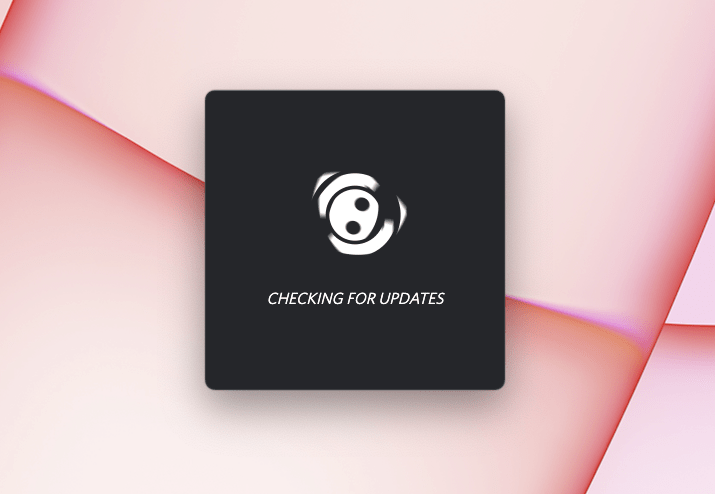
Why is my Discord stuck on checking for Updates?
There are 3 reasons that can cause Discord stuck on Updating, and it Keeps on Updating Forever. Here are some potential quick solutions that can be causing the discord downloading update 1 of 1 stuck Mac/Windows issue.
- Software Glitch: Restart your Device to fix the Discord Update Loop Failed Error. Windows OS /macOS tends to have some glitches sometimes with the software that can be sorted with a restart.
- Network Glitch: Additionally, reboot your Wifi or connect to a better network.
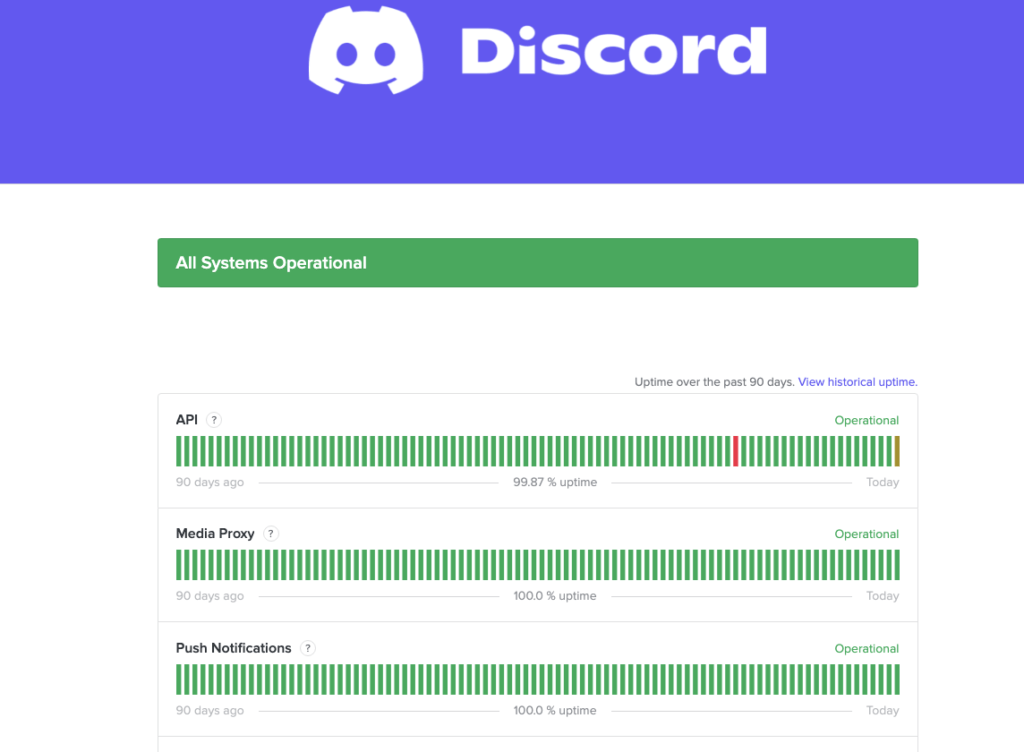
- Check Discord Server Status: Sometimes the issue lies in the server as too many visitors make the servers overloaded leading to the Discord update failed loop PC. So, you need to check for Discord status:
- Go to Discord Status’s official website
- Now you will be able to see the issues for the past 24 hours and you will be able to know if the server is down or not.
- Moreover, you will be able to report the issue from there too.
Discord Update Failed Loop Fixes for Mac
Here are 5 reasons that have worked for a majority of the users to fix Discord stuck on downloading update 1 of 1 Mac screen.
Solution 1A. Clearing Discord Cache on Mac
Old/redundant cache glitches with the new update file and you have to remove it so Discord can fetch the new file from its server.
Here’s a short video we created followed by a step-by-step picture guide to clear the cache on macOS.
- Open Spotlight by pressing “Cmd” + “Space” Key
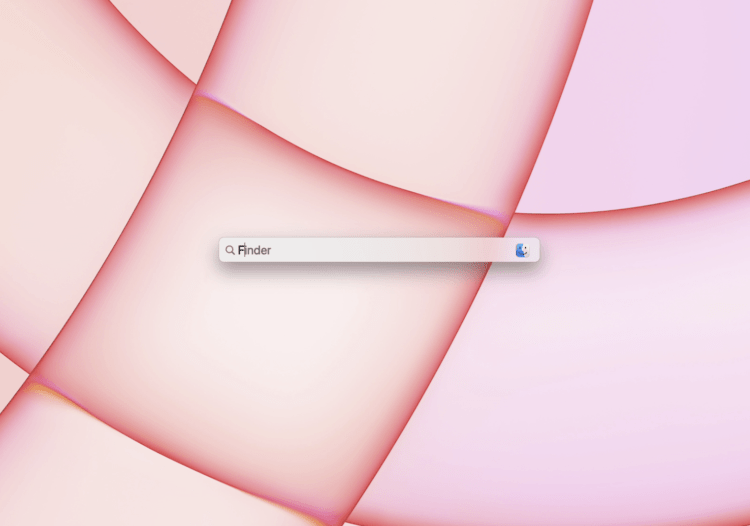
- Type Finder and Go to Finder
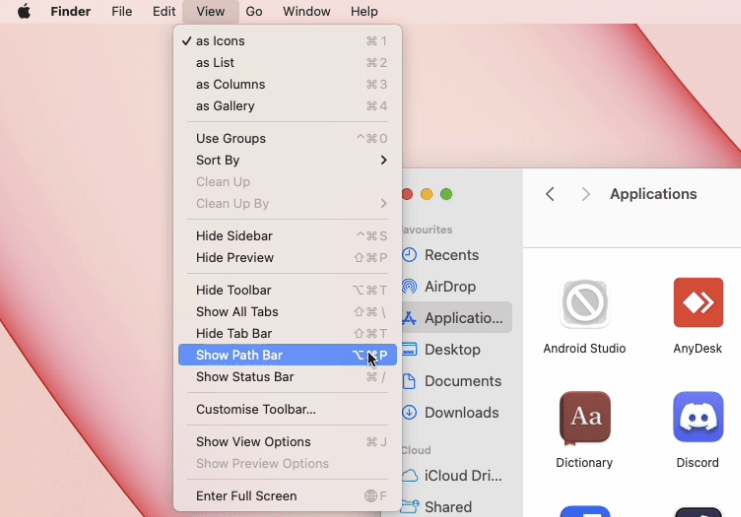
- At the top right of your Finder’s Menu Bar, you need to click on View and click on Show Path BarFinder’s Menu Bar, you need to click on View and click on Show Path Bar
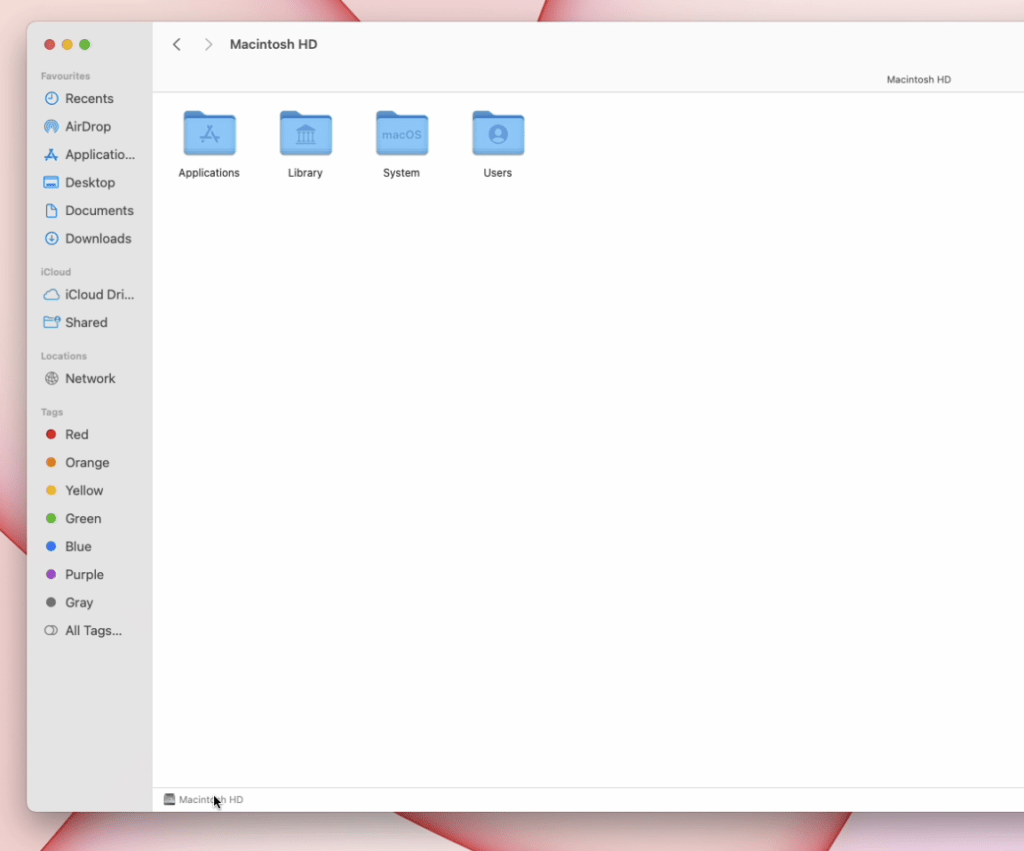
- A path should be visible at the bottom of your Finder’s Window
- Click on Macintosh HD
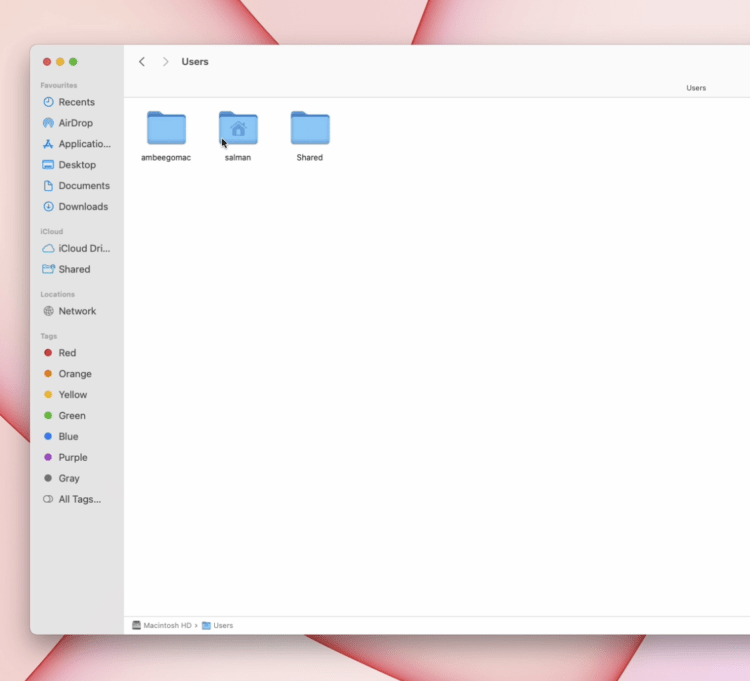
- Next, you need to click the user you are currently logged
- Now you need to view Hidden files because the default settings won’t allow you to view the files we want to access.
To view hidden files on macOS, all you need to do is press “Cmd” + “Shift” + “.“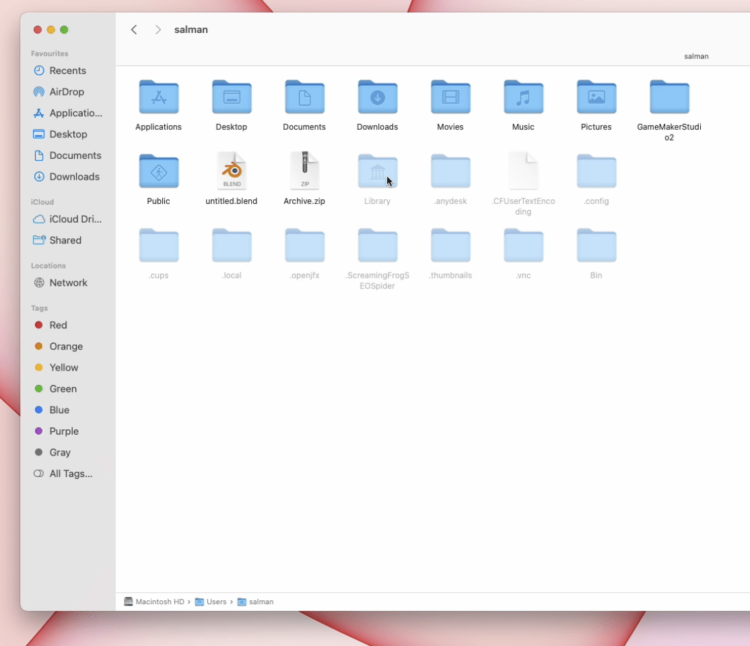
- Go to Library
- Then Find Caches
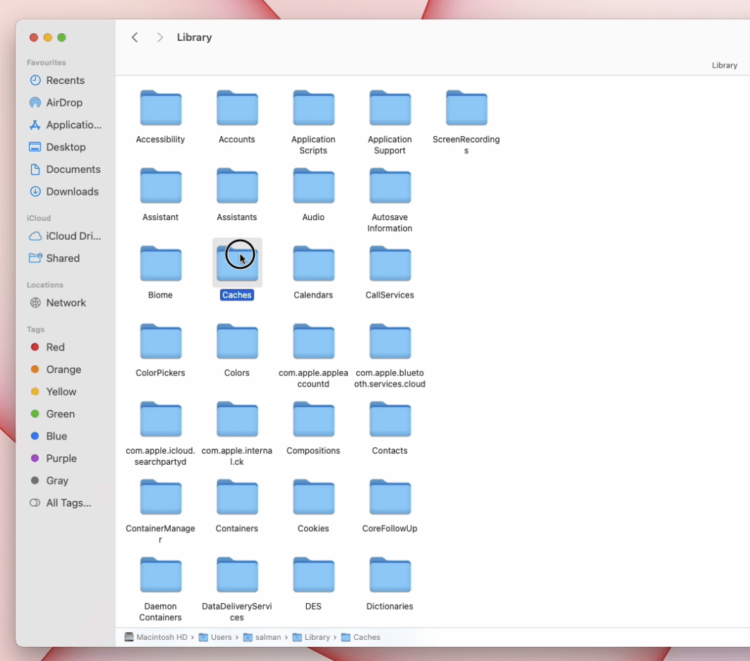
- Locate Discord Cache named com.hnc.Discord and com.hnc.Discord.Shipit
- Move it to Bin
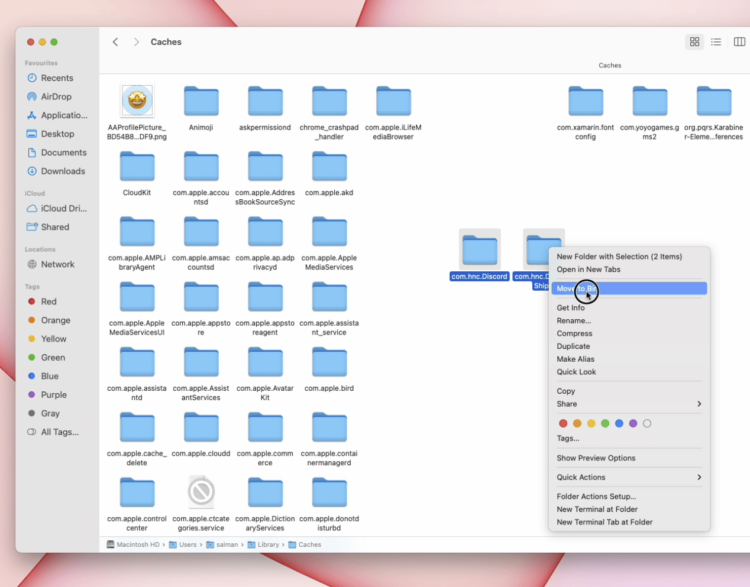
- Empty Bin by right-clicking on the Bin icon in your dock and clicking on Empty Bin.
- Restart and check if the error exists.
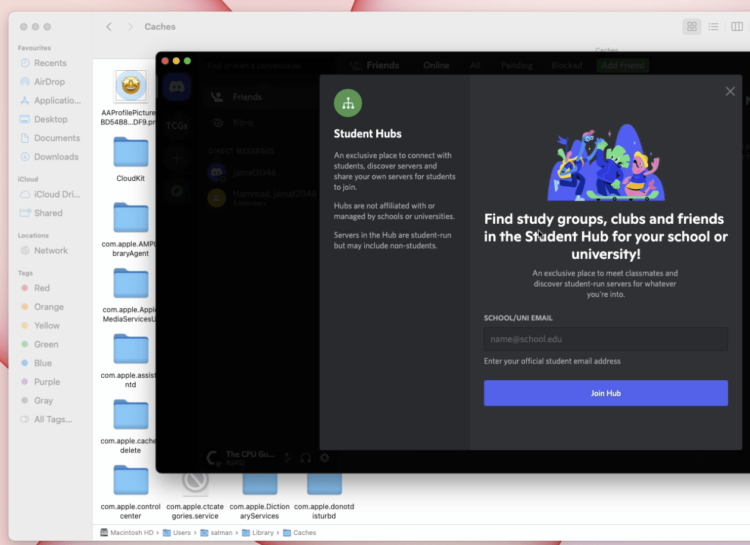
If the above solution didn’t help getting rid of downloading update 1 of 1 discord screen, then completely reinstalling Discord might be useful.
Solution 2A: Reinstalling Discord on your Mac
If clearing the cache and the rest of the quick fixes didn’t help you, we need to give a fresh install.
Here’s how you can Delete and Reinstall Discord on macOS:
- To ensure Discord is not already running, Close Discord by using ⌘+Q or selecting the Quit option from the dock
- Sometimes, Discord Remains running, so we need to ensure it is closed. Go to Mac’s Activity Monitor and close all discord activities. (Use Spotlight or Siri to launch Activity Monitor)
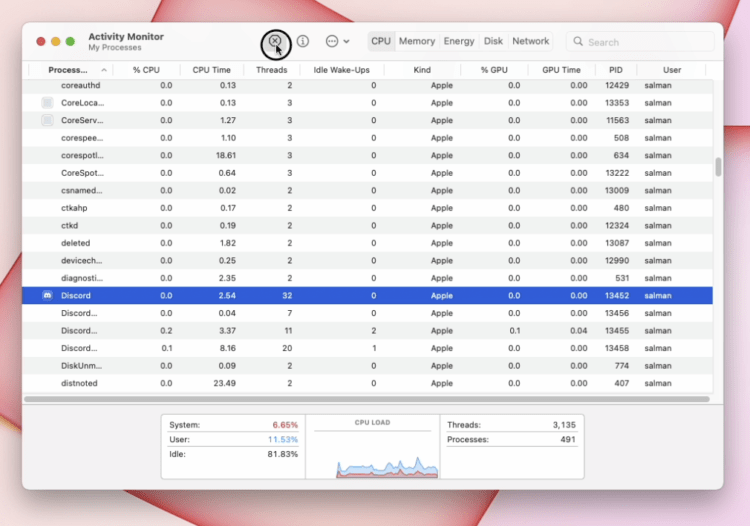
- Now that all Discord processes/activities are closed, we can delete the discord data on your machine so that any sort of cache glitch is removed and the new installation isn’t influenced by older data.
- We need to clear the cache as we did in the previous solution and Delete the following folder:
- /Library/Application Support/Discord
- Go to your User Folder who installed Discord, and then show in the hidden files, you will locate the Application Support Folder
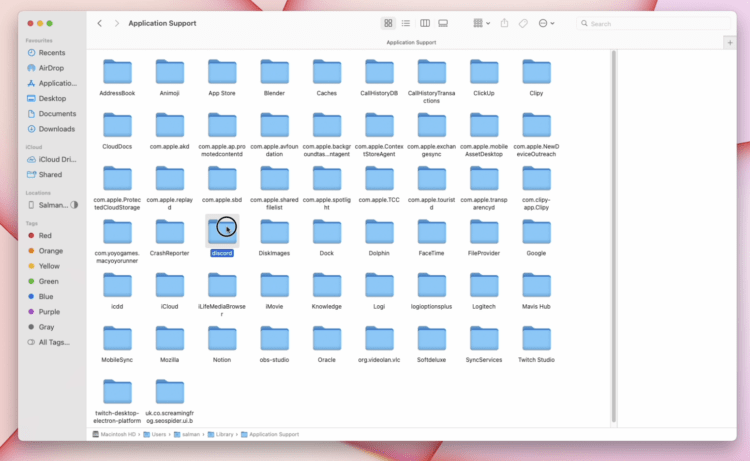
- Delete the Discord Folder and empty the bin.
- Restart your Mac.
- Reinstall Discord on your Mac.
Solution 3A: Outdated macOS needs an Update
As mentioned before, macOS versions older than 10.11 are not supported and it’s always a good idea to have the latest version as softwares are most optimized for the latest operating systems with minimum bugs.
To Update your macOS:
- Open Spotlight by pressing “Cmd” + “Space” Key
- Type “System Settings” to go to Settings
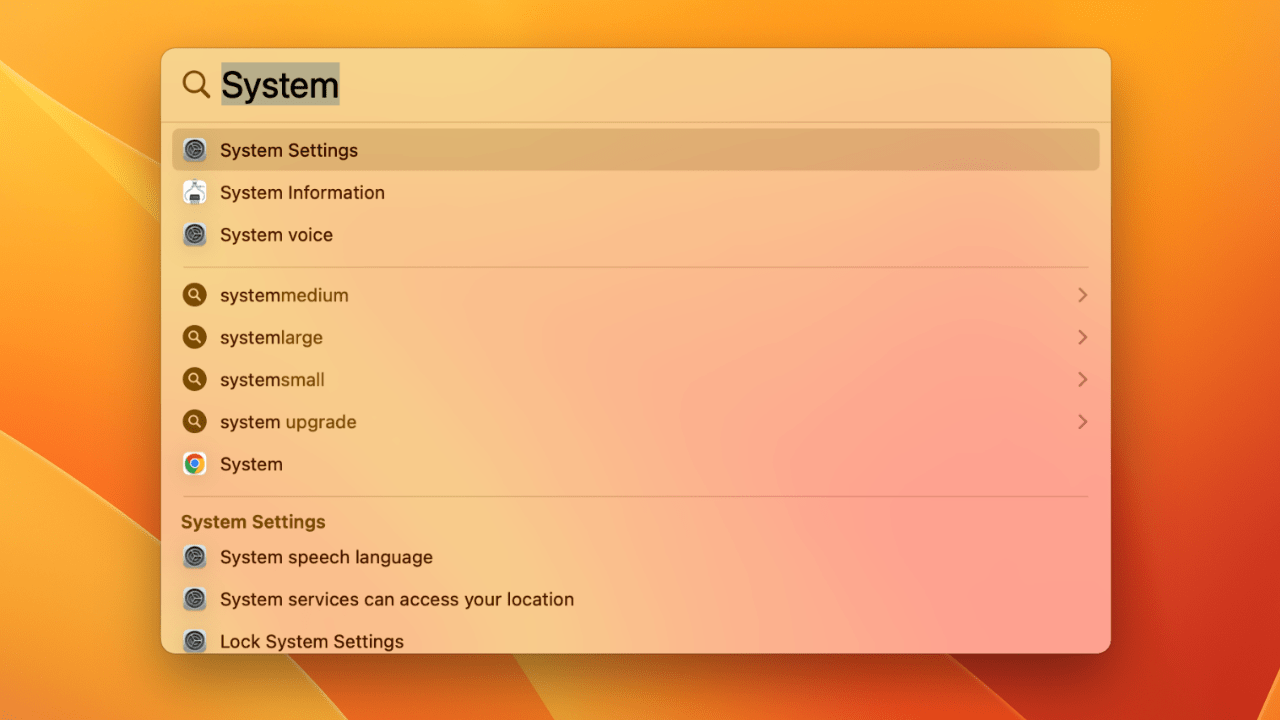
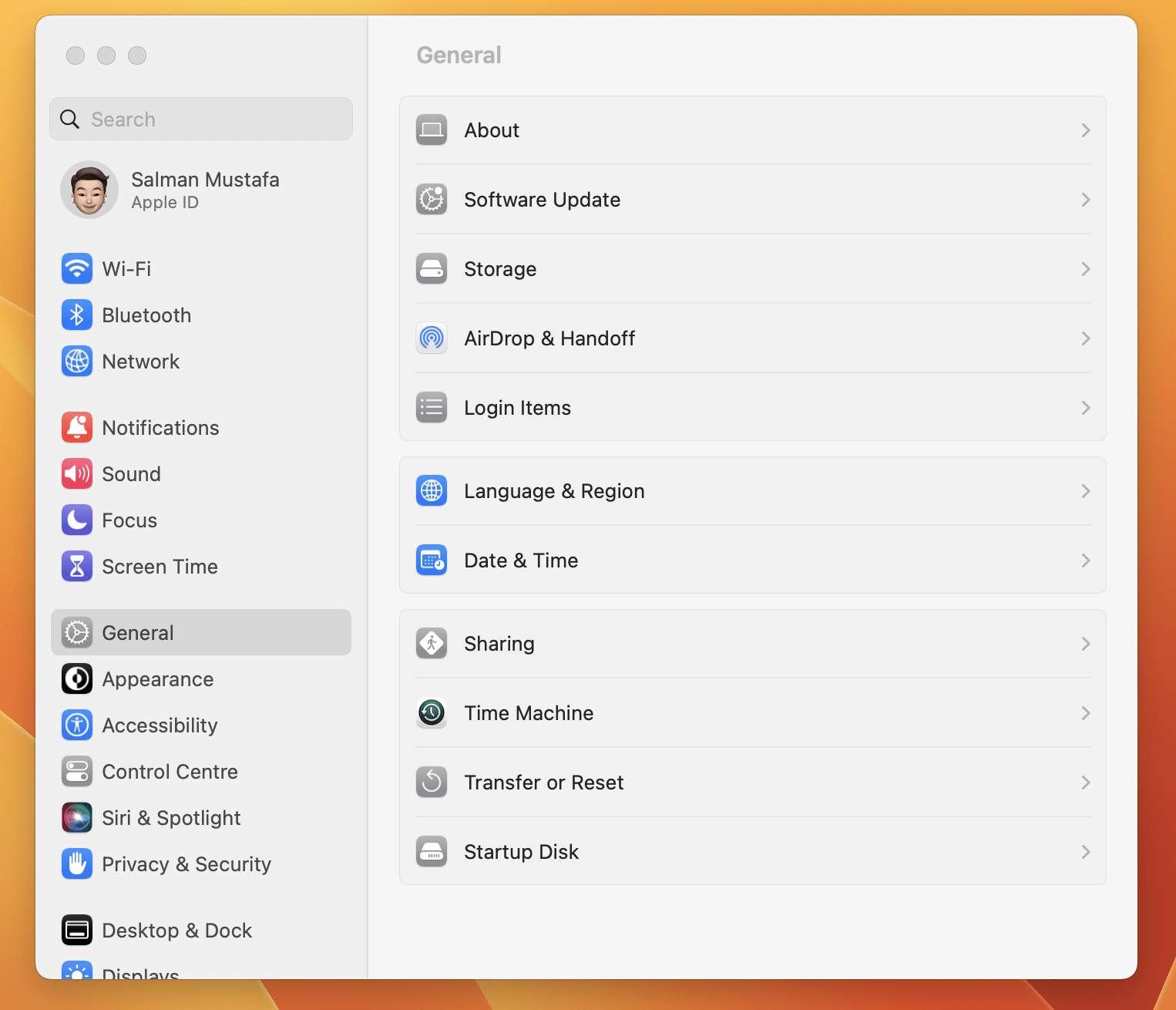
- In the left sidebar, go to “General“
- Go to Software Update
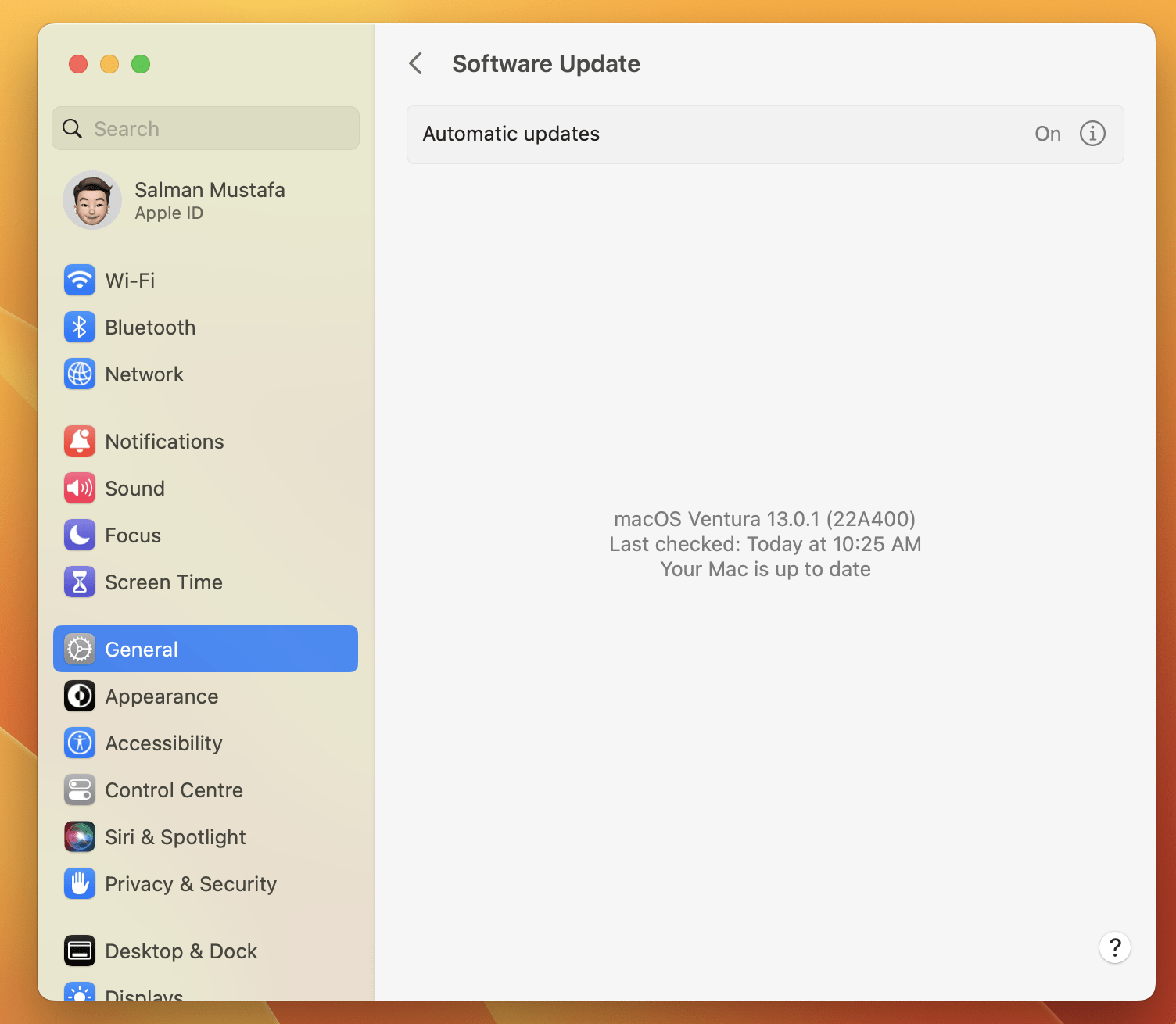
- The system will check for updates and if you get any, it’s recommended to get to the newer version. For now, my system is up to date as shown, so, I won’t be needing an update.
Solution 4A: Open Discord From Terminal [Reddittor’s Solution]
A user of macOS Monterey fixed the infinite update failed loop of Discord with a different type of fix.
This is a workaround that has worked for many users and as it launches directly from the terminal beside the macOS shortcut that could have gotten buggy for some reason.
Here’s how to launch Discord from Terminal on macOS 13 (Ventura):
- Open Spotlight by pressing “Cmd” + “Space” Key
- Type “Applications” to go to all the Applications installed
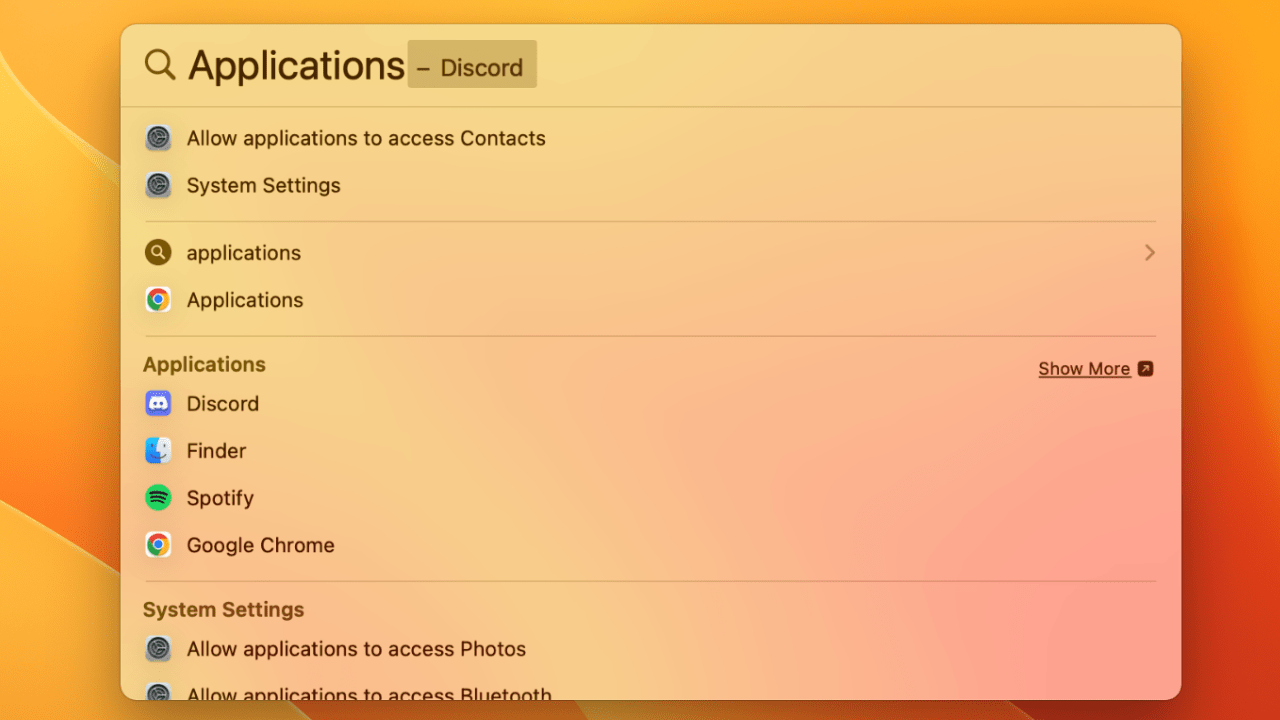
- Now Right-click on Discord and click on the second option “Show Package Contents“
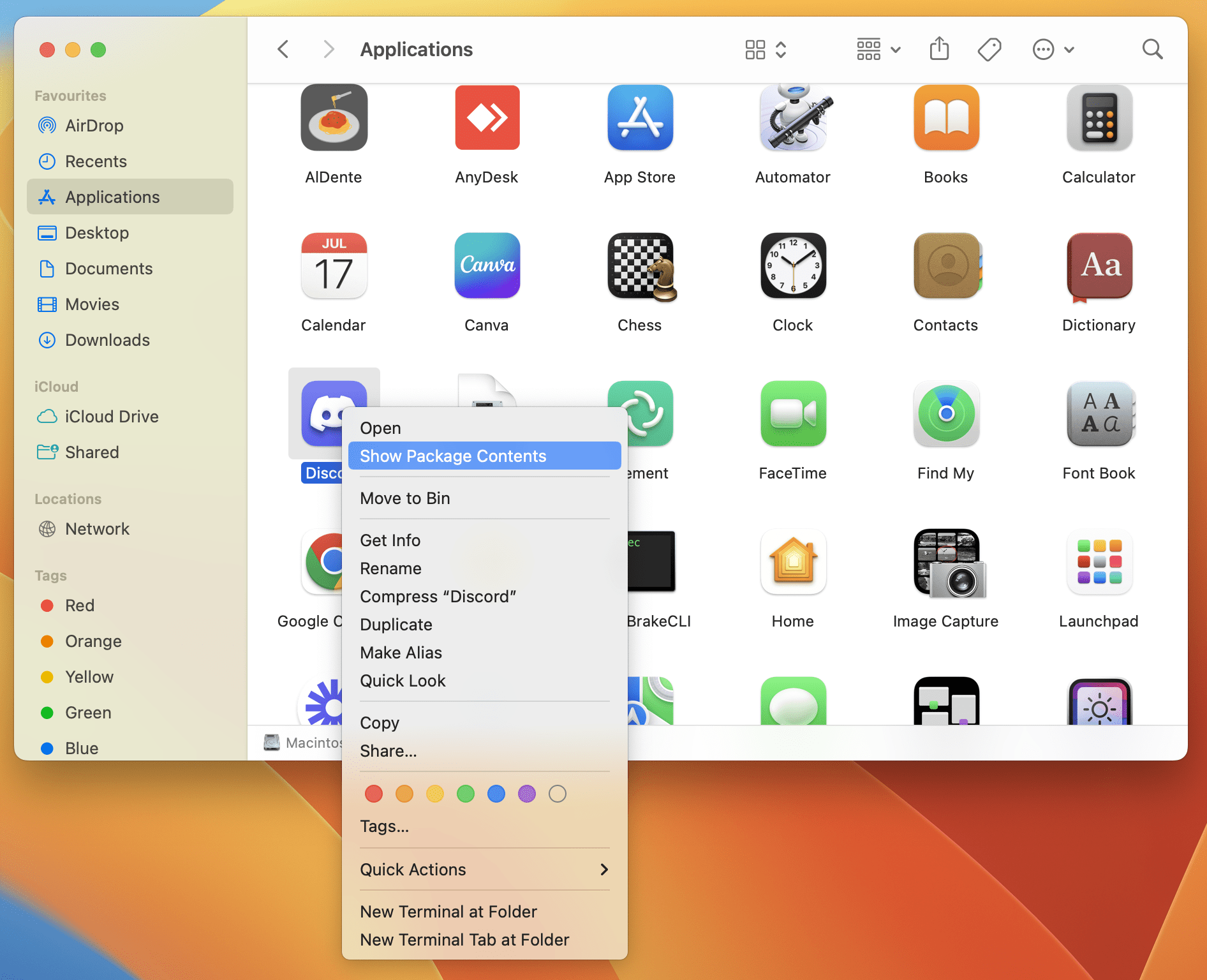
- This will show the Content Folder of Discord. Click on it.
- Select MacOS folder
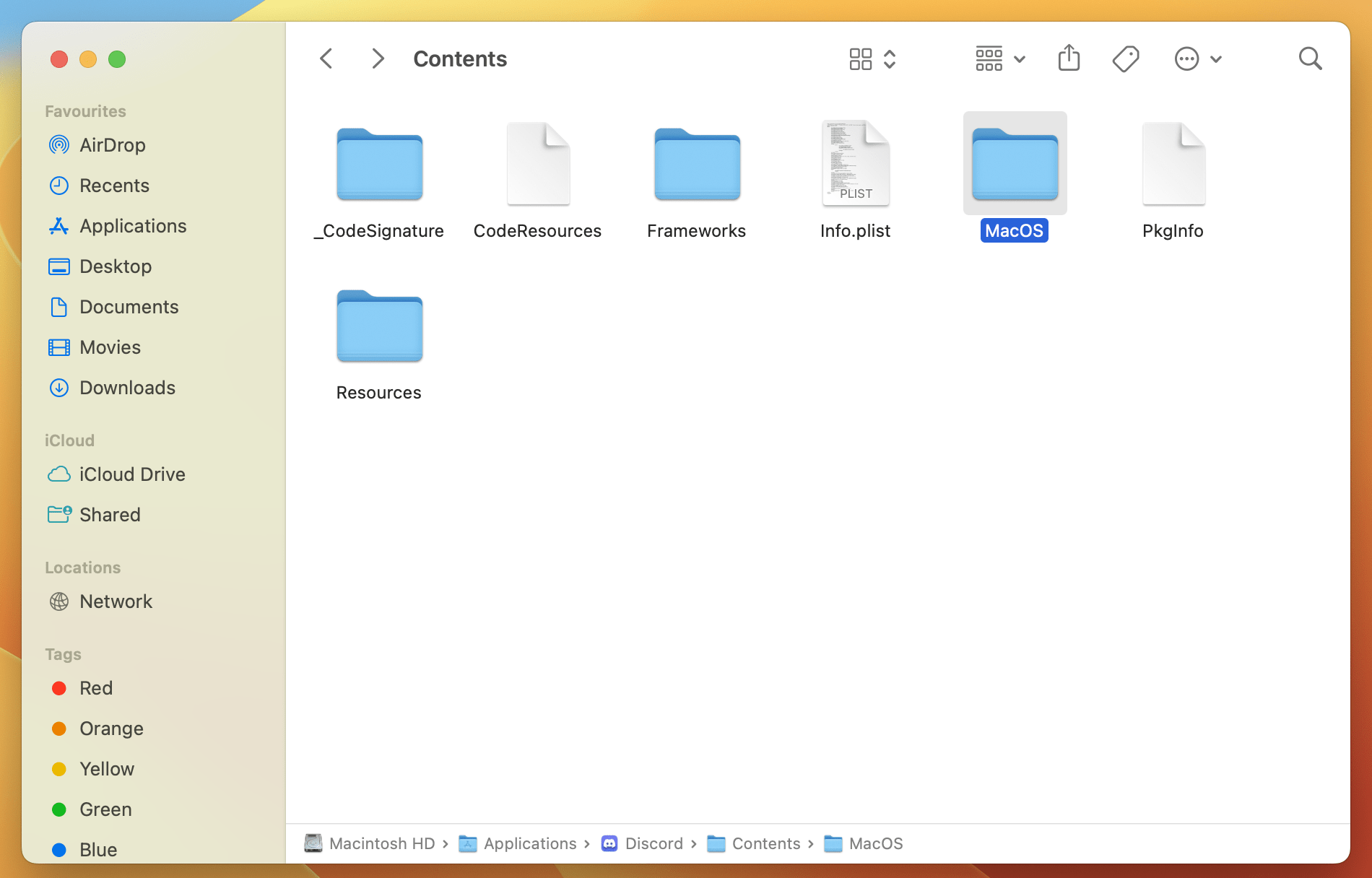
- And finally, the Discord file will appear. Clicking on it will open the terminal as this launches Discord from the terminal. Wait for a moment and Discord should launch as shown in the image.
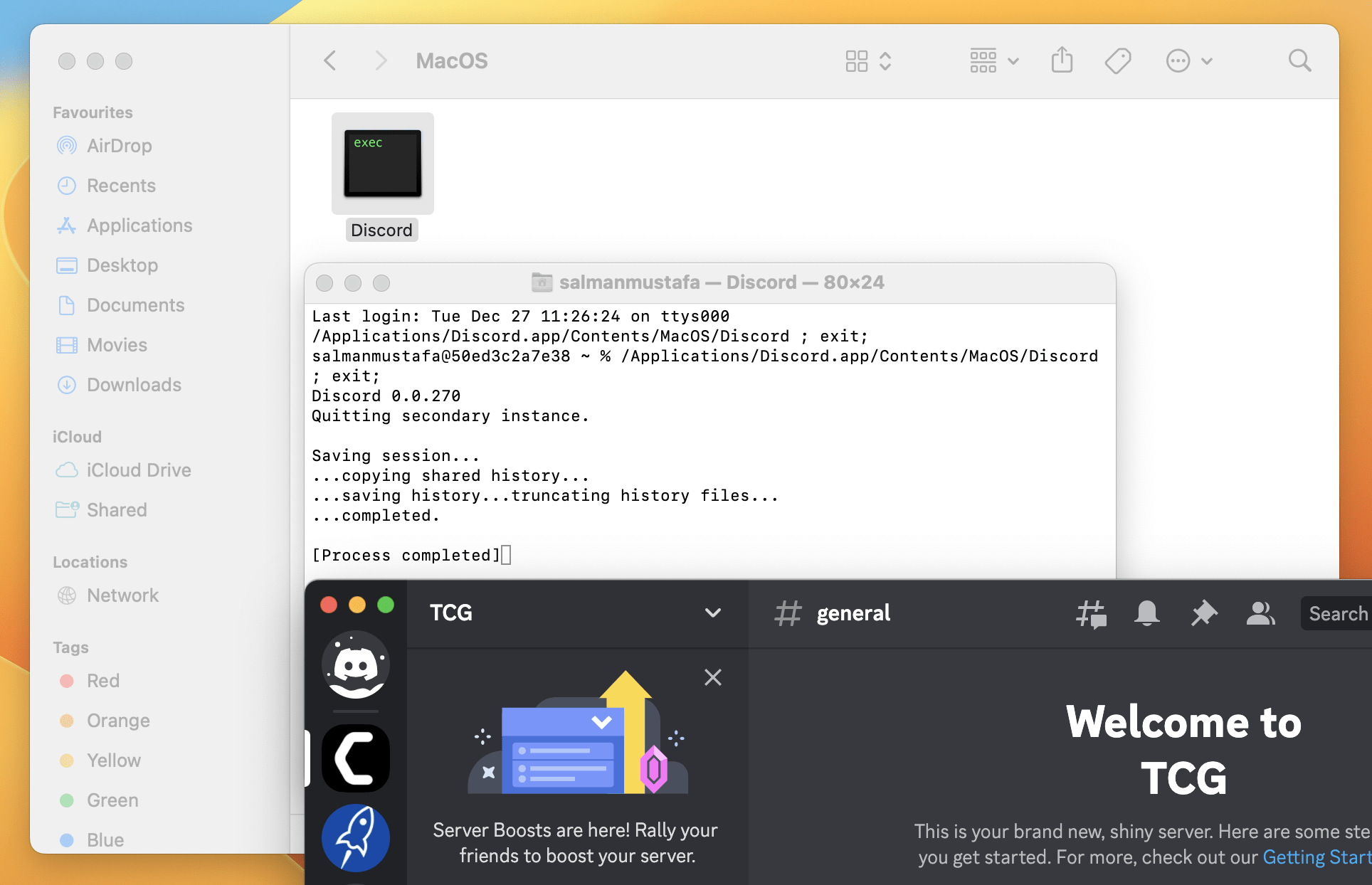
If this workaround doesn’t fix your discord stuck on downloading update mac issues, let’s try diagnosing your network.
Solution 5A: Diagnosing Network Issues
If you are still having trouble updating Discord on your Mac, one possible solution is to try changing your DNS settings as a network setting of your macOS may be causing the trouble. To do this:
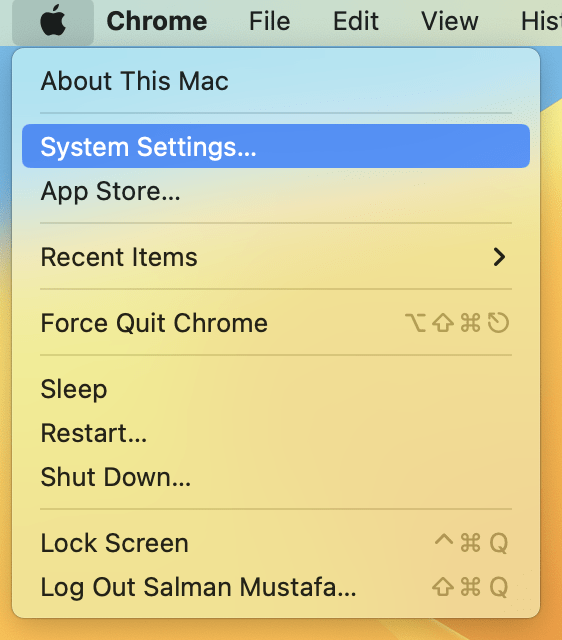
- Open System Settings from the Apple menu
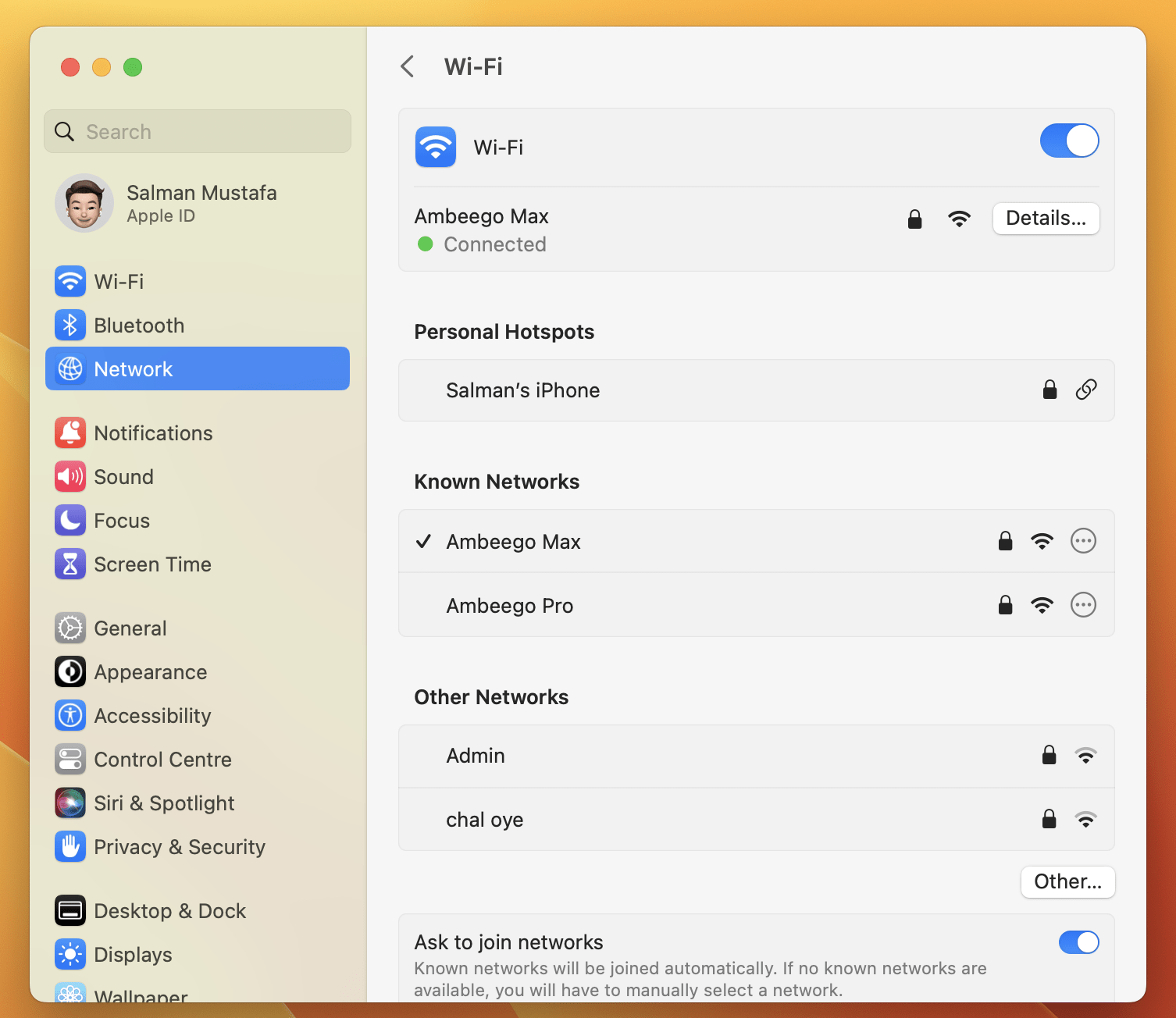
- Select Network from the left sidebar, and select the Details button of the current network you are connected to
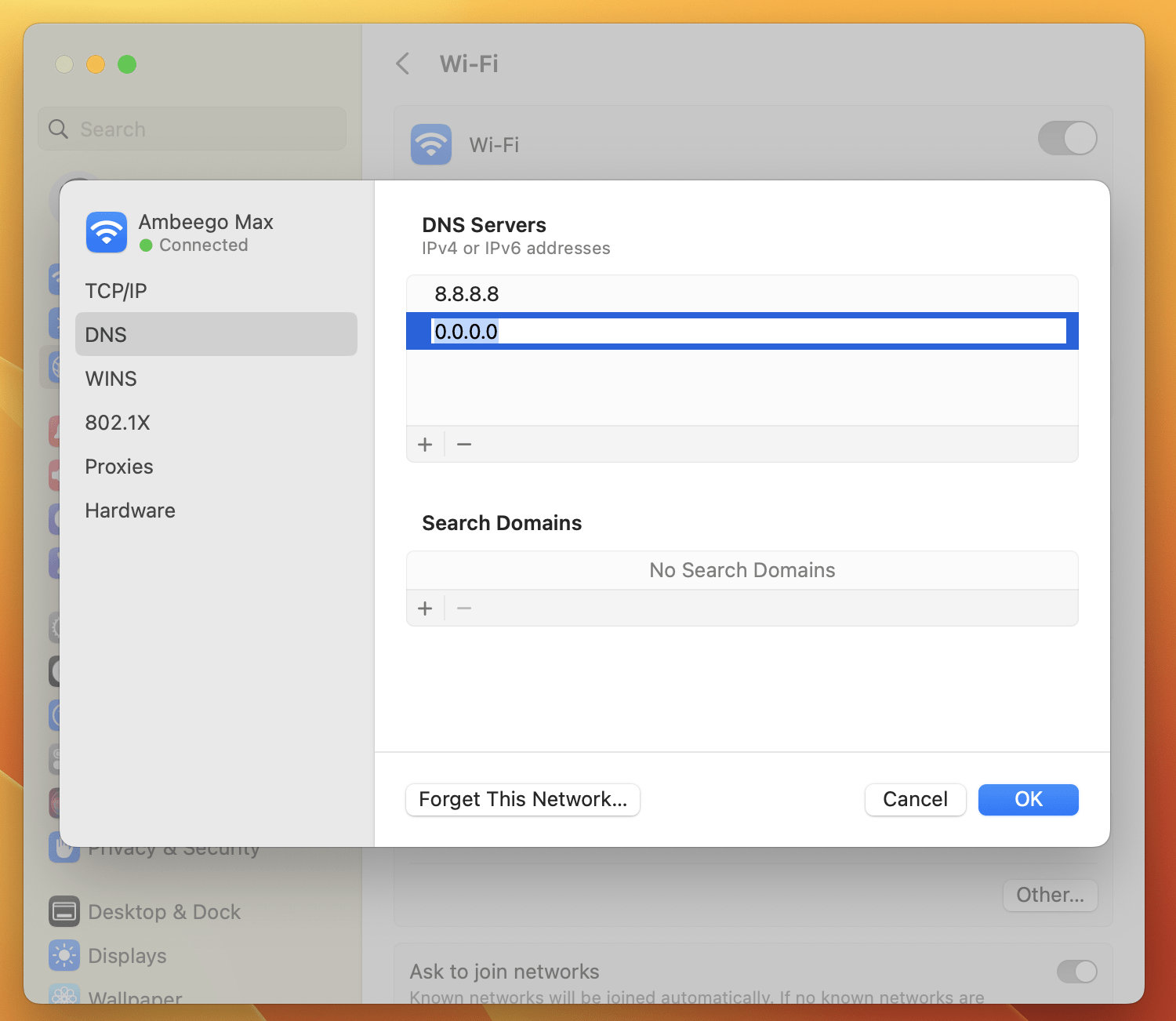
- Select DNS from the left sidebar, and use the Plus button under DNS Servers to add the following DNS server options:
- 8.8.8.8
- 8.8.4.4
- 2001:4860:4860::8888
- 2001:4860:4860::8844
- Click OK, and try relaunching Discord.
If this doesn’t work, you can try renewing your Mac’s IP address:
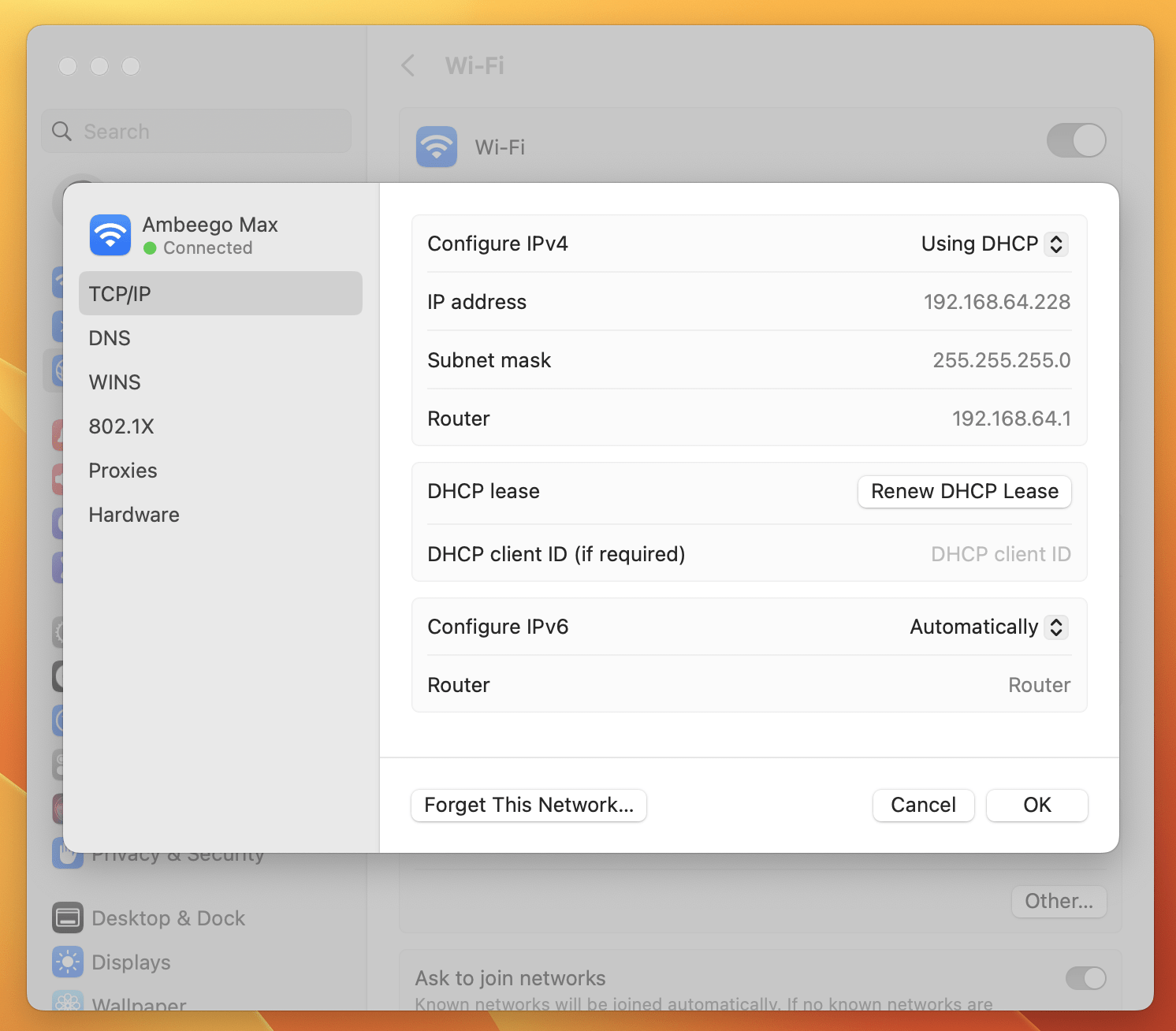
- From the same menu, go to the TCP/IP option in the left sidebar.
- Click Renew DHCP Lease button.
- Select OK, close System Preferences, then try relaunching Discord once more.
These steps may help to resolve any network configuration issues that are preventing Discord from updating on your Mac.
Fix Discord Update Failed Loop on Windows 11/10/7
Solution 1B: Run Discord As Administrator to Fix Downloading Update 1 of 1 Discord
For some users, this method worked perfectly allowing the app to Run as an Administrator. It also helps when you encounter JavaScript errors.
So here’s how you can do it:
- Go to the Task Manager and End all tasks related to Discord
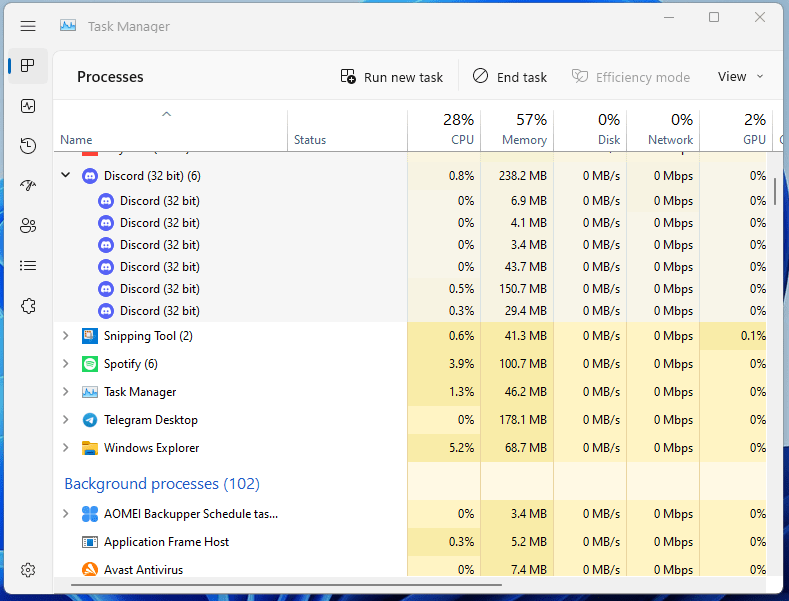
- Go to your Desktop and look for the Discord shortcut
- Right-click on the Discord icon and you will see “Run as administrator“
- Click on Run as administrator and after giving the permission
- Discord will launch and the update will begin without any discord update loop issue
Solution 2B: Rename the Update.exe file
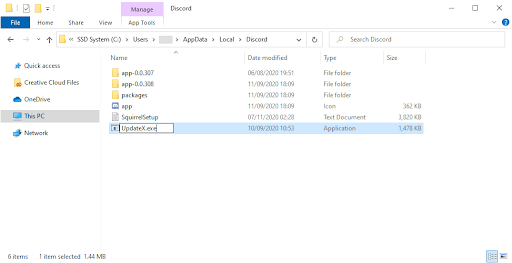
To fix the issue and successfully update Discord to the latest version, you can try renaming the update.exe file. This should help resolve the problem and allow you to update the application.
- Press the Windows + R keys on your keyboard and paste in “C:\Users\Username\AppData”without quotation marks. Make sure to replace your Username with your local account username.
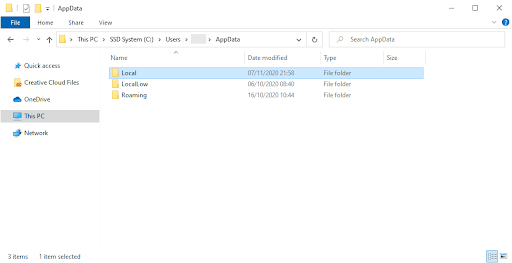
- Open File Explorer > Local folder > Discord folder
- Right-click on the Update.exe file, and choose Rename.
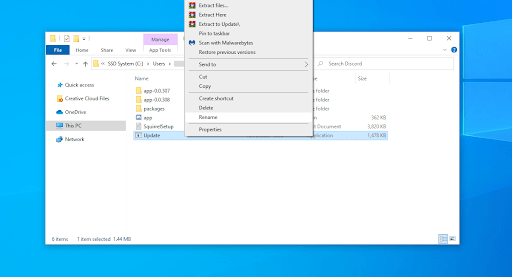
- Type in UpdateX.exe (keep in mind that this is case-sensitive) and hit Enter. You may proceed to try running Discord again, preferably as an administrator following the guide above.
Solution 3B: Reinstall Discord by deleting AppData contents as well on Windows 11
Complete Guide To Discord – Everything you need to know!
Most users reported this method has been solved by fixing Discord Not Updating.
Sometimes the solution lies in the app as many features update regularly so why not uninstall Discord and update it by downloading a new version.
Simply follow these steps”
- Go to the Task Manager and End all tasks related to Discord
- Press Windows+R and a Run command box will appear
- Type “appwiz.cpl” in the command box and press Enter
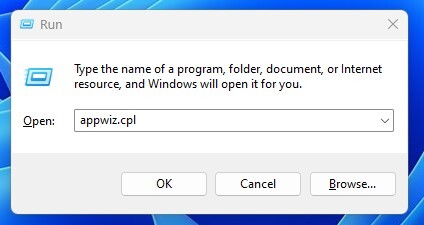
- A Control Panel/Program/Programs and Feature window will appear and look for Discord in it
- After finding it Right-click on Discord and select uninstall
- Hold Windows Key + R
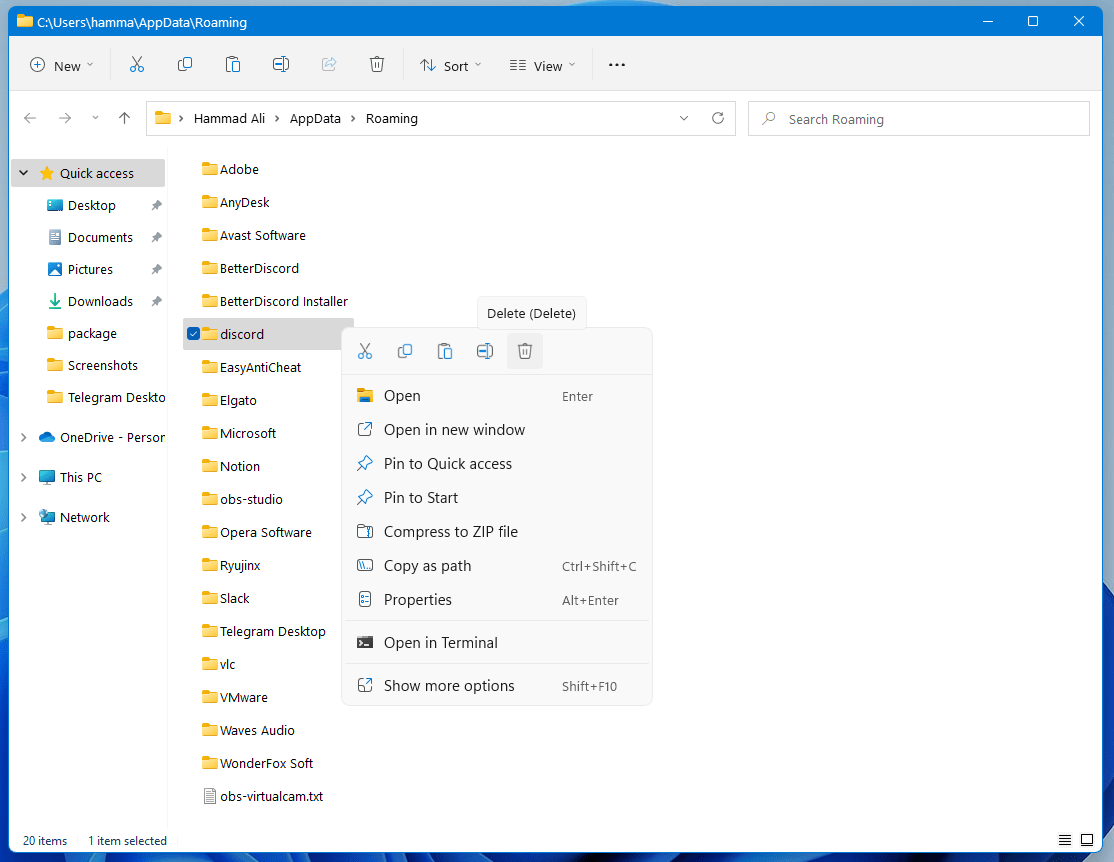
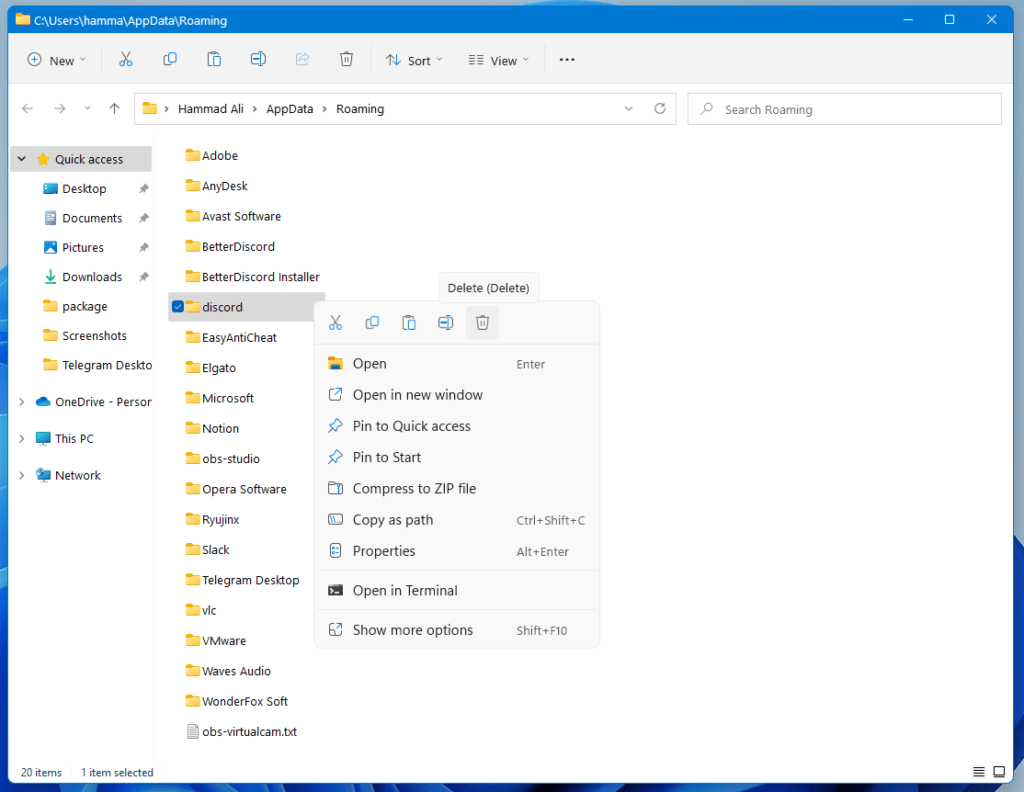
- Type “%appdata% “and press Enter which will show you all the app folder that contains their Contents such as cache
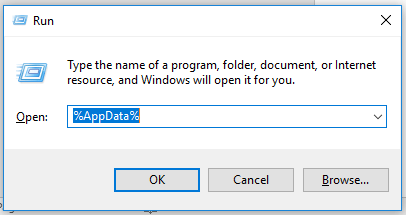
- Locate the Discord folder and delete it. If you can’t find a discord folder, it can be possibly hidden. Select View from the top bar and check the Hidden Items option
- Now install the latest version of Discord and restart your PC again
If this doesn’t fix your update loop then try to disable your Windows defender.
Solution 4B: Disable Windows Defender
So, if you are a Windows 11 user then disabling Windows Defender will fix your Discord downloading update 1 of 1 stuck.
Its purpose is to keep your PC virus free which can replace files that are a threat.
Let’s disable them:
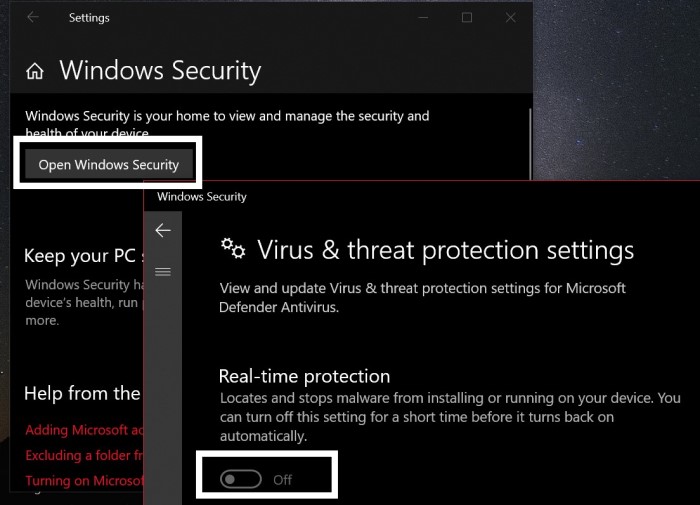
- Press the Windows key and type Settings and run it.
- Go to Update and Security.
- Now click Windows Security > Virus & threat protection > Manage Settings.
- Toggle off Real-time protection.
- Save and Exit
- Install Discord again.
Solution 5B: Temporarily Disable your Antivirus
Sometimes the third-party antivirus you installed is preventing you from launching Discord.
So, you need to disable the antivirus for a few minutes to check if the antivirus is leading to the Discord update loop.
In order, to disable the antivirus follow the step below :
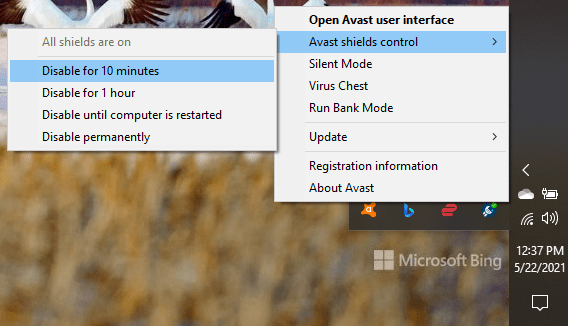
- Select the arrow button on the taskbar a Small menu will open.
- Then click left on the Avast antivirus icon.
- The setting menu will open select ” Avast shield control “
- In a further menu, you will select the “ Disable 10 minutes option“
- Now restart Discord.
Solution 6B: Reinstall Discord
This is an alternative to Solution 4 as simply downloading a fresh installer might solve fixing discord not updating/stuck in the update loop issue.
So here are some short steps to Fix Discord Update Failed:
- Visit the Discord website to download the installer.
- Run the Discord installer and follow the given on-screen instructions.
Solution 6B: Get a VPN
You can get blocked or your country’s server can face issues where VPNs can save you. VPNs route your internet connection through a secure server in a different location, which can help to bypass any network restrictions or blocks that might be preventing the Discord update from completing.
It’s always a good idea to use a credible VPN and here we have listed down some. We have added DISCOUNTED VPNS FOR TCG READERS
- Nord VPN

- Express VPN

Solution 7B: Contact Discord Support
The above-mentioned fixes have been reported to fix most of the user’s issues, but if you are still unable to update Discord on Windows 11/10, and if none of the above solutions worked, then contact Discord support.
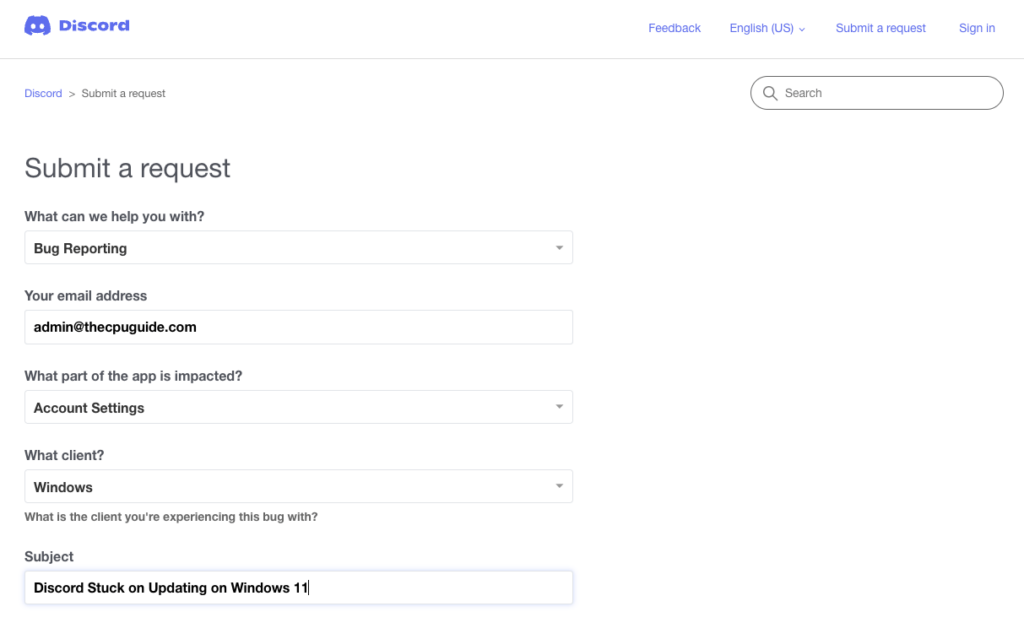
One of these 9 fixes must be able to make your discord back on track.
Do leave a comment and let me know which solution best suits you in fixing the Discord update failed loop.
FAQs
How do I force Discord update?
To force Discord to Update, you need to Press Ctrl+R on your keyboard. This would result in Discord’s user interface reloading and refresh. Any new updates should be detected. Discord shall install them automatically.
Why is Discord 502 Bad Gateway?
502 Bad Gateway error on Discord means that you simply won’t be able to access discord and is due to one of the servers you are connected to. As it is a server-based error, you can do nothing but wait for the Discord team to solve it. Usually, the Discord team is very speedy in this and should be resolved soon.
Why is Discord not updating on Windows PC?
Discord might not be able to update on a PC as a Discord cache on your Windows be potentially causing a problem where it glitches with the new version. Try deleting your AppData and then updating discord.
How do I update Discord on my Mac?
If discord automatically updates on Mac and if for some reason, it doesn’t? Then, you might need to clear the cache of Discord or try reinstalling it.