
Installing Python 3 on Mac OS X
If your Mac OS X version is between the above versions, you do not need to install or configure anything else to use Python 2. These instructions document the installation of Python 3.
The version of Python that ships with OS X is great for learning, but it’s not good for development. The version shipped with OS X may be out of date from the official current Python release, which is considered the stable production version.
Doing it Right
Let’s install a real version of Python.
Before installing Python, you’ll need to install GCC. GCC can be obtained by downloading Xcode, the smaller Command Line Tools (must have an Apple account) or the even smaller OSX-GCC-Installer package.
If you already have Xcode installed, do not install OSX-GCC-Installer. In combination, the software can cause issues that are difficult to diagnose.
If you perform a fresh install of Xcode, you will also need to add the commandline tools by running xcode-select —install on the terminal.
While OS X comes with a large number of Unix utilities, those familiar with Linux systems will notice one key component missing: a package manager. Homebrew fills this void.
To install Homebrew, open Terminal or your favorite OS X terminal emulator and run
$ /bin/bash -c "$(curl -fsSL https://raw.githubusercontent.com/Homebrew/install/master/install.sh)"
The script will explain what changes it will make and prompt you before the installation begins. Once you’ve installed Homebrew, insert the Homebrew directory at the top of your PATH environment variable. You can do this by adding the following line at the bottom of your ~/.profile file
export PATH="/usr/local/opt/python/libexec/bin:$PATH"
If you have OS X 10.12 (Sierra) or older use this line instead
export PATH=/usr/local/bin:/usr/local/sbin:$PATH
Now, we can install Python 3:
$ brew install python
This will take a minute or two.
Pip
Homebrew installs pip pointing to the Homebrew’d Python 3 for you.
Working with Python 3
At this point, you have the system Python 2.7 available, potentially the Homebrew version of Python 2 installed, and the Homebrew version of Python 3 as well.
$ python
will launch the Homebrew-installed Python 3 interpreter.
$ python2
will launch the Homebrew-installed Python 2 interpreter (if any).
$ python3
will launch the Homebrew-installed Python 3 interpreter.
If the Homebrew version of Python 2 is installed then pip2 will point to Python 2. If the Homebrew version of Python 3 is installed then pip will point to Python 3.
The rest of the guide will assume that python references Python 3.
# Do I have a Python 3 installed? $ python --version Python 3.7.1 # Success!
Pipenv & Virtual Environments
The next step is to install Pipenv, so you can install dependencies and manage virtual environments.
A Virtual Environment is a tool to keep the dependencies required by different projects in separate places, by creating virtual Python environments for them. It solves the “Project X depends on version 1.x but, Project Y needs 4.x” dilemma, and keeps your global site-packages directory clean and manageable.
For example, you can work on a project which requires Django 1.10 while also maintaining a project which requires Django 1.8.
This page is a remixed version of another guide, which is available under the same license.
How to update Python on macOS
Python is a high-level programming language used by a number of software and applications on macOS. Sometimes one needs to install latest or suitable version of python to use a software. In that case, a Python update is needed on your mac to Python2 or Python3. Furthermore, while updating Python you need to make sure that the older versions are still useable because older apps will continue to use the that particular version of the Python. In case, if you delete or replace older Python then certain apps will stop working.
Check current version of Python
Before you head onto updating Python, find which version of Python you are already using. In that case, open terminal on mac and perform the following command:
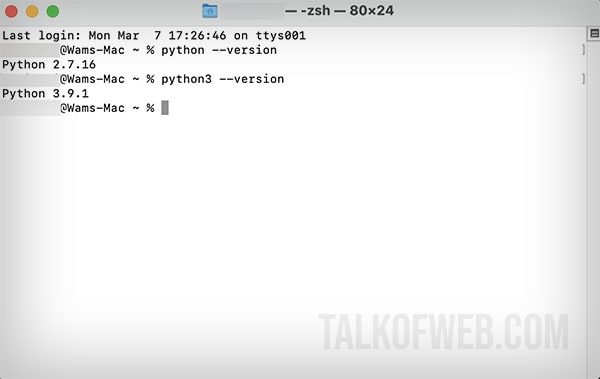
Do check, if you’ve other versions of python installed, use the following command:
It’s worth checking, that the system which we are using for this tutorial has both versions of python installed, python2 (using alias python) as well as python3. We’ll need to update these versions separately to their latest counterparts.
Note: It’s always wise to maintain two versions of Python on your macOS. In most macOS versions, certain terminal apps and other supported software use Python2 with alias set as python.
Update Python on macOS
Now that you know which version of python libraries you are using, all you’ve to find is the latest version. In the above example, Python3 is using version 3.9.1, so let’s update it by using following procedure:
- Download Python’s latest version from here. Scroll down a bit and find Release version, Release date and select one version later than the already installed one.
- I’ve selected Python 3.10.2 and on next page, scroll down and find Files and download macOS 64-bit universal2 installer.
- Once downloaded, double-click and run the installer.
- Open terminal after the installation and write python3 –version and hit enter. You’ll notice that python3 is updated or installed, as required.
Now, any application or software which needs to use python3 will have to invoke it at path /usr/local/bin/python3 or with alias python3 in terminal. The default python on macOS will rest in /usr/local/bin/python. Similarly, you will have to use pip3 for managing python3 packages.
Conclusion:
If you want to update python then don’t change the default one on macOS instead download a newer one and use it with another terminal alias like python3. Similarly, if you want to use pip (python package manager) and python alias for the latest version then you’ll need to manage it with an amazing application pyenv (a simple Python version management tool) which creates separated environment of execution. Using that application to manage different python versions is beyond the scope of this article at the moment.
Как обновить Python?
Добрый вечер! Подскажите как обновить python3 до последней версии на mac os ? Может есть какая-то команда для терминала?
- Вопрос задан более трёх лет назад
- 3654 просмотра
Комментировать
Решения вопроса 0
Ответы на вопрос 1

beginner developer
Ответ написан более трёх лет назад

Антон Торопов @tuychiev1988 Автор вопроса
Я это знаю, но на маке установлен python 3 не последней версии, можно ли как-то его обновить до последней? Я могу с сайта установить новую версию, тогда на маке будет установлено два python3, но разных версий!

Сергей П @trapwalker Куратор тега Python
Антон Торопов, и я бы не советовал обновлять именно тот питон. Поставьте рядом второй, который вам нужен. Зачем вам лишние проблемы?
Даже в пределах одной ветки между версиями питона есть различия. Если системные скрипты написаны с заточкой на конкретную версию, то могут быть непонятные проблемы. Чем вам помешает еще одна версия питона в системе?
Антон Торопов @tuychiev1988 Автор вопроса
Сергей Паньков, у меня сейчас стоит python2 — который идёт штатно с mac os и python3 — который я использую, вот его и хотел бы обновить, без установки ещё одной версии!
Сергей П @trapwalker Куратор тега Python
Антон Торопов, ставьте ещё одну, не морочьте голову. Чем она вам поешает? Нут, в припадке занудного перфекционизма можно попробовать, но геморроя заработаете гарантированно, а смысла в этом никакого нет, кроме религиозно-суеверного.
How to Upgrade Python to Version 3.9 On Windows, macOS, And Linux
Upgrading the Python version to the latest is the easiest way to access the language’s new features, enhancements, and security improvements. Regardless of the platform you use for Python development, you should make sure you have the latest stable version to benefit from the latest language features.
Python 3.9 offers several improvements, stable components, and security for your projects.
In this tutorial, we will show you how to update Python to version 3.9 on Windows, macOS, and Linux.
Table of Contents
- How to Determine Your Python Version
- How to Verify Python Version on Windows
- How to Check the Python Version on macOS and Linux
- Prerequisites
- Method #1: Use the Official Installer to Update to Python 3
- Method #2: Install Python 3.9 from the Microsoft Store
- Method #1: Use the Official Python Installer
- Method #2: Update Python Version Using Homebrew
- How to Resolve the Issue of Seeing Previous Python Version After Installing Python 3.9
How to Determine Your Python Version
Before upgrading to Python 3.9, you should find out the current version on your system. Fortunately, you can quickly find this information by running a couple of simple commands.
How to Verify Python Version on Windows
Launch the Command Prompt by pressing Win +R , entering cmd , and pressing Enter .
In the Command Prompt window, enter python –version .
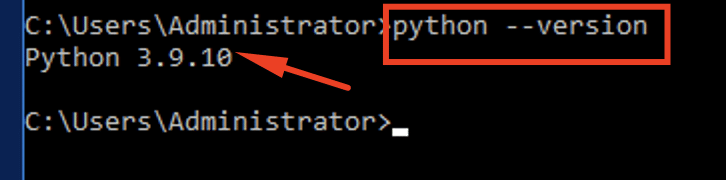
The current Python version will be displayed underneath the command.
How to Check the Python Version on macOS and Linux
Follow these steps to verify the Python version currently installed on your macOS or Linux machines.
Launch the terminal app and enter python3 –version . Alternatively, you can use python3 -V .

How to Update to Python 3.9 on Windows, macOS, and Linux
Now that you know the current Python version on your machine, you can upgrade to Python 3.9. Note that the process uses different commands because of the differences among the underlying operating systems.
Let’s start with the prerequisites of the process.
Prerequisites
- A system running Windows, macOS, or Linux operating system
- Access to Powershell or the Command Prompt with administrator privileges on the Windows system.
- Access to the terminal on the Linux or macOS system
How to Update to Python 3.9 on Windows
You can upgrade to the latest Python version by opting for one of the following methods:
- Use the Official Python installer
- Use the Microsoft Store to install Python 3.9.
Method #1: Use the Official Installer to Upgrade to Python 3
Get the installer to update the Python version on your Windows machine by performing the following steps:
1. Visit the Windows section of the Downloads page on the official Python website to locate the Python 3.9 installer. Download the Installer.
2. Launch the installation file and follow the steps. If you are upgrading from an existing Python 3.x installation, you can use the installer to install the most recent version of Python alongside the older one.
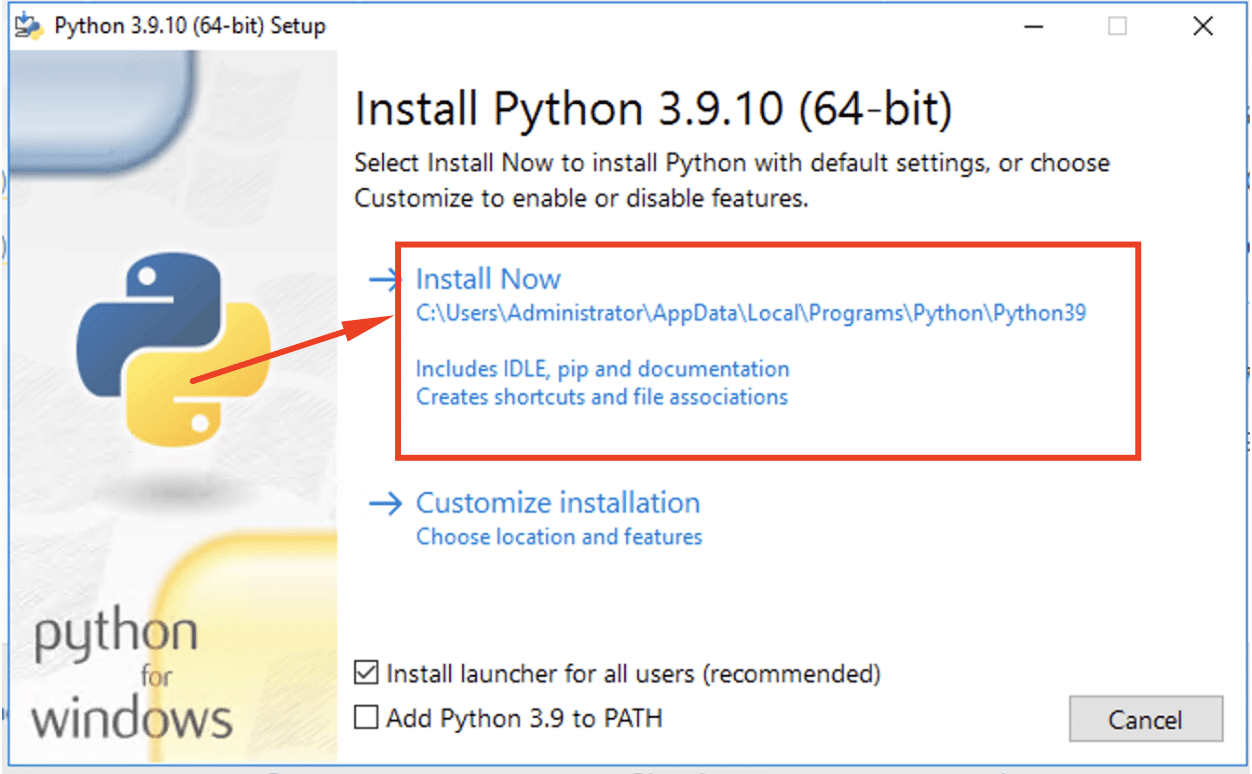
Important: Remember to check the Add Python 3.9 to PATH box to add information about the new version to the PATH variables.
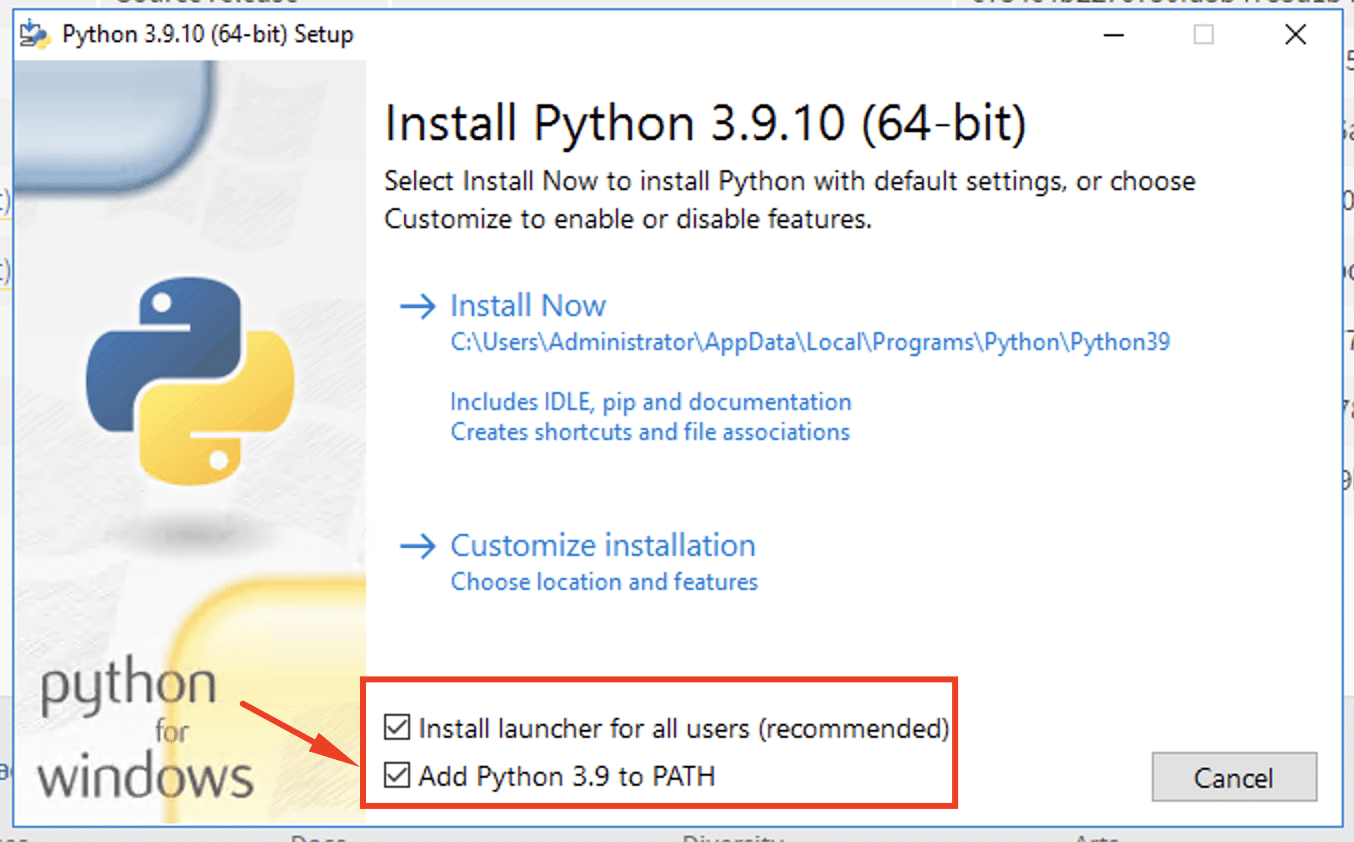
- When the installation wizard finishes, launch the Command Prompt (cmd) and check the Python version to confirm that the Python upgrade was successful.
Method #2: Install Python 3.9 from the Microsoft Store
Here are the steps to update Python through the Windows Microsoft Store.
- Search for Python on the Microsoft Store.
2. Select the Python version you wish to set up (Python 3.9, for example).
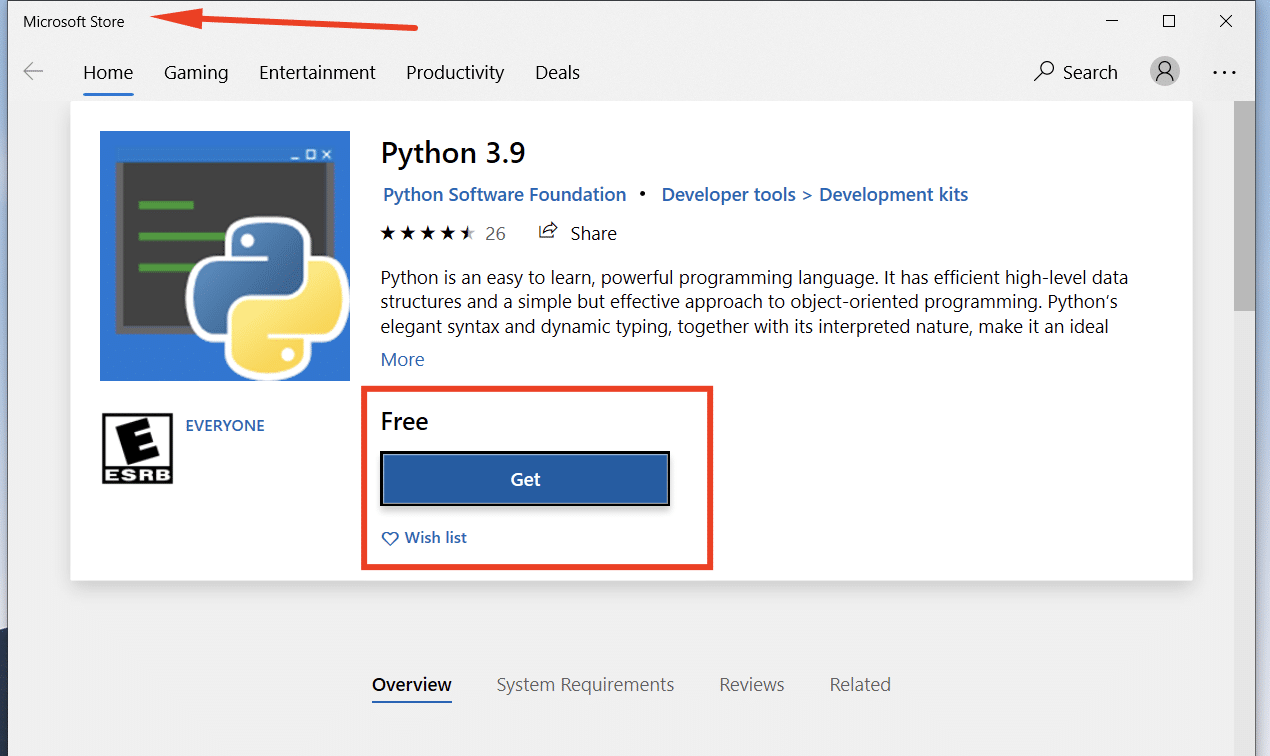
- Click Get (or Install) to start the installation process.
4. After the installation, Python will appear in the Start Menu.
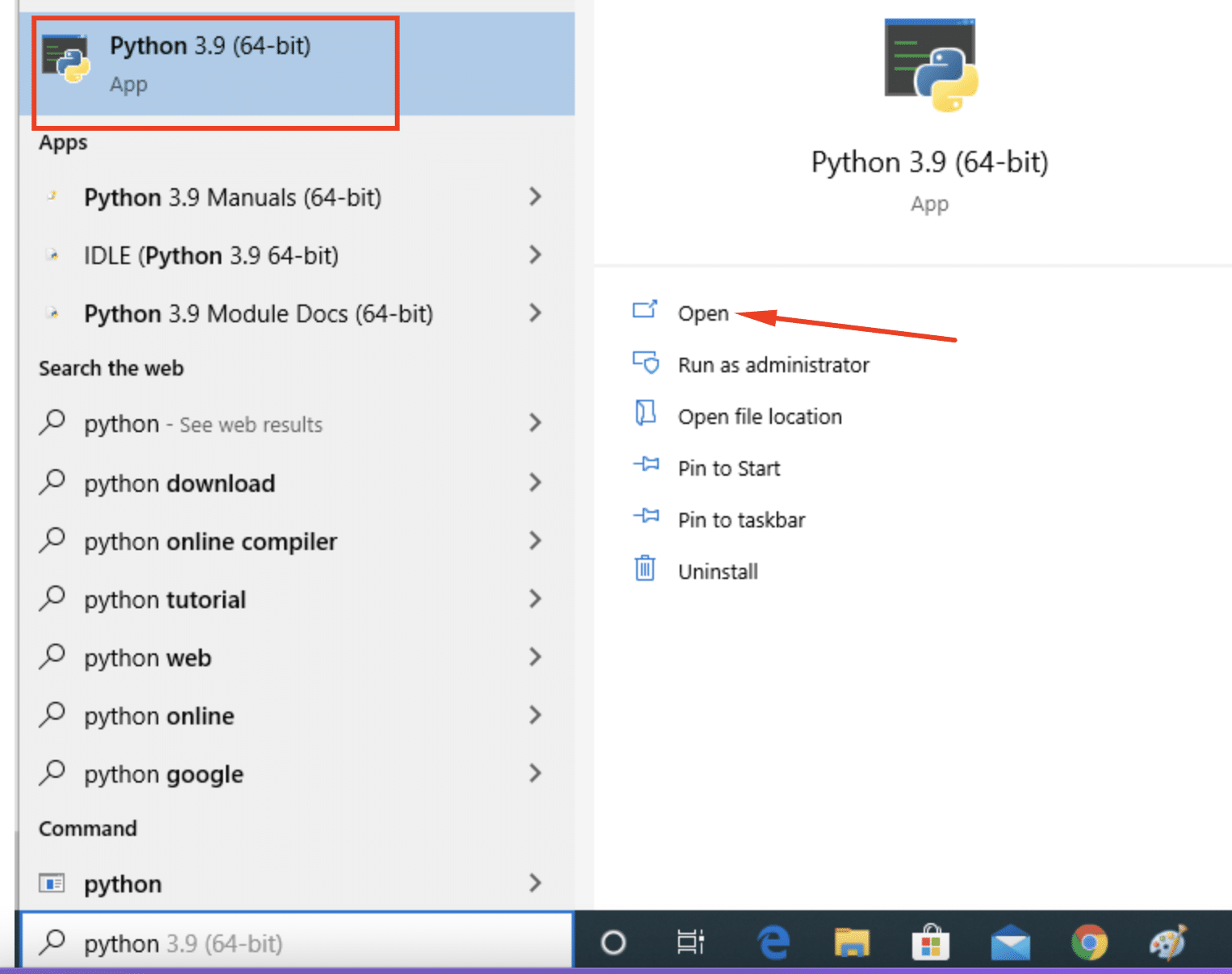
- Next, type py.exe in the Command Prompt to launch the interactive Python mode.

How to Upgrade to Python 3.9 on macOS
You can opt for either of the following options to update Python on your macOS system to version 3.9.
Method #1: Use the Official Python Installer
Follow these steps to upgrade to Python 3.9 on your macOS system:
- Download the installer for Python 3.9 for macOS from the Download section of the official Python website.
2. Launch the installer to initiate the process.
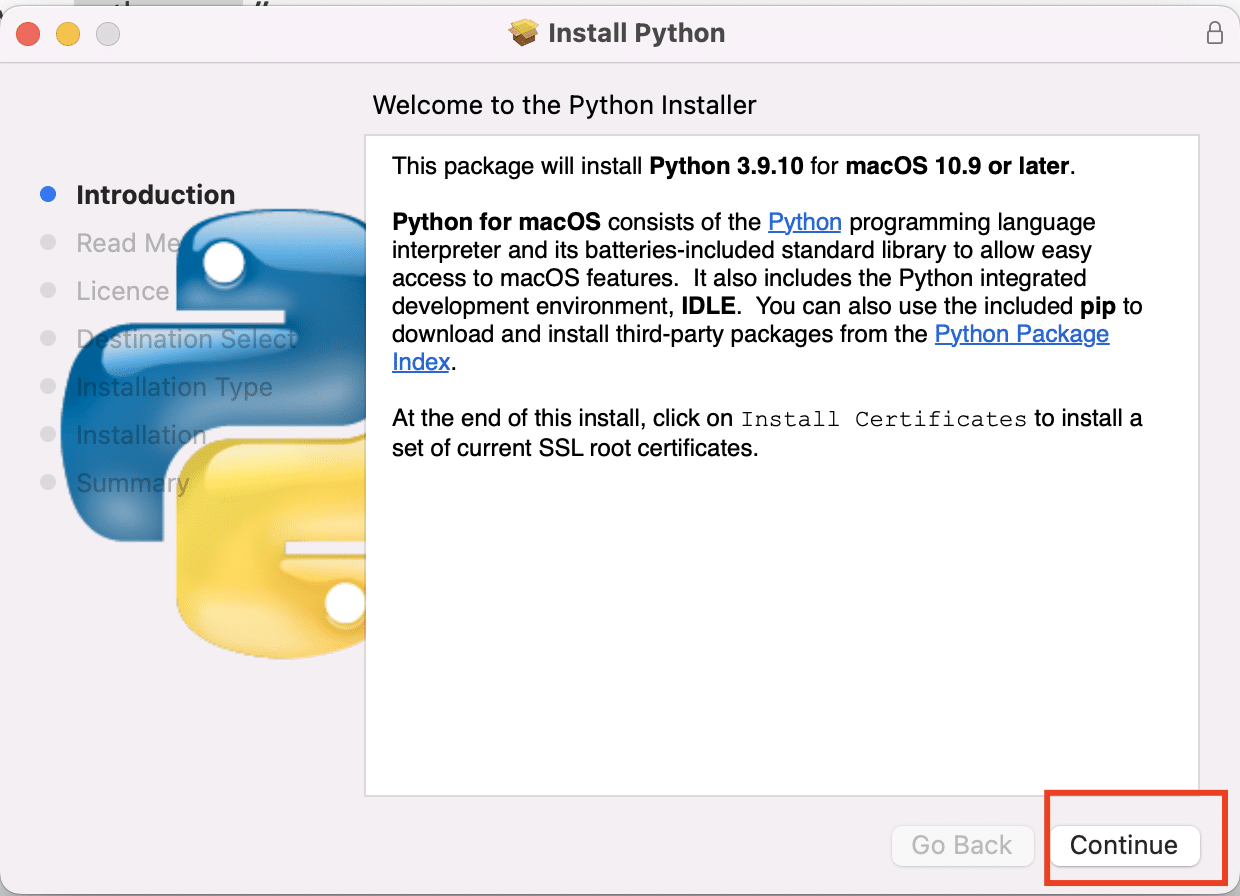
- Agree to the license terms.
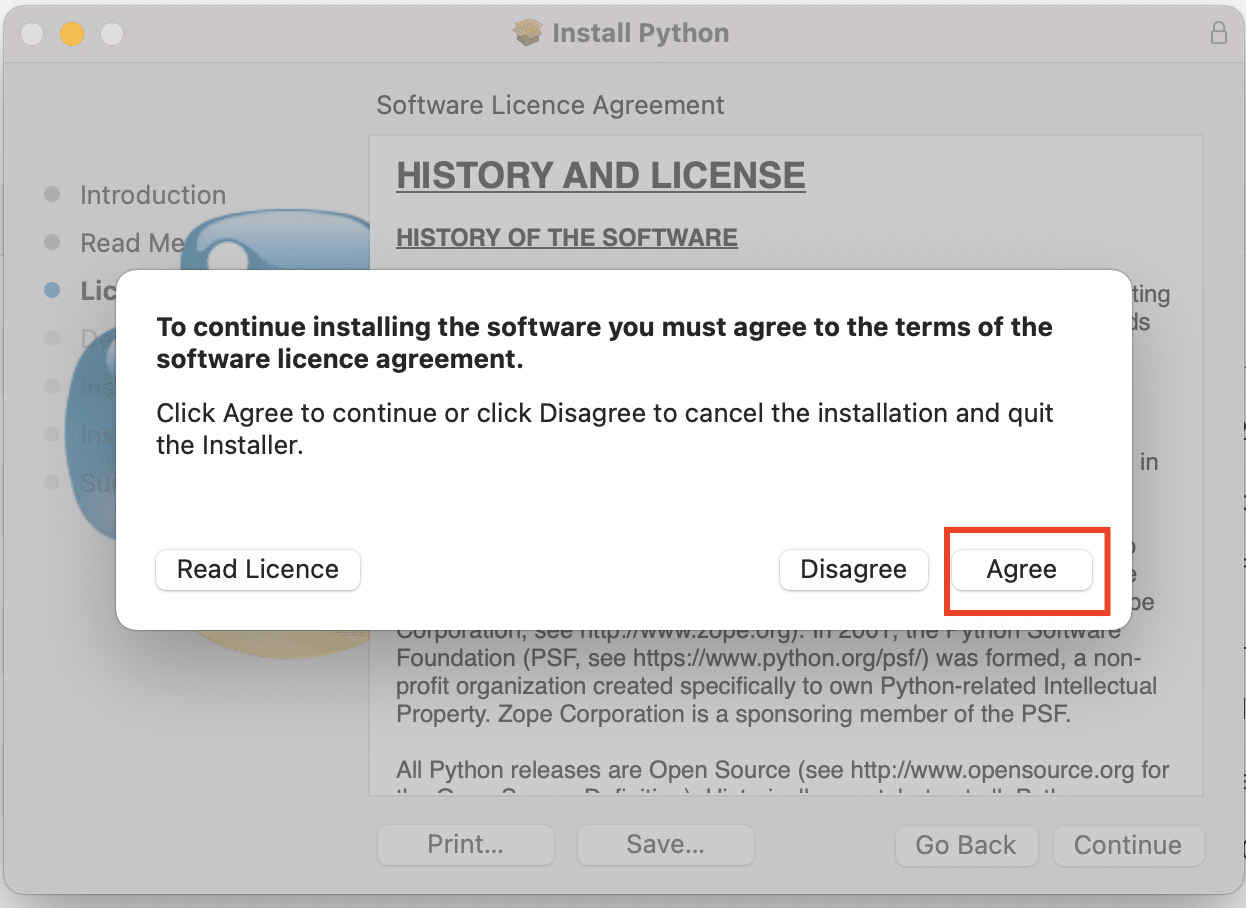
- During the installation process, select the Add Python to PATH option to modify the PATH environment variable on your system. Click Close to exit the installation wizard.
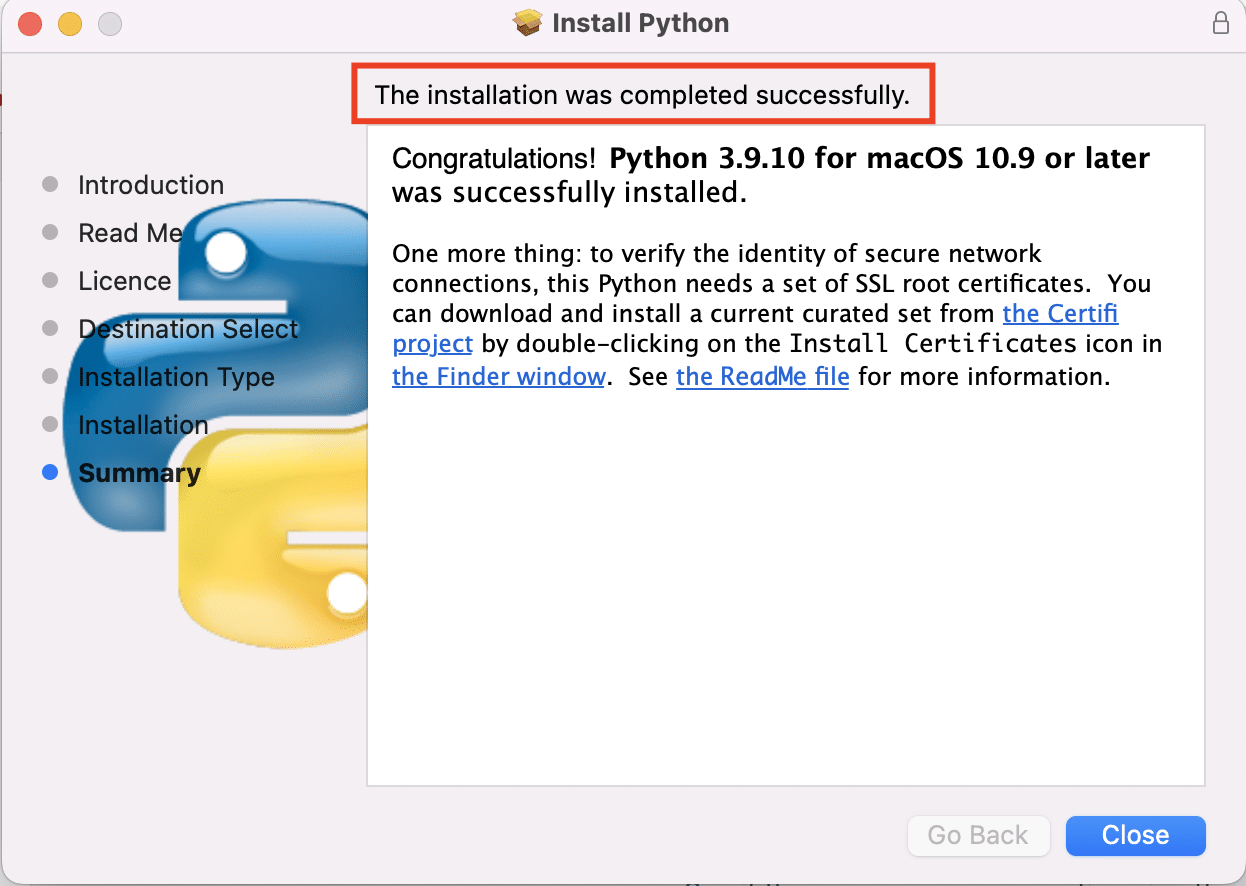
Method #2: Update Python Version Using Homebrew
Homebrew is a popular package manager on macOS for updating the packages on the system. Before following these steps, make sure Homebrew is installed and updated on the system. A well-liked package manager for Mac OS called Homebrew can make updating Python on your system easier. To update the Python version using Homebrew, follow these steps:
- Open the Terminal and run brew update to update Homebrew .
- To install Python 3.9, run brew install [email protected] . Homebrew will download and install the appropriate Python version.
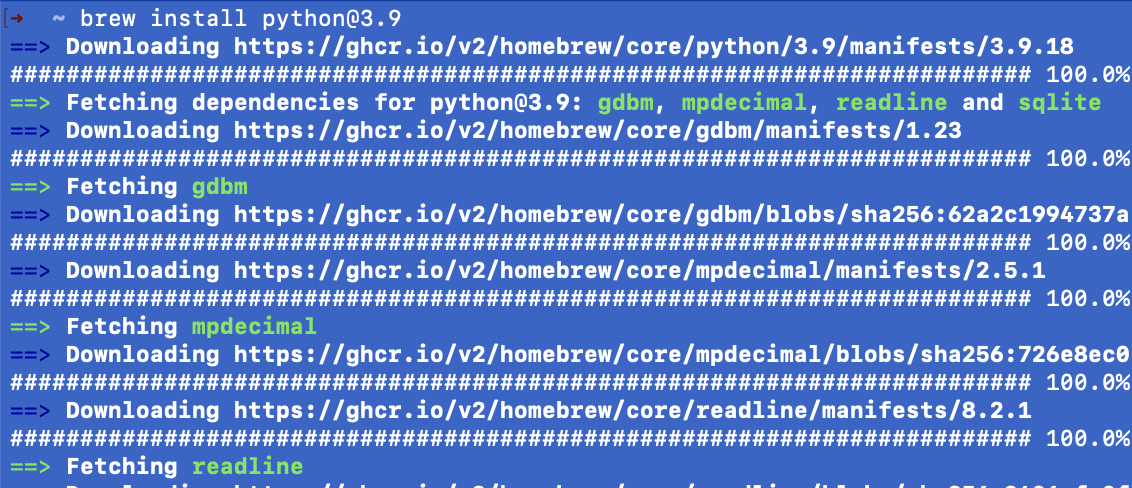
- Use brew update python to upgrade the Python version.

How to Update to Python 3.9 on Linux
We’ll use the apt package manager to upgrade to version 3.9 on our Debian Linux machine. However, with appropriate changes, you can apply the following steps on your specific Linux distribution. 1. Launch the terminal and enter sudo apt-get update to update the package index.
2. Next, update the package index with the sudo apt-get upgrade command. During the process, the current Python version will be upgraded to version 3.9.
3. Execute the python3 – -version to verify that the upgrade was successful.If you don’t have a current Python installation on your Linux system, you can install Python 3.9 by following these steps:
Launch the terminal and run the following command:
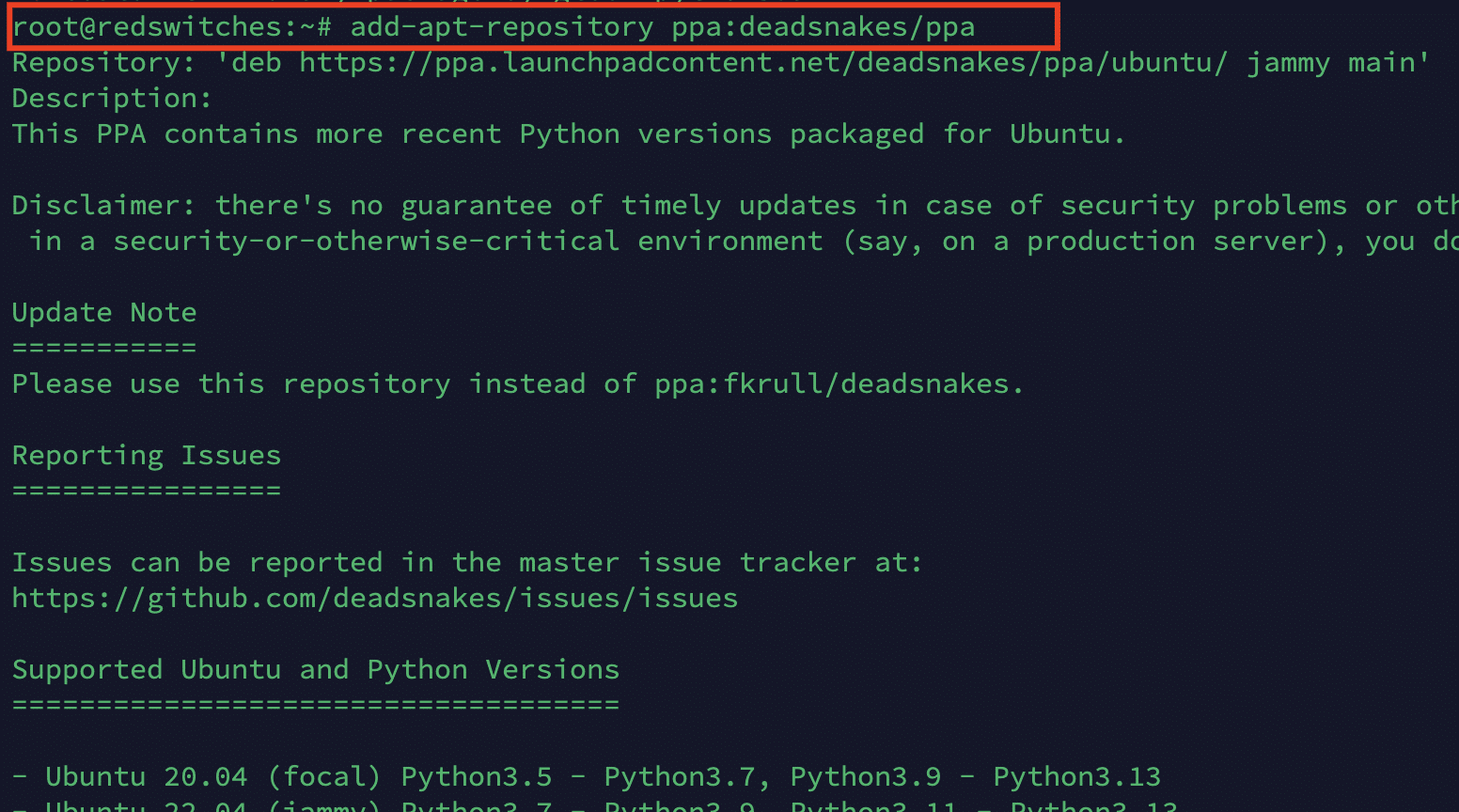
Upgrade the package index with the following command;
#apt-get upgrade
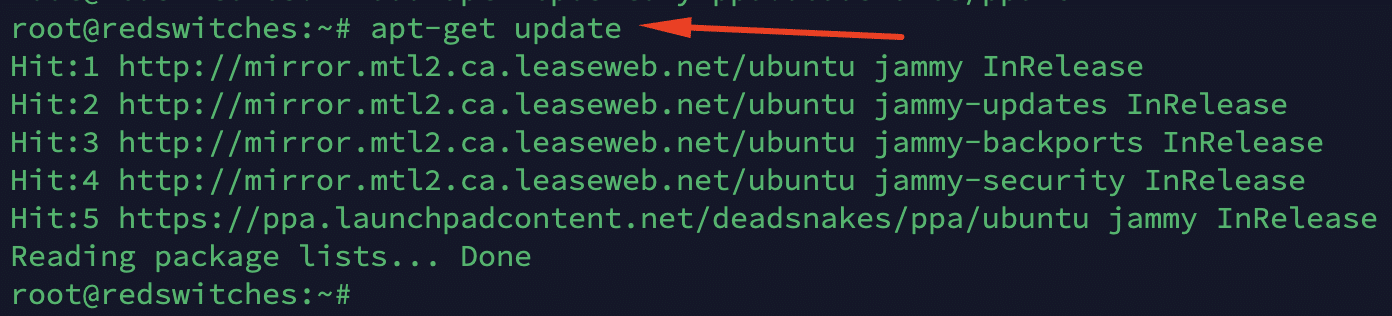
Now that the system is ready, run the following command to install Python 3.9:
#sudo apt install python3.9
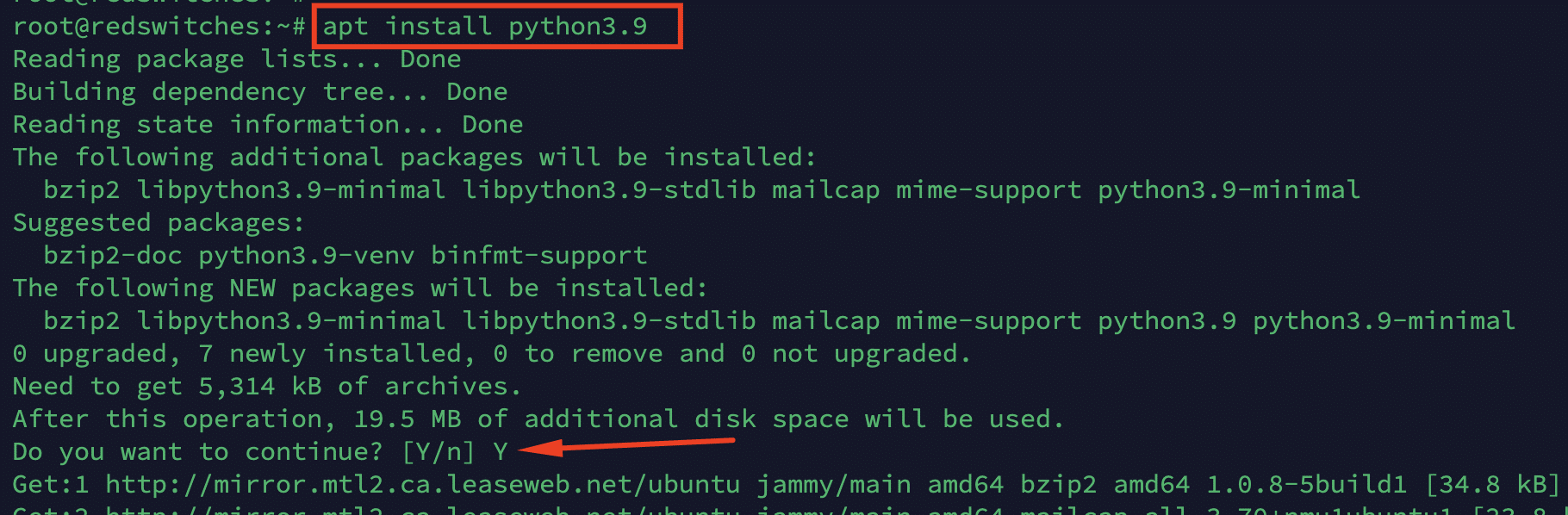
Press Y to begin the installation when prompted.
How to Resolve the Issue of Seeing Previous Python Version After Installing Python 3.9
You might continue to see older Python versions after installing Python 3.9. Follow these steps to resolve this common issue.
- Run the following command to add the previous version to the list:
# update-alternatives —install /usr/bin/python3 python3 /usr/bin/python3-old 1

- Add the latest version (version 3.9.3 in our case) with:
# sudo update-alternatives —install /usr/bin/python3 python3 /usr/bin/python3.9 2

- Next, enter the following command to set the versions’ priority status:
# sudo update-alternatives —config python3
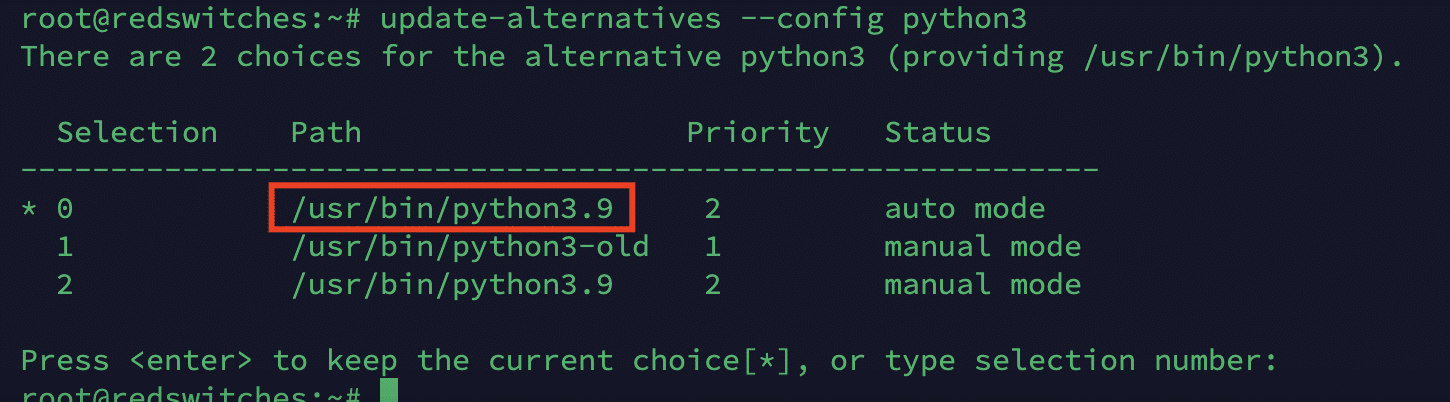
- You can see the alternatives with a corresponding number. Make your choice and press Enter .
5 If you do not need the older versions, remove the symlink to the older Python 3 version.
# sudo rm /usr/bin/python3- Finally, substitute the old version for the symlink:
# sudo ln -s python3.9 /usr/bin/python3
Now, check the default Python version with the following command:
The output must verify that the most recent version was installed and configured successfully.
Why Should You Plan to Upgrade the Python Version?
Python 2 was the preferred version for developing applications before the release of Python 3.
Since Python 3 is not backward-compatible, developers upgraded to the new version to get the latest language features and security options. Since then, the Python team has been releasing major and minor versions to improve the language’s capabilities and improve the overall security of Python applications.
We highly recommend you upgrade to the latest Python version (version 3.9 in our case) to get these benefits and significantly improve your Python coding experience.
Maintaining a secure and effective development environment requires updating Python. By doing this, you’re assuring yourself access to the most recent features and improvements.
Upgrading Python allows you to utilize the community’s efforts to improve, secure, and enhance the language.
The recent Python versions offer enhanced memory management, quicker execution, and access to new routines and libraries. With every Python update, you might build more efficient and well-organized code.
If you’re looking for a robust server for your Python projects, RedSwitches offers the best dedicated server pricing and delivers instant dedicated servers, usually on the same day the order gets approved. Whether you need a dedicated server, a traffic-friendly 10Gbps dedicated server, or a powerful bare metal server, we are your trusted hosting partner.
Q How do I update Python to version 3.9?
To update Python to version 3.9, you can follow these steps:
- Go to the official Python website (python.org) and click on the “Downloads” section.
- Choose the version of Python 3.9 for your operating system (e.g., Windows, Ubuntu).
- Download the installer for Python 3.9.
- Run the installer and follow the on-screen instructions to install Python 3.9.
- Once the installation is complete, you can verify the version by opening a terminal or command prompt and typing python –version .
Q How can I install Python 3.9 on Ubuntu 20.04?
With Ubuntu 20.04, you may use the following command to install Python 3.9:
# sudo apt install python3.9
On your Ubuntu machine, this command will download and install Python 3.9.
Q How can I find out what Python version is currently installed?
You can open a terminal or command prompt and execute python –version to find out the version of Python that is currently installed on your machine. This will show you Python’s version number.
Q How can I upgrade to the most recent version of Python?
Use the following instructions to update Python to the most recent version:
- Go to the “Downloads” section of the Python website (python.org) for official information.
- Find the most recent Python version compatible with your operating system.
- Download the most recent installation.
- To update Python, launch the installer and adhere to the prompts on the screen.
- After the upgrade, you can confirm the new version by typing python –version in a terminal or command prompt.
Q How can I download the source code for Python 3.9?
To download the source code for Python 3.9:
- Visit the official Python website (python.org) and go to the “Downloads” section.
- Look for the “Source” link next to the version of Python 3.9.
- Click on the “Source” link to download the source code file.
- Once the download is complete, extract the source code from the downloaded file.
- You now have access to the Python 3.9 source code.
Q What is pyenv?
Pyenv is a version management solution for Python that allows you to quickly switch between different Python versions on the same system.