
Сервер
Сервер (aнгл. Server) — одна из важнейших функций в Discord, которая предназначена для общения сразу с несколькими пользователями в отдельных каналах. Присоединиться к новому серверу можно либо создав его, либо приняв от кого-либо приглашение Один пользователь может находится максимум на 100 серверах. Но люди которые подписаны на нитро, могут находиться на 200 серверах
- 1 Как присоединиться к серверу
- 1.1 На ПК
- 2.1 Уровни проверки
- 2.1.1 Уровни:
Как присоединиться к серверу [ ]
На ПК [ ]
Шаг 1 — Найдите в конце списка серверов кнопку + и нажмите на неё.

Шаг 2 — Выберите «Создать сервер». Если вы хотите попасть на уже существующий, зайдите во второй раздел и вставьте туда код приглашения.

Шаг 3 — Напишите название сервера, выберите аватар, укажите регион и нажмите «Создать Сервер». Готово!
Настройка сервера [ ]
Если нажать на название сервера в левом верхнем углу, откроется всплывающий список, нажатие на кнопку «настройки сервера» откроет возможность редактировать роли, смотреть журнал аудита, управлять основными параметрами сервера (а именно — менять его аватар, название, каналы для приветствия и верификации участников, AFK-голосовой канал, и.т.д). Также, через настройки сервера осуществлять модерацию (изменять уровень проверки, включать требование на двухфакторную верификацию и фильтр NSFW-контента), управлять эмодзи, интеграциями, Уровни проверки [ ]
Администраторы сервера могут изменять уровень проверки. Участники должны соответствовать критериям проверки, прежде чем они смогут отослать личное сообщение любому участнику сервера или отправлять сообщения в текстовом канале. Если участнику будет назначена роль, он пройдёт проверку.
Уровни: [ ]
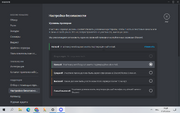
- Отсутствует
- Низкий — Участнику необходимо иметь подтвержденный адрес электронной почты
- Средний — в дополнение к «низкому» уровню проверки, пользователь также должен быть зарегистрирован в Discord в течение более 5 минут.
- Высокий — В дополнение к вышеуказанным уровням проверки, пользователь также должен находиться на сервере в течение 10 минут.
- Самый высокий — У пользователя должен быть подтверждённый номер телефона, привязанный к его учетной записи Discord.
Присоединение к серверу [ ]
Пользователи могут присоединиться к серверам, перейдя по ссылке-приглашению или, прокрутив вниз до конца списка серверов, нажав на значок + и введя код приглашения.
Также, пользователи могут присоединяться к серверам на каталогах серверов, таких как findadiscord.com (Find a Discord) и discordserver.info (DSMonitoring). Полный список таких каталогов можно найти в разделе «Каталоги серверов»
Каталоги серверов [ ]
Ниже перечислены некоторые популярные каталоги серверов:
- findadiscord.com [EN]
- discordserver.info [RU/EN]
- discordbook.ru [RU]
- server-discord.com [RU]
- boticord.top/servers [RU]
- discord-server.com [RU/EN]
- top.gg/servers [EN]
- discordservers.com [EN]
- disboard.org [EN]
- discordhome.com [EN]
- discords.com [EN]
- discord.me [EN]
What Does A Discord Mod Do?
Discover the roles and responsibilities of a Discord mod and how they help maintain a safe and friendly community.
Follow us or ask us a question:



Try Blaze for free
Contents
Example H2
Example H3
Example H4
Example H5
Example H6Discord is a popular chatting platform that lets users create and join online communities, called servers. You can use these servers for many purposes, from casual conversations to professional networking.
But, as with any online community, there must be some rules and guidelines to ensure that everyone participating is respectful. We must make sure that decorum is maintained and conversation occurs seamlessly. This is where Discord mods come in.
As the name suggests, mods moderate the community by upholding the rules and ensuring that users follow them. They play a key role in maintaining a positive and welcoming environment for everyone on the server.
What’s the difference between a Discord Admin and Discord mod?
To put it simply, Discord Admins are the ones that run the show from behind the scenes. They are the only members who can create their custom roles and text channels.
Admins enlist the help of moderators to manage the server from within. They keep the peace, ensure the conversation is flowing, and even settle arguments. They are the only server members who can delete messages.
Discord Admins
- Responsible for the overall server management and administration.
- Set up the server, manage user roles and permissions, and configure various settings.
- Have more power and control over the server.
- Can make changes to the server’s structure and settings that mods may not be able to access.
- Essential for ensuring the server runs smoothly and everyone feels welcome.
Discord Mods
- They are server members who are granted special powers by the admins.
- Enforce rules, mediate disputes, monitor content, and help users.
- Focus on day-to-day activities within the server.
- Visible and accessible to members as the first point of contact when they need help.
- Essential for maintaining a positive and supportive community environment.
How to Moderate a Discord Server?
Moderating a Discord server involves keeping the community safe, supportive, and enjoyable for all members.
Here are some tips on how to moderate a Discord server effectively.
- Establish clear rules.
- Communicate what is and isn’t allowed on your server. Ensure all members know the rules and the consequences of breaking them.
- Enforce rules consistently.
- Be consistent and fair when enforcing server rules. This means addressing rule-breaking behavior promptly and taking the right action.
- Use moderation tools.
- Discord provides many moderation tools, such as message filters, channel permissions, and user roles.
- Build your Discord bot.
- Protect servers further by building a custom bot. They assist in moderation and can be hosted for free. Custom bots can also be equipped with snippets like anti-spams, anti-mentions, and anti-token grabbers to regulate the community.
- Mediate disputes.
- If members have a disagreement or conflict, help mediate the situation and find a resolution that works for everyone involved.
Final Thoughts
Moderation is a necessity for the sustenance of any thriving community. To find out more about how to be a better moderator on Discord and connect community data and quantify ROIs, sign up with Blaze right away!
Welcome to disnake
disnake is a modern, easy to use, feature-rich, and async-ready API wrapper for Discord.
Features:
- Modern Pythonic API using async / await syntax
- Sane rate limit handling that prevents 429 errors
- Command extension to aid with bot creation
- Easy to use with an object oriented design
- Optimised for both speed and memory
Getting started
Is this your first time using the library? This is the place to get started!
- First steps:Introduction | Quickstart | Setting Up Logging
- Working with Discord:Creating a Bot Account | A Primer to Gateway Intents
- Examples: Many examples are available in the repository.
Getting help
If you’re having trouble with something, these resources might help.
- Try the Frequently Asked Questions first, it’s got answers to all common questions.
- Ask us and hang out with us in our Discord server.
- If you’re looking for something specific, try the index or searching .
- Report bugs in the issue tracker.
Extensions
These extensions help you during development when it comes to common tasks.
- disnake.ext.commands – Bot commands framework
- disnake.ext.tasks – asyncio.Task helpers
Manuals
These pages go into great detail about everything the API can do.
- disnake API Reference
- disnake.ext.commands API Reference
- disnake.ext.tasks API Reference
Meta
If you’re looking for something related to the project itself, it’s here.
- Changelog
- Version Guarantees
Cloudflare Ray ID
A Cloudflare Ray ID is an identifier given to every request that goes through Cloudflare.
Ray IDs are particularly useful when evaluating Security Events for patterns or false positives or more generally understanding your application traffic. Ray IDs are not guaranteed to be unique for every request. In some situations, different requests may have the same Ray ID.
Look up Ray IDs
Security events
All customers can view Ray IDs and associated information — IP address, user agent, ASN, etc. — by looking through the Activity Log in Security Events.
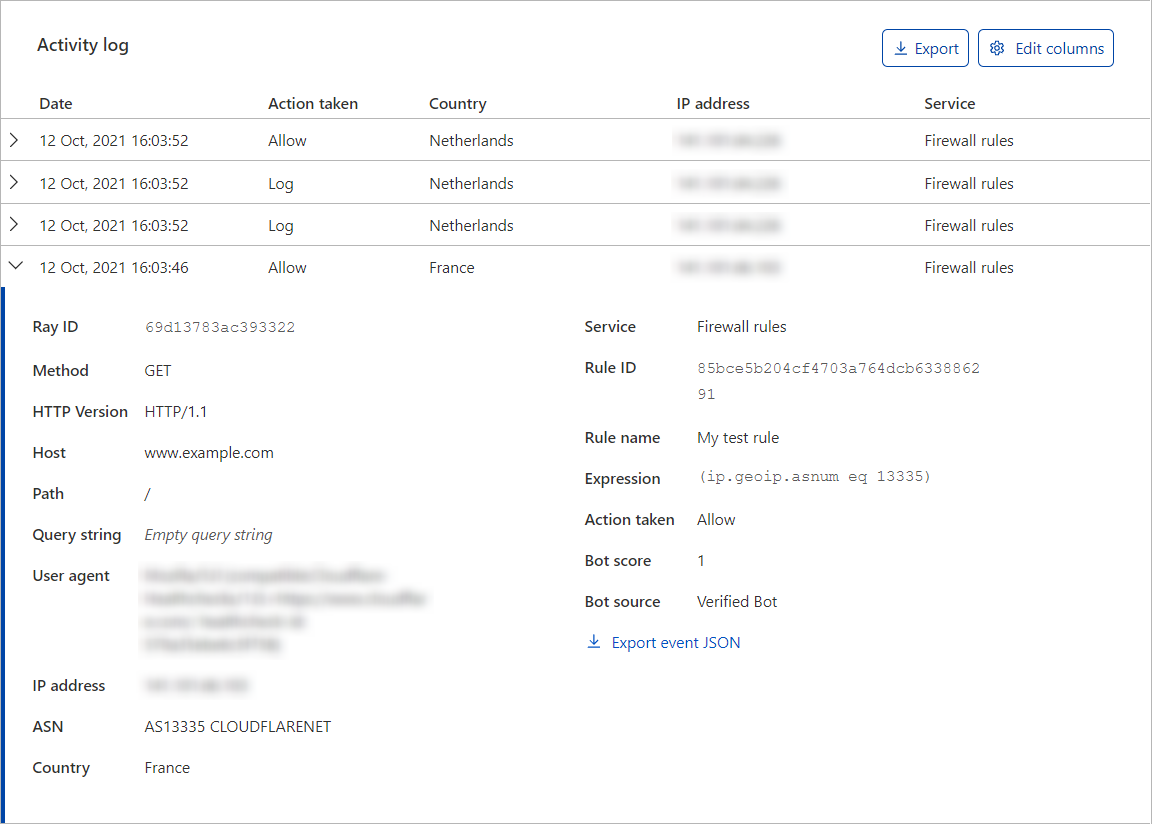
Additionally, you can add filters to look for specific Ray IDs.
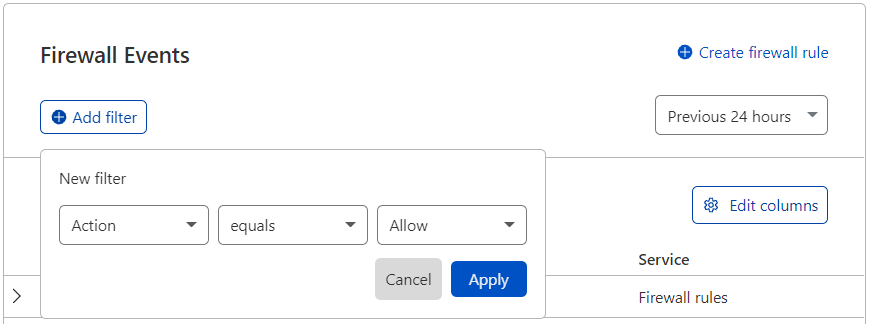
Please note that Security Events may use sampled data to improve performance. If sampled data is applied to your search, you might not see all events, and filters might not return the expected results. To display more events, select a smaller timeframe.
Logs
Enterprise customers can enable Ray ID as a field in their Cloudflare Logs .
Server logs
For more details about sending Ray IDs to your server logs, refer to the CF-Ray header.