
How to Fix Windows Movie Maker Black Screen
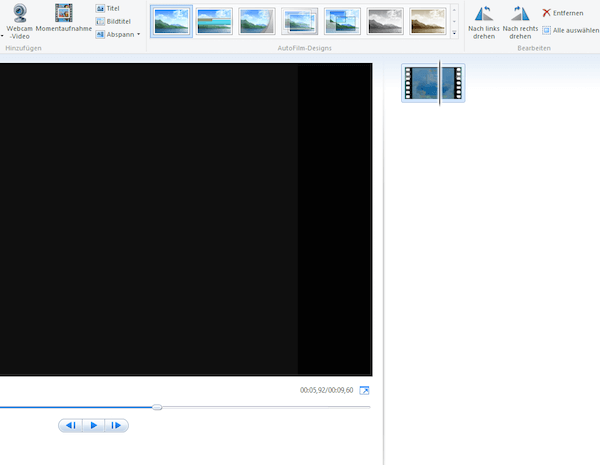
When you edit or preview video with Windows Movie Maker, it suddenly has a black screen, no video but just audio. Have you ever met such a situation? Many uses have reported the black screen in Windows Movie Maker and do you know the reasons? We strongly suggest that you should be well equipped with the knowledge of how to fix Windows Movie Maker black screen. Here we teach you some methods to handle such a problem. Keep reading and remember the useful solutions.
Windows Movie Maker Black Screen
- Part 1. Reasons of Windows Movie Maker Black Screen
- Part 2. How to Fix Windows Movie Maker Black Screen
- Part 3. Recommended Movie Player Alternative
- Part 4. Best Windows Movie Maker Alternative
Part 1. Reasons of Windows Movie Maker Black Screen
Have you ever thought why there is a black screen in Windows Movie Screen? It really can be a big problem and affect your watching experience if you cannot solve it. When you use Windows Movie Maker to watch some videos but it is in black screen, the first reason you should consider is incompatibility. The cause of incompatibility is your installed codecs and software are not compatible with the program.
The another reason which can cause Windows Movie Maker black screen as well is muting sound by mistake or on purpose. You may mute sound in video for some needs, but you should be aware of it do can leads the Windows Movie Maker black screen. In such a case, Windows Movie Maker are functioning well while your computer screen will have some errors so that it will end up in a black screen. Therefore, you will see the black screen in Windows Movie Maker.
Part 2. How to Fix Windows Movie Maker Black Screen
After you understand the reasons of Windows Movie Maker black screen, you can begin to handle the problem. All the following methods can help you fix the black screen in Windows Movie Maker. Choose the most suitable one and do it by yourself.
Fix Windows Movie Maker Black Screen by Setting Sound Level
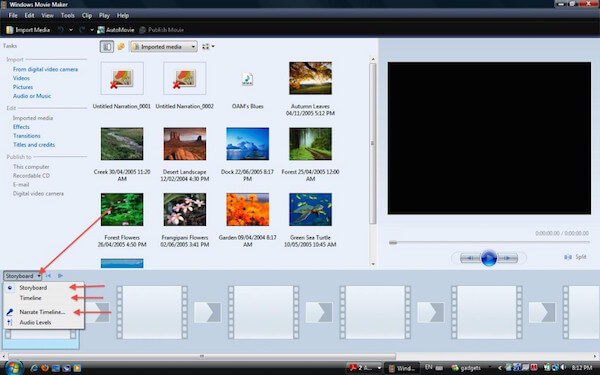
As we mentioned above, when you mute the sound on your computer, it may cause the black screen in Windows Movie Maker. To solve this problem, you need to get rid of the mute settings. First, select the «Timeline» and then expand to both audio and video. Right-click on the option «Mute» and then it will solve your Windows Movie Maker black screen. You can also deal with this problem with setting the sound level. Setting the sound level of all the clips to zero is a useful way to handle this trouble as well. You can try these two ways, if they are no use, read the next methods.
Fix Windows Movie Maker Black Screen by Shutting Unnecessary Tasks
If you don’t mute the sound or it still has black screen in Windows Movie Maker after you try to set the sound level, you can try to fix this problem by shutting unnecessary tasks. If you run so many tasks on your computer, it can lead black screen in Windows Movie Maker very possible. Just shut down those unnecessary ones and leave more space to play a video.
Fix Windows Movie Maker Black Screen by Restarting Program
You can also handle the black screen in Windows Movie Maker by restarting this software. Shutting down it firstly and then restarting it after a few minutes can help you determine whether there are any viruses which lead the black screen in Windows Movie Maker or not. If you note some viruses, you can use some other tools to scan the software and delete all the spyware. Then restart Windows Movie Maker to enjoy your videos.
Fix Windows Movie Maker Black Screen with Third-party Programs
If the black screen in Windows Movie Maker still can’t be solved with the methods this article mentioned above, you can download a third-party program to enjoy your videos. There are many kinds of third-party program you can choose in the application market. And most of them can play your videos normally and help you solve the problem of Windows Movie Maker black screen. Choose the most suitable one and download it.
Part 3: Recommended Alternative Blu-ray Player
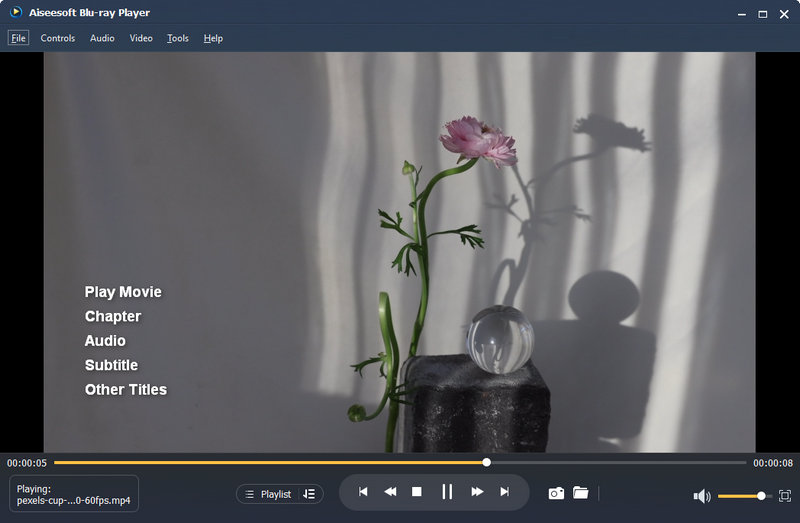
If you want to fix Windows Movie Maker black screen, you can choose to download some third-party programs. Here we recommend you the best alternative of Windows Movie Maker for you. You can use Aiseesoft Blu-ray Player to play any Blu-ray movies smoothly and lossless on your computer. What’s more, you can improve your video quality with this tool and make your video more visually energetic.

- Enjoy 100% lossless audio and dramatic HD surround sound.
- Play any movie formats like MP4, MPG, M4V, WMV, MKV, FLV, etc.
- Play any Blu-ray disc, Blu-ray folder, DVD disc/folder/ISO file.
- Compatible with Windows 10/8.1/8/7/Vista/XP, Mac OS X 10.7 or above, etc.
How to Play Film with Aiseesoft Movie Player
Step 1 Free download, install and launch Aiseesoft Blu-ray Player on your computer.
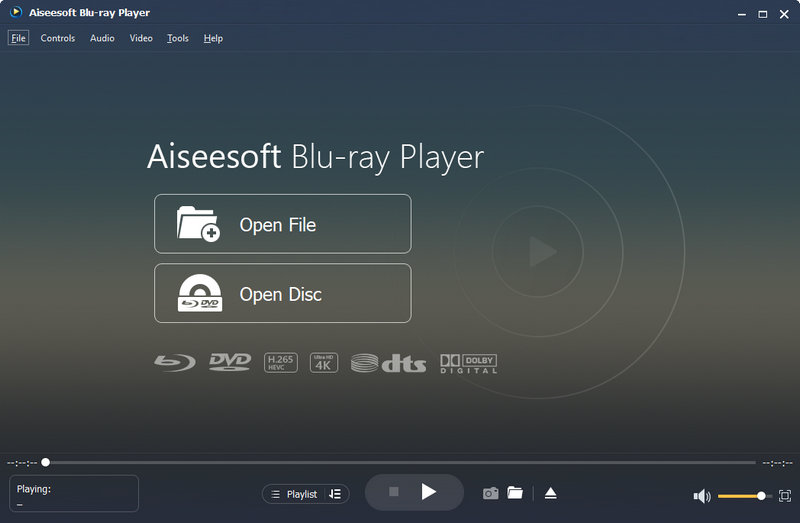
Step 2 If you want to open your Blu-ray disc, you can click «Open Disc» to load the Blu-ray disc to the program. Or you can just click «Open File» to open the video on your computer.
Part 4: Best Windows Movie Maker Alternative
When you want to make your own movie but the Windows Movie Maker goes black screen. At that time, you can try a substitute movie making tool to achieve it. Aiseesoft Movie Maker should be your best choice with multiple video editing functions. With this powerful software, you can make any movies with photos, videos and music as you want.

- Best movie maker and audio editor to bring your movie to life.
- Adjust visual effect like contrast, saturation, brightness, hue, tint, etc.
- Various style themes like simple, happy, romantic, travel, fashion, etc.
- Support movie formats like MP4, FLV, MTS, AVI, MOV, M4V, ASF, and more.
How to Create Your Own Movie with Aiseesoft Movie Maker
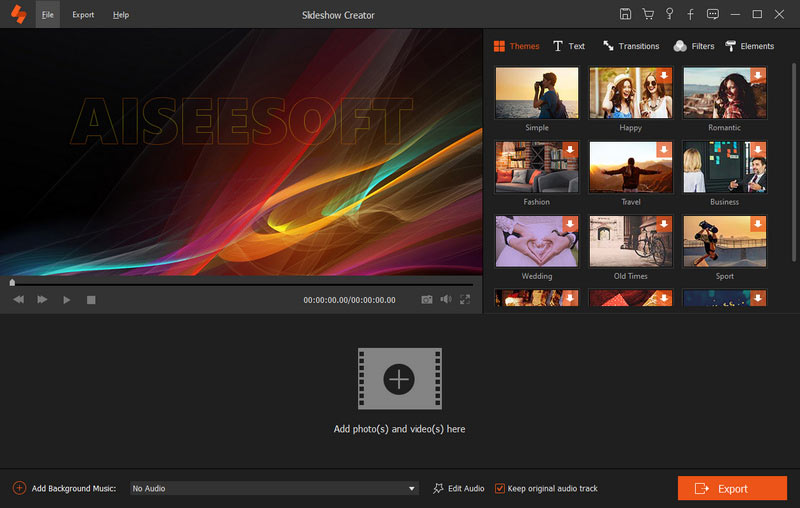
Step 1 Click «Add photo(s) and video(s) here» to import the video files or pictures to this program.
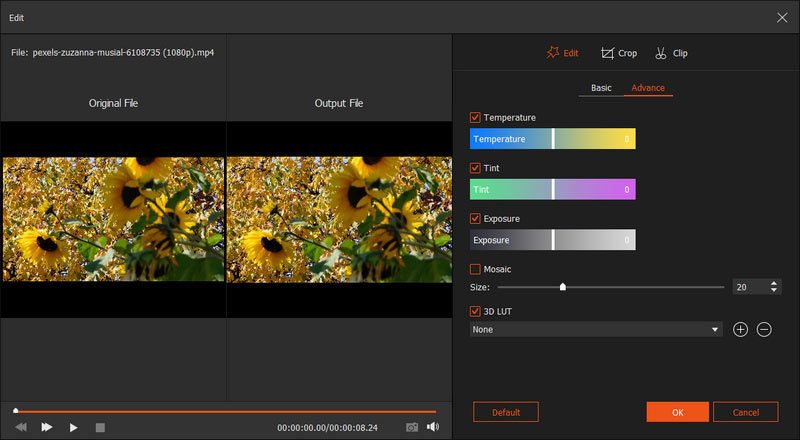
Step 2 Click «Edit» to rotate, mirror, clip, crop the video. Besides, you can adjust contrast, saturation, brightness, hue, volume and more.
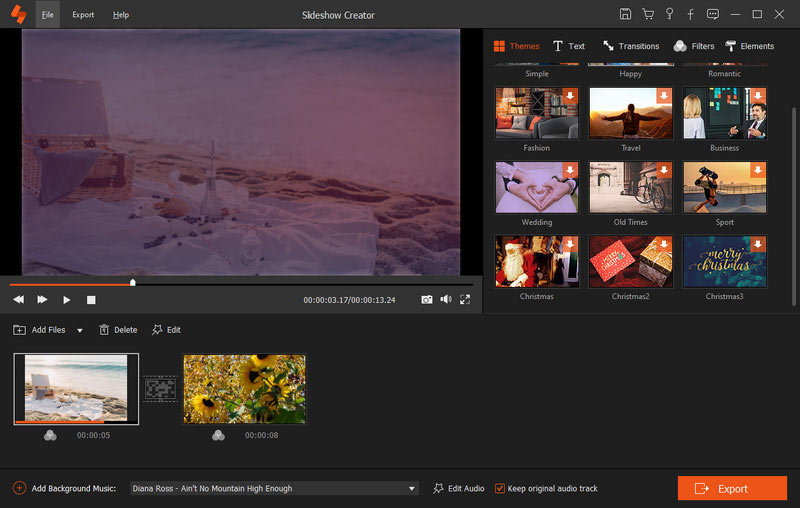
Step 3 After editing, you can click «Themes» to select the perfect theme for your video. You can also add text, filters and elements for your video.
Conclusion
In this article, we introduce some solutions of how to fix Windows Movie Maker black screen. When you meet such a situation like black screen when you make videos with Windows Movie Maker, don’t worry. Calm down and consider the reason that could be and then fix this problem with the methods we list for you. We also recommend the best alternative of Windows Movie Maker amd Movie Player for you. With it, you will not have the black screen any more. Hope you can gain something helpful in this article.
What do you think of this post?
Rating: 4.8 / 5 (based on 98 ratings)
May 10, 2019 18:23 / Posted by Jenny Ryan to Edit Video
More Reading

Leave your comment and join our discussion
Home Edit Video Windows Movie Maker Black Screen

Copyright © 2023 Aiseesoft Studio. All rights reserved.
Как устранить черный экран в Windows Movie Maker
Часть 1. Лучшая альтернатива для Windows Movie Maker
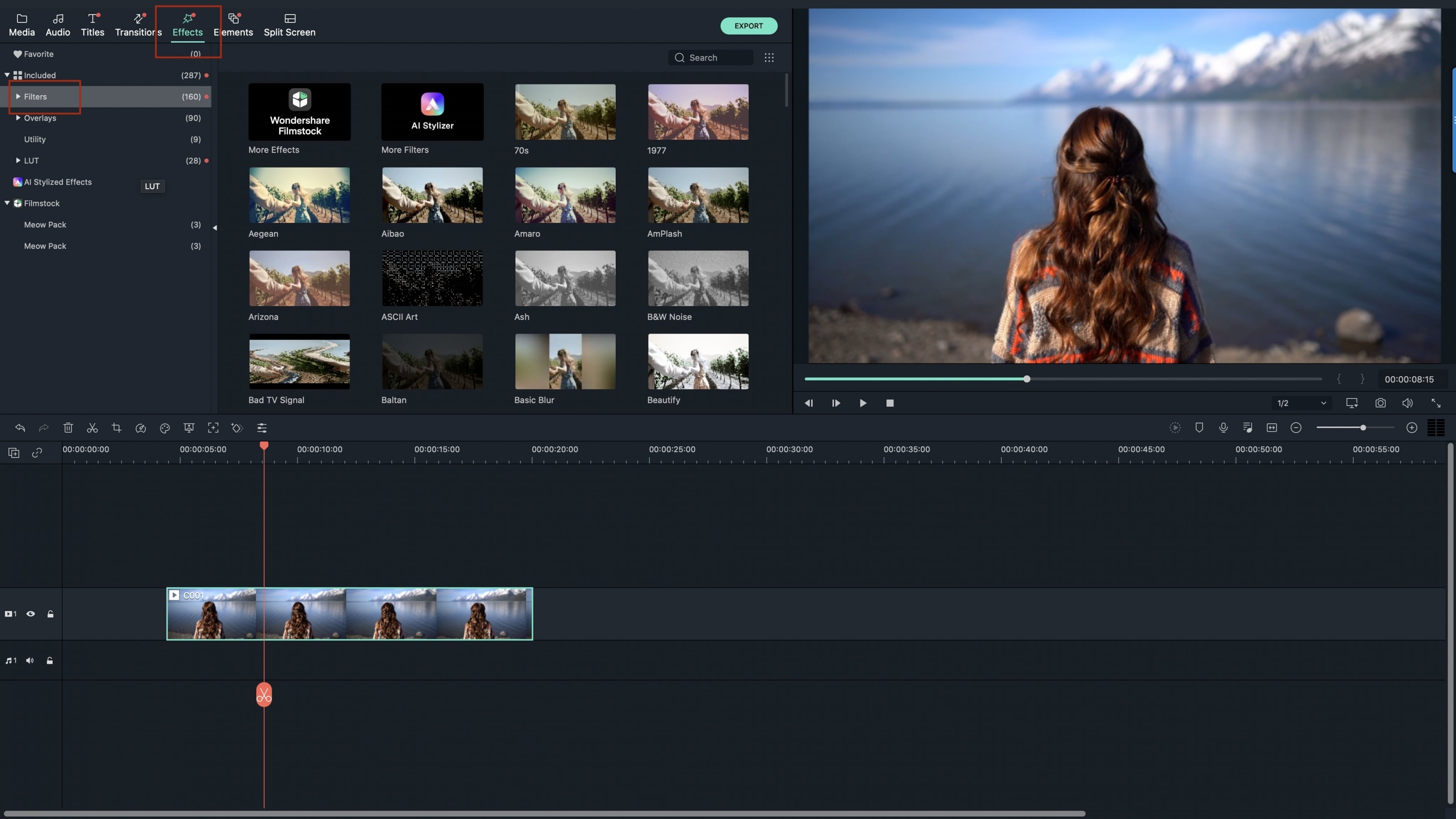
Filmora Video Editor — это популярная программа для редактирования видео для новичков. По сравнению с iMovie, Filmora Video Editor намного легче в освоении и удобнее в использовании.
У нее простой интерфейс с отображаемыми эффектами и инструментами для редактирования. Когда Вы увидите интерфейс, вы сразу поймете, как пользоваться программой. Она также позволяет стабилизировать видео, проигрывать его в обратном направлении и записывать экран компьютера. В программе доступно более 300 спецэффектов для создания профессионального видео.
Часть 2. Почему у меня появляется черный экран в Windows Movie Maker?
Задавались ли Вы вопросом, почему в Windows Movie Maker появляется черный экран? Что ж, это большая проблема, которая оставит негативный опыт, если не справиться с ней правильным образом. Вместо того, чтобы видеть изображения в Вашем видео, Вы будете лицезреть пустой экран черного цвета. Несовместимость является одной из главных проблем, являющихся причиной черного экрана в Windows Movie Maker. Это может быть результатом установления кодеков и софта, несовместимых с программой.
Если Вы отключаете звук в Windows Movie Maker, то это также может быть причиной появления черного экрана. Такое может случиться по ошибке или по незнанию. У Вас могут быть свои причины для отключения звука в видео, но Вы должны знать, что это может привести к возникновению проблем с черным экраном. Если Вы отключаете звук в видео, делайте это по какой-то причине, а не для развлечения. Экран Вашего видео может таже привести к данной проблеме, если он неисправен. В таком случае, Windows Movie Maker будет работать корректно, но наличие проблем с экраном компьютера могут привести к появлению черного экрана.
Часть 3. Как устранить черный экран в Windows Movie Maker?
Существует несколько вариантов устранения неполадок черного экрана в Windows Movie Maker, которые нужно взять на рассмотрение. Все зависит от Вас, какой вариант выбрать для решения проблемы.
1)- Отрегулируйте уровень звука. Как Вы заметили раньше, отключение звука в Windows Movie Maker может привести к появлению черного экрана. Решением проблемы может стать избавление от настроек отключения звука в программе. Для этого выберите «Временную шкалу», а затем растяните её на аудио и видео. Кликните правой кнопкой мыши на опции «Отключение звука», что решит проблему с черным экраном. Как альтернатива этому, установите уровень звука для всех роликов на ноль, что также может стать решением проблемы.
2)- Закройте ненужные задачи. Зачем иметь открытыми десять задач на компьютере, когда Вы используете только одну? Это может послужить появлению черного экрана, и будет хорошим решением отключить ненужные задачи, оставив только самые необходимые. Чем больше холостых программ работает в Windows Movie Maker, тем выше вероятность появления ошибки. Оставьте несколько нужных задач, чтобы решить проблему.
3)- Перезапустите Windows Movie Maker. Выключить программу и перезапустить её через некоторое время будет хорошим решением по борьбе с черным экраном. Это поможет определить вирусы, которые могут являться причиной появления черного экрана. Если Вы заметили это, просканируйте программу для определения шпионских программ и перезапустите Windows Movie Maker. Это наверняка решит Вашу проблему.
How to Fade the Edges of Clips in Windows Movie Maker

Windows Live Movie Maker allows you to quickly edit video and photos on your computer, then export the results to a variety of locations, including YouTube, Facebook and DVD. There are a number of effects that you can apply to your video clips as you edit them, including several fade effects that you can apply. The fades act as transitions so they will move from the edge of one clip or photo to the next one in the video.
Movie Maker NOT Saving Video
You are using an out of date browser. It may not display this or other websites correctly.
You should upgrade or use an alternative browser.
Status Not open for further replies.
Ari012
Estimable
Aug 26, 2014 7 0 4,510
I imported a mp4 file into Movie Maker (2012) running on Win7. The file includes video and sound. After editing it a bit, the playback in Movie Maker is still perfect. However, when I save it using «Save Movie» in a any of the possible methods, I lose the video (black screen) while the sound is preserved perfectly. And the resulting saved mp4 file is significantly smaller (less than 10% of the original file size). What could be the cause of losing the video part of the movie?
Thanks,
Ari012
Joeteoh99
Estimable
Herald
Jul 20, 2014 282 0 5,210
The problem is Moviemaker doesn’t support MP4 files so the videos will not work.
Joeteoh99
Estimable
Herald
Jul 20, 2014 282 0 5,210
The problem is Moviemaker doesn’t support MP4 files so the videos will not work.
Can’t see what you wrote.
Ari012
Estimable
Aug 26, 2014 7 0 4,510
Actually Movie Maker was quite happy accepting my MP4 file. Are you sure you are not referring to Windows Movie Maker?
Joeteoh99
Estimable
Herald
Jul 20, 2014 282 0 5,210
Actually Movie Maker was quite happy accepting my MP4 file. Are you sure you are not referring to Windows Movie Maker?
Yes I was referring to Windows Moviemaker. Which one are you using?
Ari012
Estimable
Aug 26, 2014 7 0 4,510
I am using Movie Maker which is part of Windows Essentials. I downloaded the 2012 version which has a good editor and it does the job perfectly but i ended up with the saving problem.
Considering that i have mp4 files that I need editing (cutting and rotating 90 degrees), what would be a good solution?
Joeteoh99
Estimable
Herald
Jul 20, 2014 282 0 5,210
kenrivers
Splendid
Moderator
Dec 29, 2010 2,789 1 26,565
Are you able to play back the file before you bring it into Movie Maker 2012? I just tried an .mp4 video using the same version of Movie Maker that you are using. I didn’t do any editing but did add a title and then exported for a HD display. The file saved with audio and video intact. The file size was smaller than the original (100 MB vs. 157 MB). What is the source of the file you are trying to edit?
Ari012
Estimable
Aug 26, 2014 7 0 4,510
Hi
Thanks for addressing my problem.
I used my android smartphone to record the movie including sound. This ended up in a mp4 file which I transferred to my laptop running Win7. This file plays perfectly on the laptop using virtually any of the known player softwares. When I import it into Movie Maker it plays it perferctly. So there is nothing wrong with the original movie. But when I get Movie Maker to save the movie, even without any editing, the saved mp4 file does not have any video — just sound. Movie Maker allows me the option of saving the movie also as a wmv file — but this ends up with exactly the same result of missing video and a significantly reduced file size. Any software including Movie Maker itself plays only sound and no video — just as a result of saving. So clearly, the video is missing from the saved file.
Please note that I used the «save movie» function as I do not even understand what «save project» means. Also, in saving, I have tried just about every setting that is available such as default, HD, DVD, YouTube, Win7 etc.
What could the problem be? Help
kenrivers
Splendid
Moderator
Dec 29, 2010 2,789 1 26,565
You may need to convert the video to another format or re-encode using something like Handbrake or MPEG Streamclip (both of which are free). Saving a project is like saving a document in Word, it saves the work you have done so you can make changes later.