
Как конвертировать слайды Canva в PowerPoint: пошаговое руководство
Чтобы преобразовать слайды Canva в PowerPoint, выполните следующие действия:
1. Откройте презентацию Canva и перейдите к опции «Загрузить».
2. Выберите формат PowerPoint для загрузки.
3. Сохраните файл в желаемом месте на компьютере.
4. Откройте PowerPoint и щелкните «Файл» в строке меню.
5. Выберите «Открыть» и перейдите к месту, где вы сохранили файл PowerPoint Canva.
6. Щелкните по файлу, чтобы открыть его в PowerPoint.
7. Проверьте и внесите все необходимые правки или настройки в презентацию.
8. Сохраните файл PowerPoint в выбранном вами месте.
Следуя этим шагам, вы легко сможете преобразовать слайды Canva в PowerPoint и продолжить работу с презентацией в программе PowerPoint.
Инструмент презентации Canva позволяет пользователям создавать профессиональные и визуально привлекательные презентации, независимо от их опыта. Однако может возникнуть момент, когда вам понадобится конвертировать слайды Canva в PowerPoint, чтобы соответствовать определенным требованиям, использовать расширенные функции или сотрудничать с теми, кто предпочитает PowerPoint.
К счастью, в этой статье представлено подробное руководство о том, как без проблем перенести ваши презентации Canva в PowerPoint, чтобы сохранить вашу труд и креативность.
Шаг 1: Экспорт слайдов Canva в файлы PowerPoint
После создания идеальной презентации в Canva следуйте этим шагам, чтобы экспортировать ее в файл PowerPoint:
1. Нажмите кнопку Поделиться в правом верхнем углу и выберите Дополнительно в выпадающем меню.

2. Прокрутите список вниз и щелкните Microsoft PowerPoint.
Вы также можете использовать строку поиска вверху, чтобы быстро найти PowerPoint.

3. По умолчанию будут выбраны все слайды в вашей презентации для экспорта. Если вы хотите экспортировать только определенные слайды, щелкните на стрелку вниз рядом с Выбрать страницы. Снимите отметку с слайдов, которые не хотите включать, и нажмите Готово. Затем нажмите Скачать, чтобы экспортировать выбранные слайды.

4. В окне проводника выберите место для вашего файла, дайте ему подходящее имя и нажмите Сохранить. Ваша презентация Canva теперь будет загружена на ваш компьютер в виде файла PowerPoint (PPT).
Важно отметить, что этот способ экспорта презентации Canva в файл PPT имеет некоторые ограничения. Если у вас нет установленных на компьютере тех же шрифтов, шрифты, используемые в слайдах Canva, могут измениться.
Кроме того, любые стандартные анимации или пользовательские анимации, созданные с помощью инструмента анимации Canva, будут удалены в документе PowerPoint. В следующих разделах будут предложены решения для преодоления этих ограничений.
Сохранение пользовательских шрифтов в PowerPoint
Если вы хотите сохранить такой же вид вашей презентации Canva в PowerPoint, даже с пользовательскими шрифтами, у вас есть несколько вариантов:
1. Исследуйте библиотеку шрифтов в PowerPoint, чтобы найти похожие шрифты, которые могут заменить пользовательские шрифты, используемые в Canva.
2. Определите название шрифта, используемого в Canva, и загрузите его с одного из лучших бесплатных веб-сайтов шрифтов. Затем добавьте загруженный шрифт в PowerPoint с помощью аналогичного процесса, как при добавлении шрифтов в Microsoft Word.
Сохранение анимаций в PowerPoint
Если вы хотите сохранить анимации в вашей презентации Canva, вам нужно экспортировать их в формате GIF. Вот как это сделать:
Чтобы экспортировать свою презентацию в Canva в формате GIF, нажмите кнопку «Поделиться» и выберите «Скачать» из предложенных вариантов. Убедитесь, что выбран формат файла GIF и выберите страницы, которые вы хотите экспортировать. После завершения нажмите «Скачать» и сохраните файл в нужном месте.
Если вы хотите сохранить анимацию без анимированных элементов, вы можете сохранить всю презентацию в Canva в формате PNG. Это создаст сжатую папку с отдельными файлами PNG для каждого слайда. Извлеките файлы из папки и перетащите их в PowerPoint.
Важно отметить, что экспорт в формате GIF или PNG удаляет возможность изменять элементы слайда в PowerPoint. Имейте это ограничение в виду, когда решаете, какой метод использовать.
Следуя этим шагам, вы легко можете преобразовать свои слайды в Canva в формат PowerPoint и наслаждаться преимуществами обеих платформ. Кроме того, у вас есть возможность преобразовать свои презентации в видео в Canva или PowerPoint.
Частые вопросы и ответы
1. Можно ли преобразовать слайды Canva в PowerPoint?
Да, вы можете преобразовать слайды Canva в PowerPoint. Canva предоставляет возможность экспорта ваших слайдов в формате PowerPoint, что позволяет легко делиться своими дизайнами с другими пользователями PowerPoint.
2. Как экспортировать слайды Canva в PowerPoint?
Для экспорта слайдов Canva в PowerPoint выполните следующие действия:
— Откройте свой дизайн в Canva.
— Нажмите на меню «Файл» в верхнем левом углу.
— Выберите опцию «Скачать».
— Выберите формат «PowerPoint».
— Нажмите кнопку «Скачать».
После завершения загрузки у вас будет файл PowerPoint, содержащий ваши слайды Canva.
3. Можно ли редактировать преобразованный файл PowerPoint?
Да, преобразованный файл PowerPoint полностью редактируемый. Вы можете вносить изменения в текст, изображения, макеты и любые другие элементы внутри файла PowerPoint, так же, как вы это делаете с любой другой презентацией PowerPoint.
4. Будет ли сохранена форматирование моих слайдов Canva после преобразования?
В большинстве случаев форматирование ваших слайдов Canva будет сохранено после преобразования в PowerPoint. Однако могут возникнуть незначительные отклонения в шрифтах, выравнивании или других элементах дизайна из-за различий между Canva и PowerPoint. Рекомендуется проверить и настроить форматирование при необходимости после преобразования.
5. Можно ли преобразовать несколько слайдов Canva в одну презентацию PowerPoint?
Да, вы можете преобразовать несколько слайдов Canva в одну презентацию PowerPoint. Просто экспортируйте каждый слайд Canva в отдельный файл PowerPoint, а затем объедините их в одну презентацию PowerPoint, вставив слайды в нужном порядке внутри PowerPoint.
6. Есть ли какие-либо ограничения при преобразовании слайдов Canva в PowerPoint?
Нет конкретных ограничений при преобразовании слайдов Canva в PowerPoint. Однако важно отметить, что некоторые элементы дизайна или эффекты, доступные в Canva, могут быть не полностью поддерживаемыми или воспроизводимыми в PowerPoint. Рекомендуется проверить и настроить свои слайды в PowerPoint, чтобы обеспечить желаемый внешний вид и функциональность.
- Конвертация изображений CR2 в JPG на Windows
- Как скрыть или показать слайды в Microsoft PowerPoint
- Удаление дублирующих слайдов в PowerPoint
- Что такое файл ESD? Как конвертировать его в файл ISO в…
- 12 Способов улучшить медленную скорость загрузки в Chrome
- 9 Способов доступа к настройкам звука в Windows 11
- 10 Способов получить доступ к настройкам даты и времени в…
- Как решить проблему с загрузкой файлов или проблемы с…
- Как использовать ChatGPT для создания презентаций
- Как скрыть слайд в Google Slides
- Как добавить фотографии в Google Фото
- Руководство по загрузке и удалению игр и дополнений на…
- Создание вертикальных презентаций в Google Slides
- Как проверить содержимое файла пакетных команд в Windows 11
- Лучшие 6 видеоконвертеров для Windows
- Как решить проблему неработающего контекстного меню рабочего…
- Перенос макросов Excel на другой компьютер
- Как увеличить скорость загрузки файлов в qBittorrent для…
20+ Best Canva PowerPoint (PPT) Style Presentation Templates
Download thousands of PowerPoint templates, and many other design elements, with a monthly Envato Elements membership. It starts at $16 per month, and gives you unlimited access to a growing library of over 2,000,000 presentation templates, fonts, photos, graphics, and more.
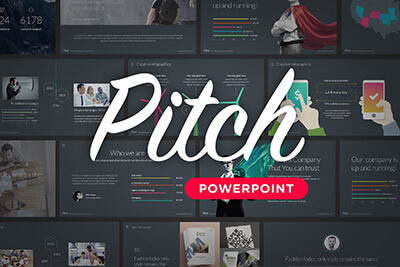
Pitch PowerPoint
PowerPoint
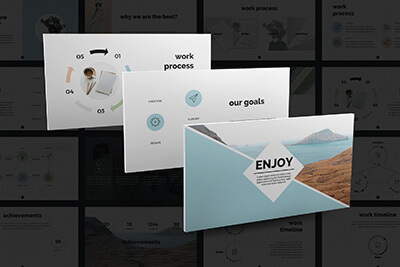
Animated PPT Templates
Fully Animated
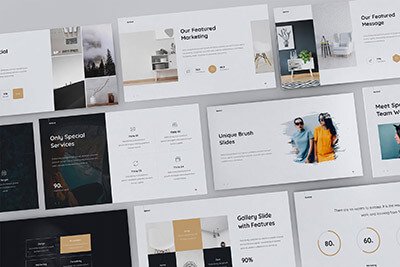
BeMind Minimal Template
PowerPoint
You can start customizing these Canva slide templates with just one click to present them directly via Canva or download them as PDF, GIF, or even as a video. Check out the templates below.
Modern Company Profile Canva Presentation Templates
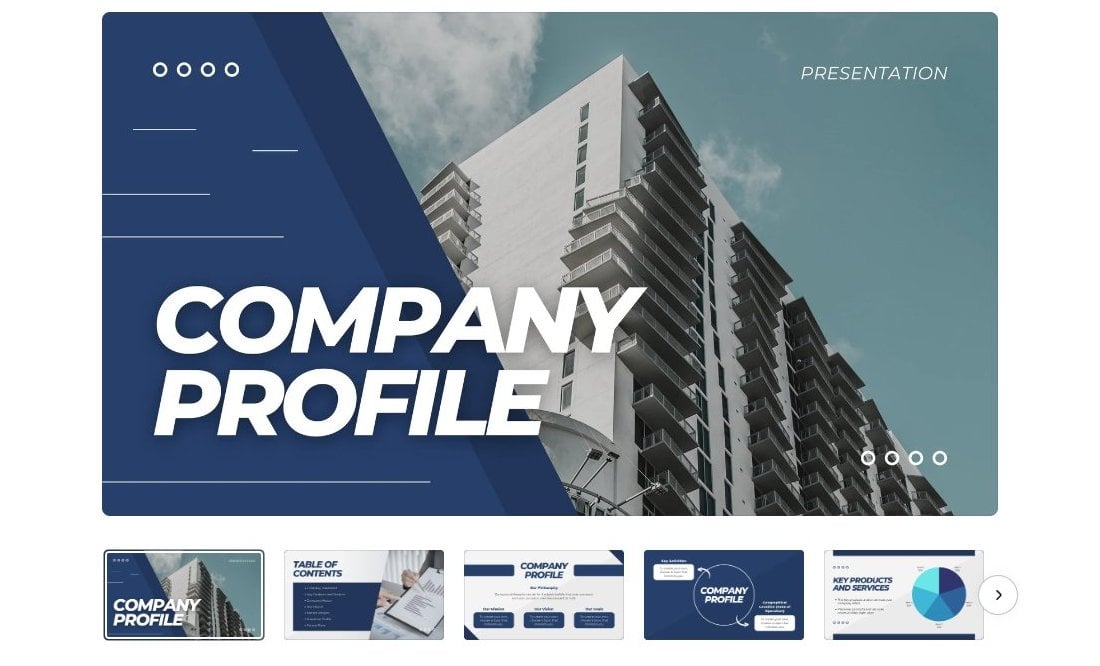
When creating business profile presentations for corporate companies and small businesses, you need to keep your slide designs simple and professional. That’s exactly what this Canva presentation represents. It features a clean and professional slide design with a fully customizable layout, animations, and transitions
Yellow & Black Company Profile Canva PowerPoint Templates
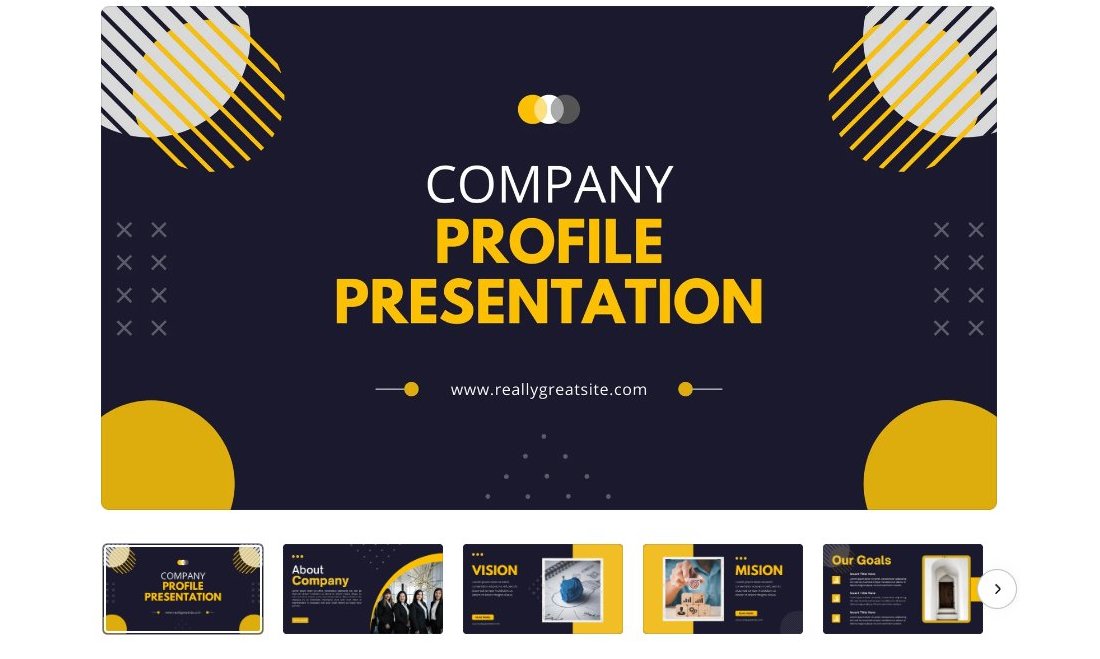
If you’re making a company profile slideshow for a modern business, marketing firm, or creative agency, it’s okay to go beyond the traditional design standards. You can use lots of colors and shapes to give your presentation a more attractive feel. This Canva slides template is perfect for that type of company profile presentation.
Doodle Pitch Deck Canva Presentation Slide Templates
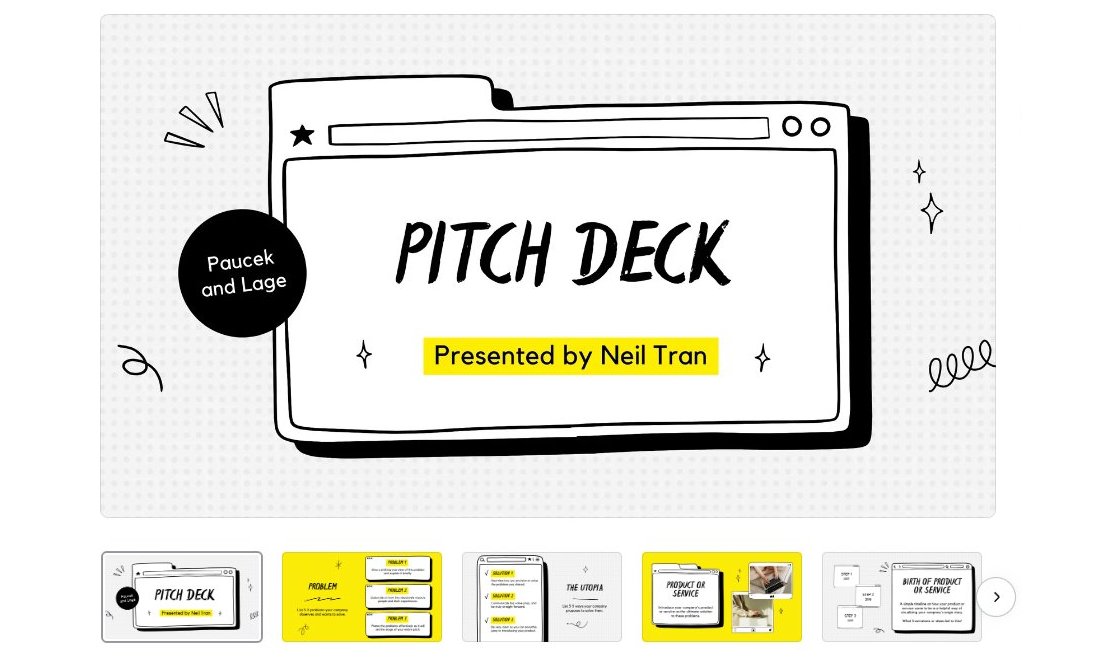
With this Canva presentation template, you can make a creative-looking pitch deck slideshow to present your startups, brands, products, and ideas. It comes with a minimalist slide layout featuring doodle-themed objects and elements. This is a paid template but it has one of the most unique slide designs we’ve seen.
Minimalist Travel Plan Canva PowerPoint Templates
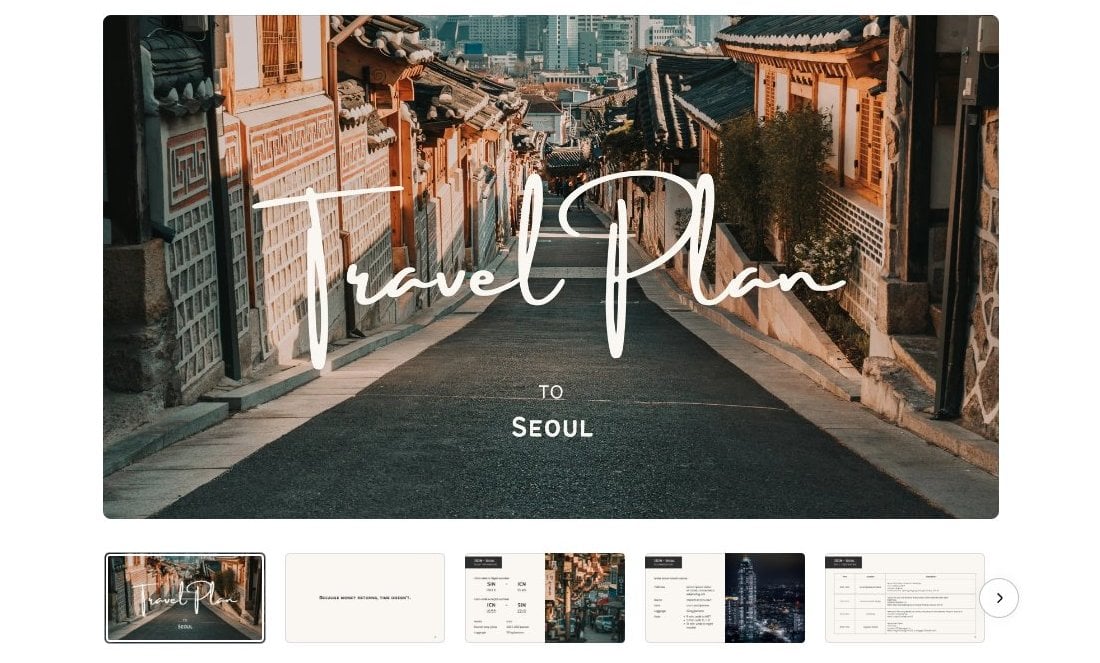
This Canva slideshow template is perfect for travel influencers and agencies. You can use it to create minimal and stylish travel plan presentations to highlight the entire journey of your travels. The great thing about using Canva to make the presentation is that you can download this as a video to share on social media.
Business Plan Proposal Presentation Canva PPT Templates
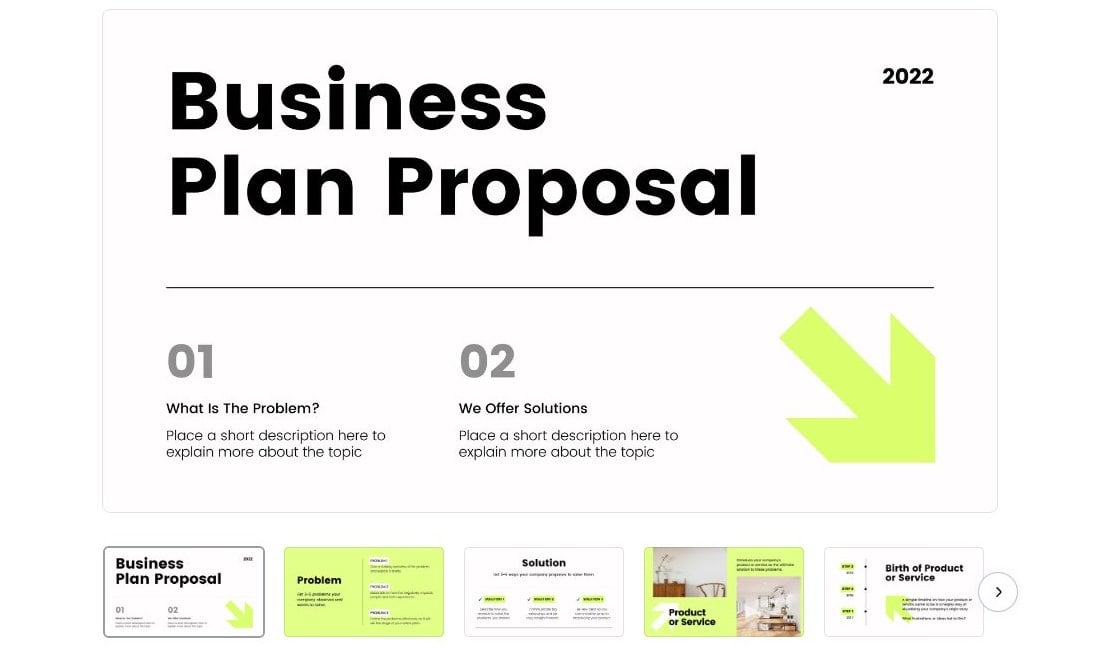
The bold color, creative shapes, and modern design come together to give this Canva presentation a very professional look and feel. It’s great for making more attractive business plan slideshows and business proposal presentations. There are more than 15 slide designs in this template.
Minimalist Elegant Portfolio Canva Presentation Templates
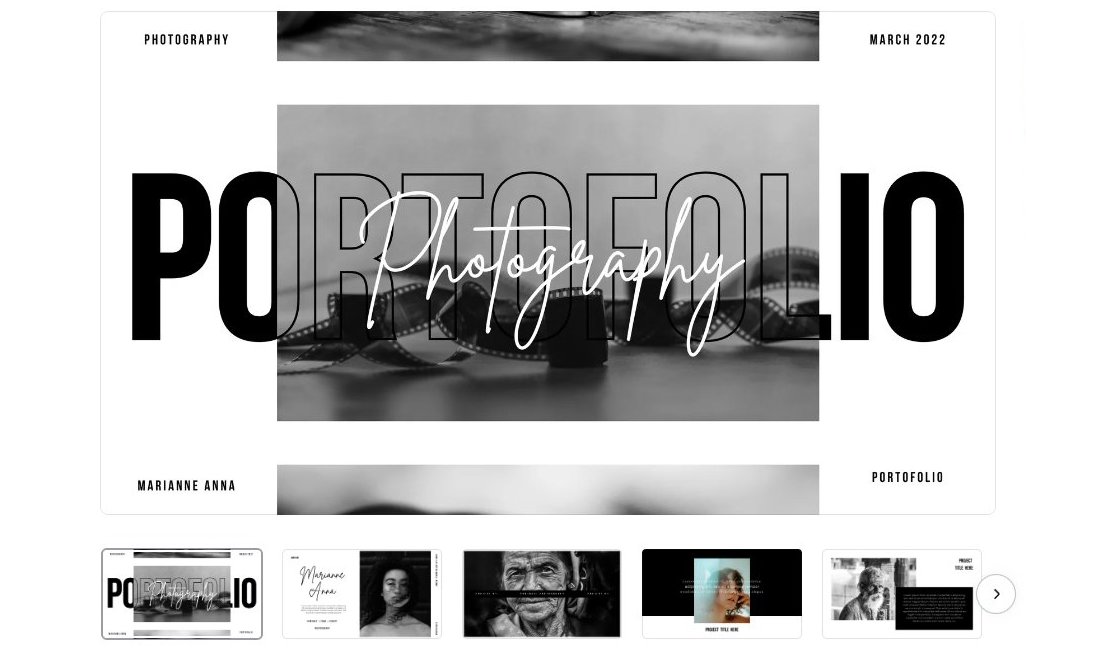
You can use this Canva presentation template to showcase your portfolio like a true professional. It’s designed with photographers in mind but you can use it to create portfolio presentations for designers and artists as well. The template uses a minimal black-and-white design across all slides with space for adding images.
History Class Education Canva PowerPoint Templates
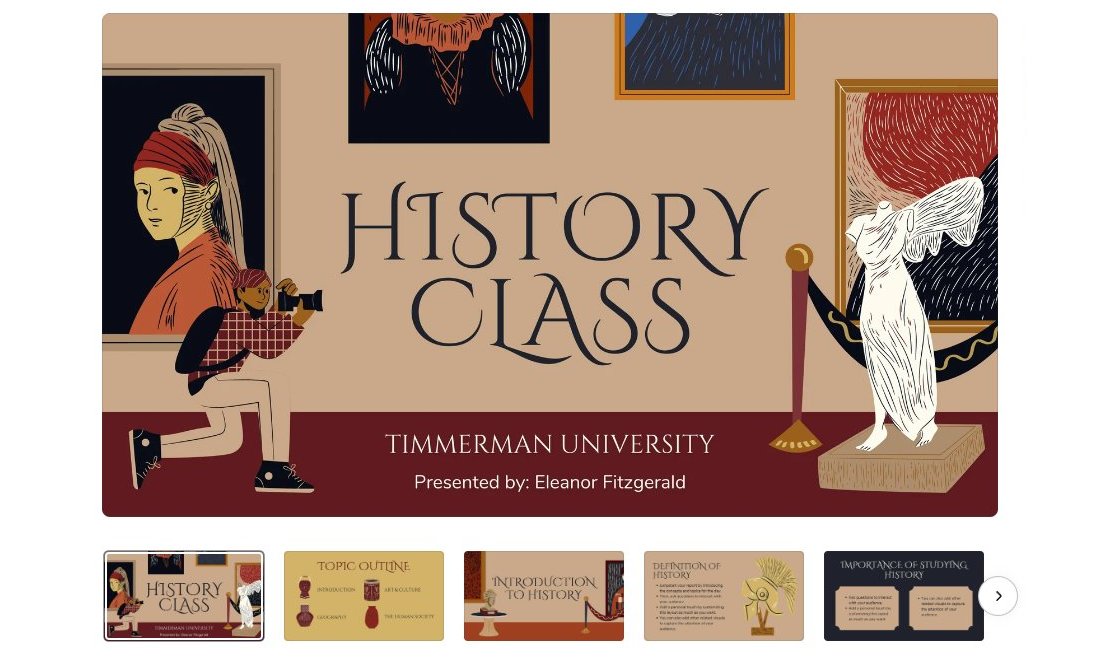
This Canva slide template comes filled with beautiful colors and creative illustrations to help you design more interesting educational slideshows. It’s especially ideal for creating history-themed slideshows for your school presentations. There are more than 20 slides in this template with fully customizable layouts.
Digital Marketing Presentation Canva Presentation Templates
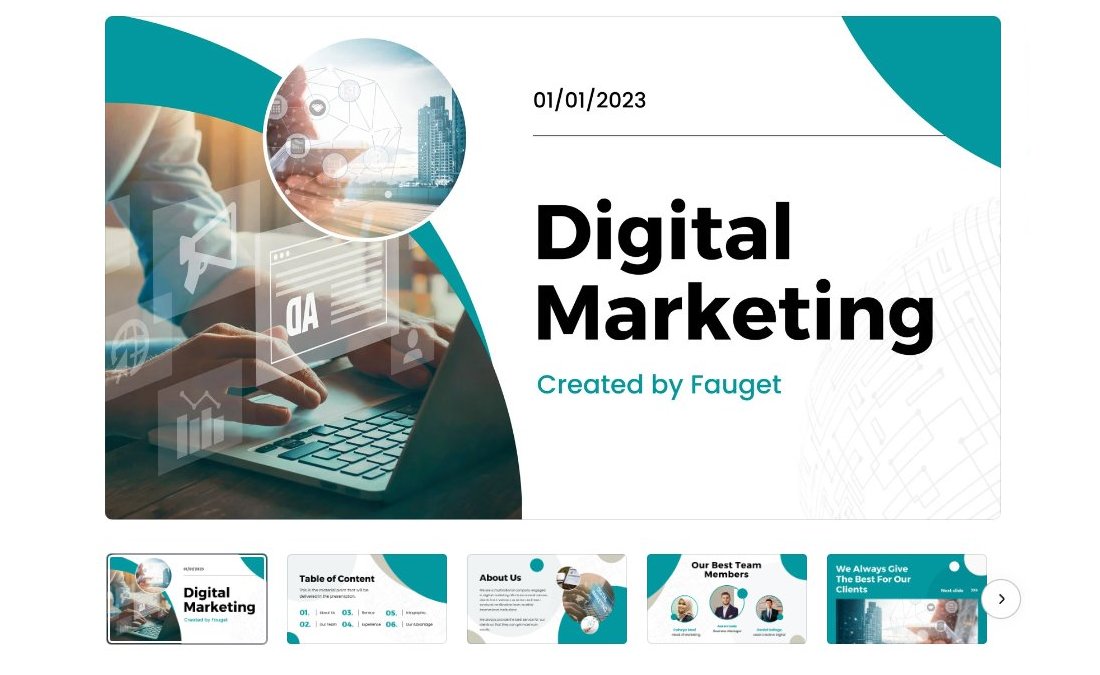
With this presentation template, you can make simple yet professional-looking slideshows for all kinds of digital marketing presentations. It comes with a technology-themed slide design with lots of stylish shapes, images, and objects to give you a head start in your presentation design. The slides include animations and transitions as well.
Playful Education Presentation Canva PPT Templates
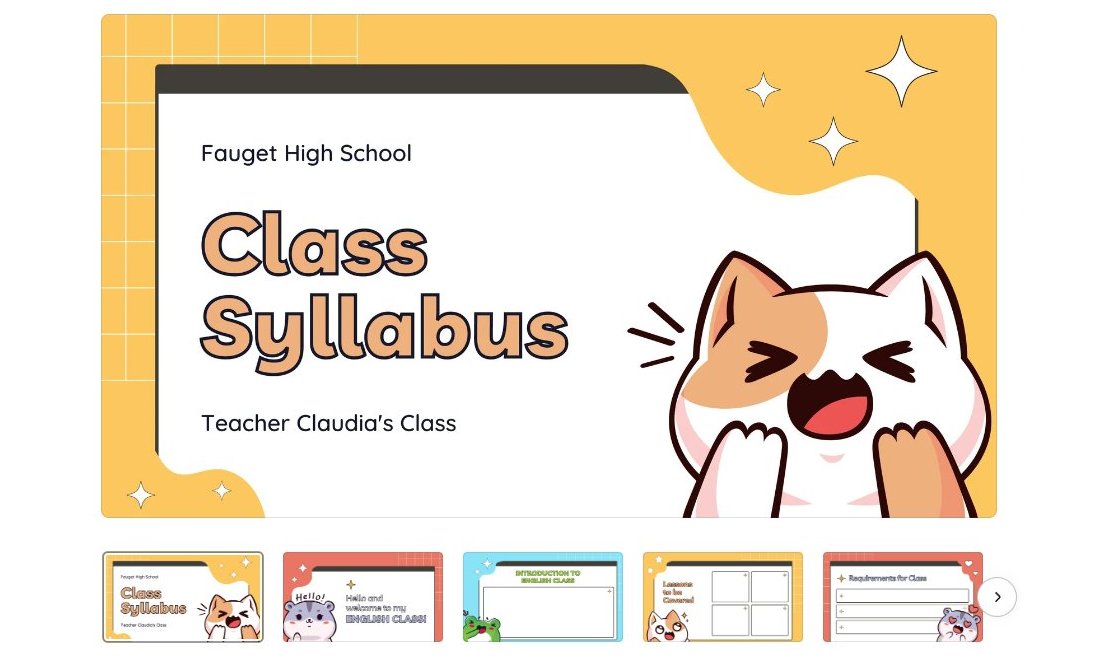
The playful and fun design of this Canva presentation template makes it the perfect slideshow for creating educational lessons for kids. There are lots of colorful slides in this template with customizable layouts. Each template has adorable animal characters to make them appeal to children too.
Beige Creative Portfolio Canva PowerPoint Templates
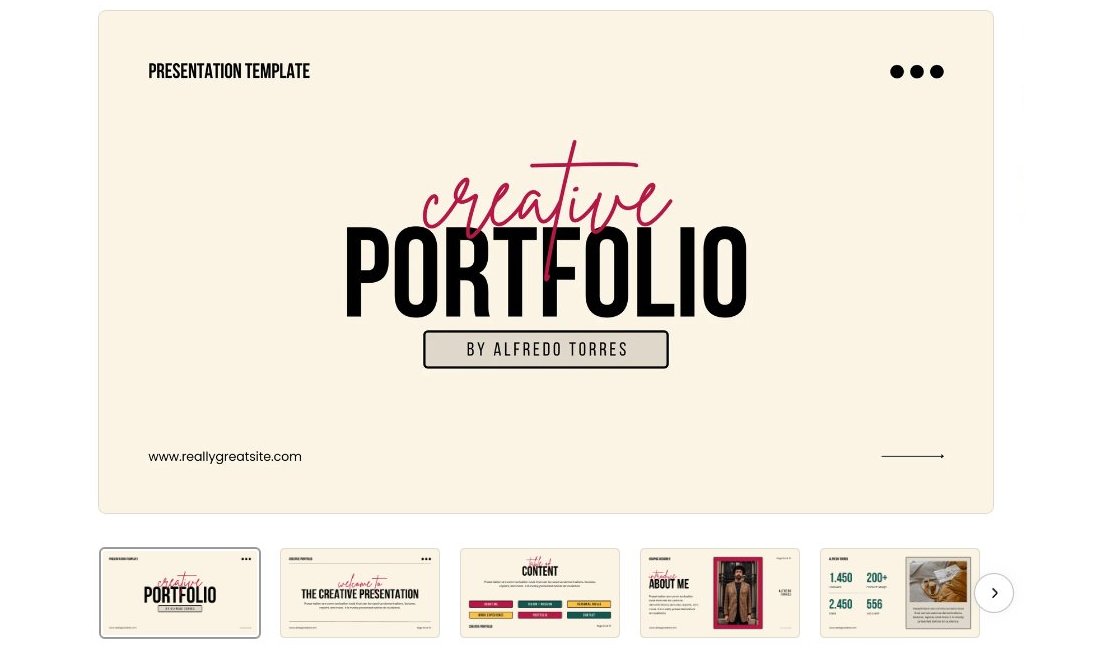
If you’re a freelancer or creative professional looking for the perfect portfolio presentation to promote your skills and services, this Canva slide template is for you. It features a stylish beige color theme with beautiful fonts and a content layout that instantly grab attention. Of course, you can customize the colors, fonts, and images to your preference as well.
Modern Technology Presentation Canva PPT Templates

This Canva presentation template comes with a modern design for making presentations on technology-themed topics. It’s especially great for giving presentations on artificial intelligence, metaverse, and other innovative tech topics. The template includes lots of creative shapes, illustrations, and elements too.
Illustrated Business Marketing Canva Presentation Template
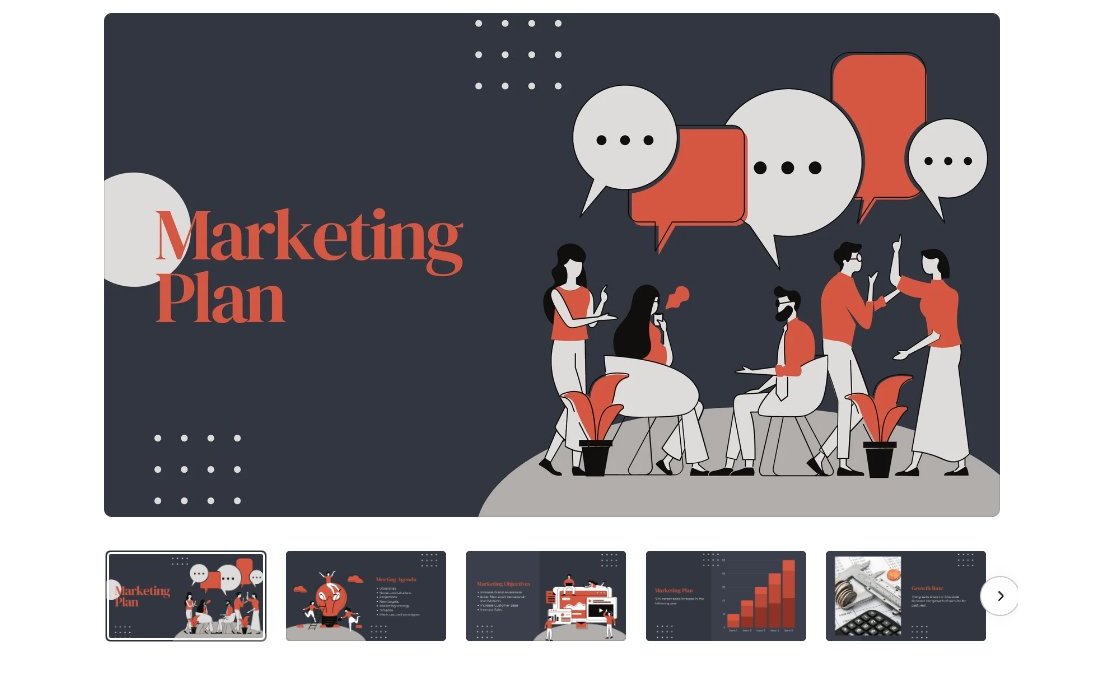
Using this Canva template, you can create a stylish marketing plan to showcase your process for marketing campaigns. It features a dark color theme that allows you to easily highlight specific parts of your slideshow. The template has lots of space for including images, icons, and illustrations.
Comparison Chart Presentation Canva PowerPoint Templates
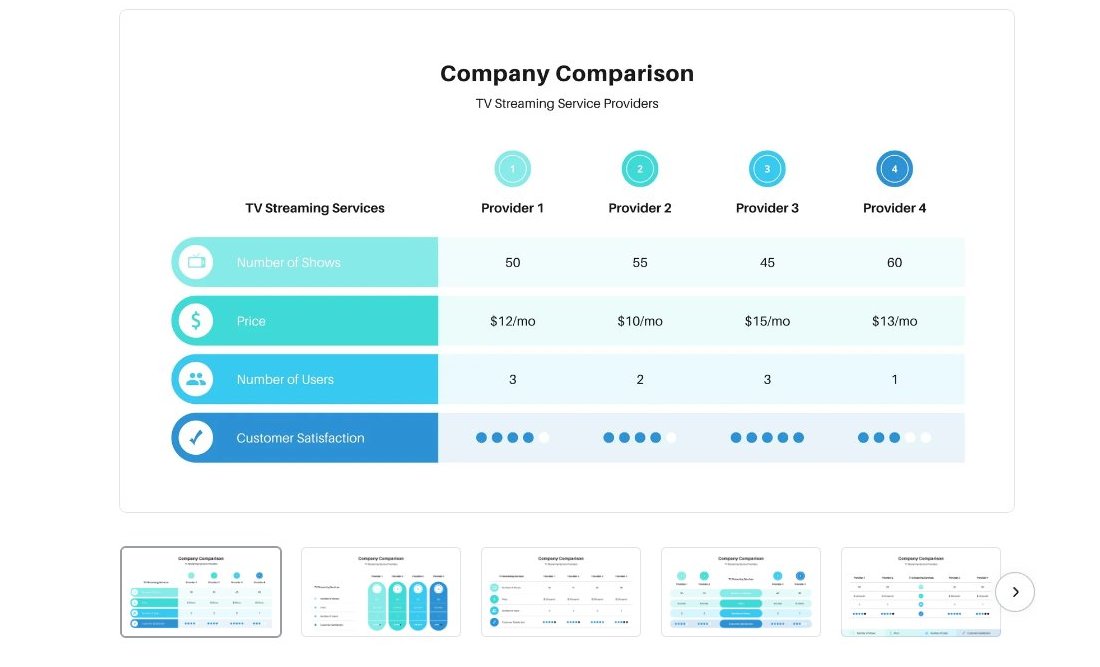
Whether you want to compare the pricing plan, create product comparisons, or even compare your product to competitors, this Canva presentation template has lots of different comparison chart slides for you to choose from. They have beautiful designs and are also easily customizable.
Photo Collage Business Presentations Canva Slide Template
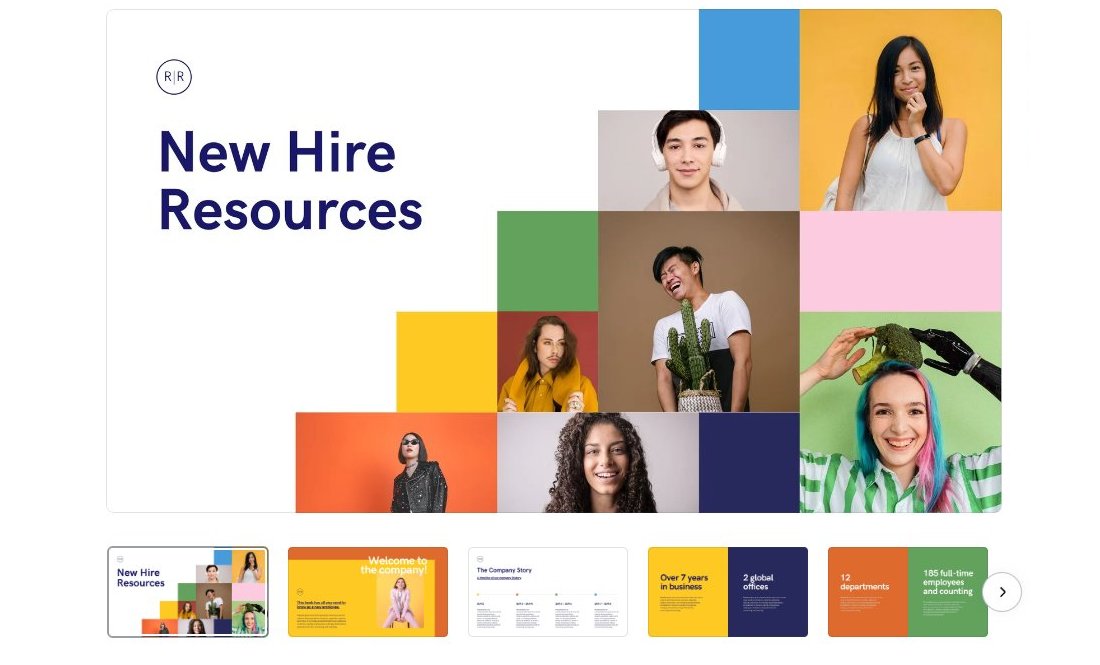
This presentation template is made for welcoming new employees and team members to your company. It’s great for creating a casual and friendly onboarding presentation for new employees. The template has lots of colorful and modern slides with photo collages to make each slide more effective.
Modern Digital Marketing Canva PowerPoint Templates
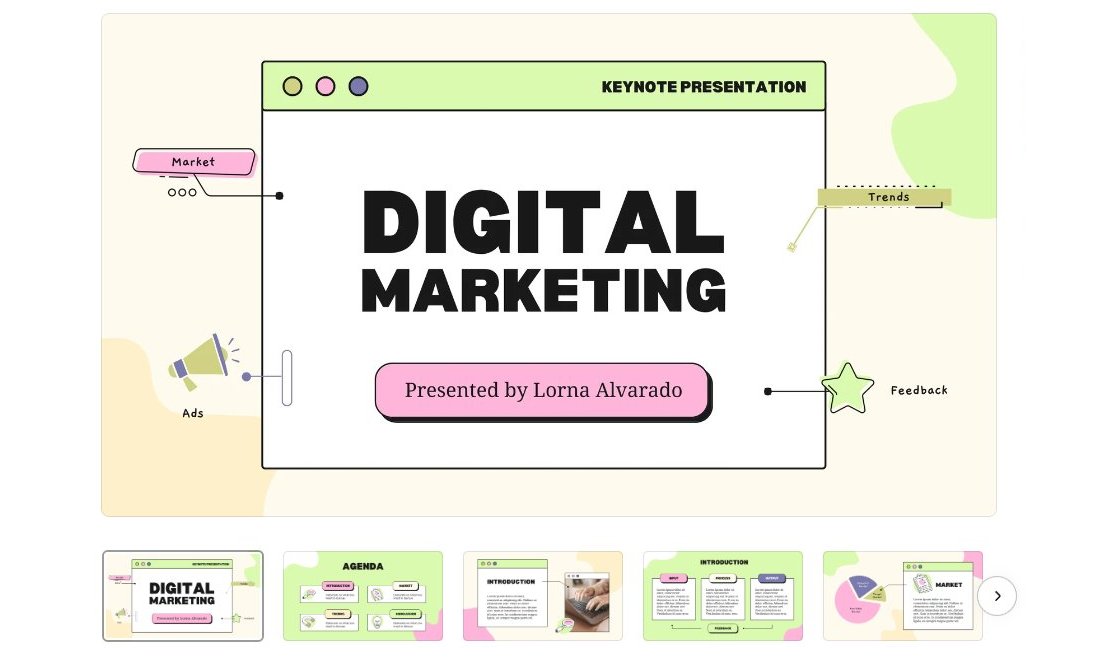
You can use this Canva slide template to create playful slideshows for your digital marketing presentations. It features colorful and cute slide layouts with lots of abstract shapes, creative objects, and icons. The template is especially great for making marketing campaign slideshows for feminine and fashion brands.
Back To School 3D Presentation Canva Slide Template

This is one of the most creative presentation templates on our list. It features cool 3D illustrations throughout all of the slides to make each slide more fun and attractive. This Canva slide template is made for school and educational presentations, especially for making back-to-school slideshows.
Geometric Digital Marketing Plan Canva Slide Template
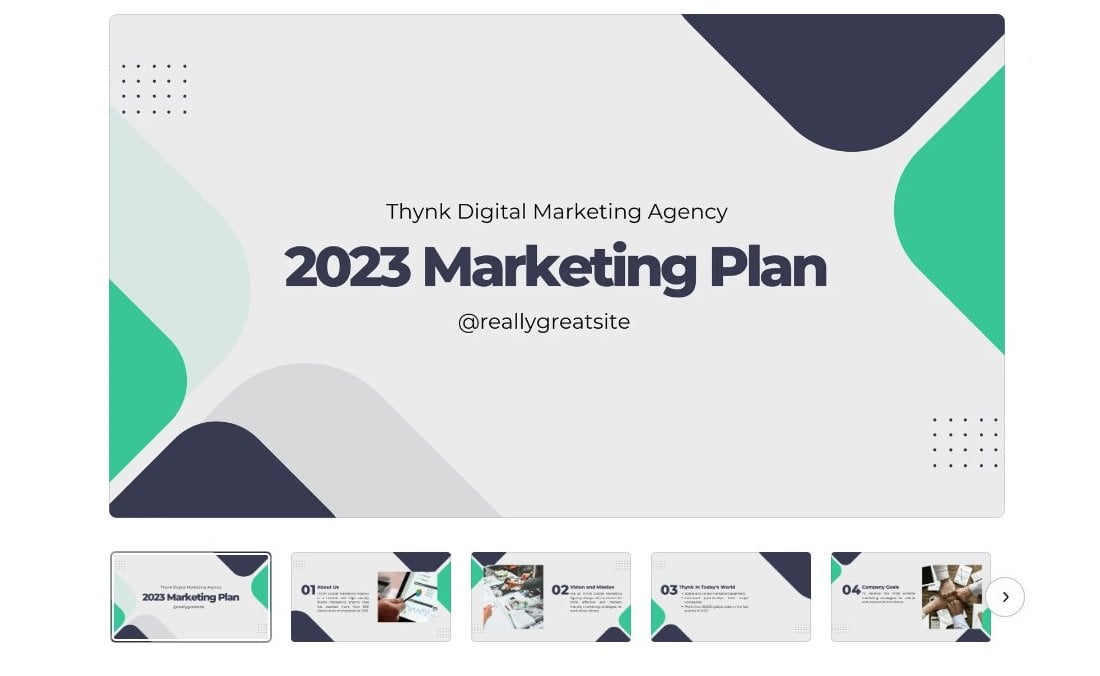
Creating a marketing plan presentation for the next year won’t take too much time when you have this Canva slide template at your side. It includes 10 different slide layouts that you can fully customize to your preference to make a modern presentation for digital marketing agencies.
Casual Fashion Presentation Canva PPT Template
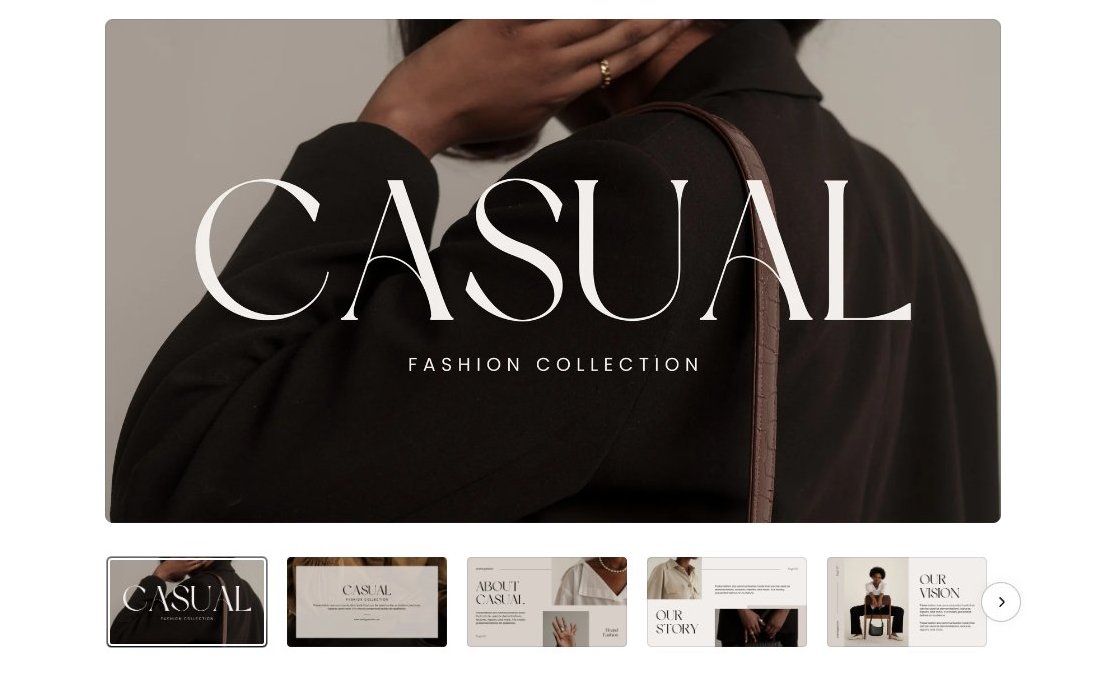
The elegant and stylish slides of this Canva presentation template make it most suitable for creating slideshows for high-end fashion brands and luxury businesses. It’s great for showcasing your latest product lineups as well as for promoting your company.
Elegant Portfolio Canva Presentation Template
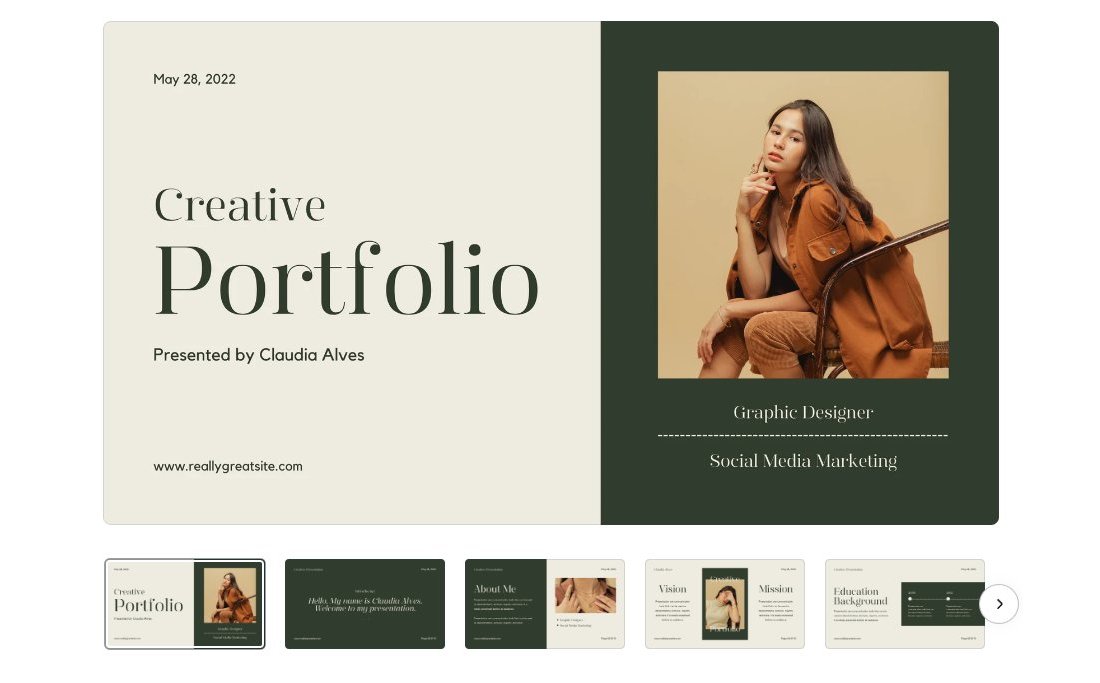
This Canva slide template is perfect for freelancers, designers, photographers, and many other types of professionals for making portfolio presentations that stand out from the crowd. It features elegant slide layouts with beautiful colors, stylish fonts, and shapes. There are 10 unique slides in the template.
Social Media Report Canva PowerPoint Templates
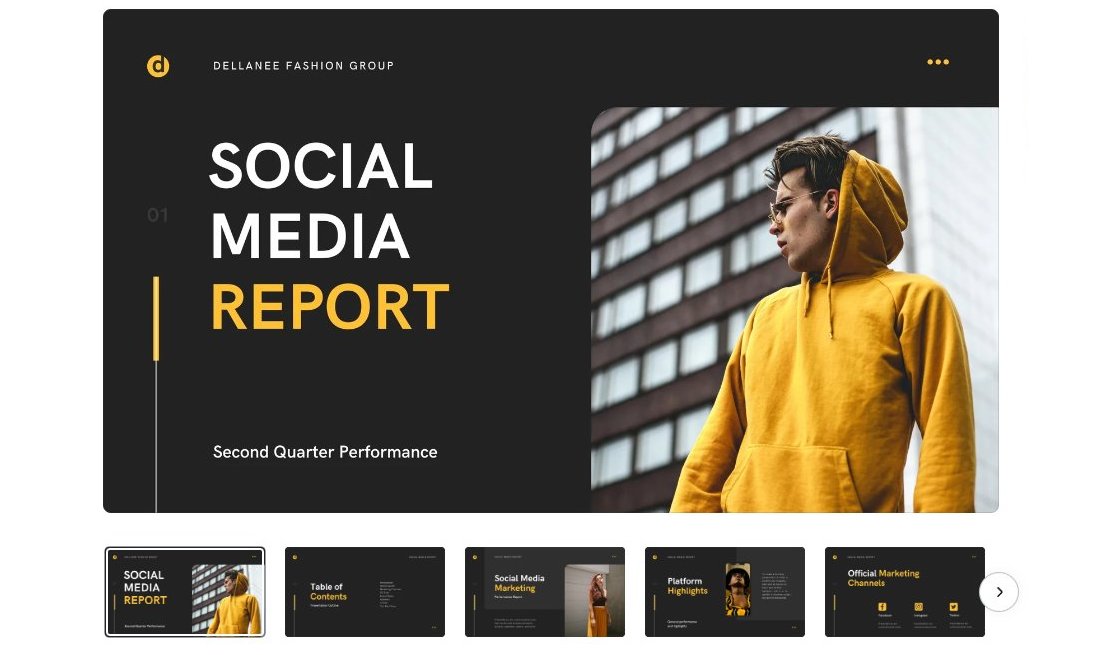
A must-have presentation template for social media marketing agencies. With this template, you can create modern and attractive social media reports to accompany your marketing campaigns or even show the results of your marketing efforts. The template has lots of colorful slides with stylish layouts.
Creative Marketing Agency Presentation Canva PPT Template

You can use this Canva slide template to create clean and modern slideshows for your marketing-themed presentations. The template features bright colors with minimal slide layouts to effectively highlight your content above all else. There are 10 unique slide designs included as well.
Blue Pie Chart Presentation Canva Slide Template
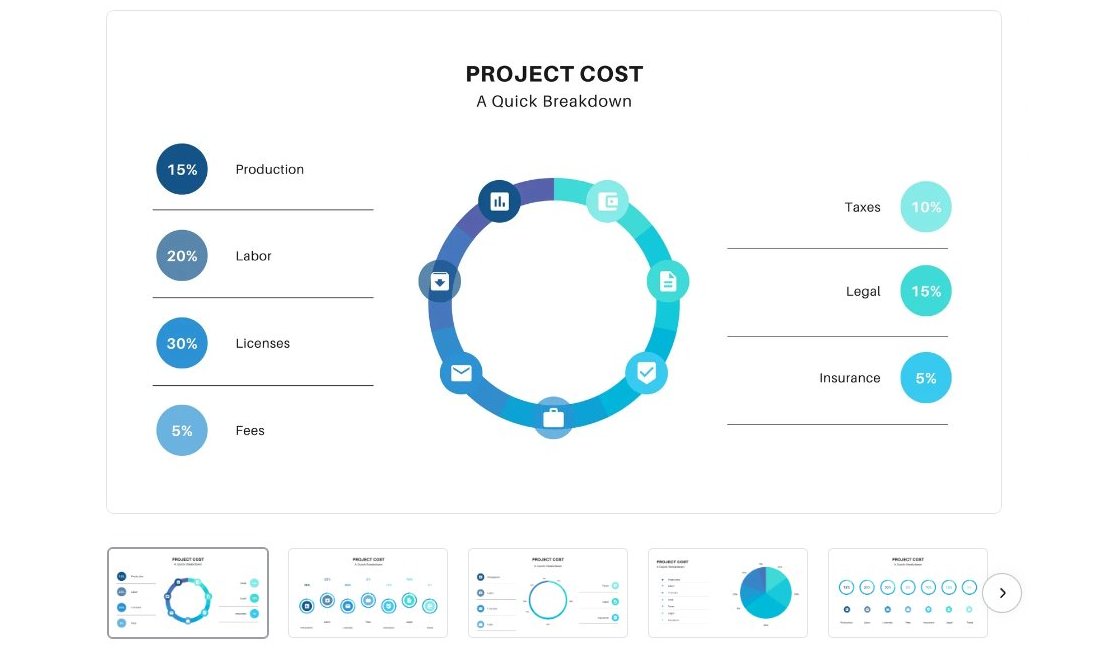
Charts and graphs are an important part of every business presentation. With this Canva slide template, you’ll get access to some useful pie chart slides to use in your presentations. Each slide features a different pie chart design with fully customizable elements. If you’re looking for an affordable way to make a presentation using a free app, Google Slides is another great alternative you can use. It’s free and works online. Explore our Google Slides templates collection to find a cool theme design.
PowerPoint Templates
Microsoft PowerPoint (PPT) is the go-to choice for creating presentations. This series shares tips and ideas for working with PowerPoint, as well as beautiful PowerPoint templates and themes to make your presentations look stunning. Read the Feature →
Feature
PowerPoint Templates
PowerPoint Tips & Guides
- How to Design a Pro Presentation
- Keynote vs PowerPoint: Which to Choose?
- How to Embed a YouTube Video
Can You Edit and Present Canva Slides in PowerPoint?
Opening a Canva presentation in PowerPoint? Yes, it’s possible. Here’s how to pull it off.
Published May 13, 2022 By Jim Stonos Categorized as Canva, UX & Design
Until recently, Microsoft PowerPoint was the only decent presentation design app you could use for school assignments, startup pitch decks, or your company’s annual investor report.
But not anymore!
Canva came along and—with presentation templates you’ll actually want to use and access to millions of royalty-free stock photos, videos, and design elements—it stole the show.
And yet not everyone has Canva. And you can’t use it from every computer, especially in a corporate setting or if you don’t have a reliable Internet connection.
Did you know that you can download your Canva slide deck in PPTX format so that you can view, edit, and present it in Microsoft PowerPoint?
This tutorial will show you how to do this in just four steps, with screenshots.
How to Download Canva Presentation as a PowerPoint File
Step 1: Open your Canva presentation, then click on the “Share” button in the upper right corner of the screen.
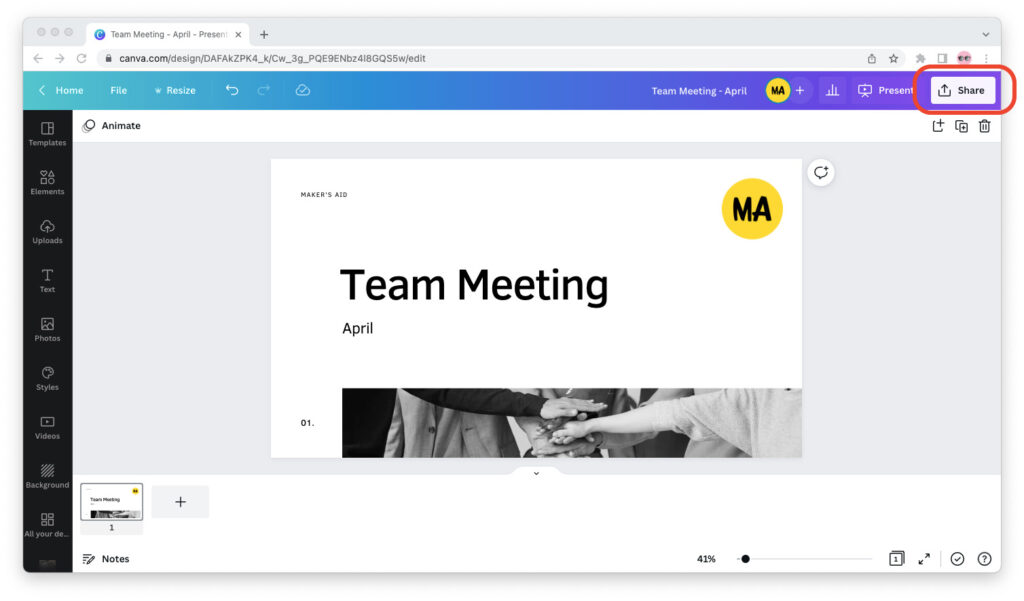
Step 2: The “Share this design” menu will pop up. Scroll down to the bottom of the menu and click “More.”
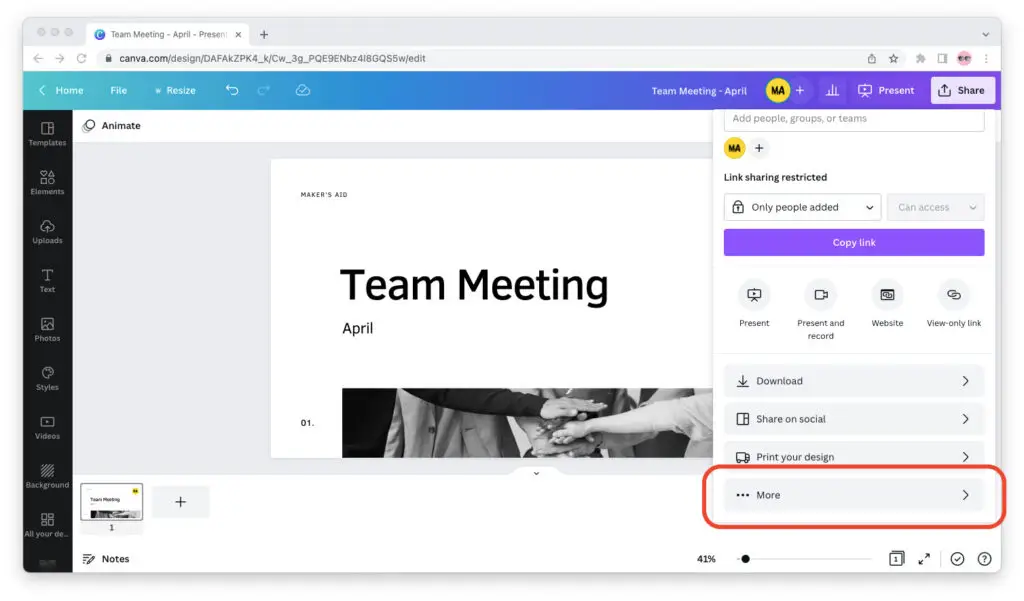
Step 3: Scroll down until you can see “Microsoft PowerPoint” under “Save.”
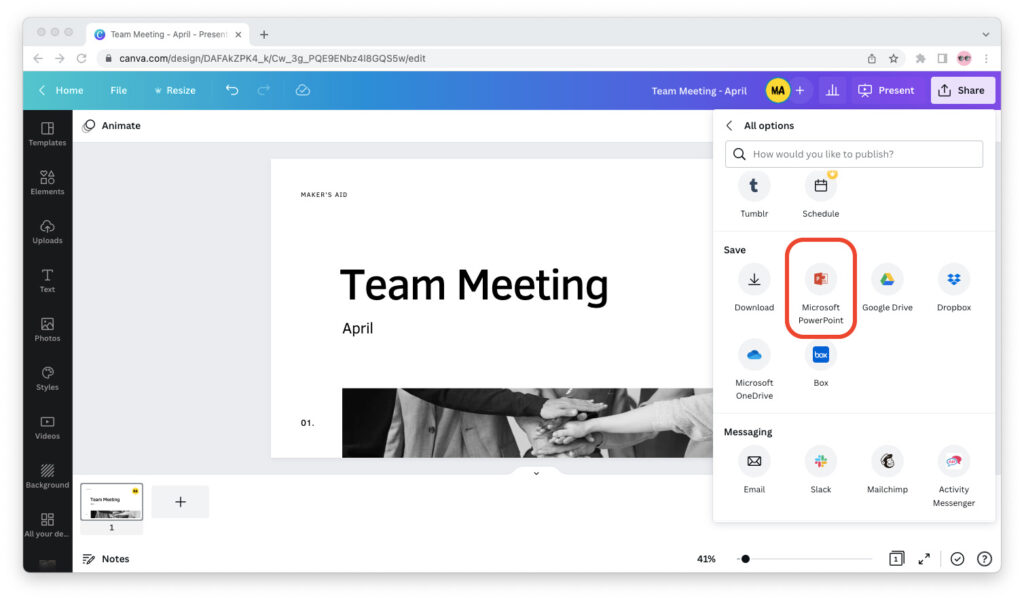
Step 4: Click on “Microsoft PowerPoint,” then select “Download.”
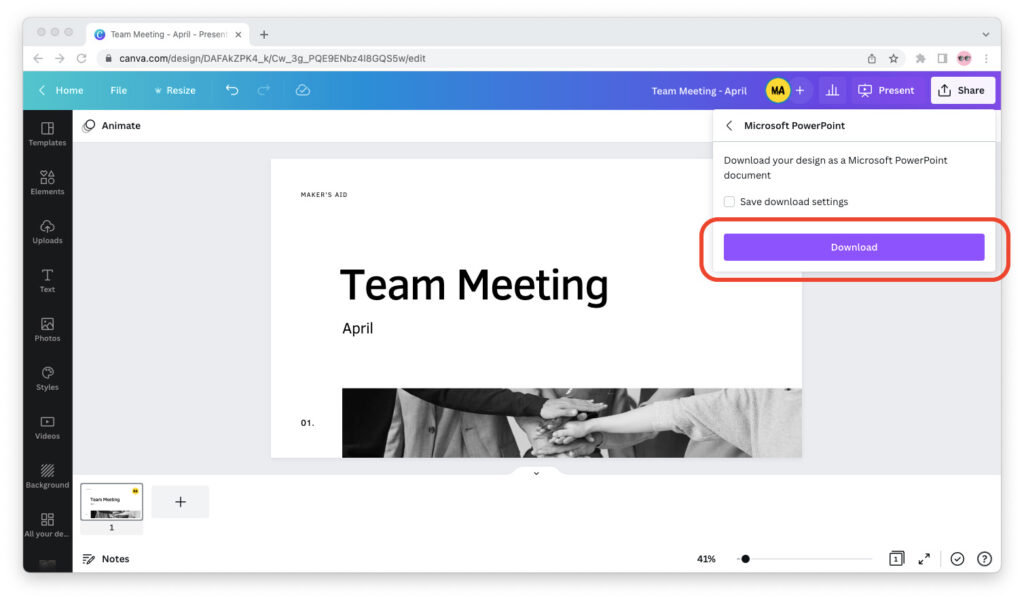
Once you go through these steps, you’re all set!
The Canva presentation will download to your device as a PPTX file. You can view, edit, and present this PPTX file from Microsoft PowerPoint on your computer.
If the fonts you used in Canva are not installed on your computer, remember that Microsoft PowerPoint must replace them with other fonts when you open the deck.
So if you have to present on a device that doesn’t have Canva and you want to keep your fonts, you can export the presentation in PDF format. You will, however, have to forgo slide transitions and animations.
Can You Present From Canva?
If you created a presentation in Canva, you can present it from Canva to your device.
Open the presentation in Canva, click on the “Present” tab in the upper right corner, then select the type of type of presentation you’d like to make and click on the purple “Present” button.
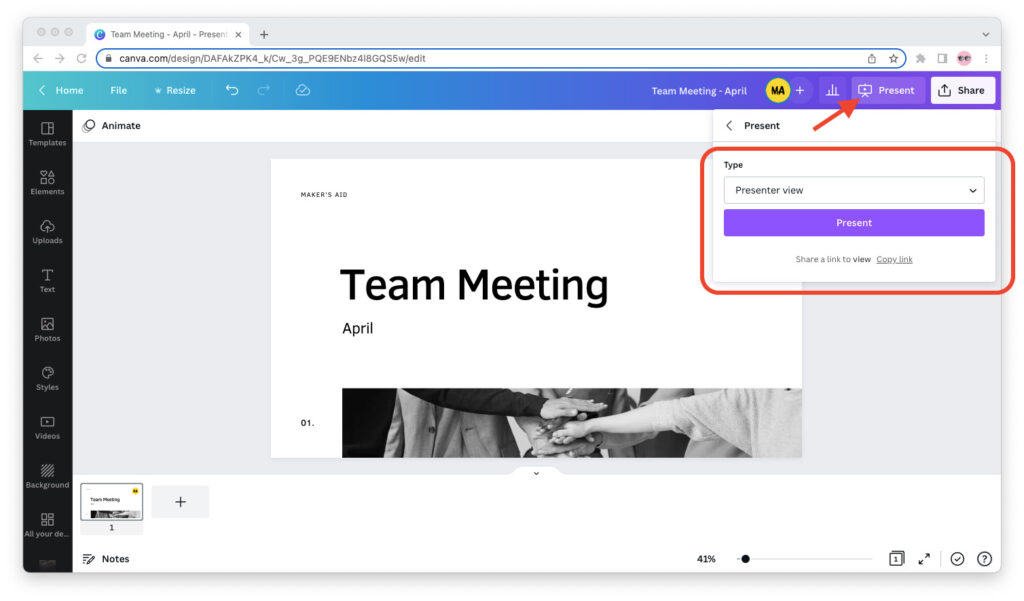
To be able to present on Canva, your device must be connected to the Internet.
You can choose from three presentation modes in Canva:
- Standard mode, which expands your slides to full screen and lets you switch between them at your own pace.
- Presenter view mode, which lets you view your presenter’s notes and get a sneak peek into the upcoming slides.
- Present and record mode, which lets you record yourself as you present.
As long as the device you’re presenting on has Internet access and you can use Canva on it, presenting your slide deck directly from Canva is your best option.
Final Words
Yes, you can view, edit, and present Canva slide decks in PowerPoint. To do this, simply download the Canva presentation as a PPTX file and open it in PowerPoint.
Leave a comment Cancel reply
- How to Make Canva Background Transparent July 16, 2023
- How to Wait for an Element to Exist in JavaScript July 13, 2023
- How to Check If a Function Exists in JavaScript July 13, 2023
- How to Remove Numbers From a String With RegEx July 13, 2023
- How to Check If a String Is a Number in JavaScript July 13, 2023
About
We publish growth advice, technology how-to’s, and reviews of the best products for entrepreneurs, creators, and creatives who want to write their own story.
Disclaimer
Maker’s Aid is a participant in the Amazon Associates, Impact.com, and ShareASale affiliate advertising programs.
These programs provide means for websites to earn commissions by linking to products. As a member, we earn commissions on qualified purchases made through our links.
Explore
Tools
Copyright © Maker’s Aid, 2020 — 2023
Manage your privacy
To provide the best experiences, we and our partners use technologies like cookies to store and/or access device information. Consenting to these technologies will allow us and our partners to process personal data such as browsing behavior or unique IDs on this site and show (non-) personalized ads. Not consenting or withdrawing consent, may adversely affect certain features and functions.
Click below to consent to the above or make granular choices. Your choices will be applied to this site only. You can change your settings at any time, including withdrawing your consent, by using the toggles on the Cookie Policy, or by clicking on the manage consent button at the bottom of the screen.
Functional cookies Functional cookies Always active
The technical storage or access is strictly necessary for the legitimate purpose of enabling the use of a specific service explicitly requested by the subscriber or user, or for the sole purpose of carrying out the transmission of a communication over an electronic communications network.
Preference cookies Preference cookies
The technical storage or access is necessary for the legitimate purpose of storing preferences that are not requested by the subscriber or user.
Statistics cookies Statistics cookies
The technical storage or access that is used exclusively for statistical purposes. The technical storage or access that is used exclusively for anonymous statistical purposes. Without a subpoena, voluntary compliance on the part of your Internet Service Provider, or additional records from a third party, information stored or retrieved for this purpose alone cannot usually be used to identify you.
Advertising & marketing cookies Advertising & marketing cookies
The technical storage or access is required to create user profiles to send advertising, or to track the user on a website or across several websites for similar marketing purposes.
20+ Best Free Canva PowerPoint PPT Presentation Templates to Download 2022
Do you have an important business presentation coming up? Where should you start? A great place to start is with Canva PowerPoint templates.

How should you distribute everything into slides? How do you make sense of all the information you want to present to your audience? Get help from design professionals.
PowerPoint presentation templates on Canva are fun and easy to use. Fill in the blanks and add your images, colors, and information. Find a Canva PPT template for free download that features the elements you need. The best part: you can work with a Canva presentation template for free!
Benefits of Working With Pre-made Templates for Professional Presentations
Phil Waknell is an expert in the art of presenting. In his TED Talk, Waknell shares three magic ingredients for good presentations:
- Tailor the content to your audience.
- Share examples of why YOU care about the topic you’re presenting.
- Change how your audience feels. Offer actionable insights for your listeners to take with them.
Focus on your content. Leave the design aspect of your presentation to the experts.
To do this, focus on what you’re going to say. Most free Canva PowerPoint templates have enough slide designs for your content. So, here are three key benefits of working with pre-made templates:
- Focus on the quality of your content. Good design takes time. An outstanding presentation has well-designed slides. Free Canva PowerPoint templates take care of that aspect. You’ll just need to add your content to the template.
- Improve the impact of your messages. It’s true. A bad presentation could hurt your message. Canva PowerPoint templates come with plenty of slide designs. Choose the one that best presents each of your key messages.
- Visuals are taken care of. A good presentation has a visual impact. Writing and designing content for a presentation are time-consuming jobs. A Canva PPT template for free download comes with graphic elements. Customize these to match your branding and content.
You’re now one step closer to creating amazing presentations. Download a template Canva PPT. Start creating your next business presentation!
20+ Top Free Canva PowerPoint PPT Presentation Templates to Download (2022)
Are you wondering how to create an outstanding presentation? PowerPoint presentation templates on Canva have the answer.
To find the Canva free resume templates, check the Free box under Price on the left side of the Canva search results.
We’ve selected 20+ professional Canva presentation templates for you! Choose the one that best matches your needs:
1. Modern Gradient Elements Marketing Proposal Slide Deck Presentation

Are you in marketing? Consider making a visual impact. This free template PPT Canva is for you!
Present your data over a cool gradient purple background. This Canva PowerPoint template has a great design. It includes introduction and competitor analysis slides. It’s 100% customizable and comes with cool animations and transitions.
2. White Blue Green and Yellow Photo Collage Modern New Hire Resources Company Presentation

Are you looking for a dynamic Canva PPT template for free download? This download template Canva PPT comes with plenty of slide designs.
Use this free template PPT on Canva for onboarding presentations. Create contrast between slides. Play with color blocks and white backgrounds. Try out this Canva presentation template for free!
3. Green and Orange English Class Minimalist Lesson Presentation

If you’re into mind mapping, try this Canva presentation template for free. Keep a strong focus on text with its unique fonts. Create contrast between each slide by transitioning from green to yellow. It’s perfect for organic products, class presentations, or team brainstorming.
4. Pink Illustration English Class Canva PPT Template Free Download

This is a great choice for teachers looking to improve the learning experience. Present your lecture in a fun and simple way.
This is one of the free Canva PowerPoint templates that come with illustrations. Use them to engage your students with images. It’s a lovely free template PPT Canva to show your students.
5. Blue Modern Company Profile Canva PowerPoint Template

Create a professional company profile. Download this template Canva PPT, add your content, and impress potential investors.
It comes with enough slide designs for you to place your information. PowerPoint presentation templates in Canva like this one are great for startups. This download features charts, graphs, and image placeholders.
6. Cream Minimalist Photography Canva Presentation Template for Free

Are you a freelance photographer looking for new business? This minimalist Canva presentation template for free is a great choice. Distribute your most representative work to impress potential clients.
You’ll find a table of content slide as well as a blank space for quotes. Keep things simple and visual with this Canva PPT template.
7. Elegant and Professional Company Business Proposal Presentation

Are you looking for business model Canva PowerPoint templates? A powerful business proposal presentation could open doors for your company.
This elegant Canva PPT template is a great way to get a foot in the door. Introduce your team and values with clean slide designs. Canva free PowerPoint templates like this one are perfect for entrepreneurs.
8. Dark Blue Geography and Culture Education Canva PPT Template

Illustrations are a great way to represent ideas visually. This Canva presentation template for free comes with a set of icons. Distribute them through your presentation.
Create cohesive and interesting slides with this free template PPT from Canva. Go for an outstanding Canva PPT template free download like this one.
9. Modern Gradient Shapes Proposal Slide Deck for Marketers Presentation

A good proposal must leave the audience with a strong message. This social media marketing free template PPT Canva is a great place to start. It includes index slides to present your content.
Create contrast between white and purple background slides. Keep your audience engaged and organize your info in a clean and coherent way. Work with one of the best C anva PowerPoint templates!
10. Yellow & Black Modern Company Profile Presentation

Yellow and black are great contrasting colors to use for a presentation. Create a company profile with modern free Canva PowerPoint templates like this one. Place your content in a clean way using the slide design as a guide.
This Canva presentation template for free comes with image placeholders. You’ll also find charts and simple icons. It’s ideal if you’re looking for business model Canva PowerPoint templates.
11. Modern Minimalist Black and White UX UI Report Basic Presentation

Are you looking for a simple and clean final group project presentation? This modern Canva PPT template free download is a great choice.
Black and white Canva PowerPoint templates keep the focus on the content. Present your teammates and introduce the project. You can also use graphs and charts to show progress.
12. Blue Simple Medical Clinic Canva Presentation Template Free

This is a great free template PPT on Canva for a medical clinic. Present your added value and medical services in a clean layout. Use images with faces to show the humane side of your practice.
Are you in the medical industry? Start working with this Canva PPT template free download!
13. Yellow and Purple Corporate Teamwork Keynote Presentation

Are you looking for a corporate presentation with a fun twist? Free Canva PowerPoint templates like this one are a great place to start. Work with fun and simple illustrations to visualize your ideas. Engage your audience with this Canva PPT template free download.
14. Beige and Green Minimal Modern Fashion Canva Presentation Template for Free

Modern, classy, and elegant—this is all you need in a template. If you’re in the fashion industry, this Canva PPT template is for you. This clean design features graphic elements and transition effects. Create engaging slideshows with this free template PPT on Canva. Start working with this Canva presentation template for free!
15. Soft Cream Black Simple Minimalist Travel Plan Korea Presentation

If you like simplicity in design, this template is for you. Create a cohesive travel plan with this free template PPT on Canva.
All slides are designed to keep the focus on the content. Use big images for visual impact. PowerPoint presentation templates on Canva like this one work for different purposes.
16. Blue Modern UI Window Digital Agency Marketing Portfolio Presentation

Are you into monochromatic design? This Canva PowerPoint template is a good fit. Add your content into its clean yet unique layout.
This is great for anyone working in marketing or creative agencies. Canva PowerPoint templates like this one are full of personality. Tell your audience exactly who you are with this Canva PPT template.
17. Blue Professional Finance Free Template PPT on Canva

Most Canva PowerPoint templates come with a variety of slide designs. This is no exception.
Replace text and images with your content. Show what your business is about with clean slides. Use charts, graphs, and timelines to structure your information. It’s great if you’re looking for business model Canva PowerPoint templates.
18. Beige Minimal Creative Portfolio Canva Presentation Template for Free

Are you a creative looking for freelance opportunities? Work with this beige Canva presentation template for free. Replace placeholders with your information. Use the contrasting yellow, green and red colors. Create visual impact and highlight key information.
This is one of the best Canva free PowerPoint templates you’ll find.
19. Blue Modern Technology Business Canva PowerPoint Template

Are you looking for business model Canva PowerPoint templates? This is one of the best Canva free PowerPoint templates.
This Canva PPT template comes with a fresh and dynamic design. Introduce your company and share your values. Start creating your next business presentation!
20. Green Minimalist Nature Free Canva PowerPoint Templates

Are you looking for a minimal and nature-inspired template? This download template Canva PPT is the right fit.
Some PowerPoint presentation templates on Canva come with background images. This is one of them. Add your text and let images speak for themselves. This Canva PowerPoint template is perfect for nature-related slides.
21. Green and Blue Geometric Business Progress Report Sustainable Development Goals Presentation

Are you a sustainability advocate? This free template PPT on Canva is for you. Present your data and case studies.
This download template Canva PPT features a beautiful design. Impress your audience and strive for change. This Canva PPT template free download is a great place to start.
22. Black and White Green Blue Basic Flow Chart Brainstorm Presentation

Last but not least! This is a clean and fun Canva presentation template for free.
If you’re into the iOS UI design aesthetic, this is a good choice. Find plenty of clean and dynamic slides to add your info.
Illustrated Canva presentation templates like this one keep the audience engaged. Start playing with this Canva presentation template for free!
5 Quick Tips To Make Great PowerPoint Presentations Fast
You just saw some options for choosing a favorite Canva presentation template for free. Now, let’s look at some quick tips for PowerPoint presentations.
Customize Canva PowerPoint templates to make them look unique. Keep your audience engaged by following these quick tips:
1. Keep Text to a Minimum
Simplicity is the answer. Present your ideas in a simple and concise way. Forget about overcrowded slides with text. That’ll only get you to lose your audience’s interest. Reduce the amount of text you add to your Canva PPT template. Focus on visual content when customizing your Canva presentation template for free.
People remember strong images paired with your key ideas.

2. Tailor Content to Your Audience
The first thing to consider when creating a presentation is who you’ll be talking to.
- Are they young or mature?
- How much do they know about the topic you’re presenting?
- Is your audience tech-savvy?
- What would you like to leave them with after the presentation?
These are just some of the questions you’ll want to answer as you choose a Canva PowerPoint template that’s appropriate for your audience.
3. Add Images and Videos

According to HubSpot, 43% of people want to see more video content from marketers.
Illustrate ideas and theories in a visual way. Multimedia content is always a great visual aid in presentations. Capture and maintain your audience’s attention with videos and images. Some free Canva PowerPoint templates already come with useful images and icons.
4. Export Your Canva Presentation to PowerPoint
It’s quite easy to save Canva presentation templates as a PowerPoint.
First, customize your Canva PPT template. Then, go to the top right corner and click on the dropdown button next to Present. Select Microsoft PowerPoint.
And that’s how you download your Canva presentation templates. Follow this quick tutorial on Canva for more guidance.
5. Duplicate Slides to Save Time

There’s nothing wrong with using the same design for different slides. Save some time customizing your free template for PPT on Canva.
- Choose a versatile Canva PowerPoint template.
- Duplicate some slides to present different information.
- Then adjust each slide for your needs.
Learn More About Making Great PowerPoint Presentations in 2022
Now you’ve got plenty of Canva PowerPoint templates to choose from. Making amazing presentations takes practice. Follow our tutorials on How to Use PowerPoint. Learn more tips and tricks to become a pro. Check out these quick tutorials:


How to Quickly Make Simple PowerPoint Presentations


Andrew Childress
05 Jan 2022


15 Pro Tips to Design a Good (Vs Bad) PowerPoint (That Doesn’t Suck)


Brenda Barron
09 Jan 2022


How Do You Make Business Plan PowerPoint Presentations With PPT Templates? (+Video)


Julia Melymbrose
21 Jun 2022
Start Creating Inspiring Presentations!
You’ve got all the tips and resources you need for your next presentation. Save some time working with Canva PowerPoint templates. Focus on your content and land your next business opportunity. PowerPoint presentation templates on Canva come in different shapes and forms. Choose the one that best matches your needs and style.
You’re one step closer to creating your next mind-blowing presentation. Free Canva PowerPoint templates are a great place to start.
Advertisement
Did you find this post useful?
Want a weekly email summary?
Subscribe below and we’ll send you a weekly email summary of all new Business tutorials. Never miss out on learning about the next big thing.
.jpg)
Associate Business Editor
Jan is a writer and editor focused on storytelling and information architecture. She loves long walks, museums, sound art and early morning reads next to her dog.