
Если вы хотите удалить то удаляем от
, или же просто меняем текст на нужный.
- Главная страница
- Добавляем гривну в opencart

- Как убрать «Архивы» из названия страницы категорий
- Размеры баннеров популярные
- Новое правило в Google Рекламе запрещает…

How to Remove Archives from HTML Titles in WordPress
You may have noticed that your HTML title includes the word ‘archives’ in your archive page titles in Google search results. In this blog post, we’ll guide you through the steps to remove archives from HTML titles in WordPress.

However, before we proceed further, let us understand what archives in WordPress are. An archive is a collection of WordPress posts based on a commonality. That is to say, different WordPress posts will appear in groups based on what they have in common. These commonalities can include Tags, Dates, Categories, and Post types. Archives also simplify the process for users to access all posts with something in common. When you have the Yoast plugin in WordPress, it adds the word ‘archives’ to the archive pages for taxonomies by default. Hence, the term ‘archives’ will appear in your HTML title.
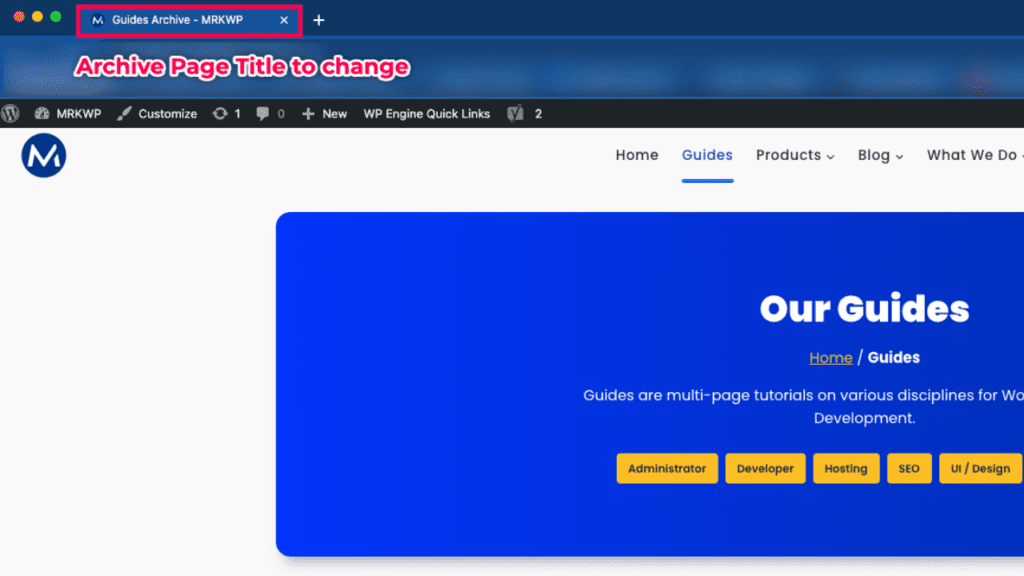
The good news is you can remove this. Are you wondering how to go about it? In today’s blog post, we’ll take you through the steps.
Video Tutorial
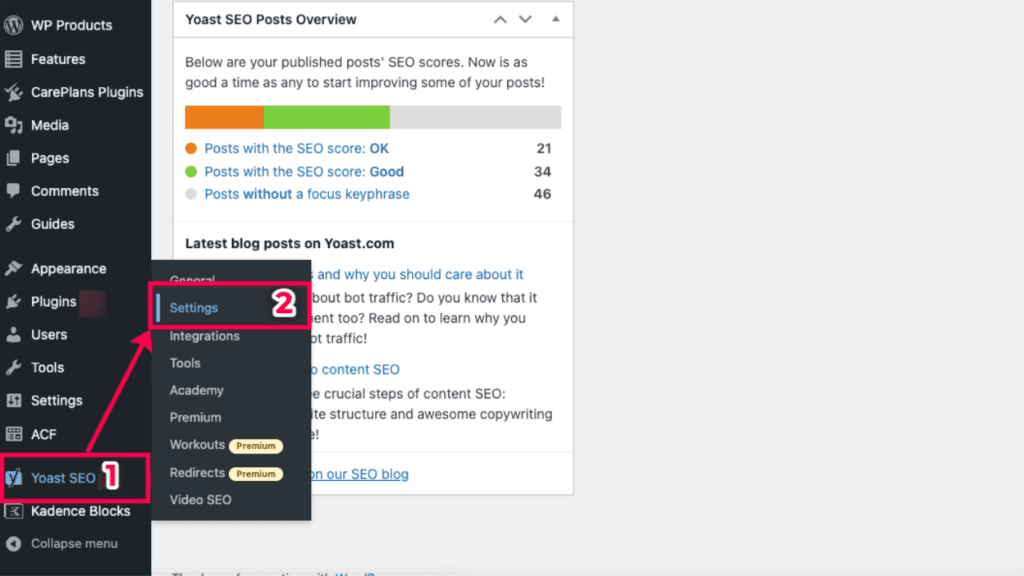
Check out this YouTube video on how you can remove ‘archives’ from HTML titles in WordPress and Yoast SEO.
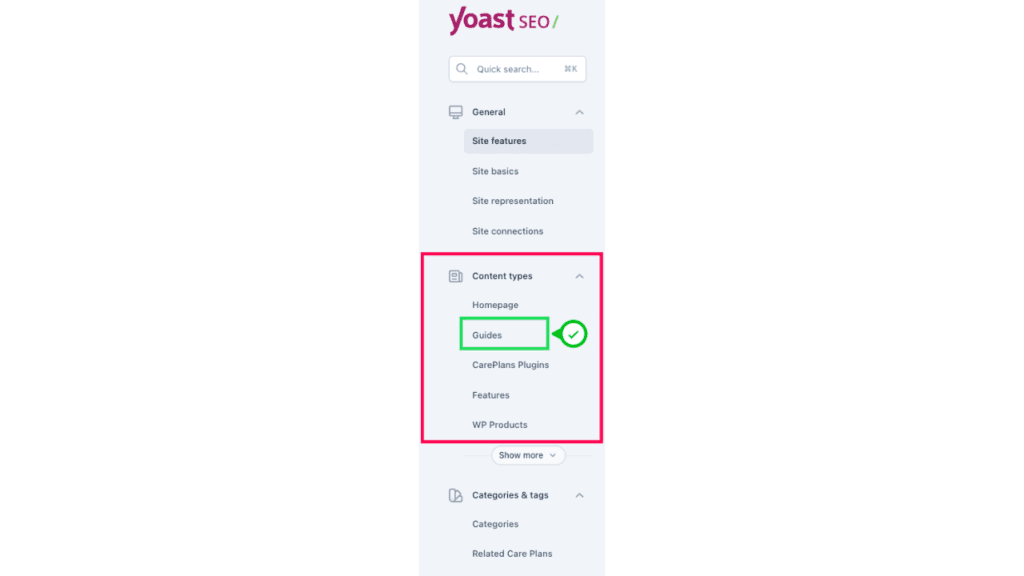
2. Go to ‘Content Types’
You will find a navigation menu for various Yoast plugin settings. Look out for the ‘Content Types’ settings. ‘Content Types’ settings are where you adjust any settings related to your website’s content, including custom post types, posts, and pages. In this tutorial, we will navigate to ‘Guides’ – content types settings since the archive page whose title we will change is related to this content.
Note
‘Guides’ on the MRK WP website is a custom post type we use to organize WordPress guides.
If you want to remove the word ‘Archive’ from the other custom post-type archive pages such as ‘Products,’ ensure to select that post type under the ‘Content Type’ sub-menu.
3. Go to the ‘Archive’ settings section
Scroll to the ‘Archives’ section inside your post type’s content settings. In this tutorial, we will go to the ‘Guides Archives’ section since it is the post type we are working on. We shall adjust the ‘SEO Title’ under the ‘Search appearance’ section.
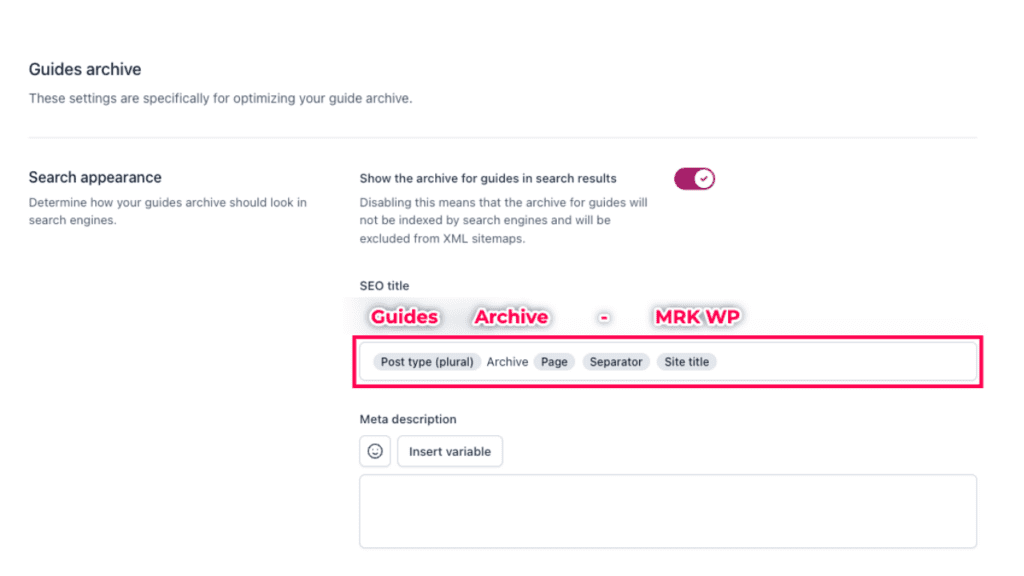
You can see above how the current page title, ‘Guides Archive – MRK WP,’ was set inside the ‘SEO Title’ search appearance settings.
4. Change the Archives Page title.
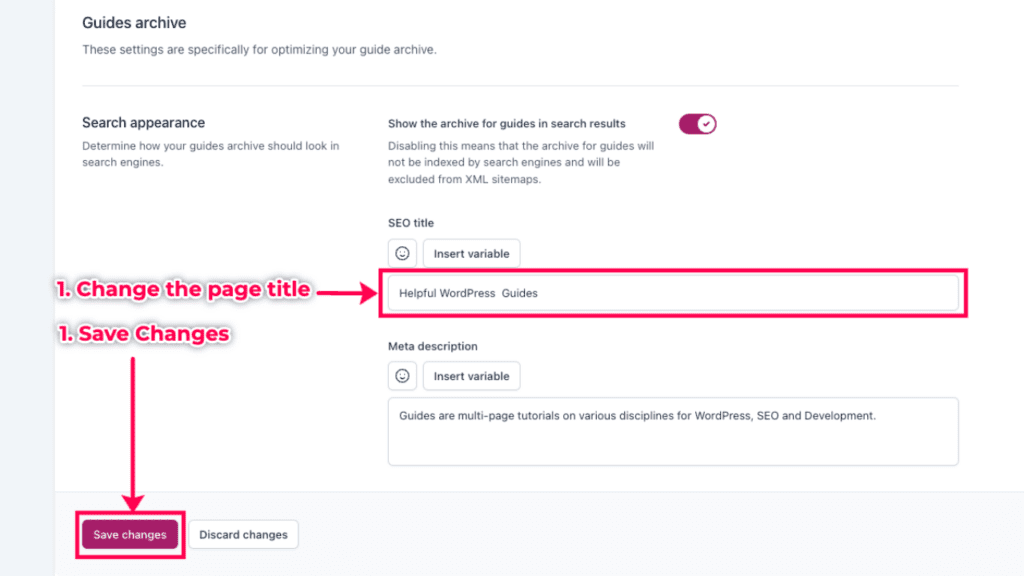
Inside the SEO title text area, set the new page title and save your changes.
5. Clear website cache
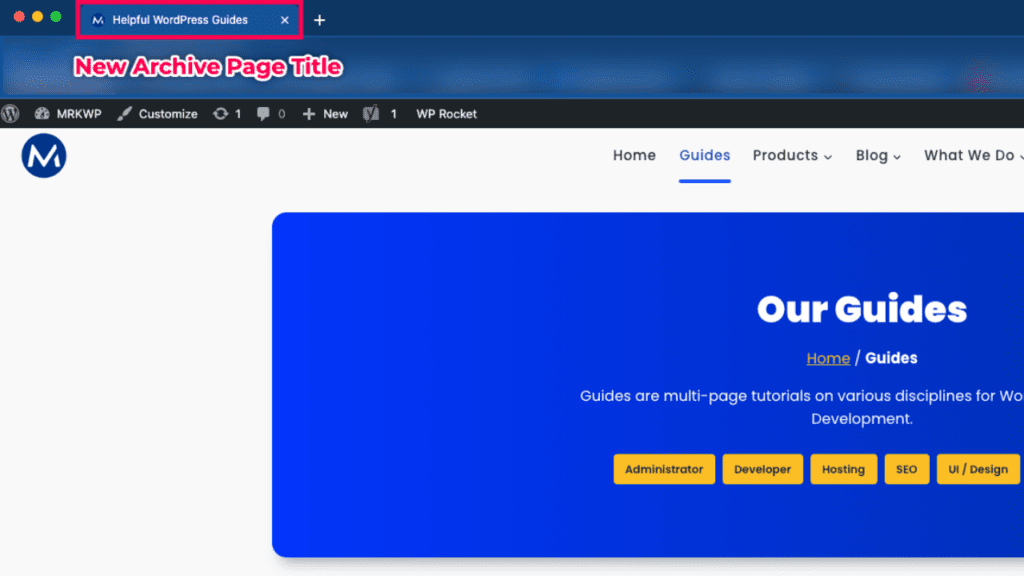
If you have a cache plugin, go inside your settings and clear your website cache. Then, open the archive page in your browser to see the new page title.
Note
Whenever you make changes to your website, you usually have to wait for Google crawlers to discover these changes. Google will then change the search index and update all the site titles afterwards.
Final Thoughts
Removing ‘Archive’ from HTML titles in WordPress and Yoast SEO is a simple change you can make today. I hope this post has helped you understand how to remove ‘archives’ in WordPress. And also to understand what archive pages are. Did you find this tip helpful? Then, follow us on social media or subscribe to our blog to keep you up-to-date with more tips like this.
I am an Entrepreneur, Business Consultant, Speaker, Software Developer, Business Analyst and Founder of multiple IT companies. I have over 20 years experience in software development. I specialise in maximising the value that businesses can get from their IT. This includes SEO, Video Production, Content Management plus all things Websites and WordPress
WordPress.com forums
Get help with WordPress.com, the free blogging platform, and the WordPress.com apps.
Removing Archives from main page
Removing Archives from main page
- Copy link
- Add topic to favorites
I’d like to remove the Archives bar from my main page. It gives a list of links to the months when I’ve made posts for the last 8 years or so.
Is it possible to remove this? I use the Twenty Ten theme.
The blog I need help with is: (visible only to logged in users)
Sure, it’s possible to remove it.
That’s an ‘Archives’ widget that you are using in your sidebar area.
Please head to My Sites > Design > Customize > Widgets > Sidebar > Click on the ‘Archives’ widget and click on ‘Delete’.
Please let us know if you have any questions.
Thanks for your reply.
I’ve followed your suggestions, but it seems that I don’t have an archives widget to delete.
I installing one and then deleting it, but the archives still sidebar remains. Any ideas?!
Did you check in the sidebar widget?
You will see a sidebar tab and the widgets present under it. You can remove it from there as well.
Something like in the screenshot below:
https://prnt.sc/o0cy1e
Please try that and let us know how that goes!
If that doesn’t work for you, you can hide it through custom CSS.
Below is the CSS for it:
li#archives
This should definitely do the job.
But before trying out the CSS, I recommend you check in the wp-admin/widgets section first. 🙂
Отключить все или по отдельности архивы wordpress: даты, автора и меток

Полезным для посетителя, но пагубным для продвижения являются автоматические страницы, создаваемые вордпресс. В статье разберемся как отключить архивы WordPress и почему они не нужны в 99% случаев.
Что такое архивы в WordPress
Архивы – это лента записей, аналогичная выводиться на главной странице, если выбран режим публикации последних записей, но в них идет фильтрация по:
- Датам – разбивка идет по годам, месяцам и дням ( /2020/,/2020/03/, /2020/06/10/ )
- Пользователям – для каждого автора формируется своя лента, которые он публиковал
- Тегам – если не применяете теги на сайте, то во избежание их случайного появления лучше убрать. Если любите проставлять теги к статьям, то оставляем, так посетителю будет удобно смотреть статьи по заданной метке в описании
- Категориям – если продвижение идет по статейному направлению, то ссылки на категории тоже можно отключить и сделать редирект на главную. Но лучше не делать, категории являются точками входа с выдачи, лучше заточить их под запросы и продвигать
Убрать комплексно все архивы и почистить сайт WordPress
Чтобы комплексно удалить архивы дат, пользователей и тегов, используем плагин ClearFy PRO. Переходим в раздел дубли и отмечаем первые три переключателя.

Если введем в поисковую строку, например wpcourses.ru/2019/, то сработает редирект на главную страницу. В итоге поисковик их склеит и мусора в выдаче не будет. Отмечу что клеарфай улучшает ресурс еще по 45 пунктам: чистит, ускоряет, убирает дубли, находит перенаправления, сжимает и много других возможностей.
Скидка 15% на Clearfy
Инструмент и в правду стал не заменимым для применения на всех сайтах. Отзывы клиентов говорят, что позиции блогов улучшились, скорость стала больше, а поисковые роботы индексируют записи лучше.
Плагин smart Archive Page Remove
Аналогов чтобы отключить архивы в WordPress не нашел, поэтому представляю плагин smart Archive Page Remove. Устанавливается любым методом, переходим в раздел Настройки – Archive Page.

Рекомендую выставить такие настройки, либо настроить подходящую конфигурацию. Метки оставляем, напротив Tag Archive Page ползунок перемещаем в неактивное положение и сохраняем изменения. После сохранения, документы, выбранные в настройках, будут отдавать 404 ошибку.
Не стоит брать подход с применением ошибки 404, поисковые системы не любят когда страницы не существует, возможно неисправности или другие проблемы. Лучше склеивать редиректом, а не обрубать с помощью 404 ответа, в SEO это считается косвенной ошибкой.
С помощью кода без плагина
Отключить документы архивов с помощью кода без плагина. Необходимые некоторые знания и навыки обращения с файлами. Берем код представленный ниже и вставляем его в самый конец файла function.php активной темы в WordPress.
Рекомендую FTP соединение, чтобы оградиться от ошибок, из-за внесения нового кода.
function wpcourses_disable_date_archives( $query ) < if( is_date() || is_tag() || is_author() ) < wp_redirect( home_url() ); exit; >> add_action( 'parse_query', 'wpcourses_disable_date_archives' );
Видим на третьей строке есть конфигурация:
( is_date() || is_tag() || is_author() )- is_date – проверка а по дате
- is_tag – по тегам
- is_author – по авторам
Редирект будет осуществляться в архивах трех типов. Если какой–либо контент не нужно отключать, то удаляете его проверку из кода вместе со знаками || .
Если новичок, то советую не отключать способом с правкой function, обратитесь к программистам, либо ставьте Clearfy PRO.
Почему стоит отключать архивы дат и пользователей
В большинстве архивы дат и пользователей не применяются, но WordPress их генерирует и выставляет, как самостоятельные документы. В итоге поисковой робот забирает все в выдачу, их может быть очень много, в зависимости от количества контента.
В 99% посетители не пользуются архивами, основными местами, где происходит потребление информации: главная страница с пагинацией , ссылки перелинковки в статьях и вывод категорий и постов в шапке или сайдбаре.
Получаем захламленную выдачу с ненужными элементами, которые в свою очередь понижают релевантность и вес остального контента на блоге. Рекомендую отключить, в дополнение рекомендую посмотреть видео.

Эффект аналогичный, только нет блокировки тегов и меток, что бывает необходимо.
Как правильнее отключить
Выведу сводную таблицу сравнения трех способов, представленных в тексте.
| Параметр / Метод | Clearfy pro | smart Archive | Код | Yoast |
| Правильность отключения | + | — | + | + |
| Удобство | + | + | — | + |
| Дополнительные инструменты | + | — | — | — |
Выбор очевиден, сделаете правильно и оптимизируете блог WordPress с помощью современных методик.