
SIP (System Integrity Protection) on Mac: How to Enable/Disable It
Summary: What is SIP on Mac? This post is an overview of Mac SIP (System Integrity Protection). From here, you’ll learn what’s SIP used for, if it is safe to disable SIP, and how to enable or disable SIP on Mac
When you need to install and run some third-party applications on Mac, you may be asked to disable SIP (System Integrity Protection) on your Mac. What is SIP on Mac and should you disable it? You can get the answers from this SIP overview.
Table of Contents:
- 1. What is SIP on Mac?
- 2. Is it safe to disable System Integrity Protection on Mac?
- 3. How to disable SIP on Mac?
- 4. How do you disable SIP on an M1 Mac?
- 5. How to disable SIP without fully Recovery Mode?
- 6. How to enable SIP on Mac or M1 Mac?
- 7. FAQ about SIP on Mac
What is SIP on Mac?
SIP stands for System Integrity Protection. It is a security feature built in the Mac operating system that was introduced in OS X EI Capitan (OS X 10.11).
The main task of SIP on Mac is to protect the safety and integrity of the system files and directories, preventing them from modifications or attacks from unauthenticated processes. It brings a high level of security to the entire system.
Is it safe to disable System Integrity Protection on Mac?
In principle, it’s not safe to disable SIP on Mac as it has the functionality to protect your entire macOS against malware or virus attacking.
A little bit earlier, there are many third-party apps that require you to disable SIP. Their purpose is to take control of your Mac and change the way the OS works by default to run their self-designed drivers. These apps are usually designed with unadvanced techniques. And some of them may carry viruses.
Nowadays, there’s less chance to disable SIP to install and run the software. Most of the apps, of course, the professional and well-designed ones, have ways to run on a Mac machine stably and securely without disabling SIP.
However, if you are a developer, it may be necessary for you to make your Mac allow apps downloaded anywhere and turn off SIP temporarily. That’s because you need to test and debug the driver of your software on a Mac. And if you debug your software from Xcode, you may need to disable SIP to install system extensions. Some Mac users also need to disable SIP temporarily to install incompatible apps on Mac.
How to disable SIP on Mac?
By default, SIP is enabled on your Mac. To disable SIP (System Integrity Protection) in macOS, you need to:
- Restart your Mac and simultaneously press down the Command — R keys until seeing a spinning globe or the Apple logo.
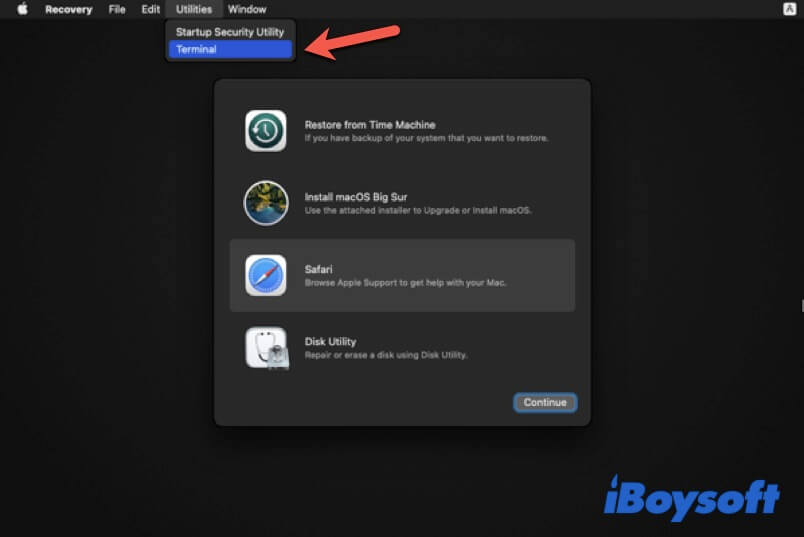
- Select Utilities > Terminal.
- Run the following command in Terminal and press Return. csrutil disable
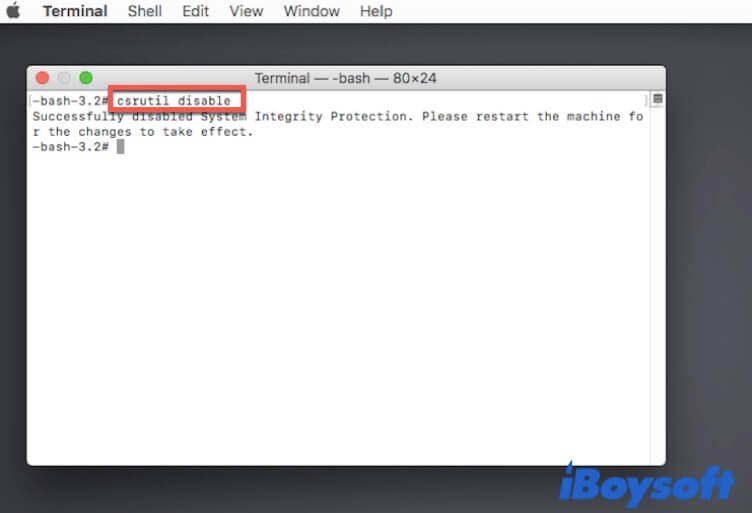
- Exit Terminal and click the Apple menu > Restart to reboot your Mac.
Now, your Mac is SIP unprotected.
How do you disable SIP on an M1 Mac?
Disabling System Integrity Protection on an Apple Silicon M1 Mac is also very easy, follow these steps:
- Shut down your Mac and wait for a few seconds.
- Hold down the power button (Touch ID) until you see the startup options and the gear icon labeled with Options.
- Select Options >and then click Continue.
- Type in your admin password if asked.
- Select Utilities > Terminal.
- Copy and paste the following command in Terminal and hit Return. csrutil disable
- Type Y and press Return to confirm your operation. Here, you need to enter your admin password.
- Close Terminal and restart your M1 Mac.
Your M1 Mac is in the state without SIP protection now.
Note: Disabling SIP makes your Mac vulnerable to malware attacks. For security, after performing temporary tasks, you need to reenable SIP as soon as possible.
How to disable SIP without fully Recovery Mode?
If the Recovery Mode is not working or you just don’t want to disable SIP in Recovery Mode, you can try this way:
- Shut down your Mac.
- Turn on your Mac and hold the Option key.
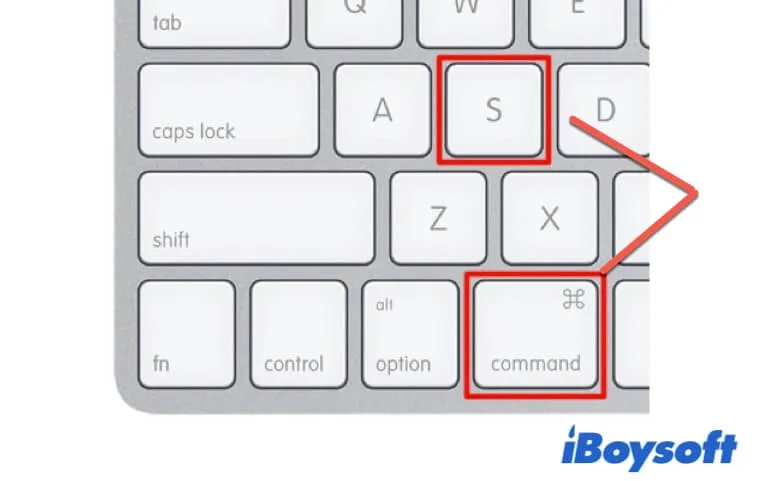
- Choose your Recovery Partition and simultaneously press down Command + S to boot your Mac in Console/Terminal mode.
- Enter csrutil disable hit Return.
- Restart your Mac.
How to enable SIP on Mac or M1 Mac?
To reenable SIP on a Mac or M1 Mac, do the following:
- Boot your Mac or M1 Mac in Recovery Mode.
- Open Utilities > Terminal.
- Run the command below: csrutil enable
- Quit Terminal and reboot your Mac.
FAQ about SIP on Mac
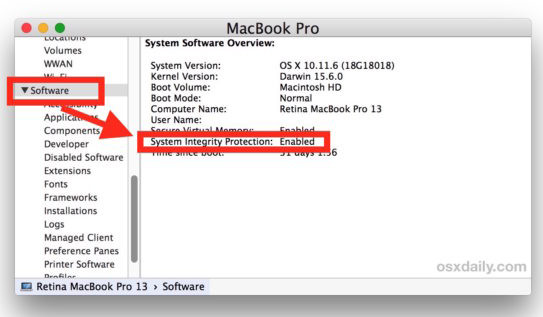
By default, SIP is turned on on Mac. To check if SIP is enabled or not, you can go to the Apple menu > About This Mac > System Report. Select the Software tab. At the right pane, check whether the System Integrity Protection column labeled as Disabled or Enabled.
Your Mac will have a higher risk of encountering malware or viruses attack or control.
Connie Yang is the primary columnist in the computer field at iBoysoft. She is enthusiastic about sharing tech tutorials on data recovery and operating system-related problems resolution. Over the years, Connie has published many computer-related guides and introductory articles.
Jessica Shee is a senior tech editor at iBoysoft. Throughout her 3 years of experience, Jessica has written many informative and instructional articles in data recovery, data security, and disk management to help a lot of readers secure their important documents and take the best advantage of their devices.
Пошаговое руководство по отключению защиты целостности системы на Mac
«Загрузочный диск защищен« Системной защитой целостности »на вашем Mac. Пожалуйста, отключите, если для восстановления данных полностью».
Приведенное выше сообщение всегда появляется, когда вы пытаетесь установить какое-либо стороннее программное обеспечение, такое как программное обеспечение для восстановления данных, на ваш Mac.
Единственное решение, которое можно исправить, это отключить защиту целостности системы.
Подождите, что такое защита целостности системы?
Безопасно ли отключать защиту целостности системы?
Как отключить защиту целостности системы?
Это то, что мы обсудим в следующих словах.
- Часть 1. Что такое защита целостности системы?
- Часть 2. Как проверить статус защиты целостности системы?
- Часть 3. Как изменить (отключить / включить) защиту целостности системы?
- Часть 4. Техническое обещание: восстановление данных AnyMP4 доказало свою безопасность на уровне 100
Часть 1. Что такое защита целостности системы?
Защита целостности системы, сокращенно SIP, — это технология безопасности в Mac OS X El Capitan и более поздних версиях, предназначенная для защиты вашего Mac от вредоносного программного обеспечения.
До появления этой функции у пользователя root не было ограничений на доступ и он мог легко получить доступ к любой системной папке на Mac.
После того, как защита целостности системы была добавлена в Mac OS X El Capitan и позже, пользователь root имел ограничения на доступ, изменение и перезапись любой системной папки или приложения из / System , / USR , / бен , / SBIN и Приложения, которые предварительно установлены с OS X .
В результате, когда пользователь хочет запустить такие приложения вне домашнего каталога, как Восстановление данных, SIP остановит установку или работу программного обеспечения, потому что Восстановление данных работает путем изменения определенных защищенных системных папок или файлов на Mac.
Для использования таких приложений вам необходимо отключить защиту целостности системы на вашем Mac.
Безопасно ли отключать защиту целостности системы на Mac?
Когда вы отключите I System Integrity Protection, вы ‘получите тот же уровень защиты, который был у вас с версиями OS X до El Capitan. SIP — это просто высокий уровень безопасности.
Более того, вы можете снова включить защиту целостности системы после выхода из Data Recovery или других подобных сторонних приложений.
Теперь мы перейдем ко второй части, чтобы проверить, включен ваш SIP или нет.
Часть 2. Как проверить статус защиты целостности системы?
Чтобы узнать, находится ли ваш уровень защиты Mac на высоком уровне, вы можете проверить состояние SIP.
Шаг 1 , На Mac откройте » / Applications / «Папка, а затем перейти к» Утилиты / «.
Шаг 2 , Найти » Информация о системе «и прокрутите вниз, чтобы выбрать» Software «из списка слева.
Шаг 3 , Найдите » Защита целостности системы «на правой стороне, и идти, чтобы увидеть его статус» Включено «Или» Отключена «.
«Включено» означает, что защита целостности системы включена, а «Отключено» означает, что защита целостности системы отключена.
Часть 3. Как изменить (отключить / включить) защиту целостности системы?
Как уже упоминалось выше, для использования Data Recovery необходимо отключить защиту целостности системы на Mac.
Шаг 1 , Загрузите Mac в режим восстановления
Перезагрузите Mac, пока на экране не появится логотип Apple или вращающийся глобус, удерживайте и нажмите « Command «+» R «одновременно. После этого вы увидите, что ваш Mac пытается подключиться к Интернету.
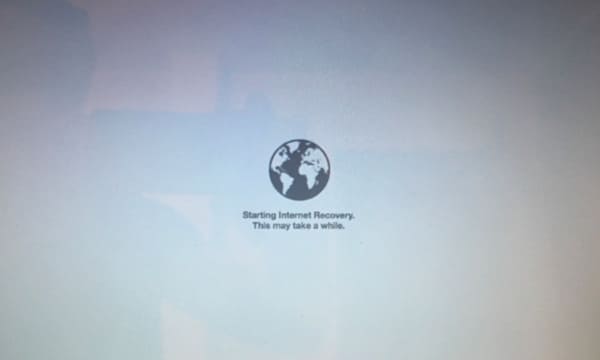
Шаг 2 , Отключить защиту целостности системы
Во всплывающем окне выберите « Дисковая утилита «>» Утилиты «>» Терминал «> Введите командную строку,» csrutil отключить » а также Enter .
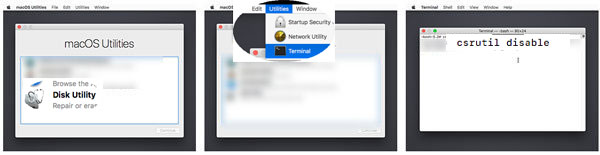
Затем выйдите из Data Recovery, перезагрузите Mac и следуйте второй части, и вы увидите, что статус SIP станет отключенным.
Шаг 3 , Включить Отключить SIP
Чтобы включить защиту целостности системы, вы просто повторяете следующие шаги и просто вводите » включить csrutil «в командной строке и Enter .
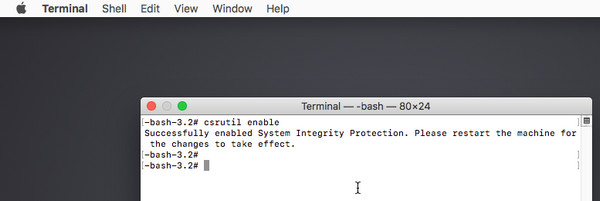
Часть 4. Техническое обещание: восстановление данных AnyMP4 доказало свою безопасность на уровне 100
Хотя для восстановления системных файлов Mac требуется разрешение, AnyMP4 Data Recovery безопасен на 100%.
Он только сканирует ваш Mac удаленные или потерянные файлы без удаления или изменения файлов на вашем Mac. Это программное обеспечение также не хранит информацию с вашего Mac, и вы можете чувствовать себя уверенным в ее использовании.
Тем не менее, вы можете включить SIP после использования этого программного обеспечения для успешного завершения задачи.

Добавьте свои комментарии, чтобы присоединиться к обсуждению здесь
Как отключить sip на mac os
We are committed to providing fast, efficient, and affordable software solutions that set new standards in the software development industry.
FOR COMMERCIAL USE
- R-Studio Technician for Data Recovery Services
- R-Drive Image for Backup and Deployment Services
FOR PERSONAL AND BUSINESS USE
- R-Studio for Windows
- R-Studio for Mac
- R-Studio for Linux
Backup and System Restore:
- R-Drive Image
- R-Drive Image Technician
PC Privacy and Security:
- R-Wipe & Clean
- R-Wipe & Clean for Mac
BUY ONLINE
DISTRIBUTION
- Affiliate Program
- Resellers
- Regional Distributors
- Login
Enabling/disabling System Integrity Protection in macOS


Starting with OS X El Capitan, Apple, Inc introduced System Integrity Protection (SIP), a security feature that protects the essential parts of OS data on the system disk from unwanted alterations. It increases the level of system security, but at the same time severely restricts access to files on the disk, rendering file recovery impossible. It should be disabled to perform file recovery.
1. Restart your Mac computer.
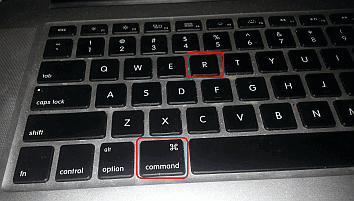
2. Simultaneously press and hold the Cmd and R keys during startup and boot the computer into the macOS Recovery mode.
Mac startup in recovery mode
Click image to enlarge
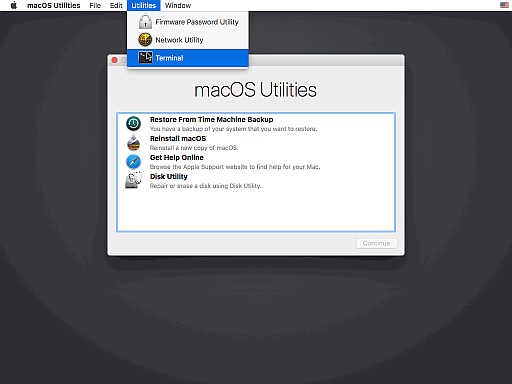
3. Go to the Utilities menu and select Terminal.
macOS Utilities
Click image to enlarge
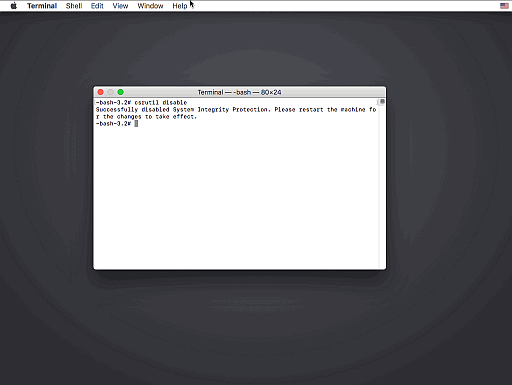
4. In the Terminal, type in «csrutil disable» and press Enter. There should be a message that System Integrity Protection was successfully disabled.
SIP disabled
Click image to enlarge
5. Restart your Mac computer and continue with file recovery.
When the recovery process is over, System Integrity Protection should be re-enabled again.
1. Proceed with above steps 1 to 3.
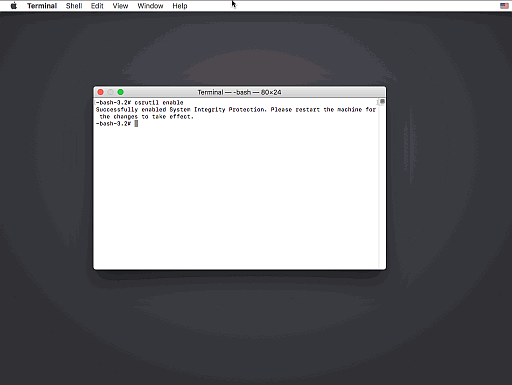
2. In the Terminal, type in «csrutil enable» and press Enter. There should be a message that System Integrity Protection was successfully enabled.
SIP enabled
Click image to enlarge
3. Restart your Mac computer.
Data Recovery Articles
- Data Recovery Guide
- Why R-Studio?
- R-Studio for Forensic and Data Recovery Business
- R-STUDIO Review on TopTenReviews
- File Recovery Specifics for SSD devices
- How to recover data from NVMe devices
- Predicting Success of Common Data Recovery Cases
- Recovery of Overwritten Data
- Emergency File Recovery Using R-Studio Emergency
- RAID Recovery Presentation
- R-Studio: Data recovery from a non-functional computer
- File Recovery from a Computer that Won’t Boot
- Clone Disks Before File Recovery
- HD Video Recovery from SD cards
- File Recovery from an Unbootable Mac Computer
- The best way to recover files from a Mac system disk
- Data Recovery from an Encrypted Linux Disk after a System Crash
- Data Recovery from Apple Disk Images (.DMG files)
- File Recovery after Re-installing Windows
- R-Studio: Data Recovery over Network
- How To Use R-Studio Corporate Package
- Data Recovery from a Re-Formatted NTFS Disk
- Data Recovery from an ReFS disk
- Data Recovery from a Re-Formatted exFAT/FAT Disk
- Data Recovery from an Erased HFS Disk
- Data Recovery from an Erased APFS Disk
- Data Recovery from a Re-Formatted Ext2/3/4FS Disk
- Data Recovery from an XFS Disk
- Data Recovery from a Simple NAS
- How to connect virtual RAID and LVM/LDM volumes to the operating system
- Specifics of File Recovery After a Quick Format
- Data Recovery After Partition Manager Crash
- File Recovery vs. File Repair
- Data Recovery from Virtual Machines
- Emergency Data Recovery over Network
- Data Recovery over the Internet
- Creating a Custom Known File Type for R-Studio
- Finding RAID parameters
- Recovering Partitions on a Damaged Disk
- NAT and Firewall Traversal for Remote Data Recovery
- Data Recovery from an External Disk with a Damaged File System
- File Recovery Basics
- Default Parameters of Software Stripe Sets (RAID 0) in Mac OS X
- Data Recovery from Virtual Hard Disk (VHD/VHDX) Files
- Data Recovery from Various File Container Formats and Encrypted Disks
- Automatic RAID Parameter Detection
- IntelligentScan Data Recovery Technology
- Multi-pass imaging in R-Studio
- Runtime Imaging in R-Studio
- Linear Imaging vs Runtime Imaging vs Multi-Pass Imaging
- USB Stabilizer Tech for unstable USB devices
- Joint work of R-Studio and PC-3000 UDMA hardware
- Joint work of R-Studio and HDDSuperClone
- R-Studio T80+ — A Professional Data Recovery and Forensic Solution for Small Business and Individuals Just for 1 USD/day
- Backup Articles
- Backup with Confidence
- R-Drive Image as a free powerful partition manager
- Computer Recovery and System Restore
- Disk Cloning and Mass System Deployment
- Accessing Individual Files or Folders on a Backed Up Disk Image
- Creating a Data Consistent, Space Efficient Data Backup Plan for a Small Business Server
- How to Move the Already Installed Windows from an Old HDD to a New SSD Device and Create a Hybrid Data Storage System
- How to Move an Installed Windows to a Larger Disk
- How to Move a BitLocker-Encrypted System Disk to a New Storage Device
- How to backup and restore disks on Linux and Mac computers using R-Drive Image
- Undelete Articles
- Get Deleted Files Back
- Free Recovery from SD and Memory cards
- R-Undelete: Video Recovery
- Recovery from an External Device with a Damaged File System
- File recovery from a non-functional computer
- Free File Recovery from an Android Phone Memory Card
- Free Photo and Video File Recovery Tutorial
- Easy file recovery in three steps
PC Privacy Articles
- Computer Privacy and Identity Theft Protection
- Disk Cleanup: How to free up disk space
- Clear Browser Cache, History, and Other Data
- Wipe lists in R-Wipe&Clean
- SSD Storage Devices and Computer Privacy
Как отключить функции защиты целостности системы на Mac

Защита целостности системы (SIP) – это функция безопасности macOS, призванная затруднить доступ вредоносных программ к важным системным файлам и защитить их от нежелательных изменений. В самом начале использования SIP некоторые разработчики столкнулись с проблемами, когда система не позволяла основным функциям их приложений работать должным образом, поскольку сами приложения вносили изменения в работу операционной системы, редактируя системные файлы, которые SIP защищала.
В связи с этим многие разработчики (и некоторые пользователи) отключали SIP, чтобы их приложения работали правильно. Теперь, спустя несколько лет, необходимость в этом отпала, поскольку большинство приложений нашли способы делать то, что им нужно, без необходимости отключения SIP, что позволяет вашему Mac оставаться более защищенным.
Но если вам обязательно нужно отключить System Integrity Protection, есть способ сделать это. Для этого вам нужно воспользоваться режимом восстановления и терминалом.
Как отключить защиту целостности системы в macOS
- Нажмите на символ Apple в строке меню.
- Выберите пункт «Перезагрузить. ».
- Удерживайте нажатой клавиши Command+R, чтобы перезагрузиться в режим восстановления.
- Выберите пункт «Утилиты», далее – «Терминал».
- Введите csrutil disable .
- Нажмите Enter.
- Снова перезагрузить компьютер.
Если позже вы захотите снова начать использовать SIP (а вы действительно захотите), выполните эти шаги ещё раз, только на этот раз введите csrutil enable в «Терминале».
Как проверить, включён или отключён SIP
Если вы хотите проверить статус System Integrity Protection, достаточно зайти в «Терминал» и выполнить короткую команду. На этот раз вам даже не нужно находиться в режиме восстановления.
- Откройте «Терминал» (он находится в папке «Другие»).
- Введите csrutil status и нажмите Enter.
Теперь вы увидите сообщение System Integrety Protection status: enabled или System Integrety Protection status: disabled.
Зачем может быть нужно?
Несмотря на то, что большинство приложений уже вполне обходится без отключения SIP, всё же есть исключения. Например, альтернативный файловый менеджер TotalFinder, о котором мы писали в нашем телеграм-канале.
- В России перестала проходить оплата со счёта оператора. Пополнить Apple ID и продлить подписки больше нельзя
- Siemens объявила об уходе из России
- Правозащитные организации в открытом письме просят Zoom отказаться от ИИ для отслеживания эмоций